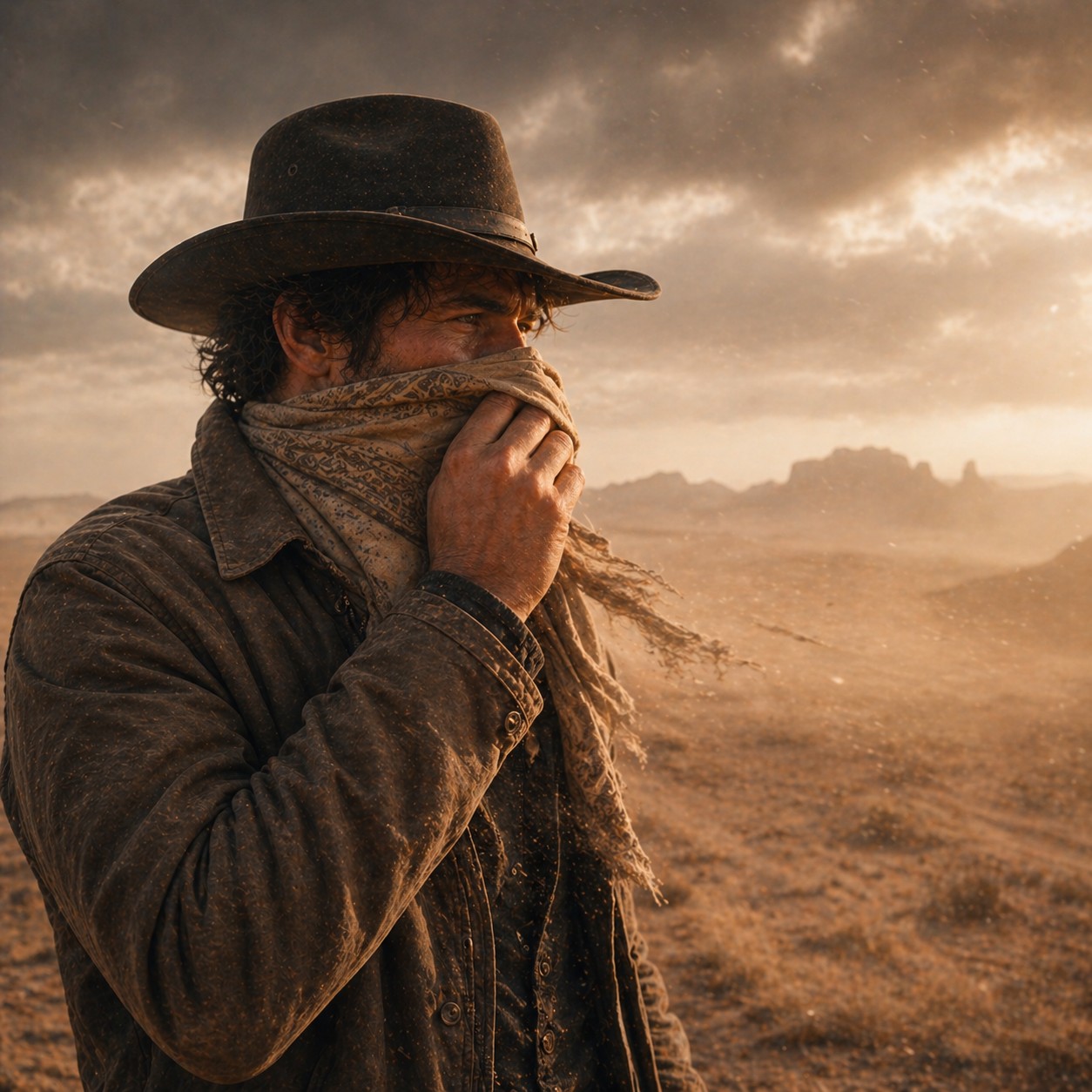
AI Watermark Remover for Clean, Usable Images
Erase visible watermarks and rebuild the missing image in one step.
BudgetPixel's AI watermark remover helps you clean up images by removing visible text, logos, and stamped overlays. Instead of just blurring the mark, it fills the covered area so the final image looks natural and consistent.


Watch the Transformation
See ai watermark remover in motion — generated end-to-end by our AI.
See It In Action
Real outputs from ai watermark remover.
BEFOREAFTER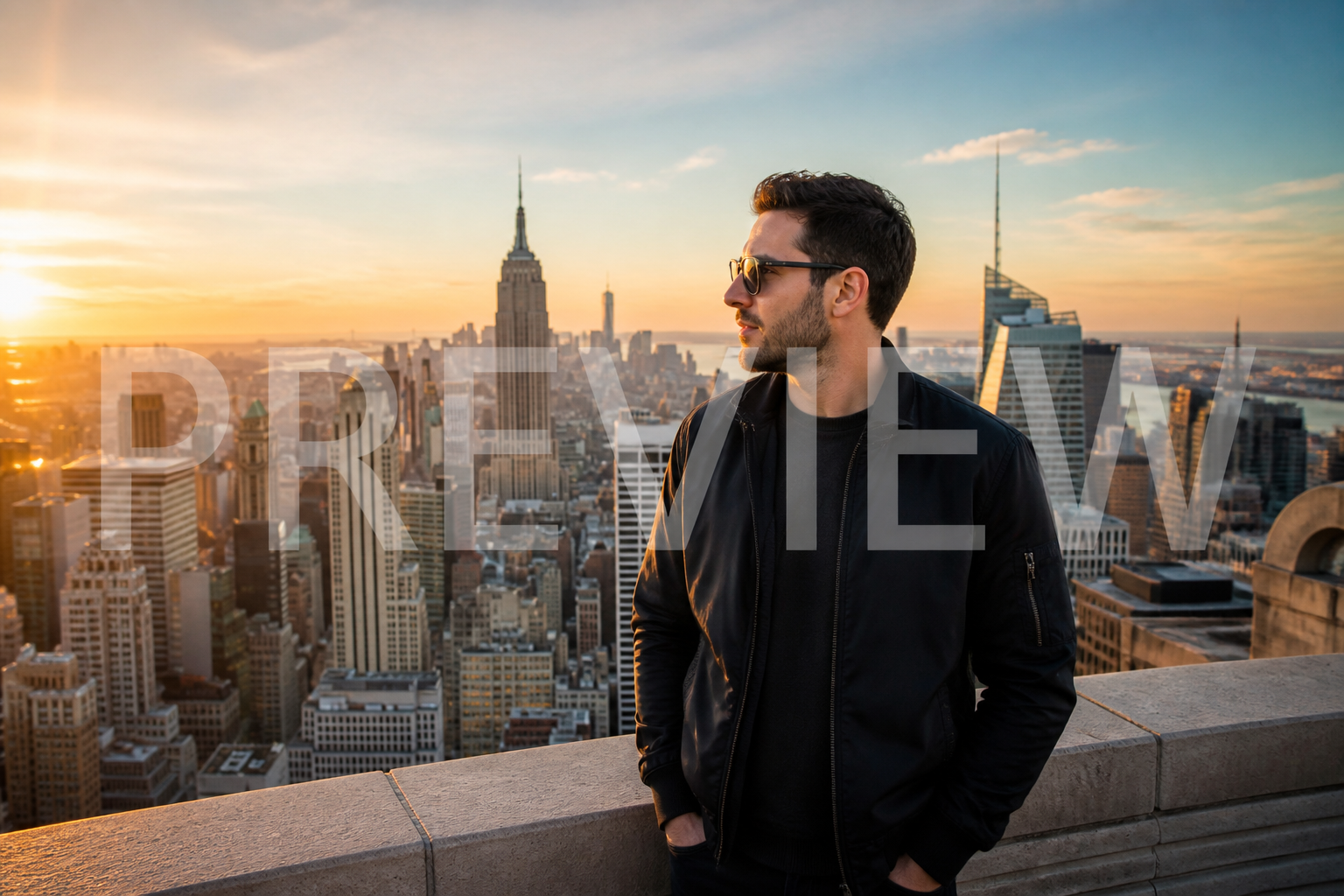 BEFORE
 AFTER
AFTER BEFORE
 AFTER
AFTER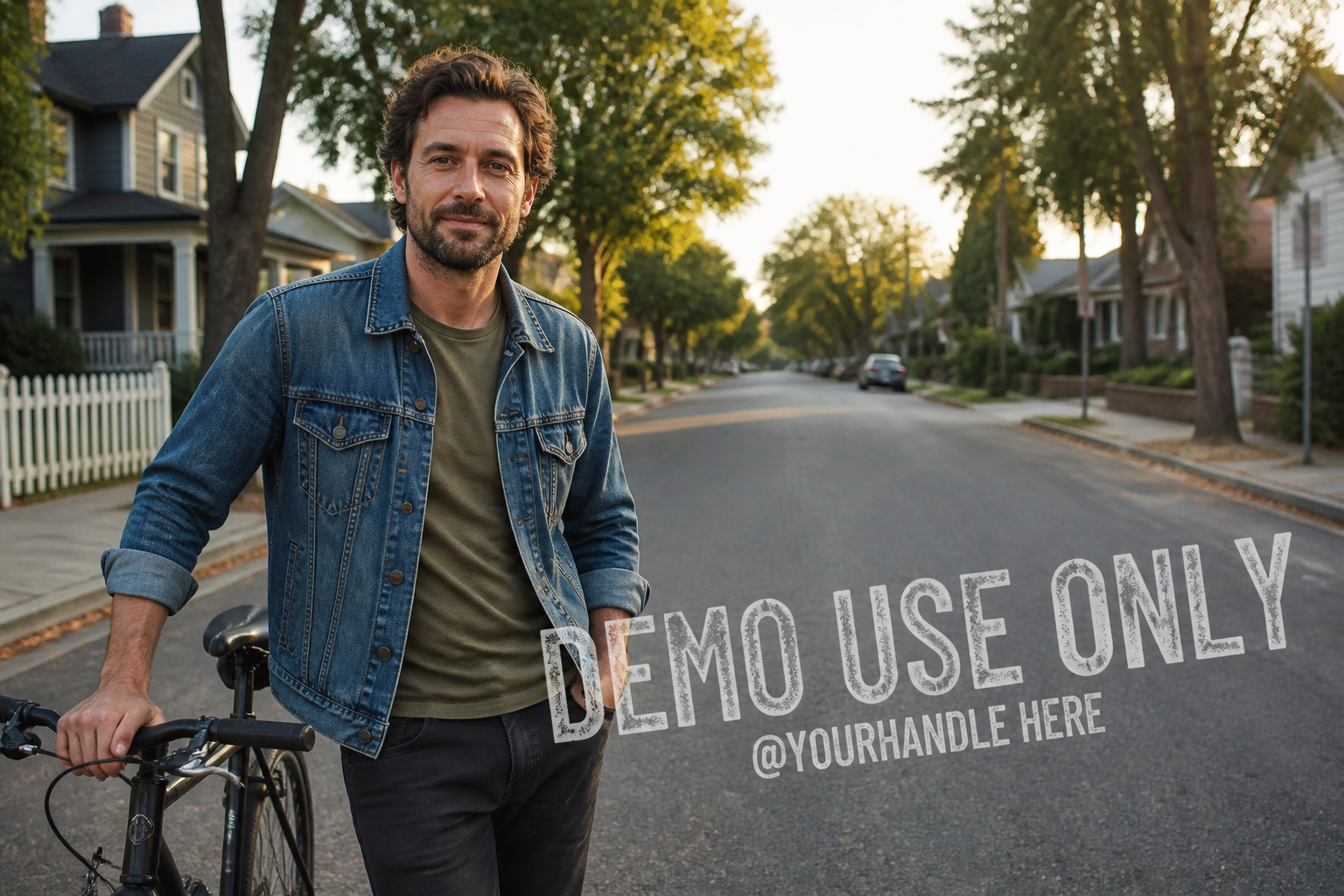 BEFORE
 AFTERBEFOREAFTERBEFOREAFTERBEFOREAFTERBEFOREAFTER
 BEFORE
 AFTER
AFTER BEFORE
 AFTER
AFTER BEFORE
 AFTERBEFOREAFTERBEFOREAFTERBEFOREAFTER
Key Features

Rebuilds covered image areas
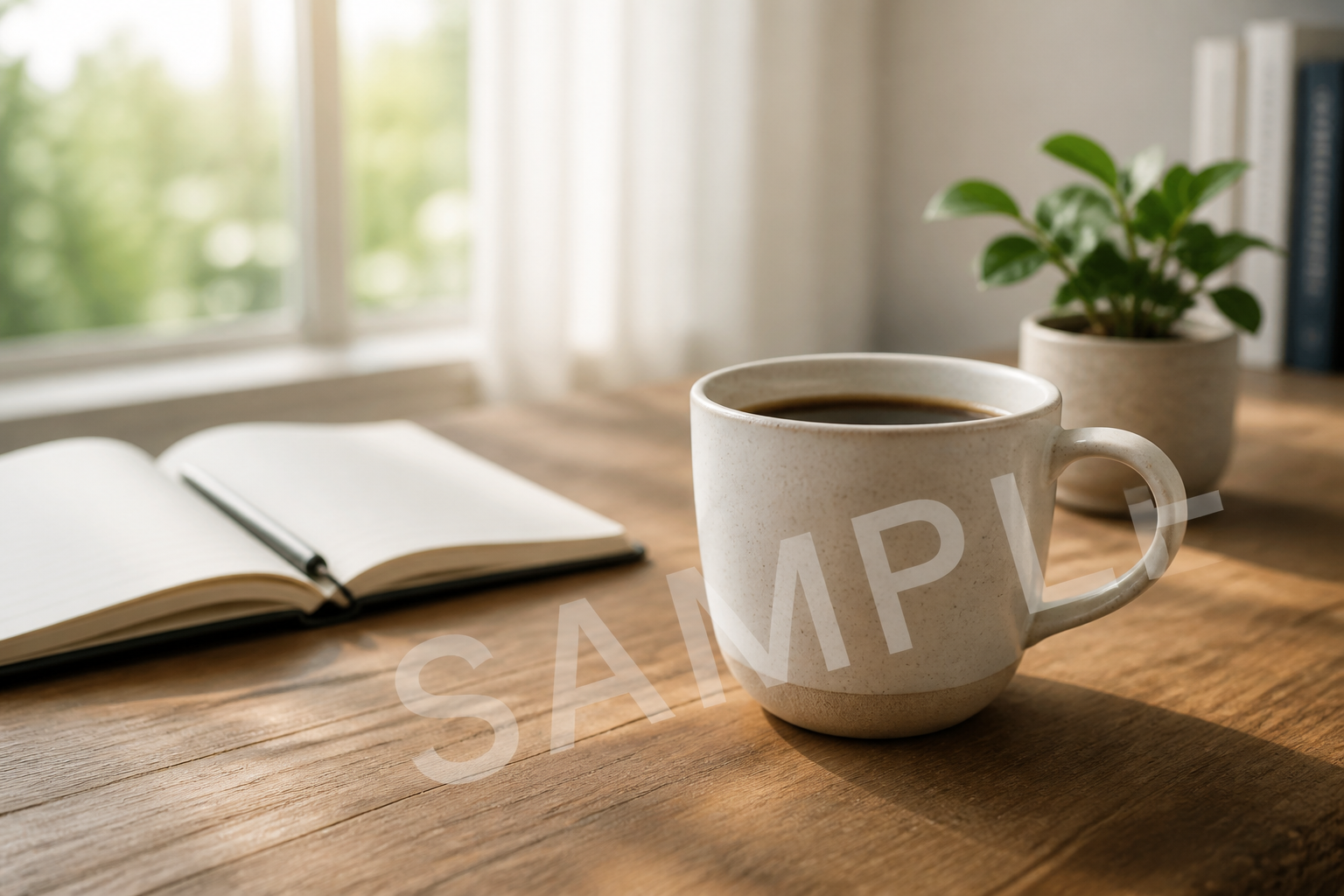
The tool removes the visible watermark and fills in the missing pixels underneath. That matters because a clean result needs more than erasing text outlines or fading a logo. Our AI tries to continue textures, edges, and patterns so the edited area matches the rest of the image. It saves time compared with manual cloning and patching in a traditional editor.


Handles text and logo overlays
Watermarks appear in different forms, from faint stock diagonals to bold logos and stamped text. This feature is built to remove the overlay and recover the scene beneath it in a single edit. You do not need separate tools for different watermark shapes. That makes cleanup faster when you are working across many image types.


Keeps the scene consistent
Removing a watermark should not change the subject, crop, or mood of the photo. This feature focuses the edit on the covered area so the rest of the image stays stable. That is useful when you want a usable version of an existing shot instead of a newly reimagined one. It avoids the drift that often happens with broad generative edits.
Works across many image types
You can use the same workflow for portraits, interiors, product photos, and social content. The edit prompt stays simple while the AI adapts to different textures like skin, fabric, glass, wood, and sky. That flexibility is hard to match with manual retouching, where every image needs a slightly different process. It is a practical way to clean mixed galleries quickly.
How It Works

Upload your image
Start with a photo that has a visible watermark, logo, or text overlay. Clear source images usually give the cleanest rebuilds, especially when the covered area is easy to see.
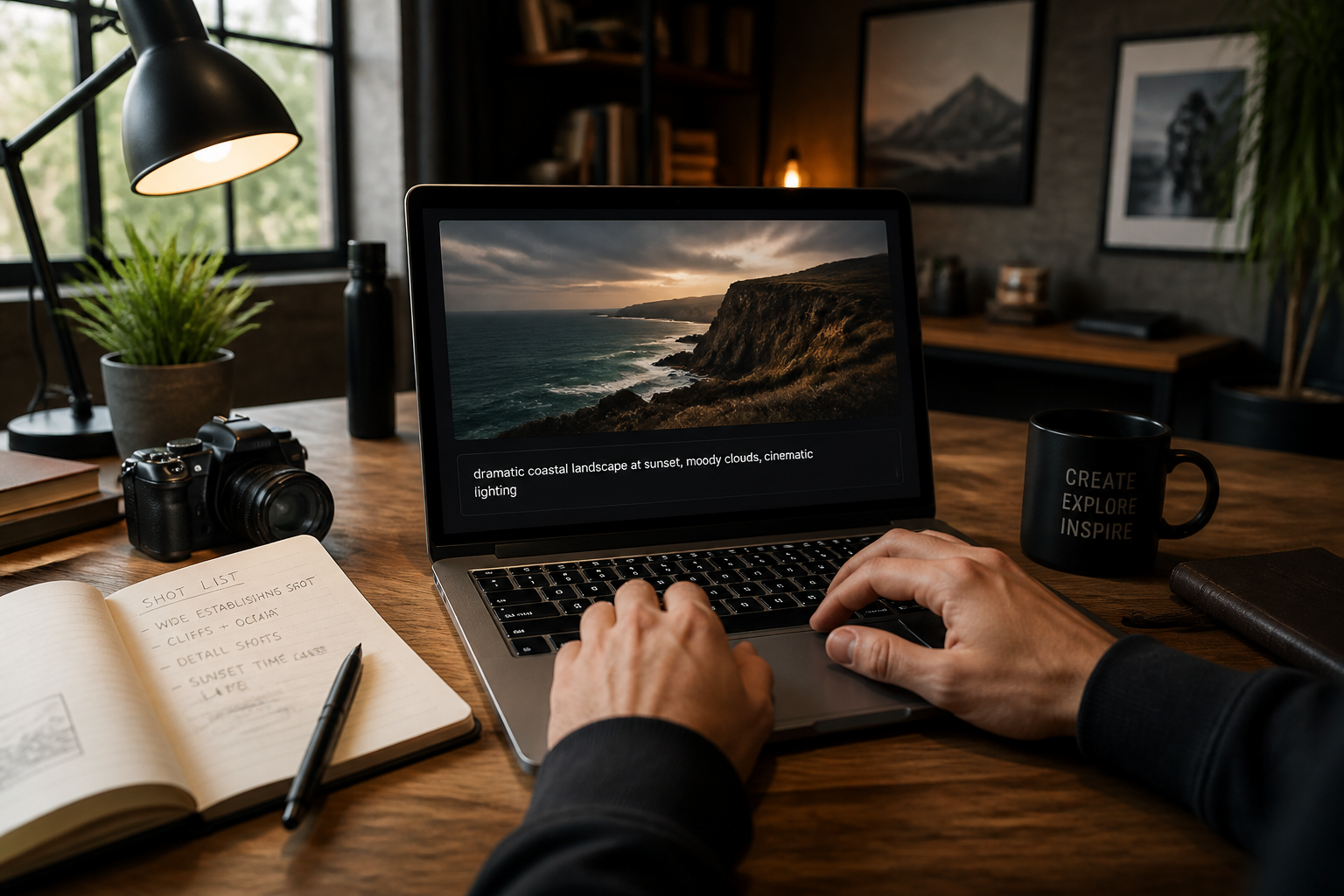
Describe what to remove
Tell the AI what is covering the image, such as a diagonal watermark, a corner logo, or stamped text. Keep the instruction direct so the edit focuses on removing the overlay and preserving the rest.
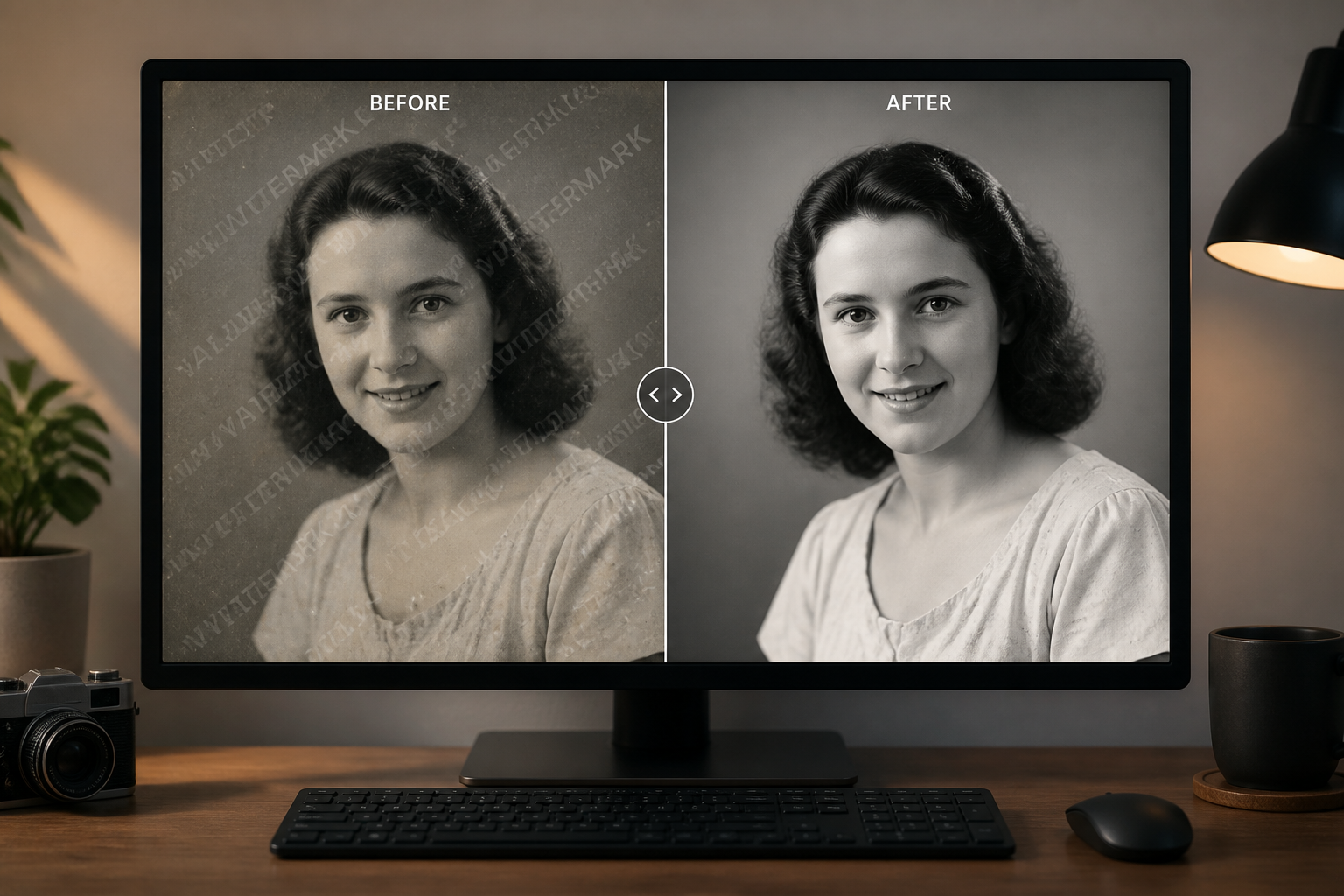
Review the clean result
Compare the edited image with the original and check the rebuilt area closely. If needed, refine the prompt and run another pass for a cleaner match.
Perfect For
Discover how creators and professionals use ai watermark remover
Clean up listing photos
Remove visible overlays from interior, rental, and property images so the photos are easier to reuse in presentations and marketing drafts.
Fix social media visuals
Erase distracting text or logos from images you want to repurpose for posts, thumbnails, and campaign mockups.
Restore product shots
Clear watermarks from catalog-style images while keeping edges, reflections, and background surfaces consistent.
Prepare client proofs
Test cleaner versions of preview images before moving into a full manual retouching workflow.
Built For
Marketers
Useful for cleaning visuals quickly when you need polished images for ads, decks, landing pages, or social drafts.
Creators and sellers
Helps influencers, resellers, and small shops tidy photos without learning a full retouching workflow.
Design and photo teams
A fast first pass for removing overlays before deeper editing, layout work, or handoff to clients.
Why use BudgetPixel for watermark cleanup
A quick look at how we compare on the things that matter for this niche.
| Feature | BudgetPixel | Generic AI editors | Manual editing apps |
|---|---|---|---|
| Focused watermark removal | ✓ | ✓ | — |
| Rebuilds covered textures | ✓ | ✓ | Manual |
| Keeps overall composition stable | ✓ | — | ✓ |
| Fast for non-experts | ✓ | ✓ | — |
| Useful first-pass cleanup | ✓ | ✓ | ✓ |
Frequently Asked Questions
Can this remove both text and logo watermarks?
Will the rest of the image stay the same?
Does it work on portraits and product photos?
Is this better than manually cloning the area?
What kinds of images work best?
Create together.
Share your creations, discover trending AI art, and grow with fellow creators.