AI Replace Object
Swap one item for another without rebuilding the whole photo.
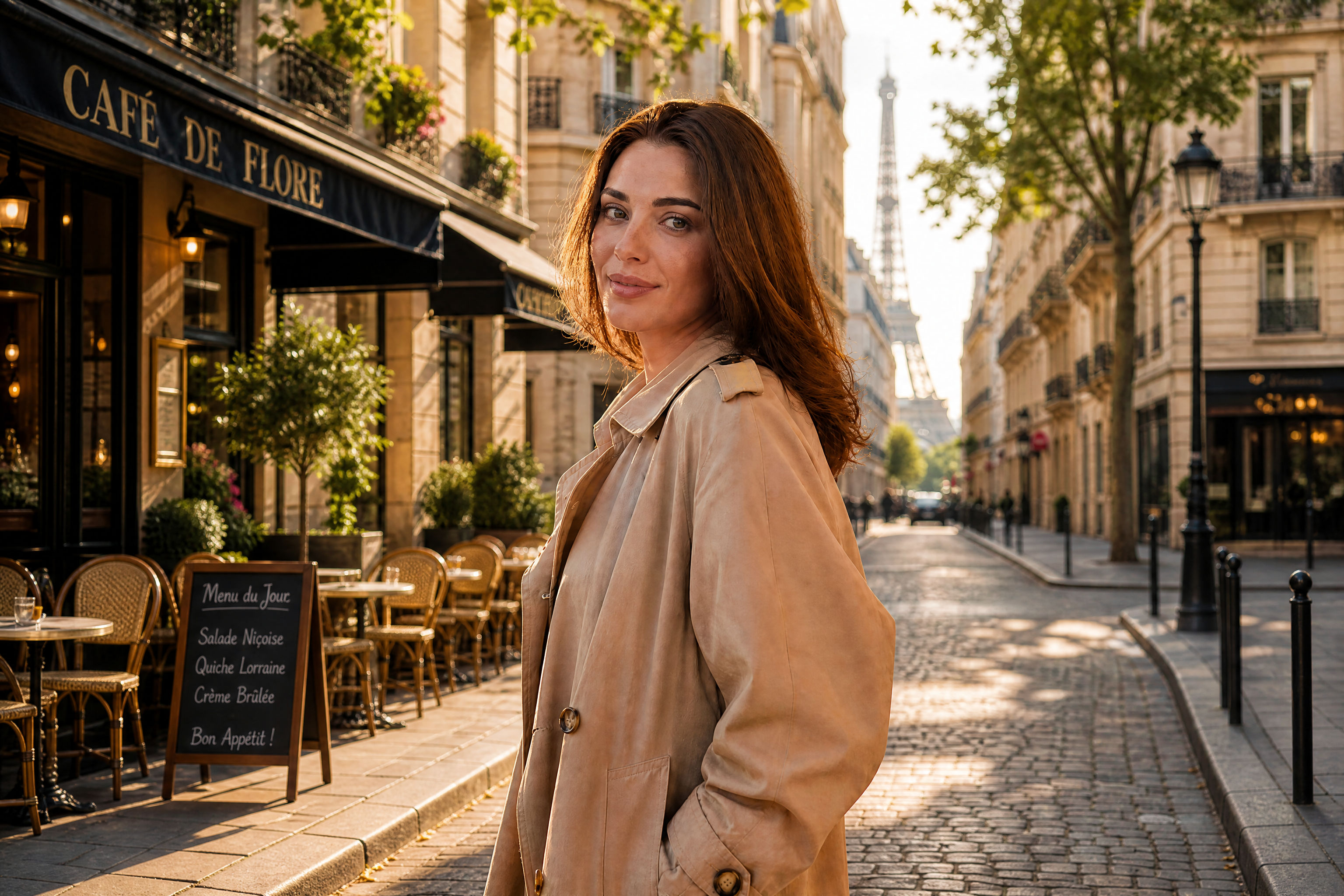
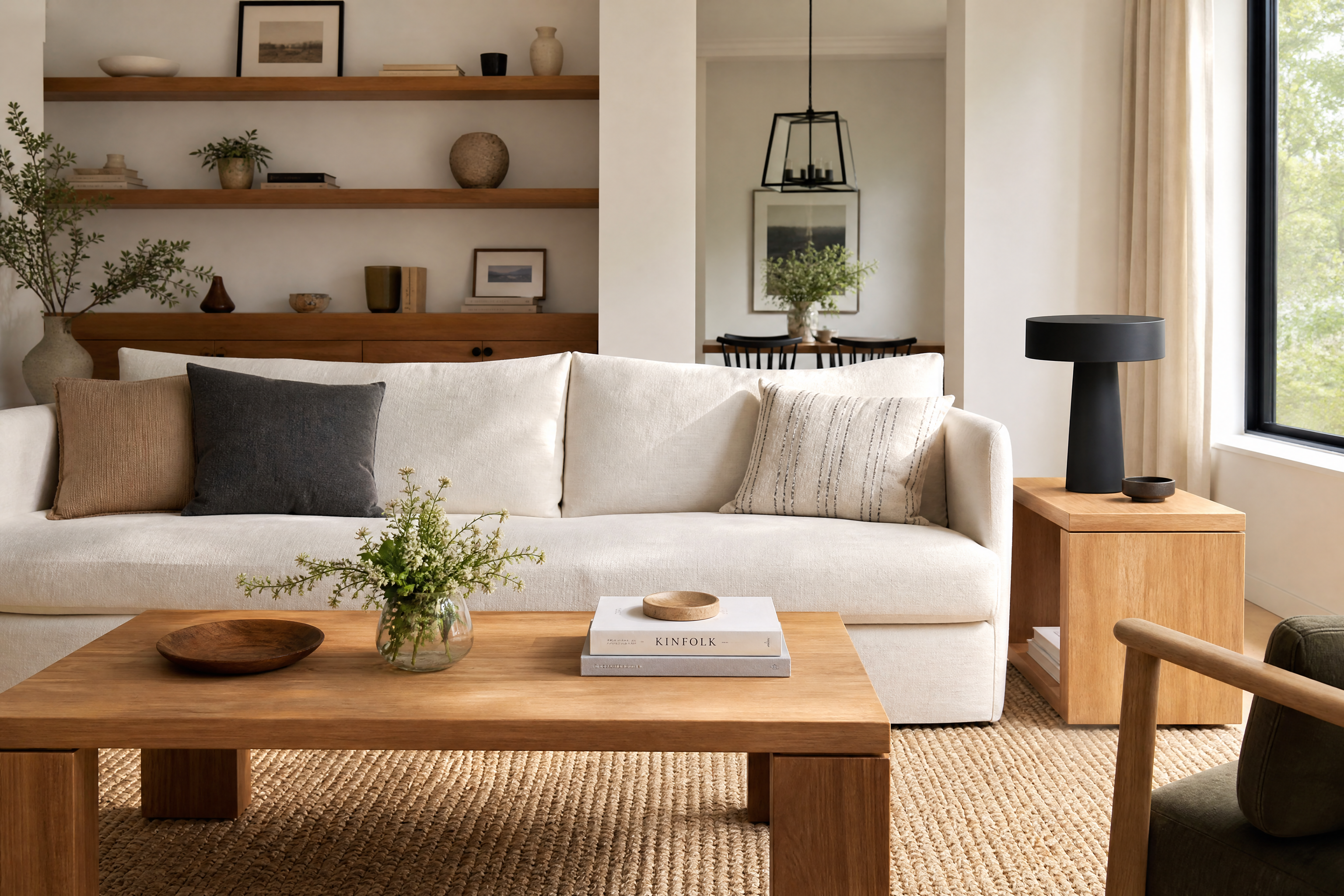
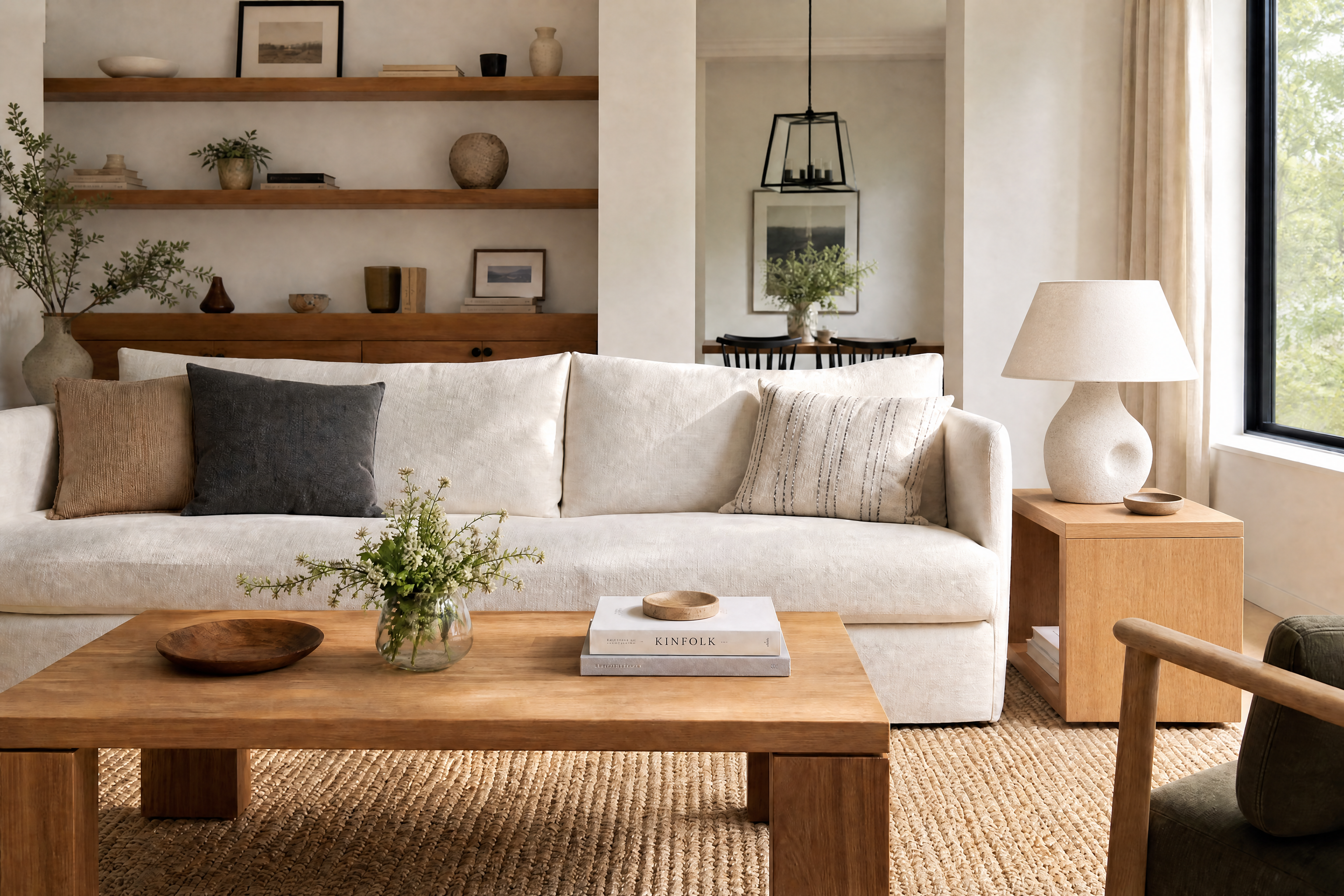
AI Replace Object lets you select an item in a photo and replace it with something new while keeping the rest of the scene consistent. Use it to update products, props, furniture, decor, or everyday objects in a few clicks. The result stays grounded in the original lighting, angle, and composition.
Watch the Transformation
See ai replace object in motion — generated end-to-end by our AI.
See It In Action
Real outputs from ai replace object.
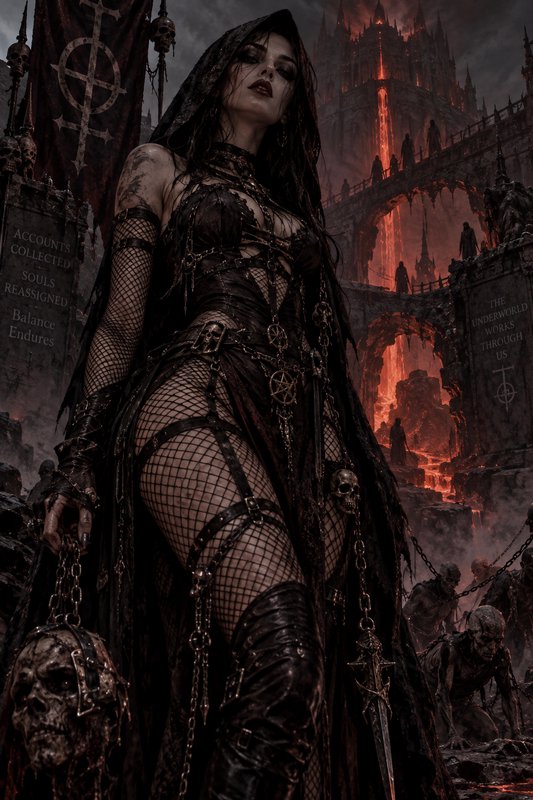
BEFOREAFTER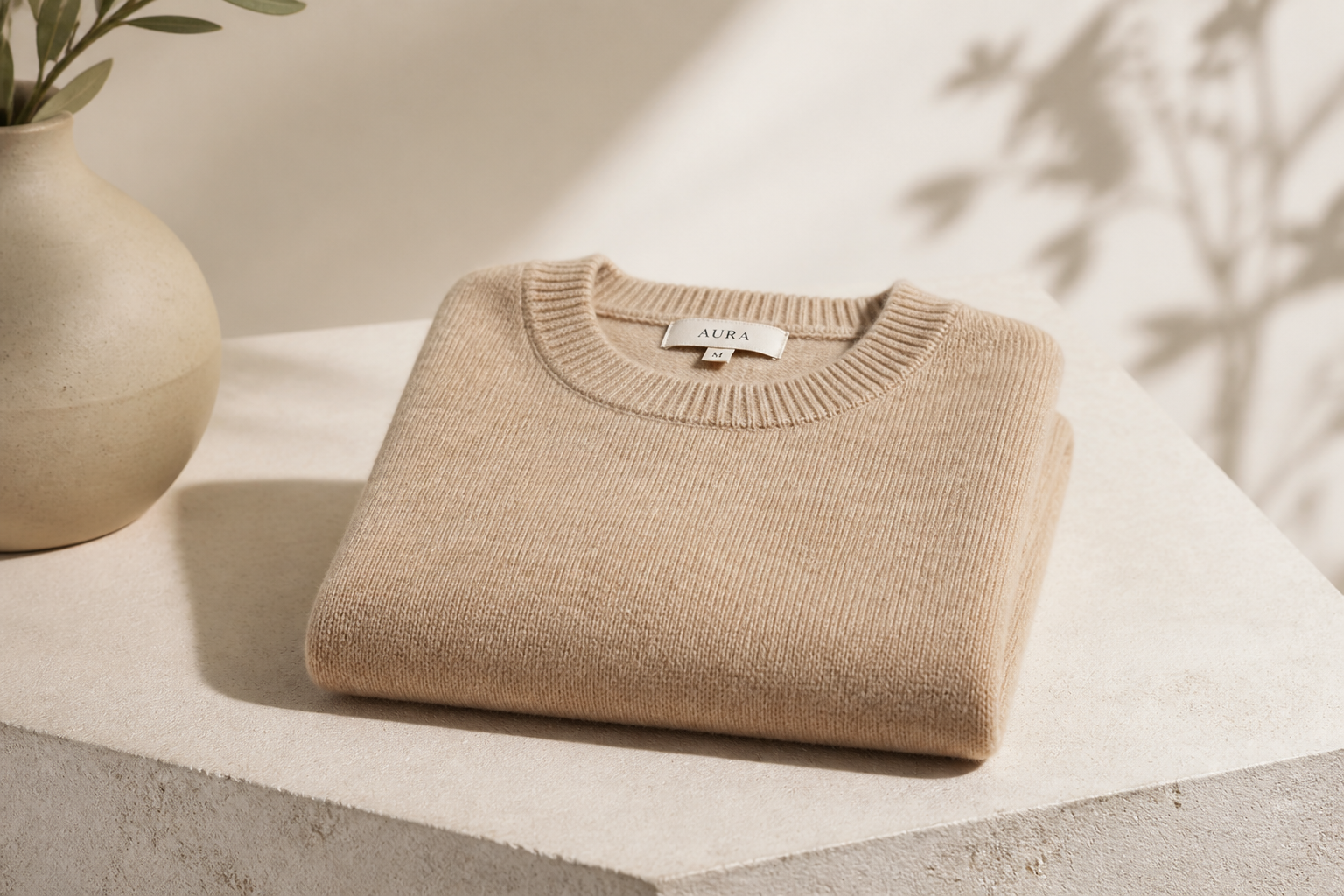 BEFORE
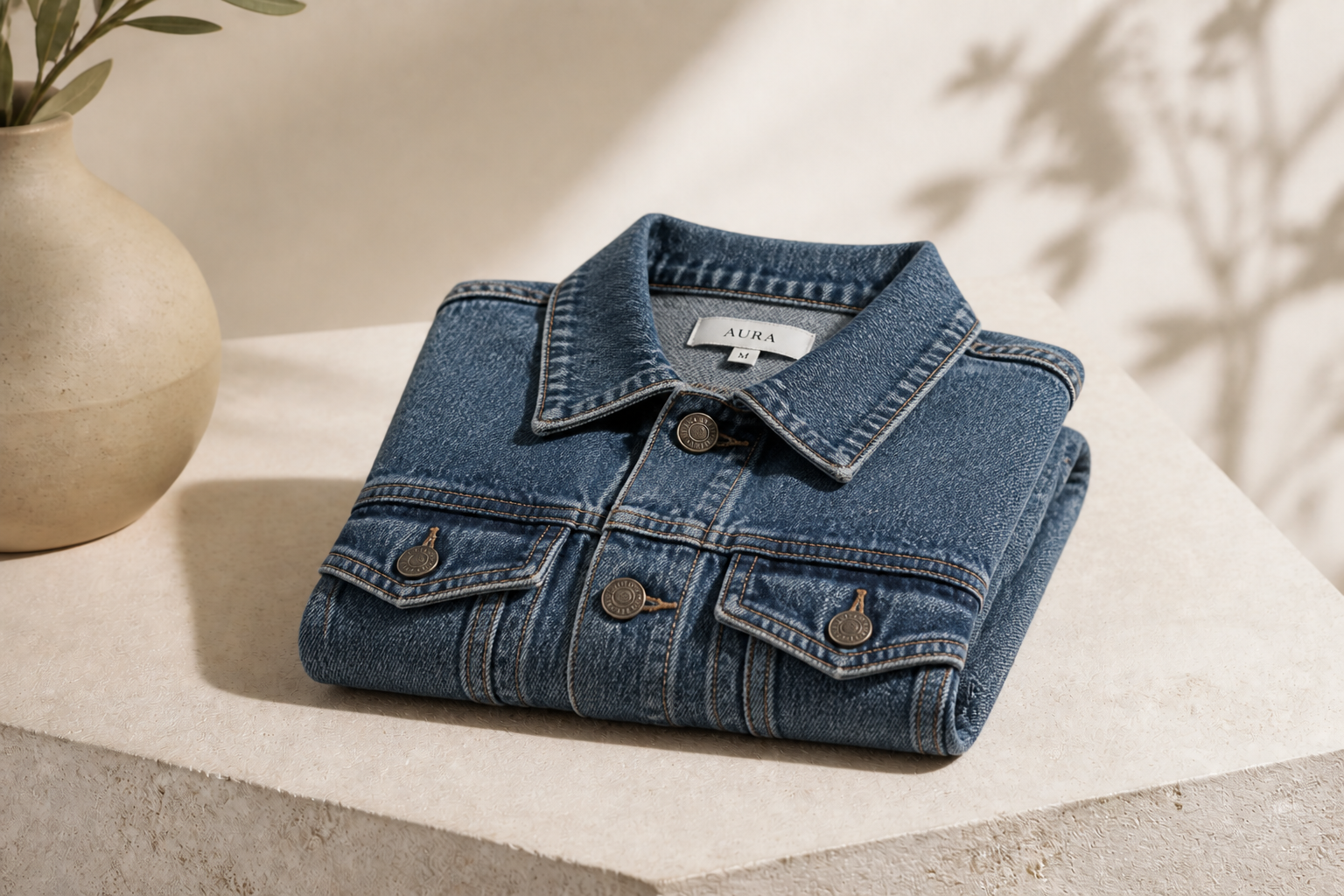 AFTER
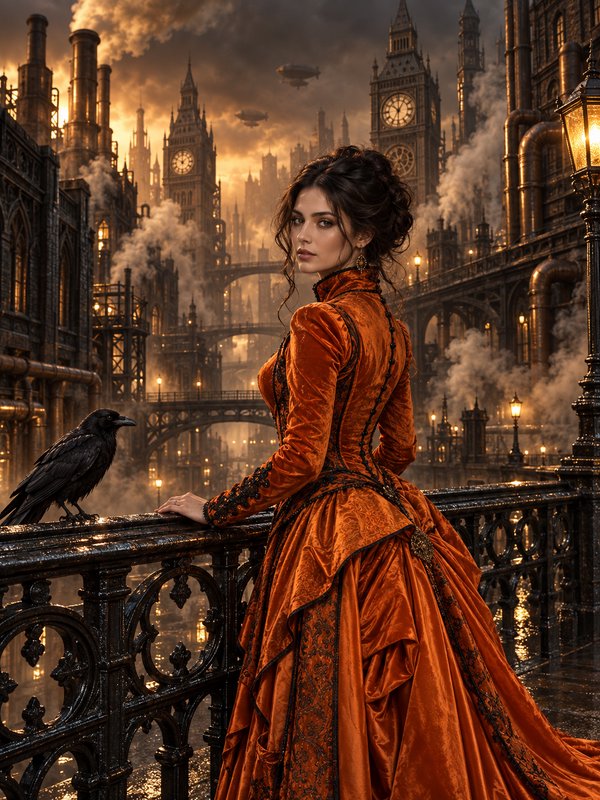
AFTER BEFORE
 AFTER
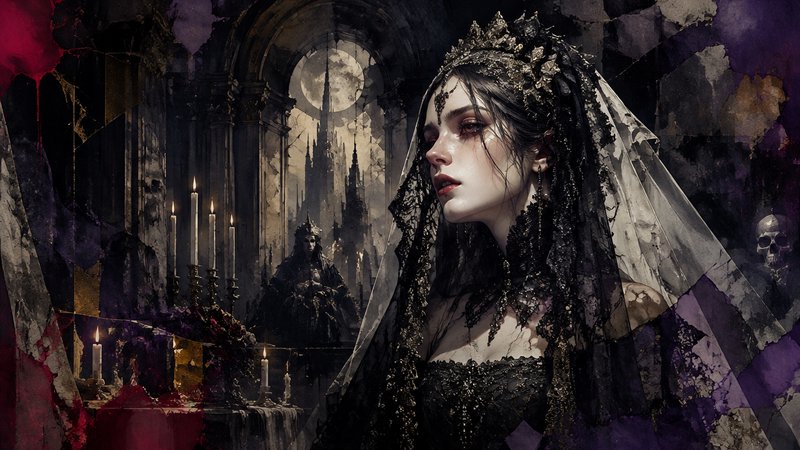
AFTER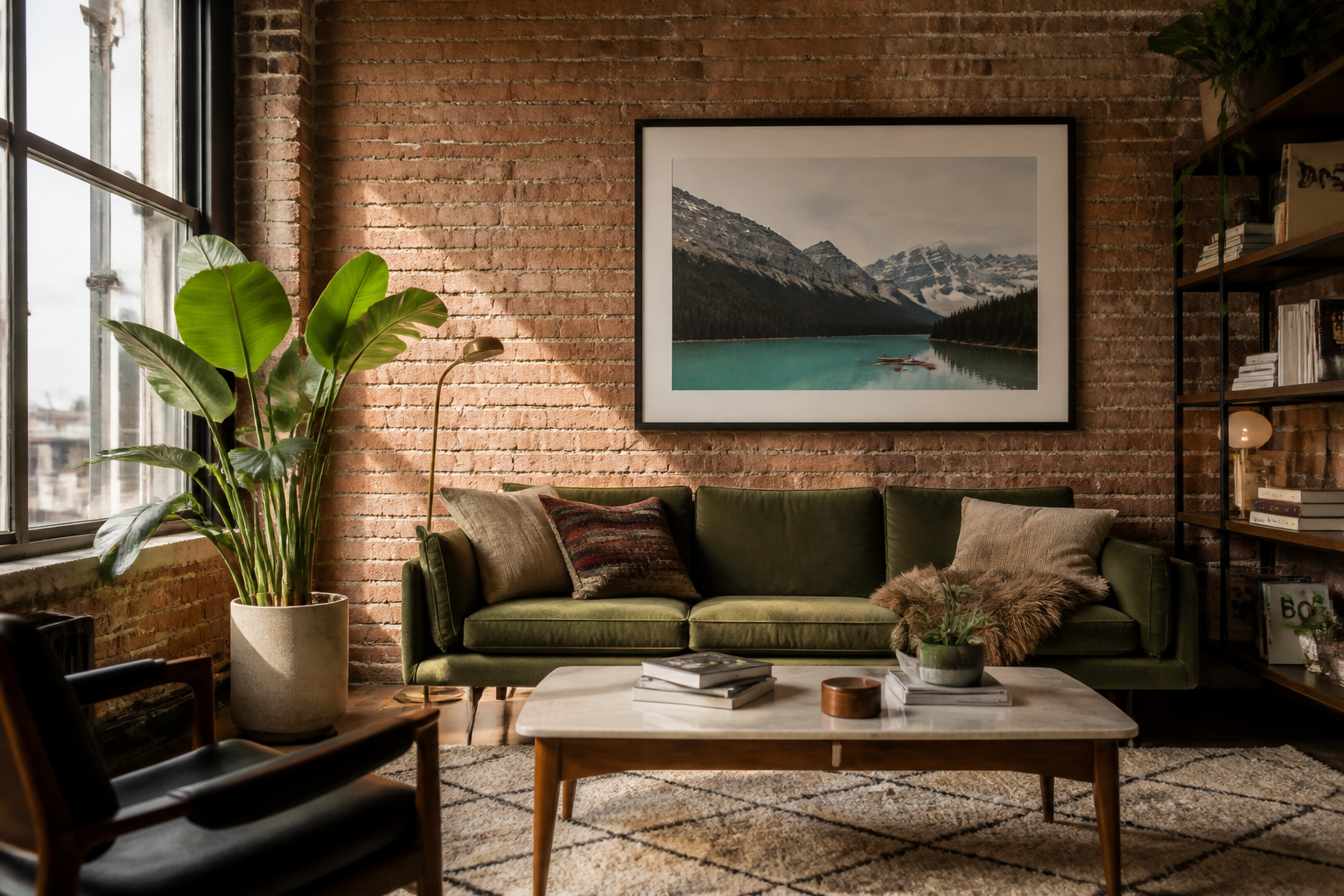 BEFORE
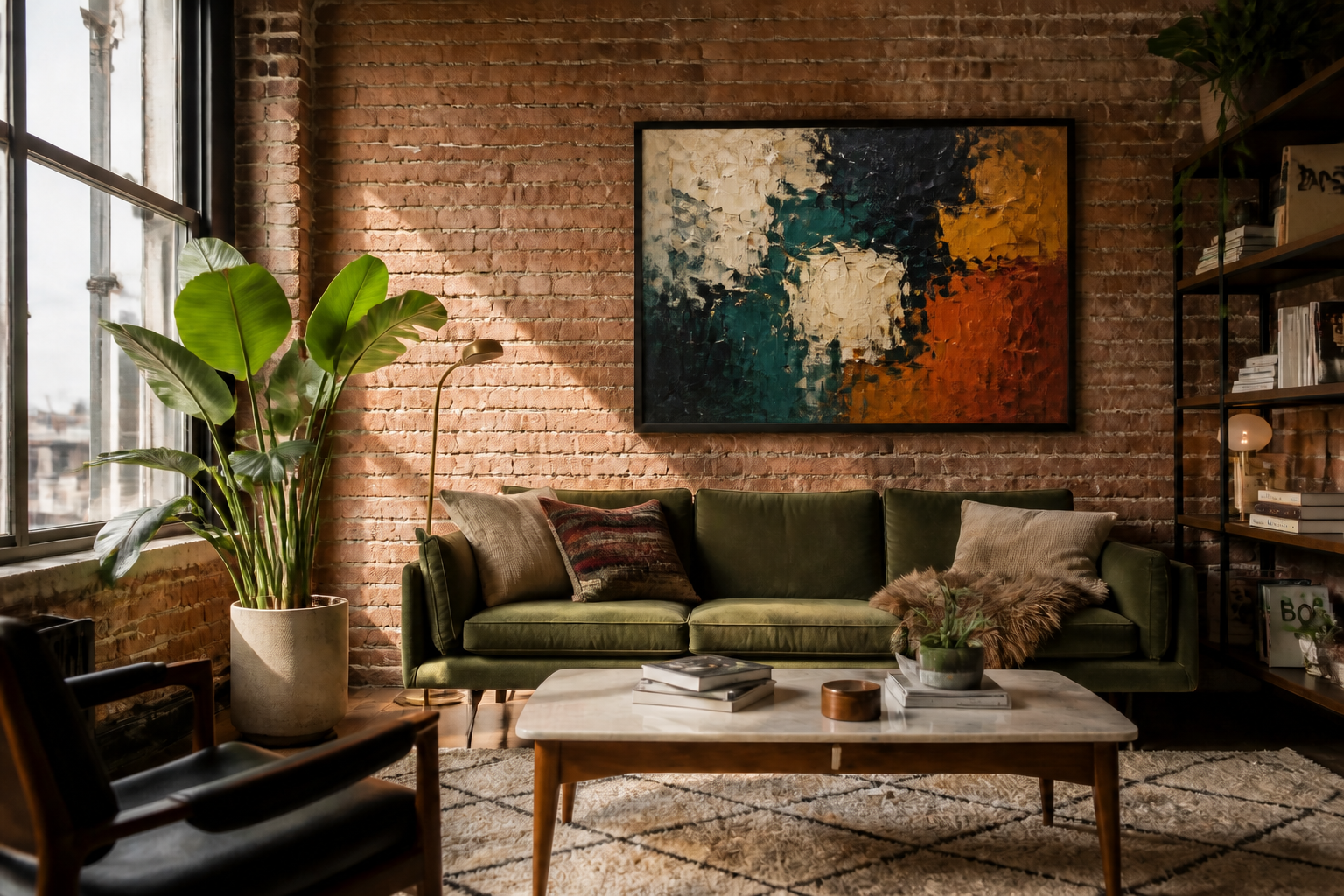 AFTER
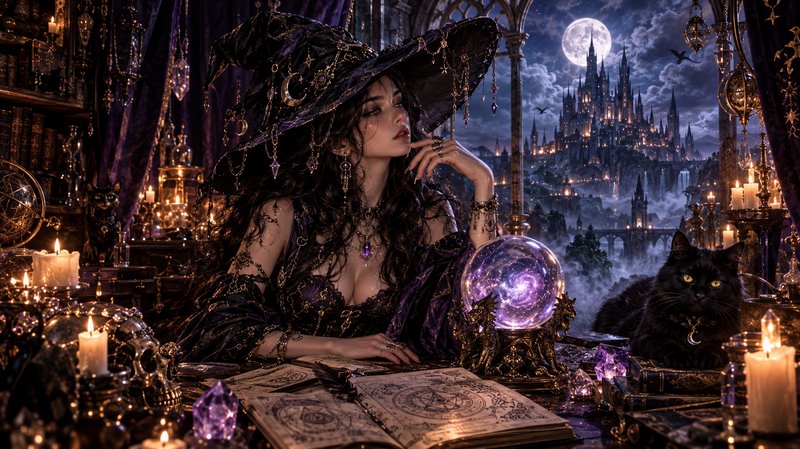
AFTER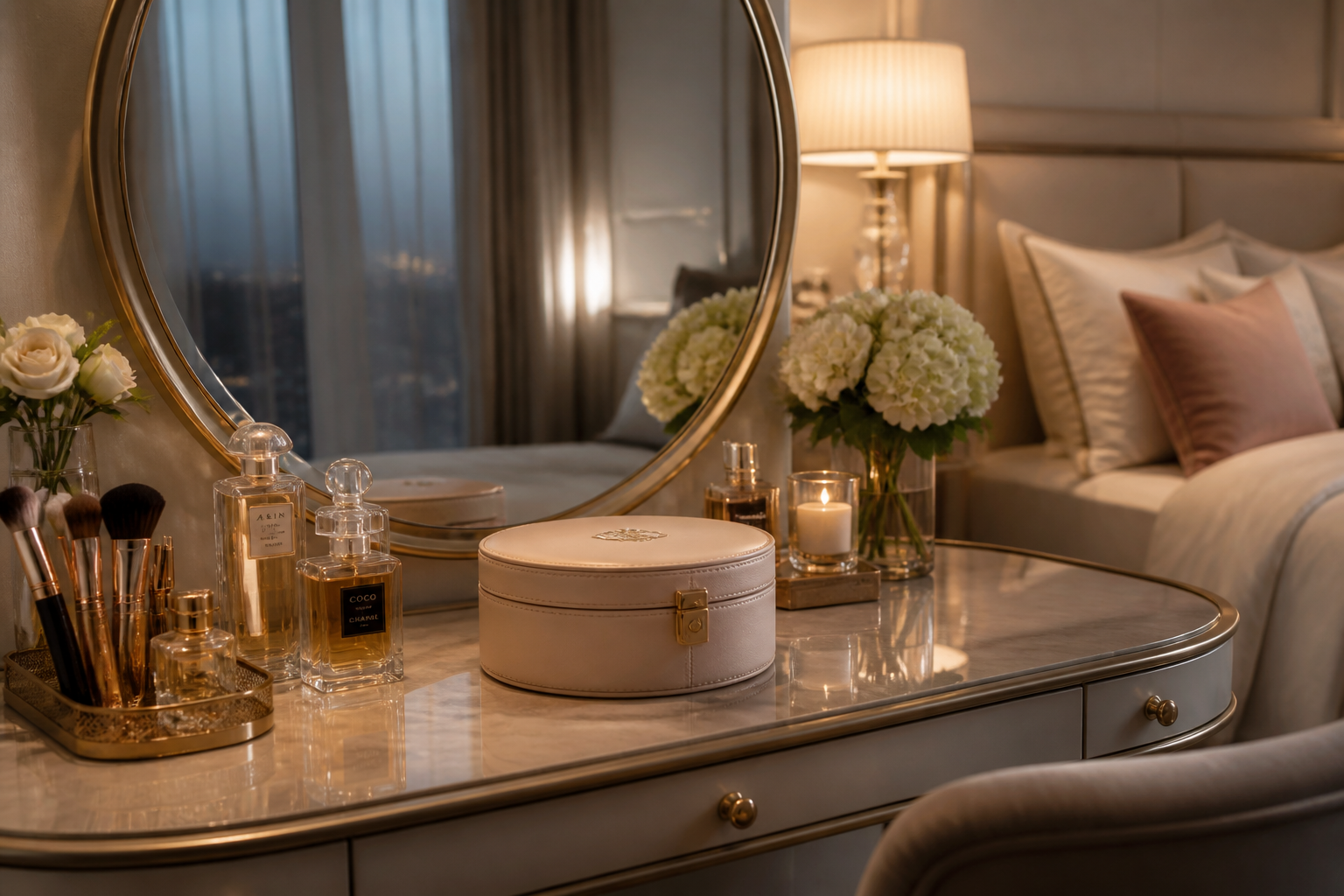 BEFORE
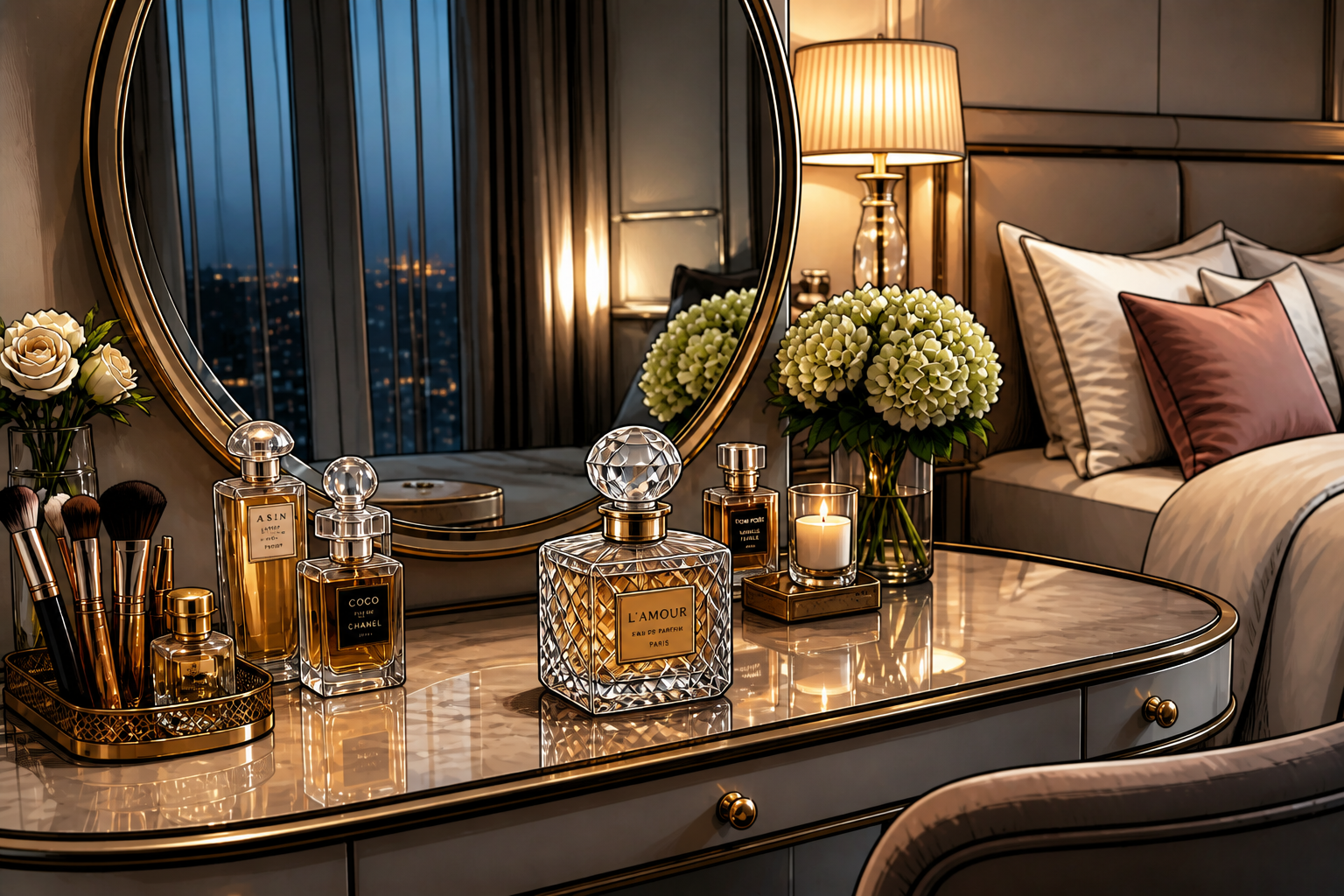 AFTERBEFOREAFTERBEFOREAFTERBEFOREAFTERBEFOREAFTERBEFOREAFTER
 BEFORE
 AFTER
AFTER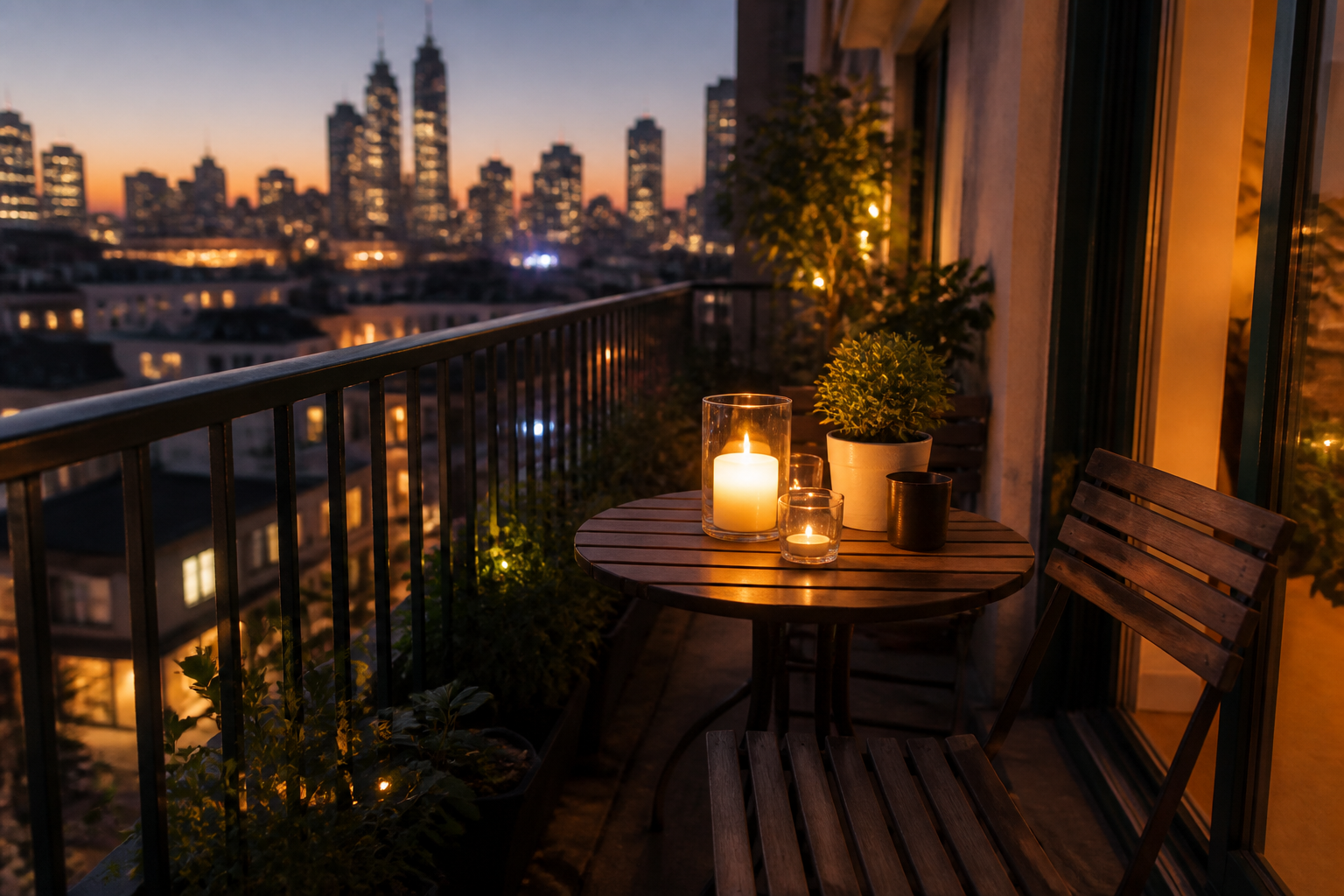 BEFORE
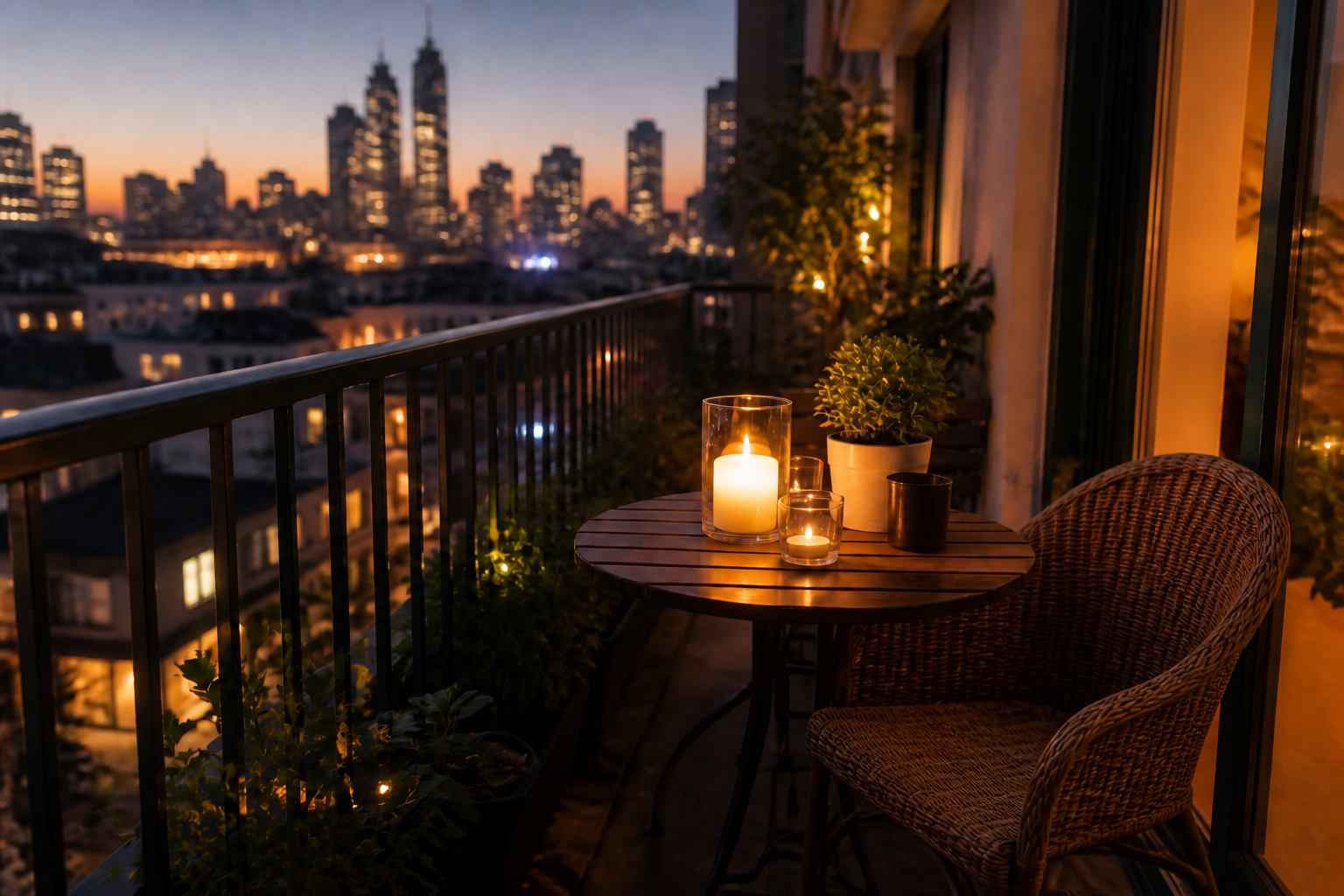 AFTER
AFTER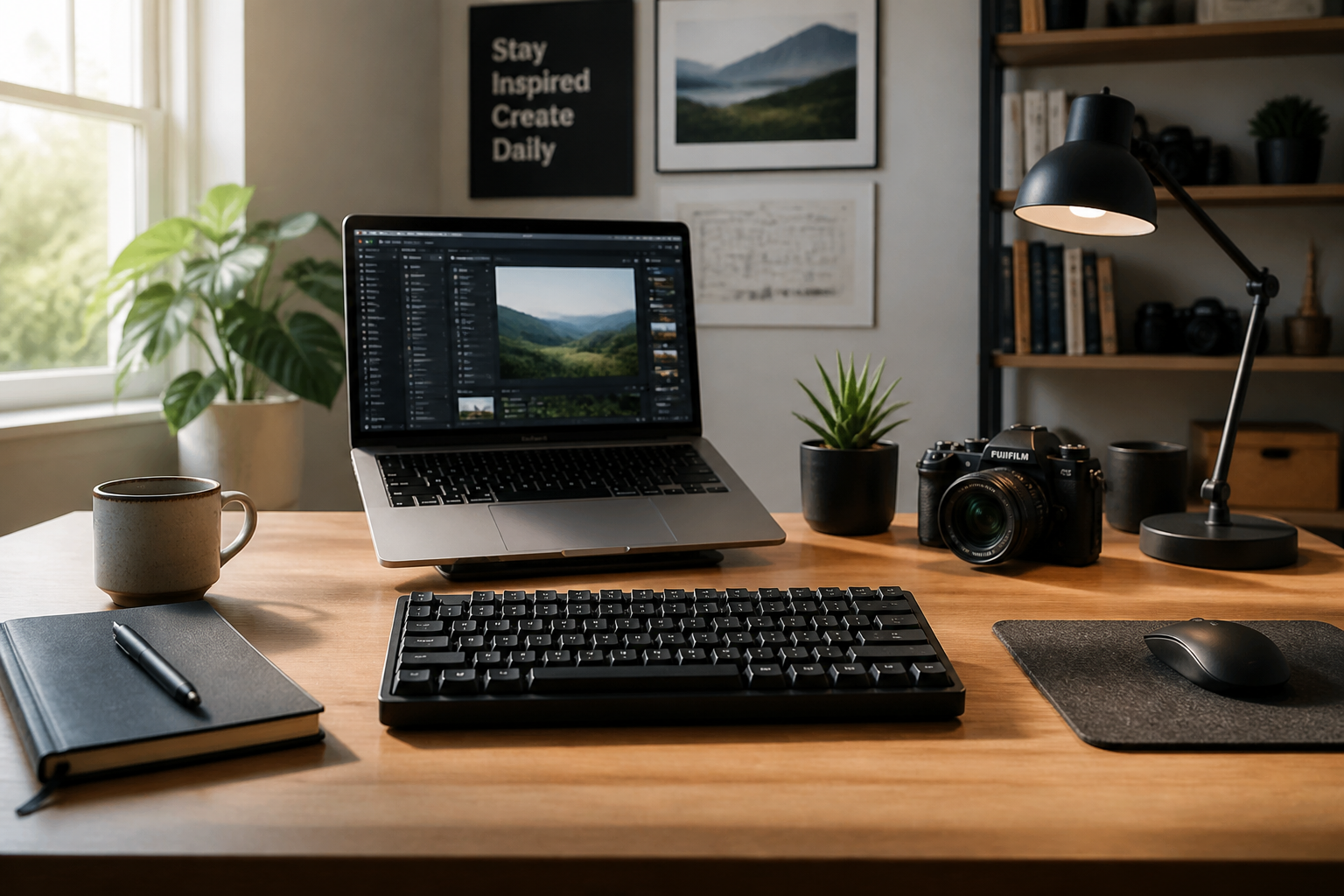 BEFORE
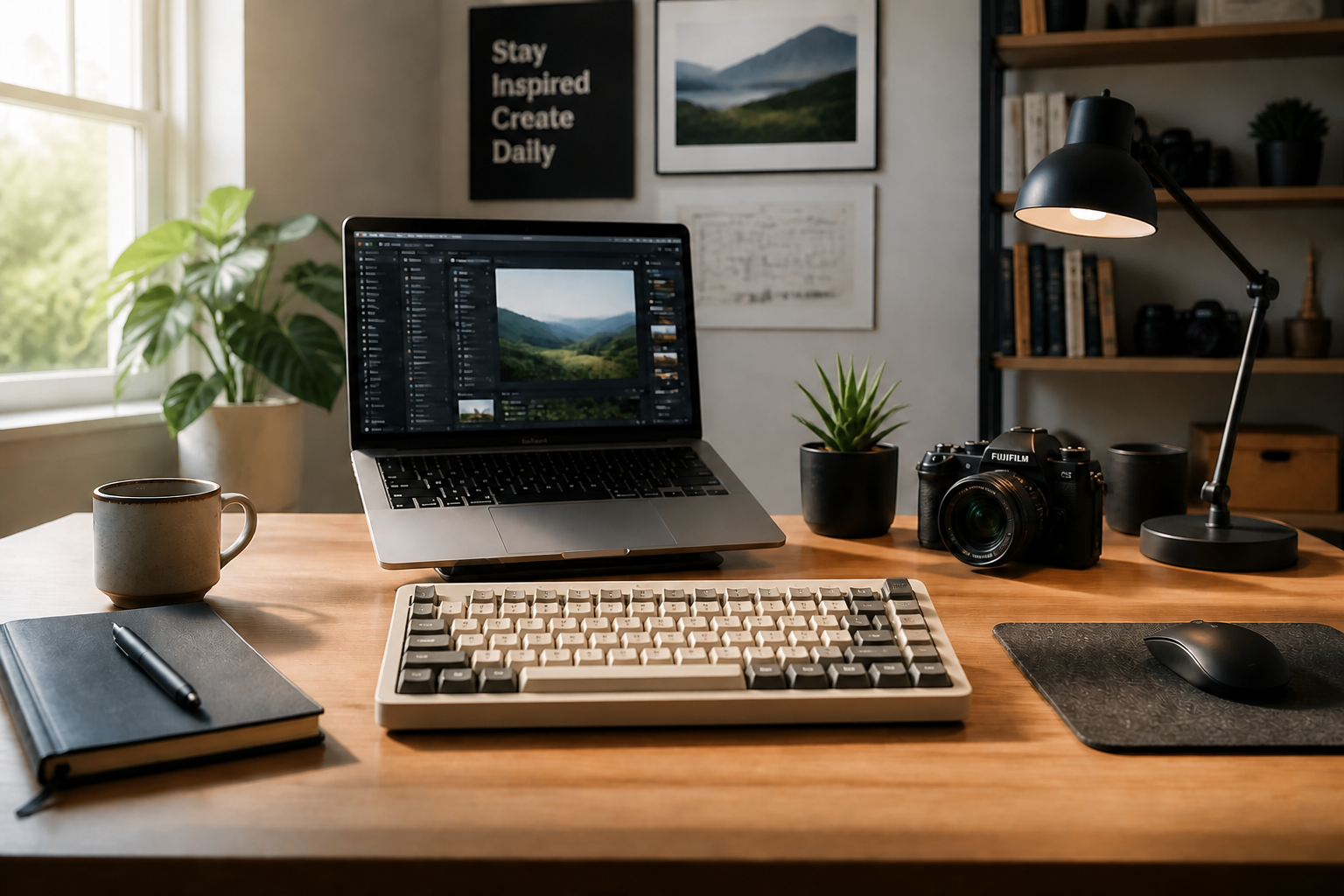 AFTER
AFTER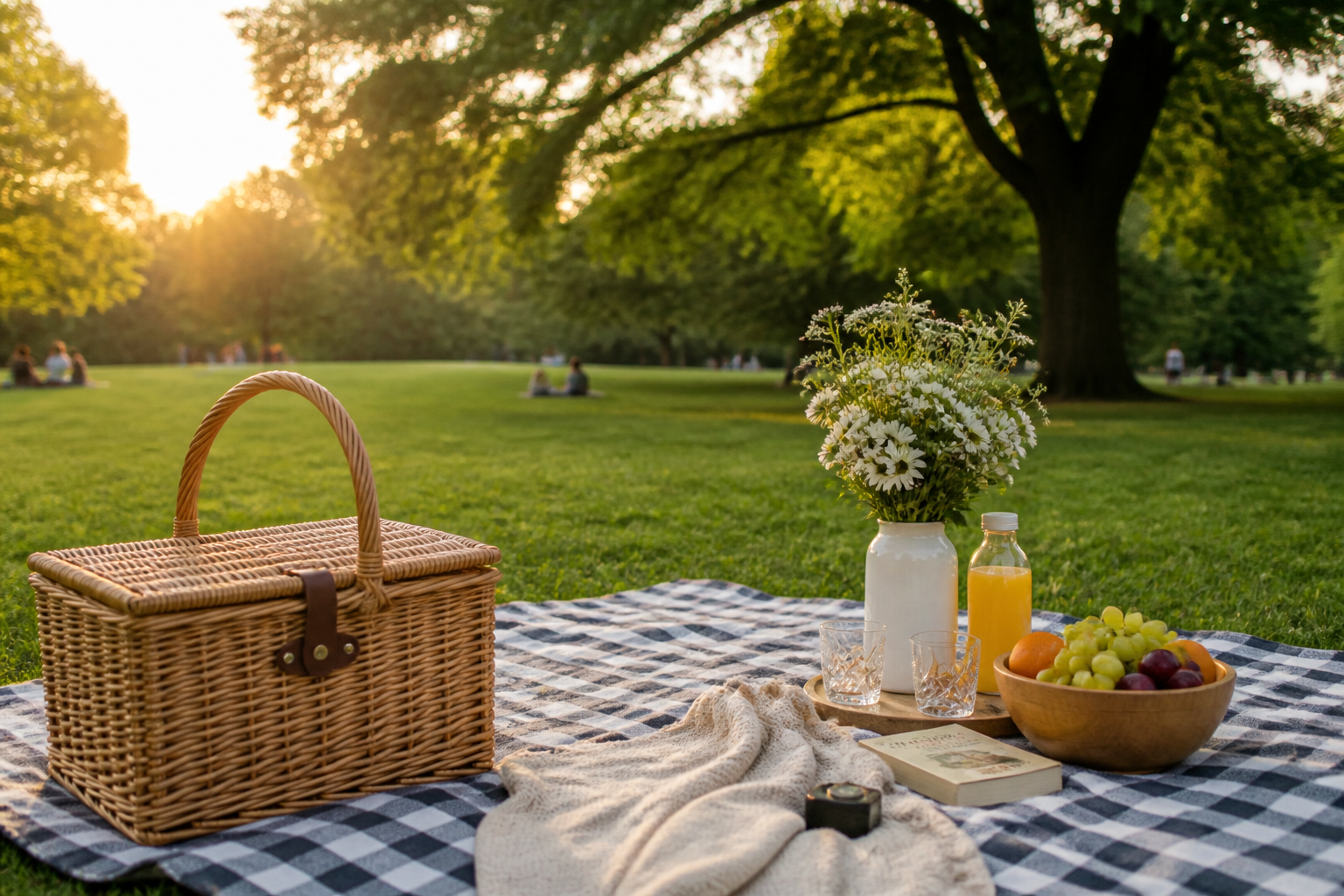 BEFORE
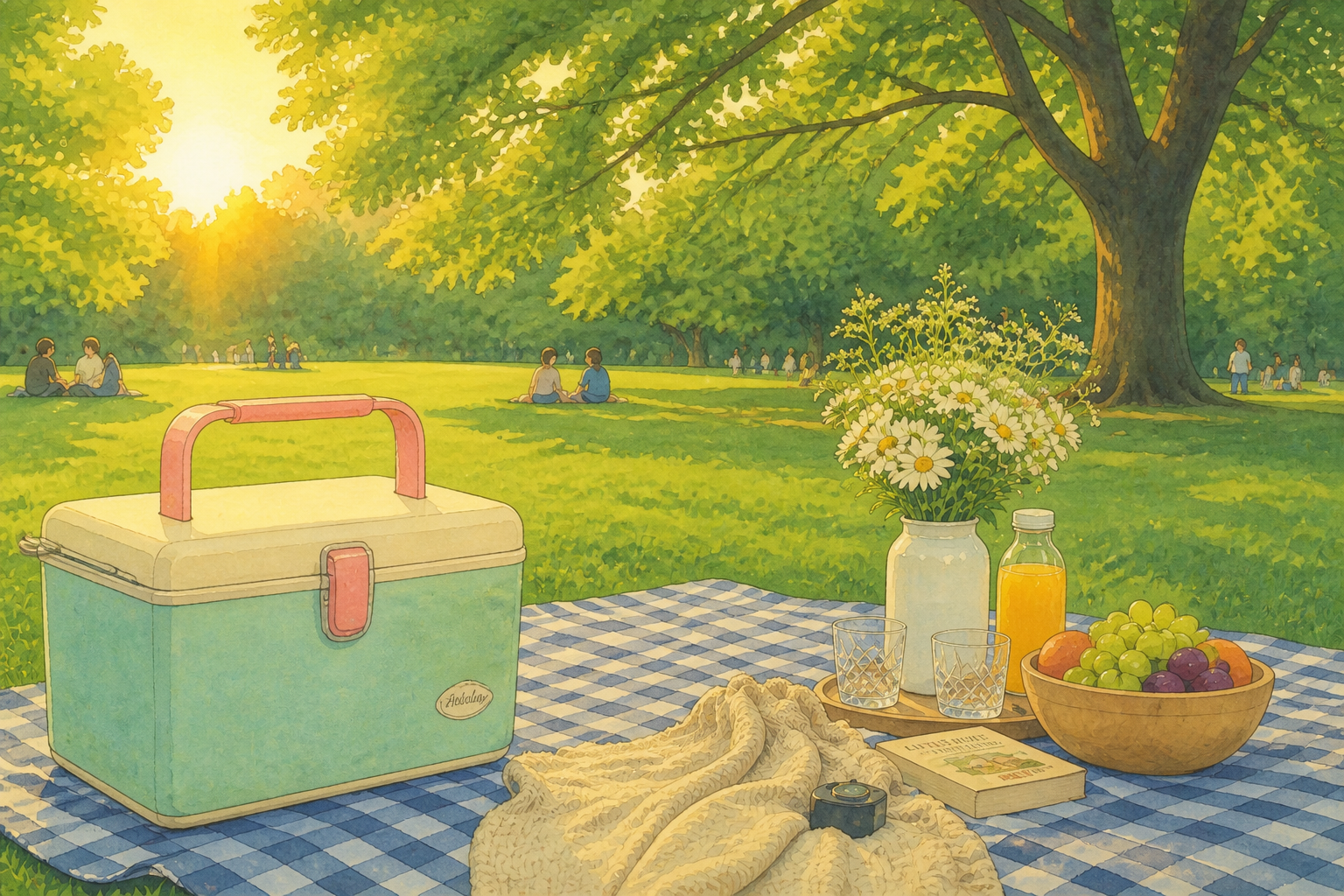 AFTER
AFTER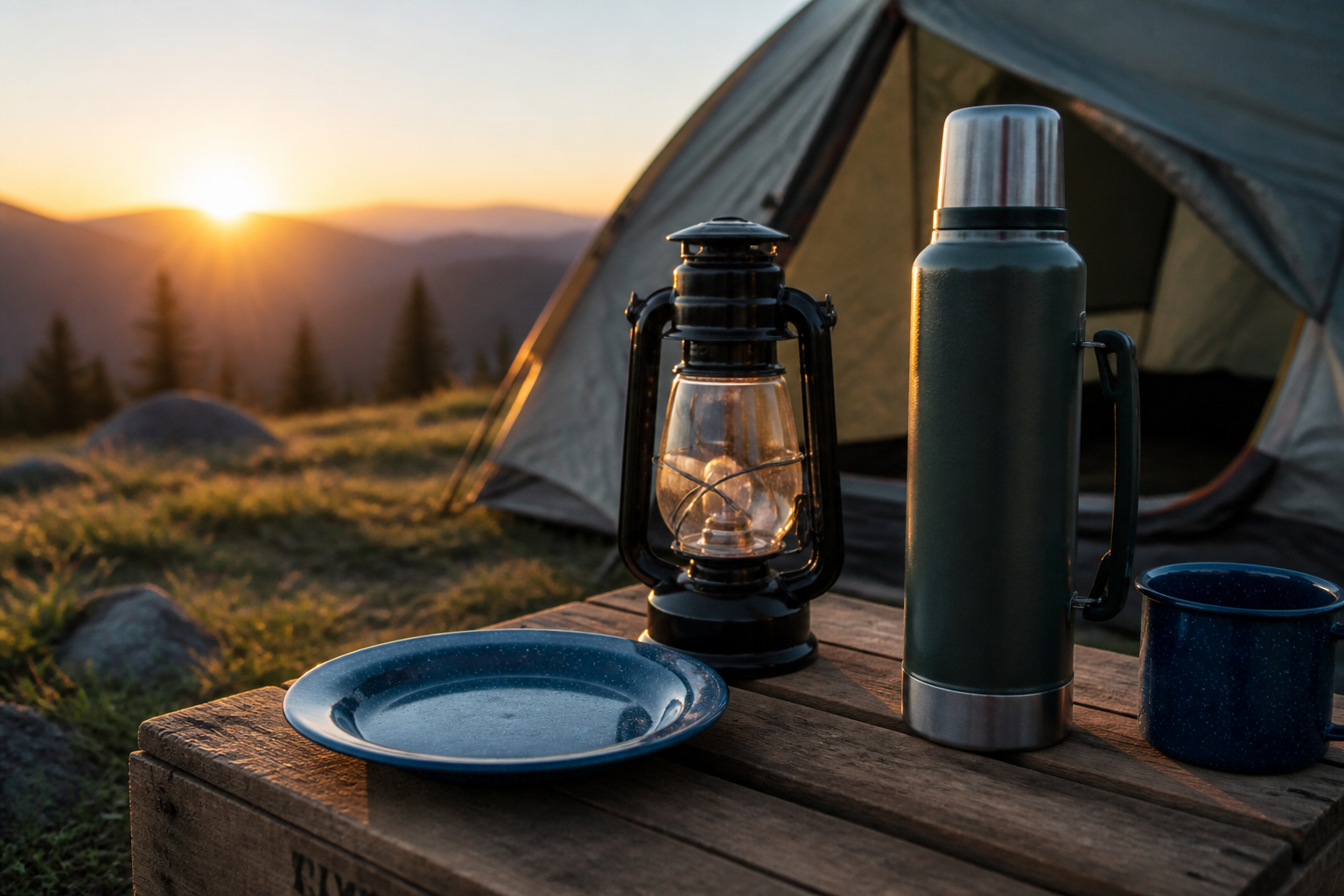 BEFORE
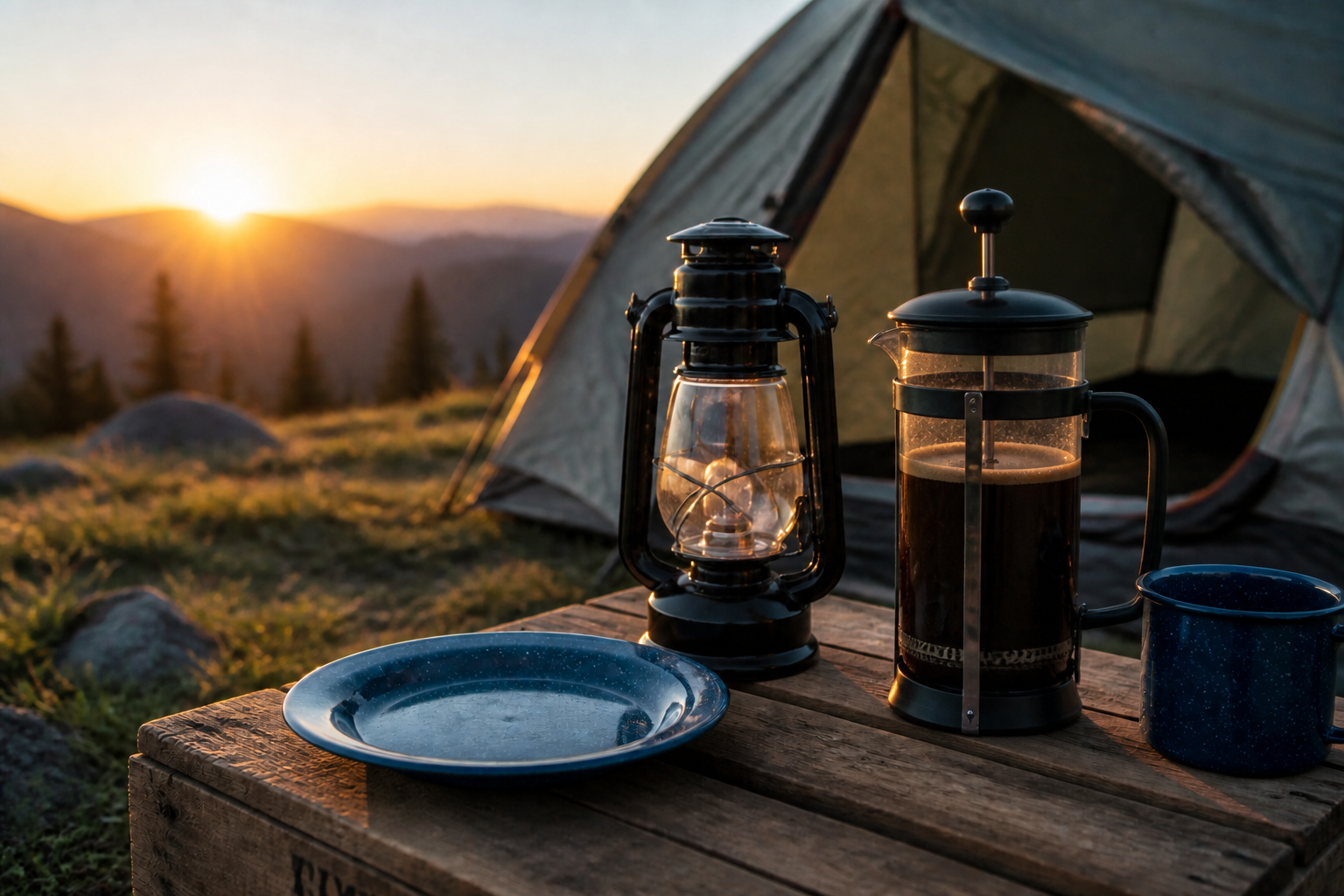 AFTERBEFOREAFTERBEFOREAFTERBEFOREAFTERBEFOREAFTERBEFOREAFTER
Key Features
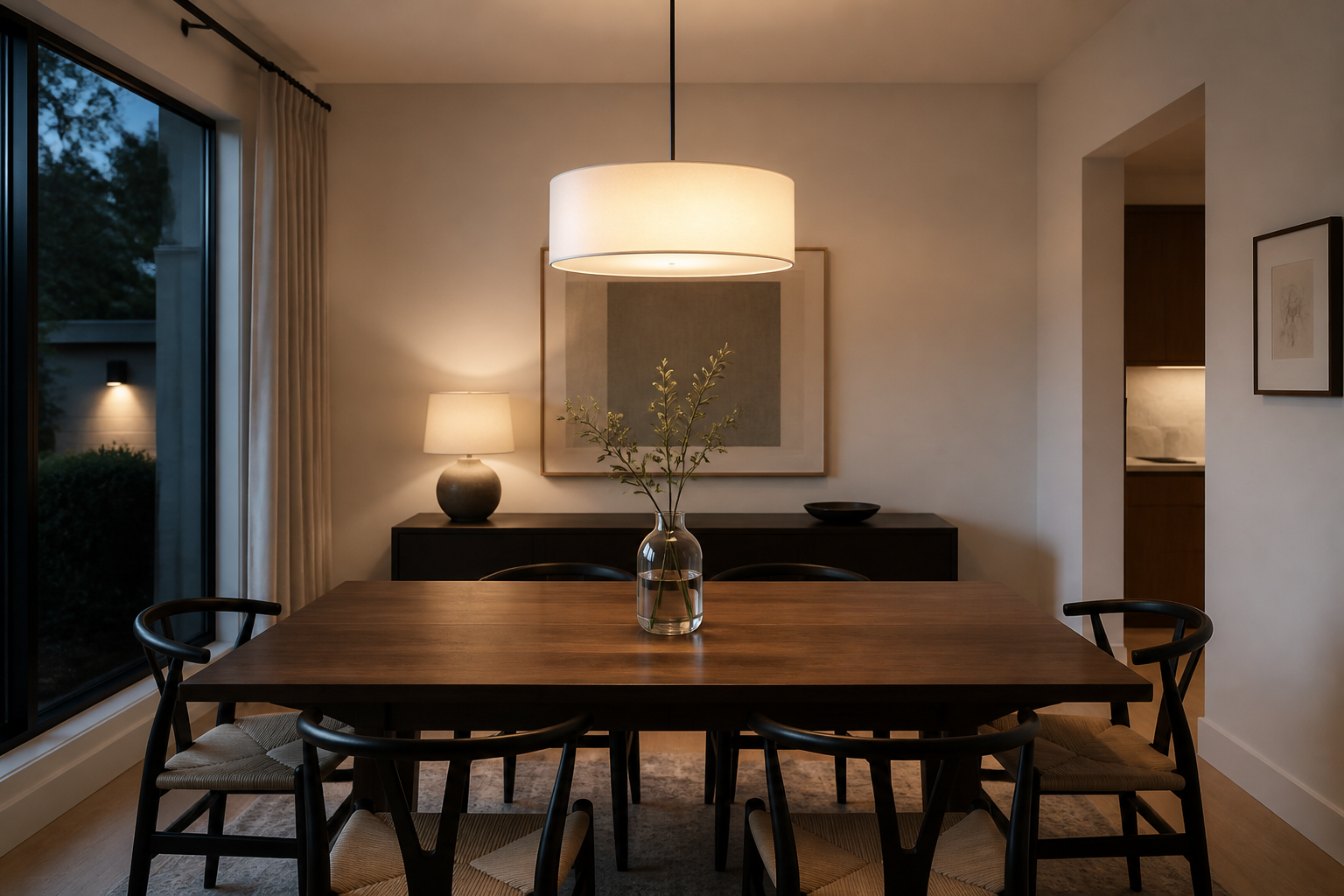
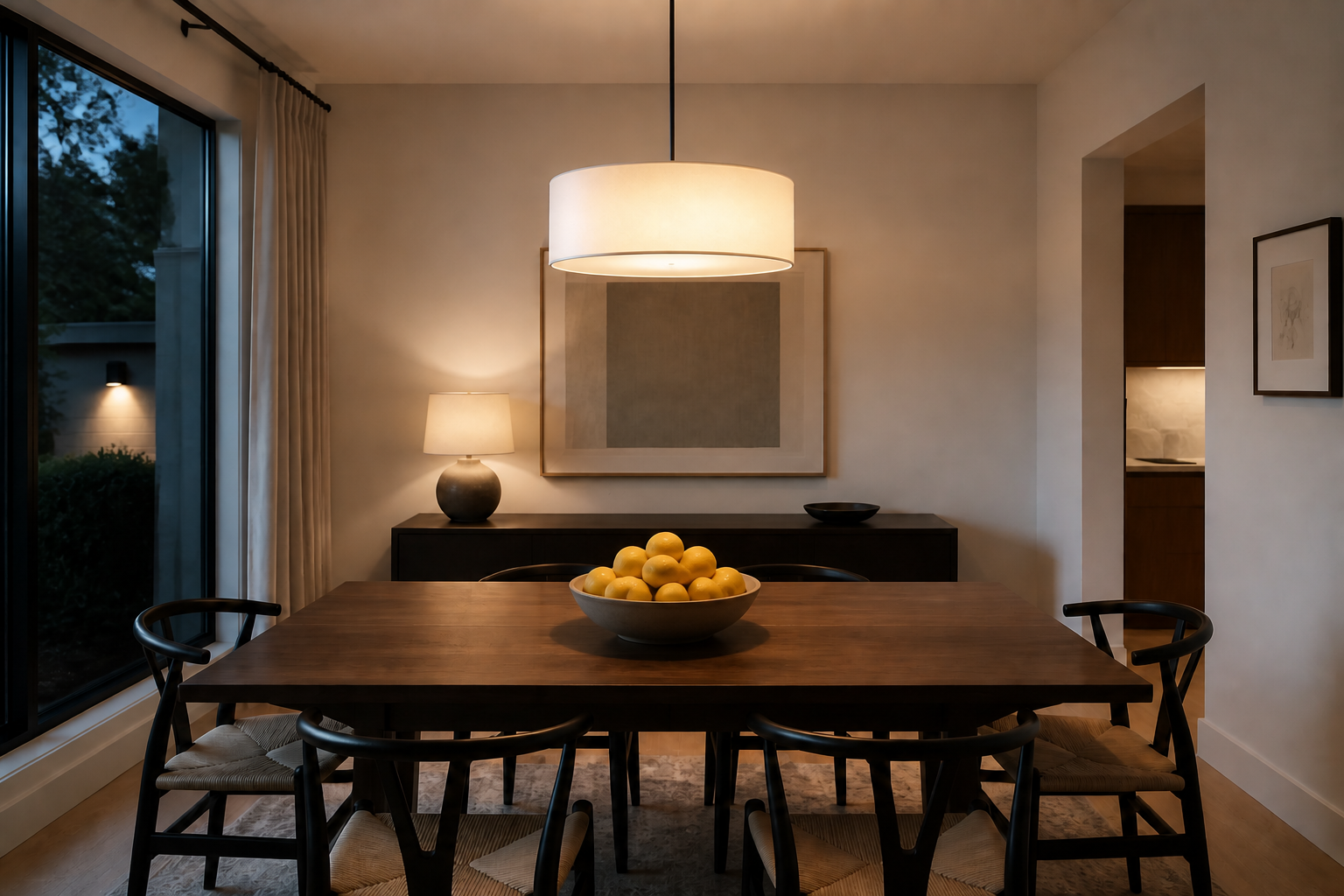
Keep the scene intact
You can change one object without redoing the entire image. Our AI preserves the room, background, lighting, and camera angle so the edit still looks like the same photo. That matters when you only want to update a detail instead of generating a totally different result. It is faster and more consistent than masking and rebuilding the scene by hand.
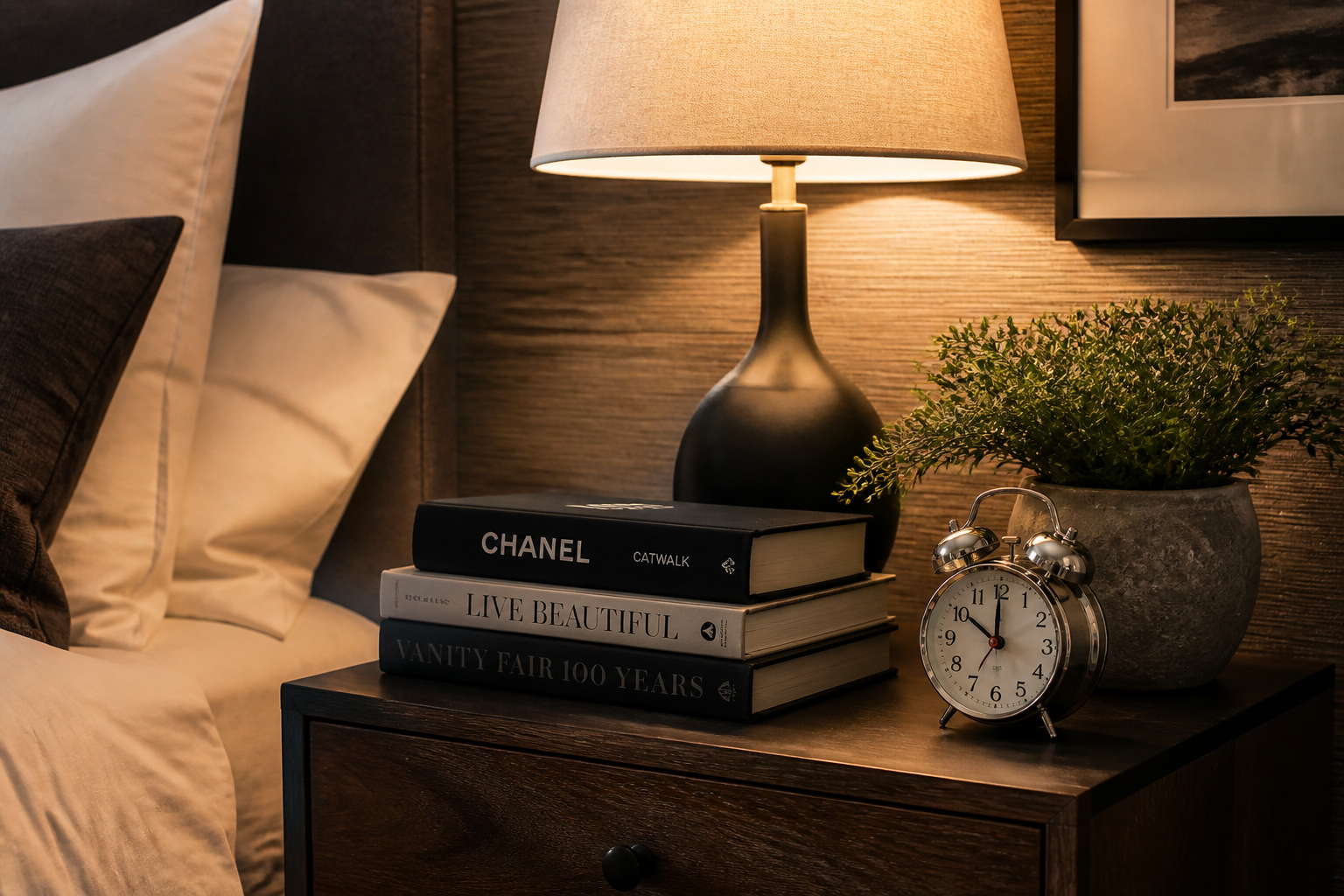
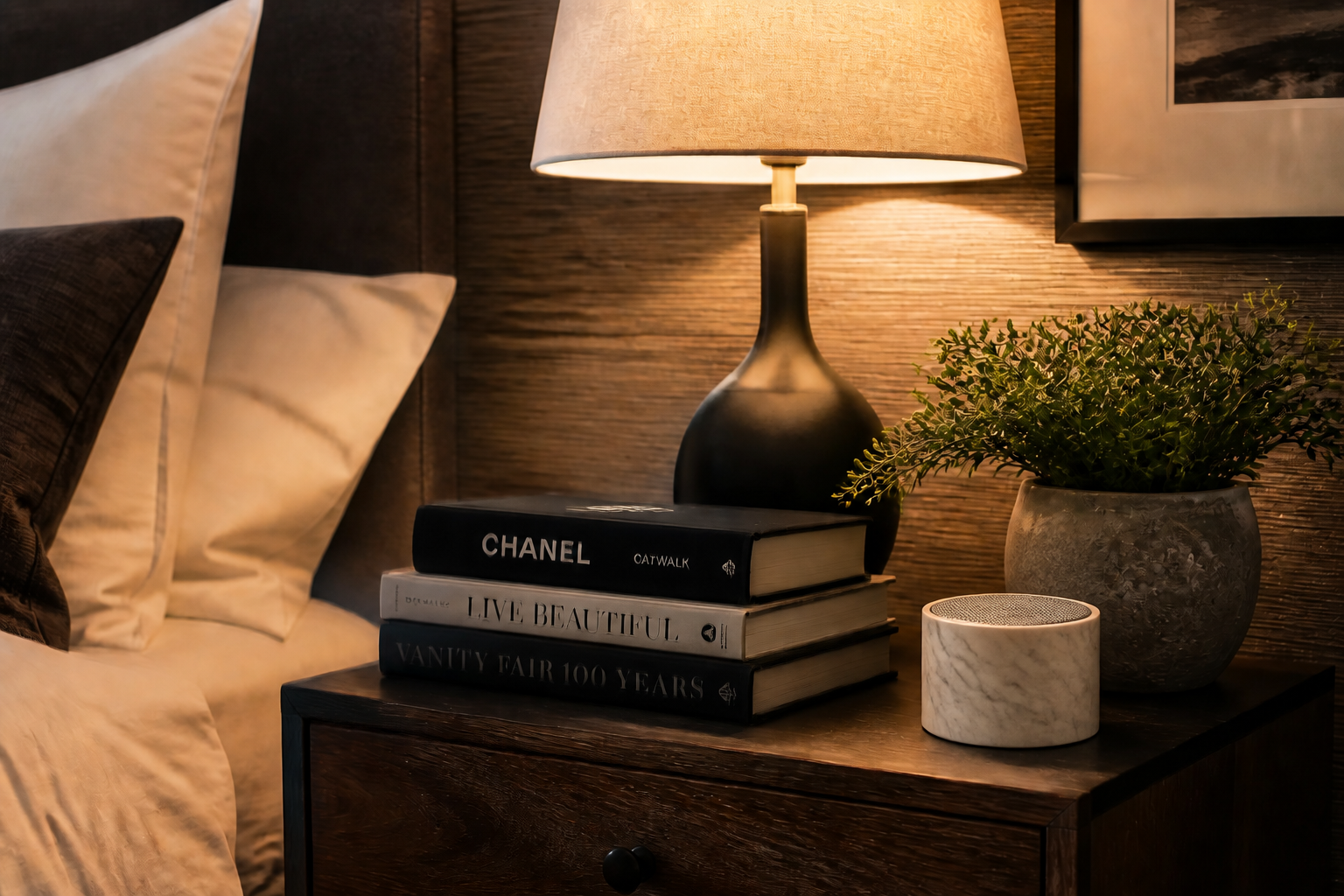
Match lighting and angle
Object swaps look more believable when the replacement fits the original photo's perspective and light. The tool is designed to carry over highlights, shadows, and scale so the new item feels placed in the scene instead of pasted on top. This is especially useful for product mockups, home decor previews, and ad creatives. Manual edits often break at this exact step and need extra cleanup.
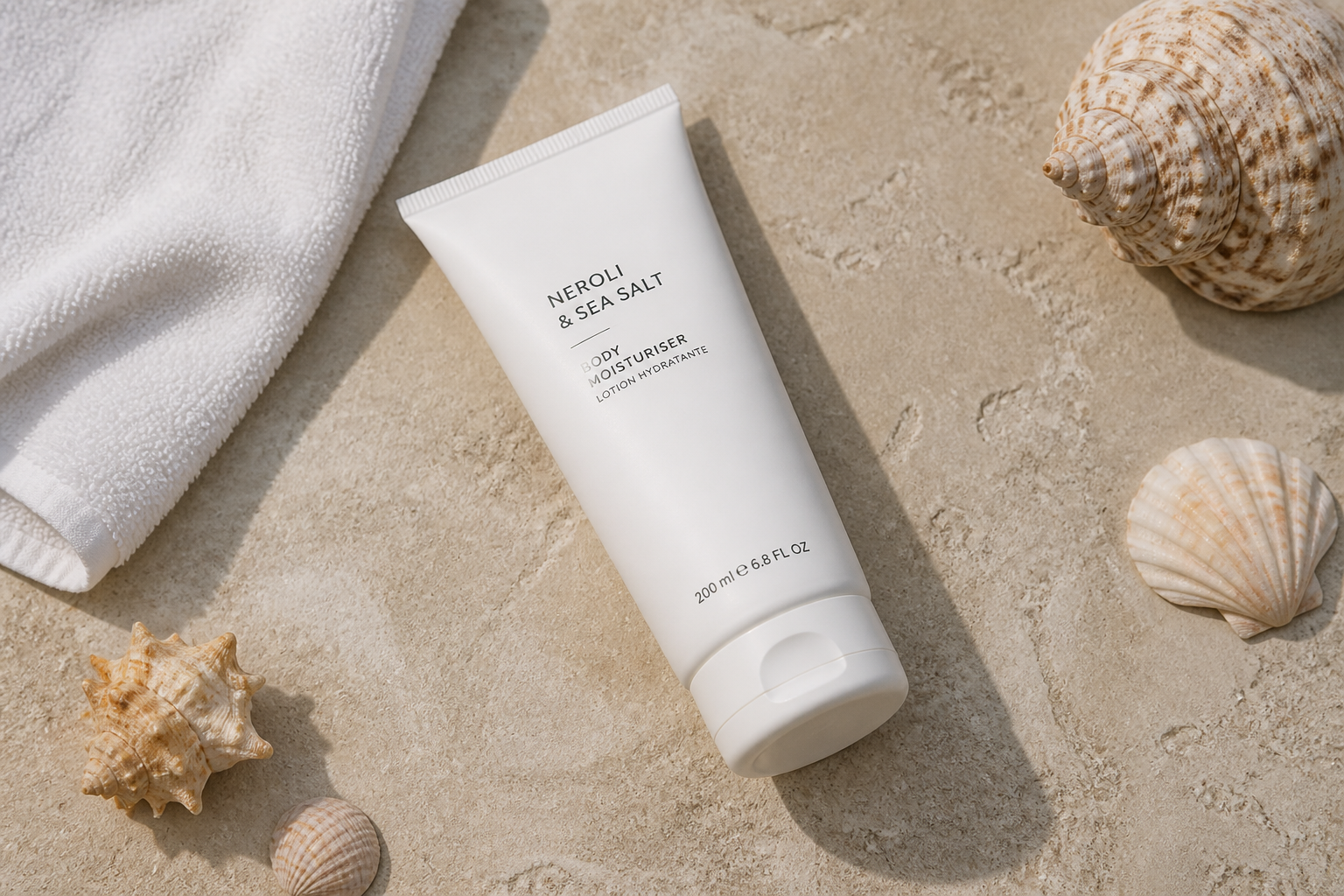
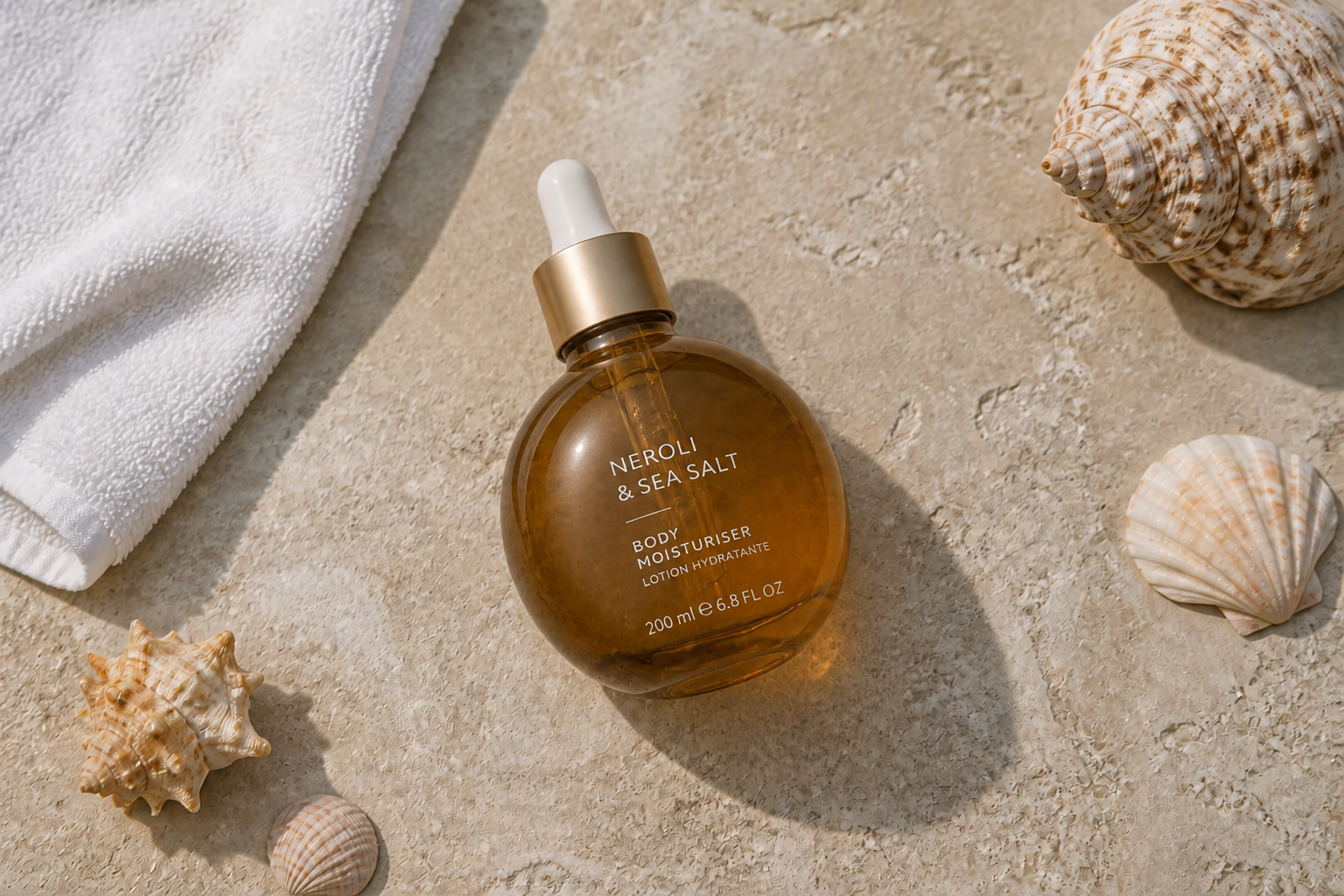
Works across many objects
You are not limited to one category of edit. Replace decor, handheld props, electronics, packaging, kitchen items, or display products using the same simple workflow. That makes the tool useful for both casual photo fixes and repeat production work. Instead of learning separate templates for every object type, you can use one clear replacement prompt.
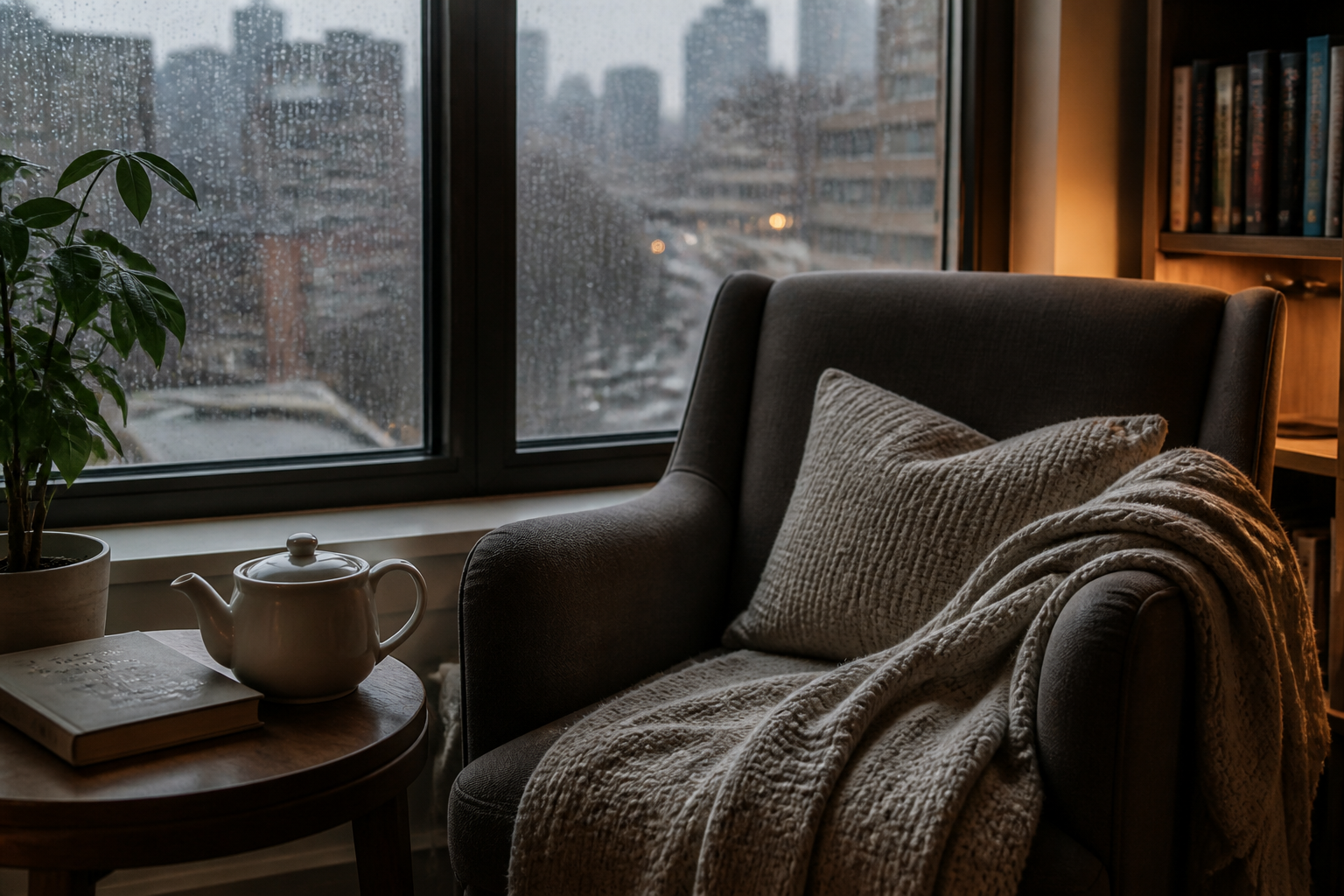
Useful for creative variations
Object replacement is not only for realistic corrections. You can use the same edit flow to test visual directions, concept art, or stylized campaigns while keeping the original composition. This makes it easy to compare multiple ideas from one starting image. It gives you more range than a purely manual edit pipeline without forcing you to rebuild every sample from scratch.
How It Works
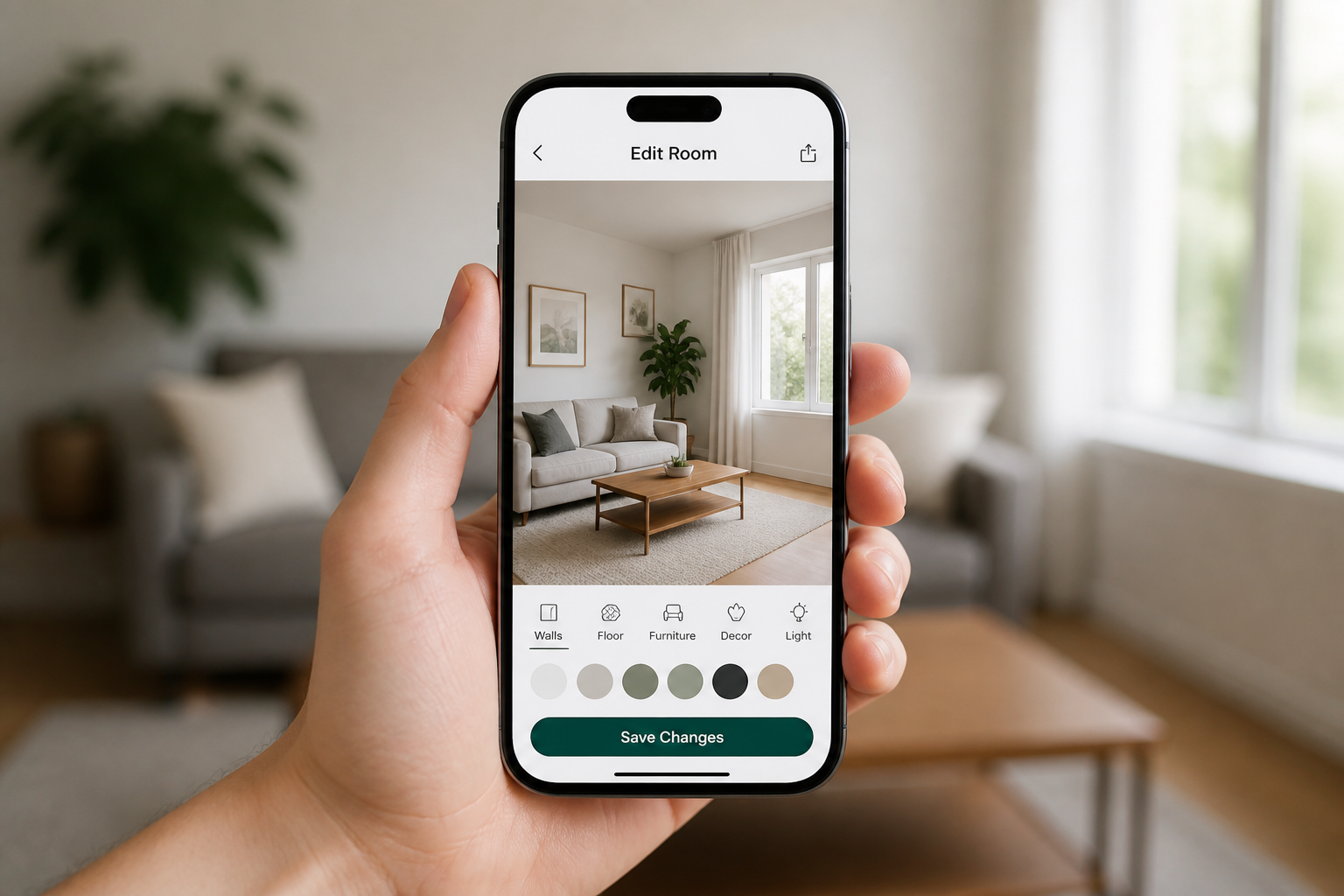
Upload your photo
Start with any clear image that has the object you want to change. Photos with good lighting and a visible subject usually give the cleanest replacements.
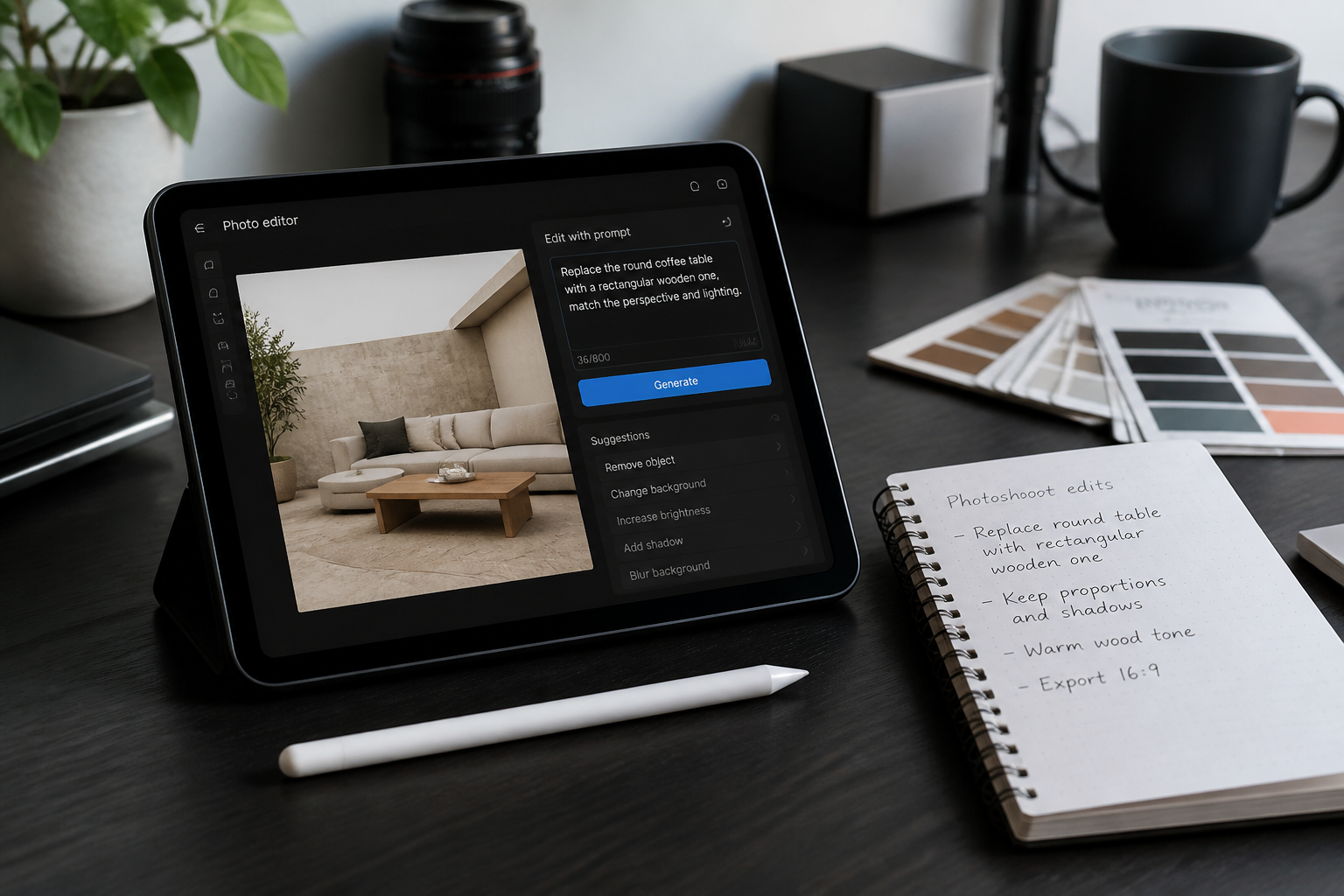
Describe the new object
Tell the AI what to replace and what should appear instead. Include helpful details like material, color, shape, or style so the result matches your intent.
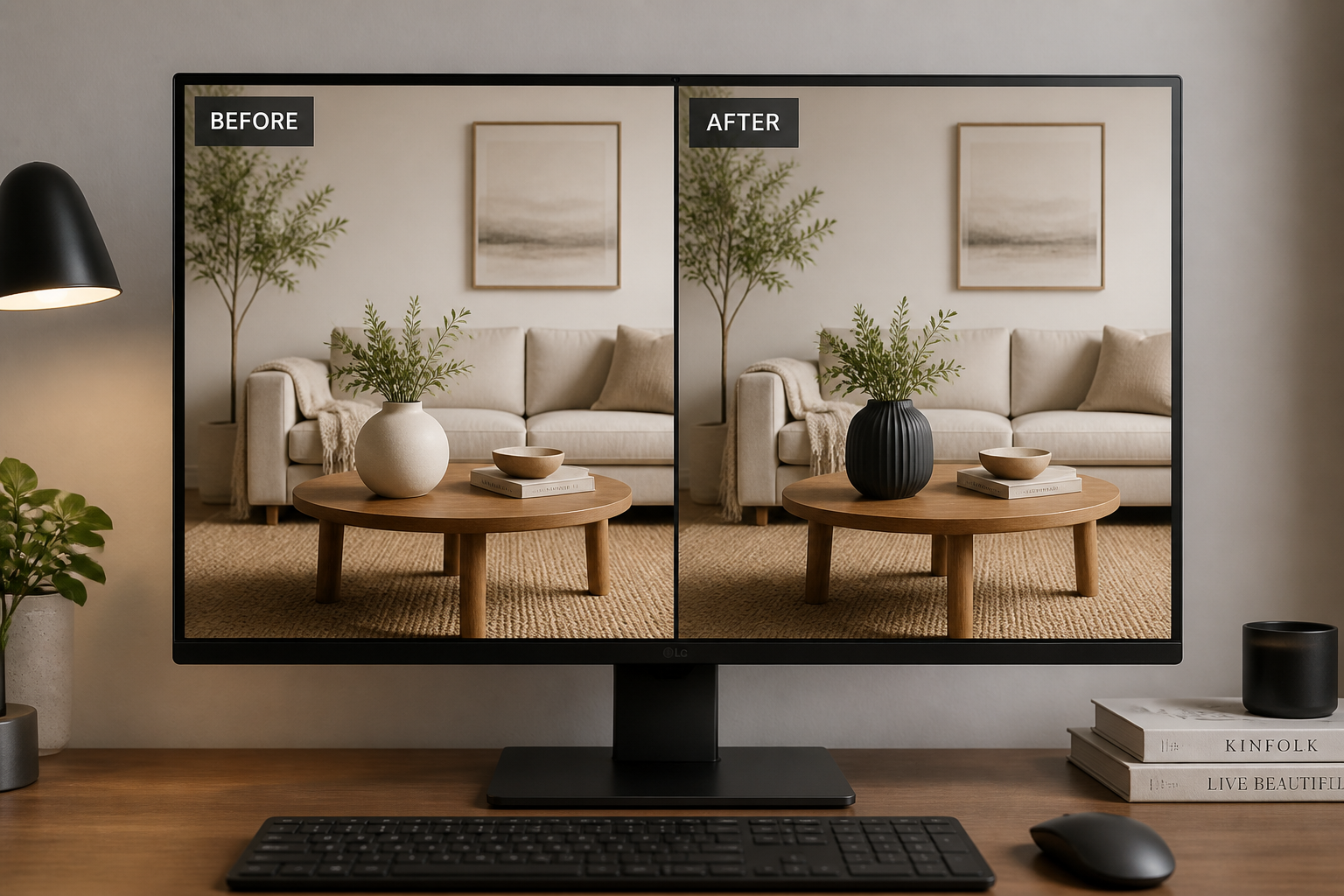
Review and refine
Compare the updated image with the original and check whether the new object fits the scene. If needed, run another version with a more specific description for a closer match.
Perfect For
Discover how creators and professionals use ai replace object
Product photo updates
Swap packaging, accessories, or display items without reshooting the whole setup.
Interior design previews
Test different lamps, chairs, decor pieces, or artwork in the same room photo.
Social content variations
Change props in lifestyle shots to make multiple versions for different campaigns.
Concept and mood exploration
Try alternate objects and visual directions while keeping the original framing intact.
Built For
Online sellers
Refresh product imagery quickly when you need new variants, props, or presentation styles.
Designers and marketers
Create new creative options from existing photos without rebuilding scenes from scratch.
Everyday creators
Make clean object swaps for personal photos, posts, mockups, and visual ideas.
Why use BudgetPixel for object replacement
A quick look at how we compare on the things that matter for this niche.
| Feature | BudgetPixel | Generic AI editors | Manual editing apps |
|---|---|---|---|
| Single-object swaps | ✓ | ✓ | ✓ |
| Keeps scene composition | ✓ | Varies | Manual |
| Fast concept variations | ✓ | Varies | — |
| Natural lighting match | ✓ | Varies | Manual |
| Easy to start | ✓ | ✓ | — |
Frequently Asked Questions
What kinds of objects can I replace?
Will the rest of the photo stay the same?
Does it work for product photos and room photos?
Can I create stylized replacements too?
How do I get a better replacement?
Create together.
Share your creations, discover trending AI art, and grow with fellow creators.