AI Low Quality Image Enhancer
Turn blurry, noisy, low-detail images into cleaner, sharper results.
Our AI improves low-quality photos by sharpening details, reducing noise, and restoring clarity without forcing you into manual edits. Upload a weak image, describe the fix you want, and get a cleaner version that still looks like the original scene.


Watch the Transformation
See ai low quality image enhancer in motion — generated end-to-end by our AI.
See It In Action
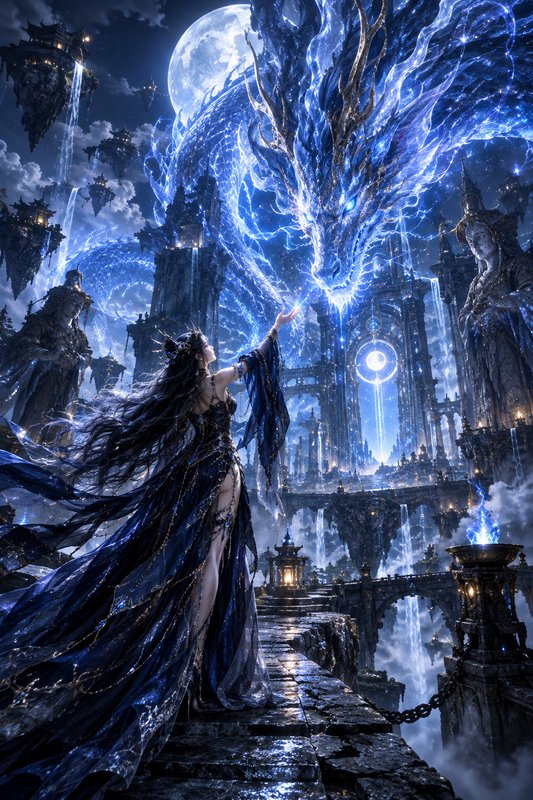
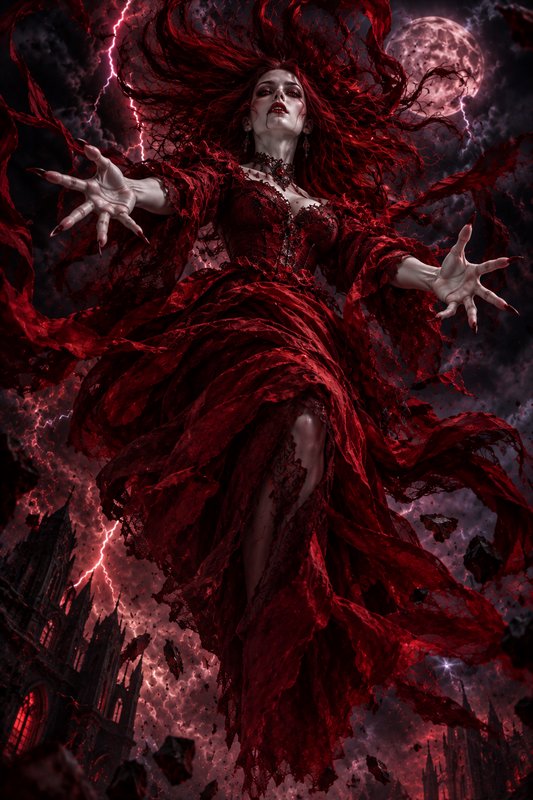
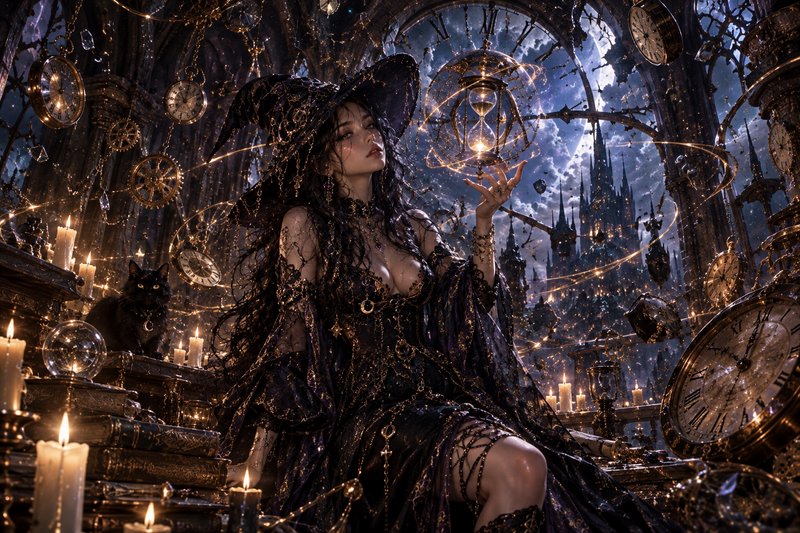
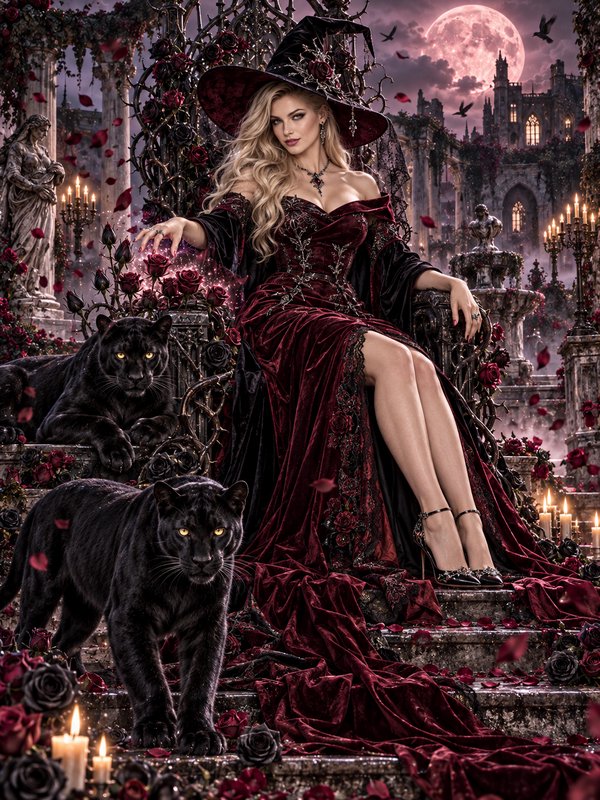
Real outputs from ai low quality image enhancer.
BEFOREAFTER BEFORE
 AFTER
AFTER BEFORE
 AFTER
AFTER BEFORE
 AFTER
AFTER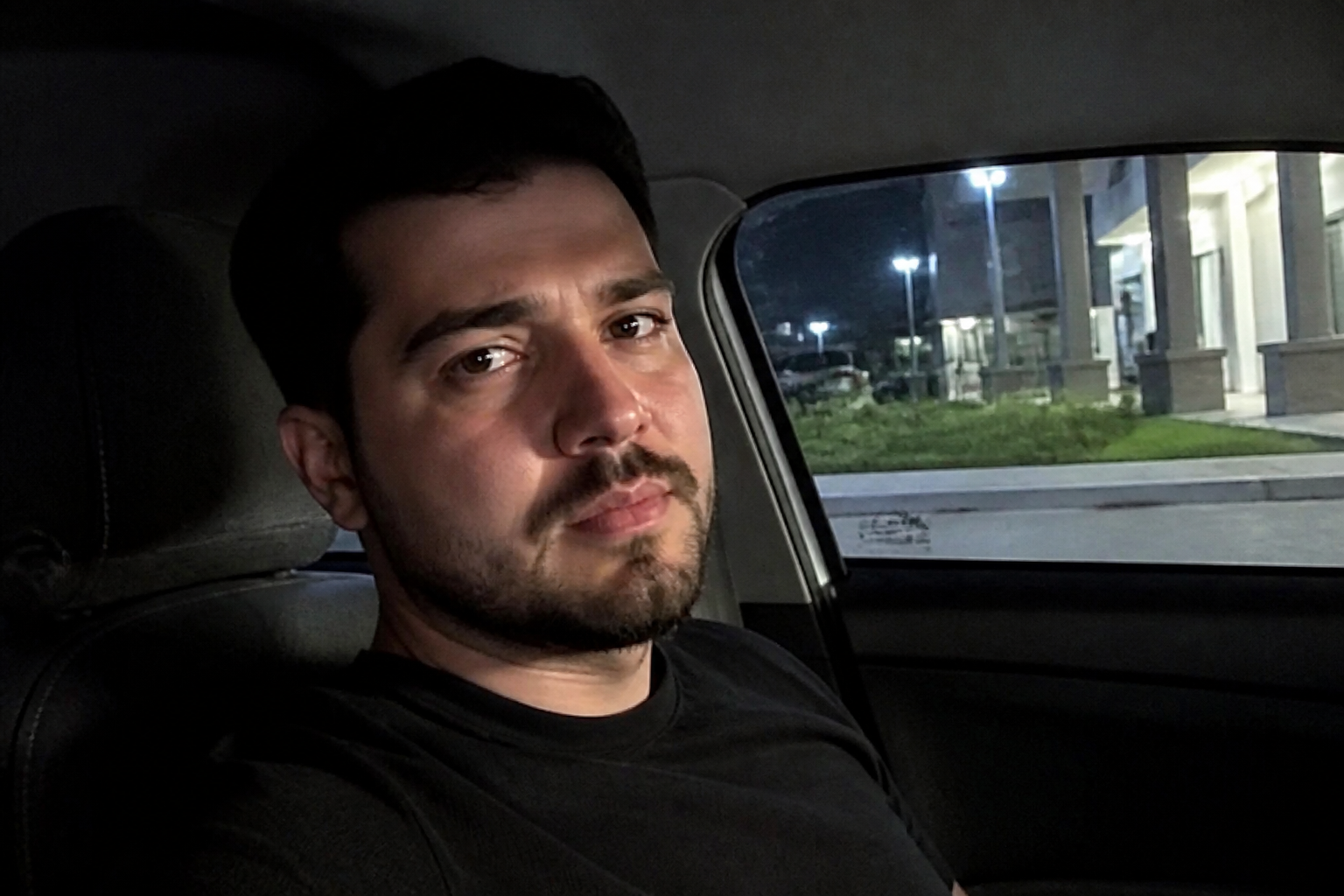 BEFORE
 AFTERBEFOREAFTERBEFOREAFTERBEFOREAFTERBEFOREAFTERBEFOREAFTER
 BEFORE
 AFTER
AFTER BEFORE
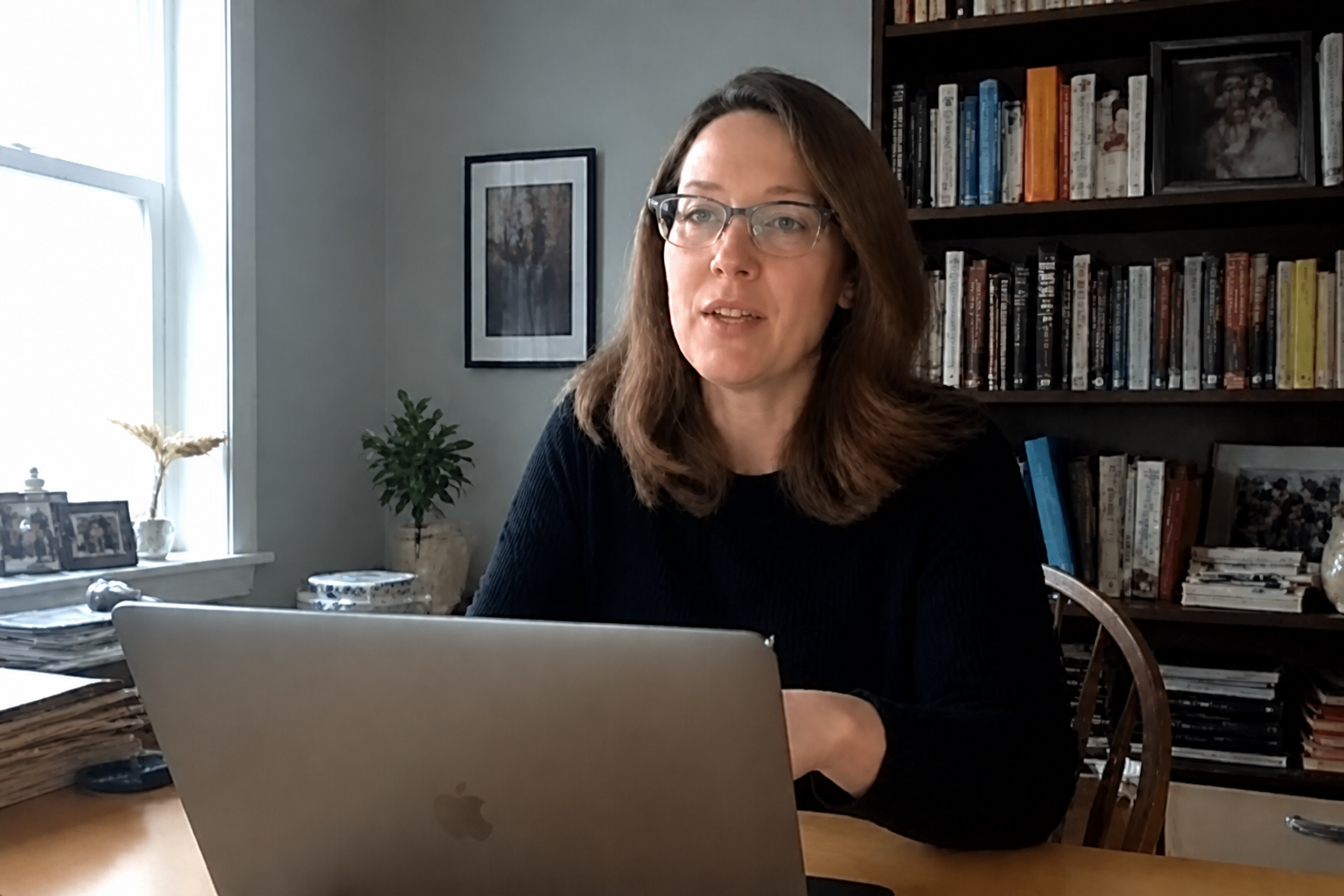 AFTER
AFTER BEFORE
 AFTER
AFTER BEFORE
 AFTER
AFTER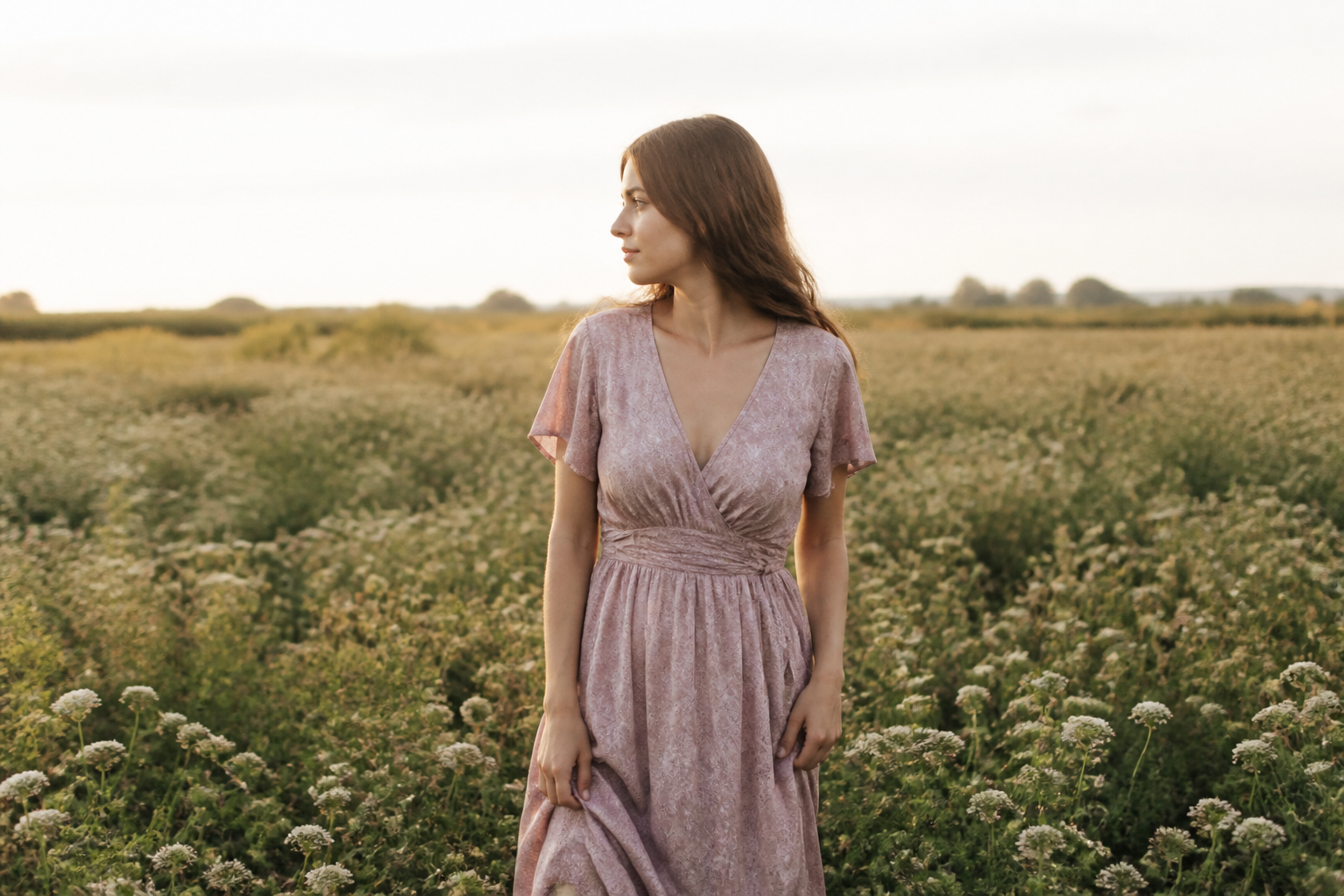 BEFORE
 AFTERBEFOREAFTERBEFOREAFTERBEFOREAFTERBEFOREAFTERBEFOREAFTER
Key Features
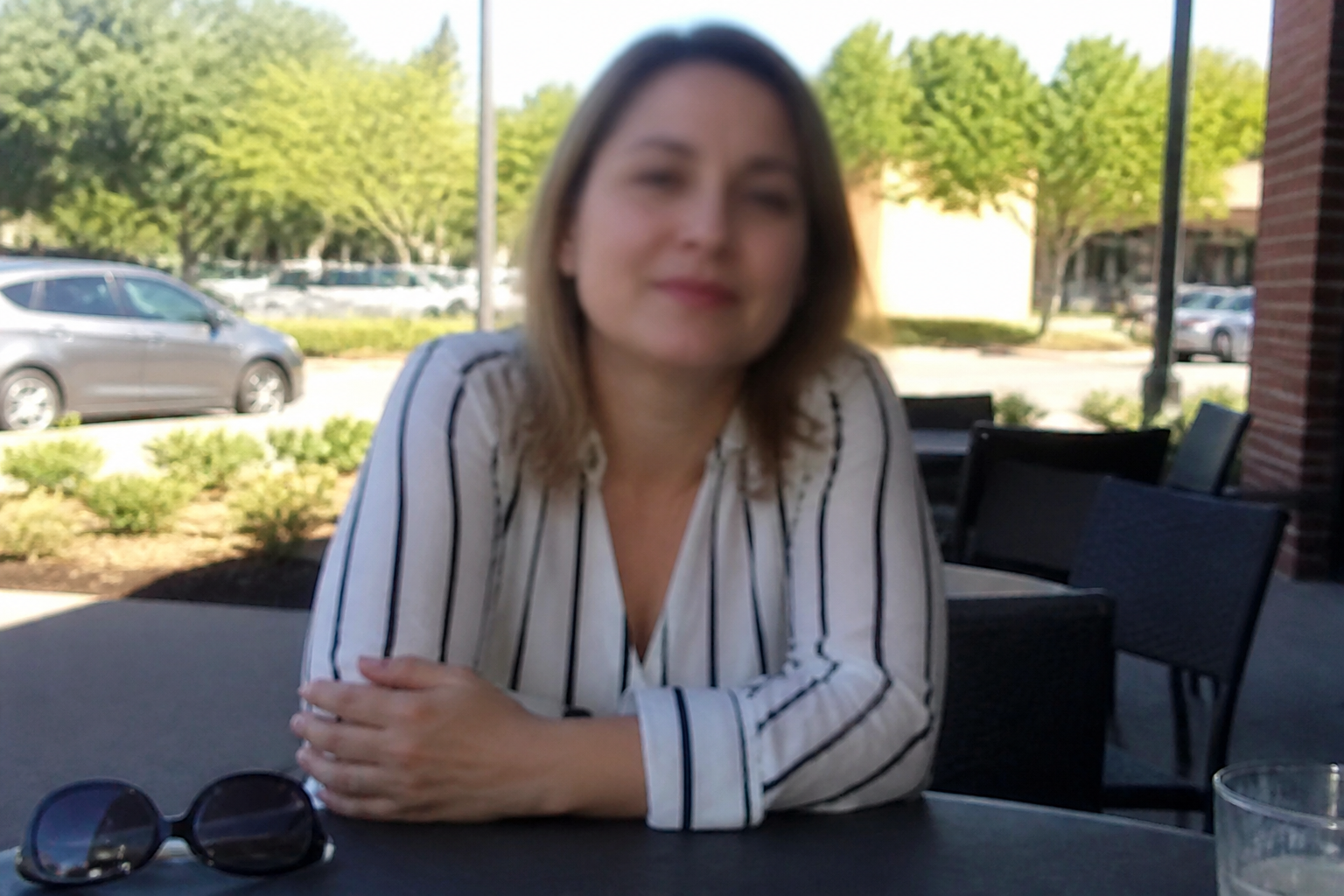

Sharpen without fake detail
The tool boosts clarity where the image is weak, such as eyes, fabric, edges, and small textures. It aims to make the photo look cleaner rather than over-processed. That matters when you want a usable result fast without halos, crunchy skin, or obvious edit artifacts. Compared with manual sharpening, you do not have to balance multiple sliders just to get a decent version.
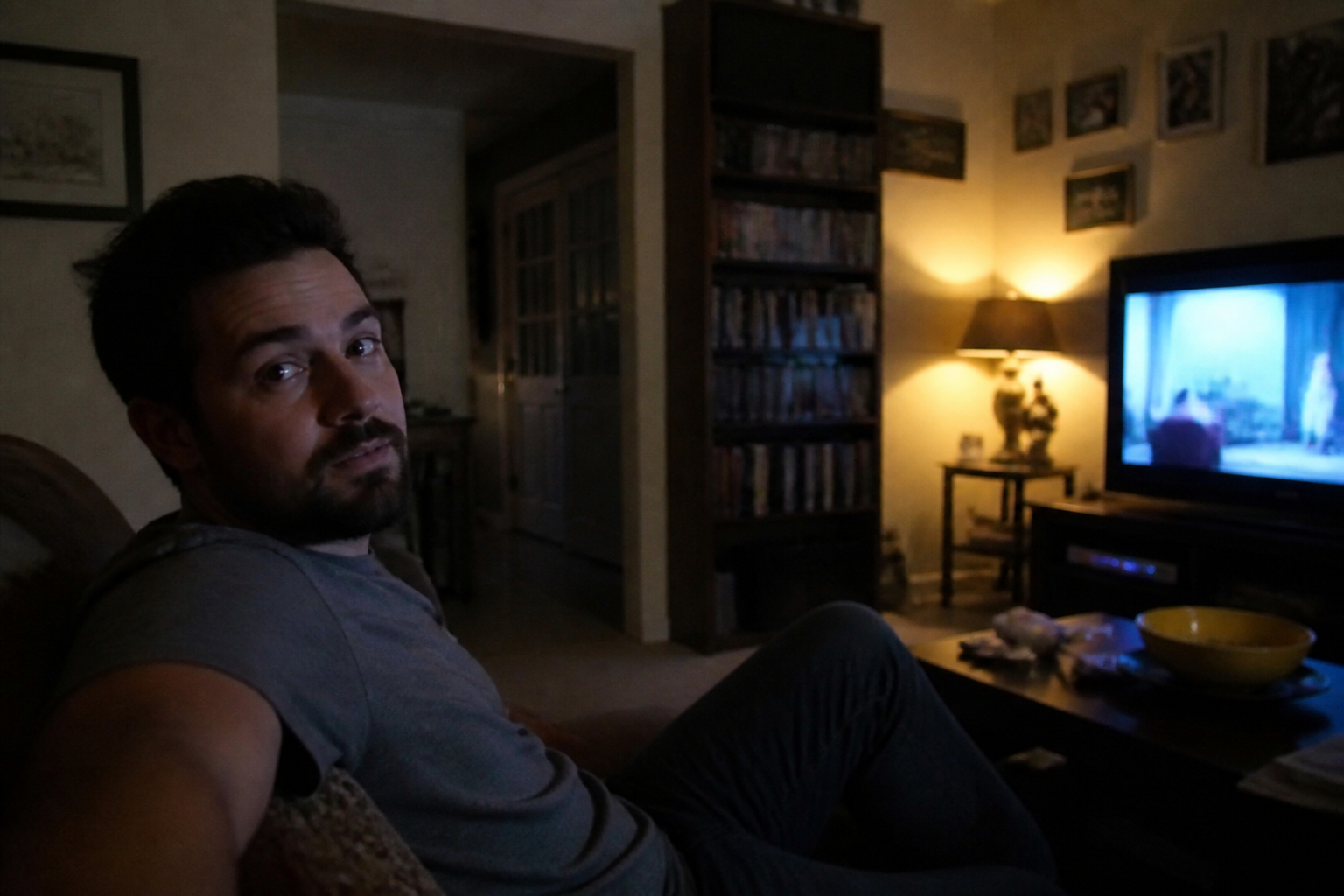
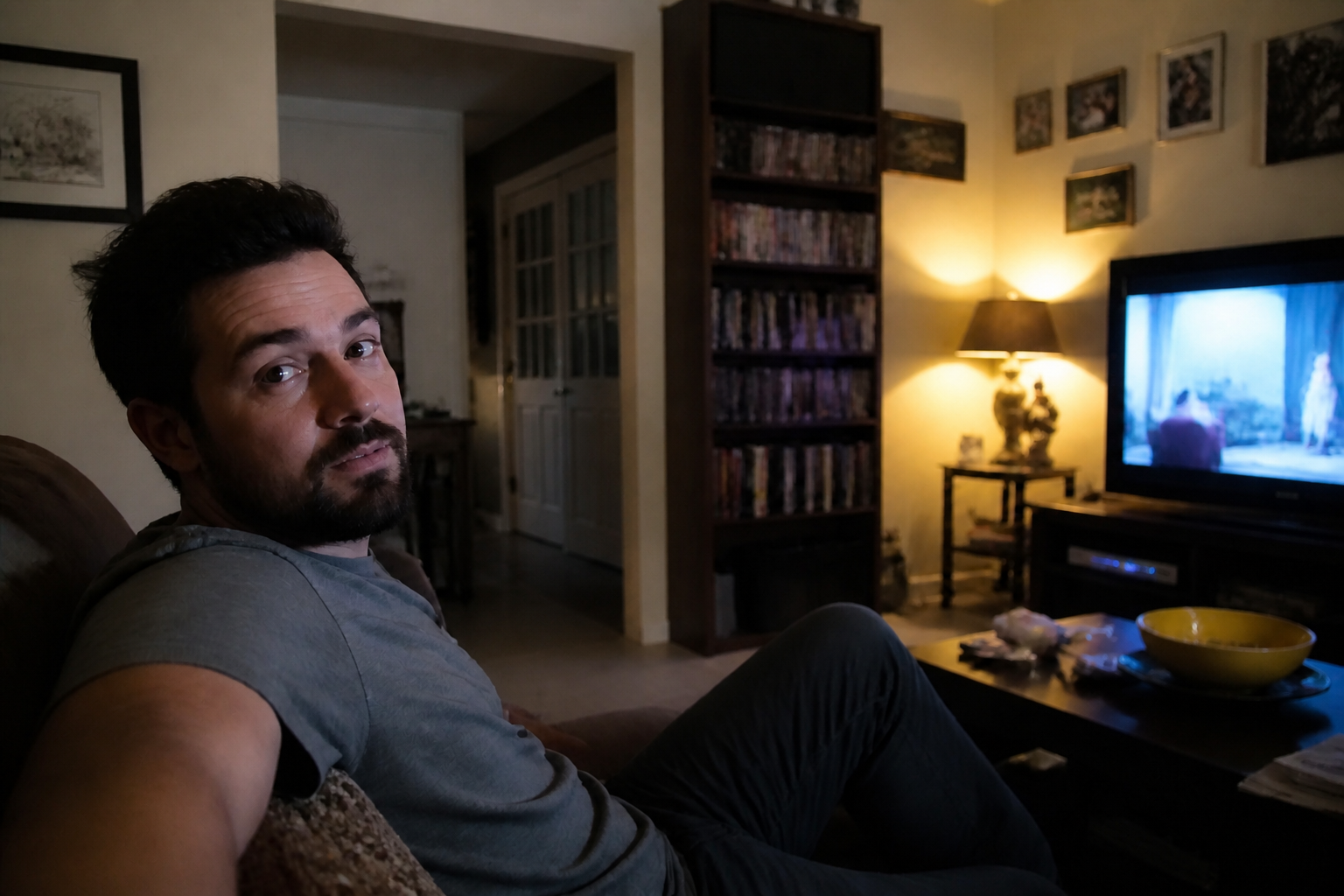
Reduce noise and compression
Low-quality images often break down in shadows, skin tones, and flat backgrounds. Our AI cleans digital noise and blocky compression while preserving the original scene. This is useful for old uploads, screenshots, and heavily shared images that need a second life. Doing the same cleanup by hand usually takes several passes across denoise, clarity, and masking tools.
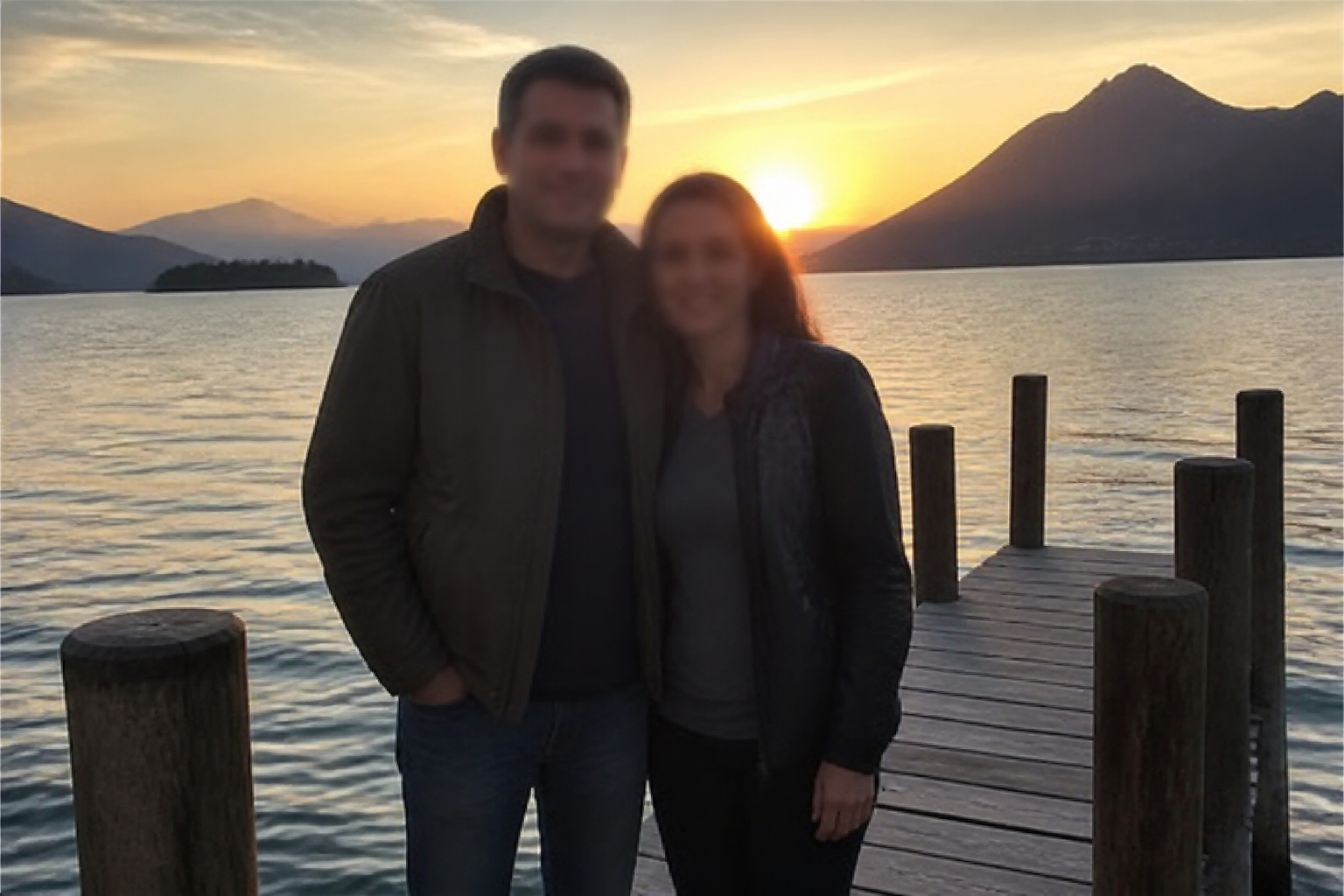
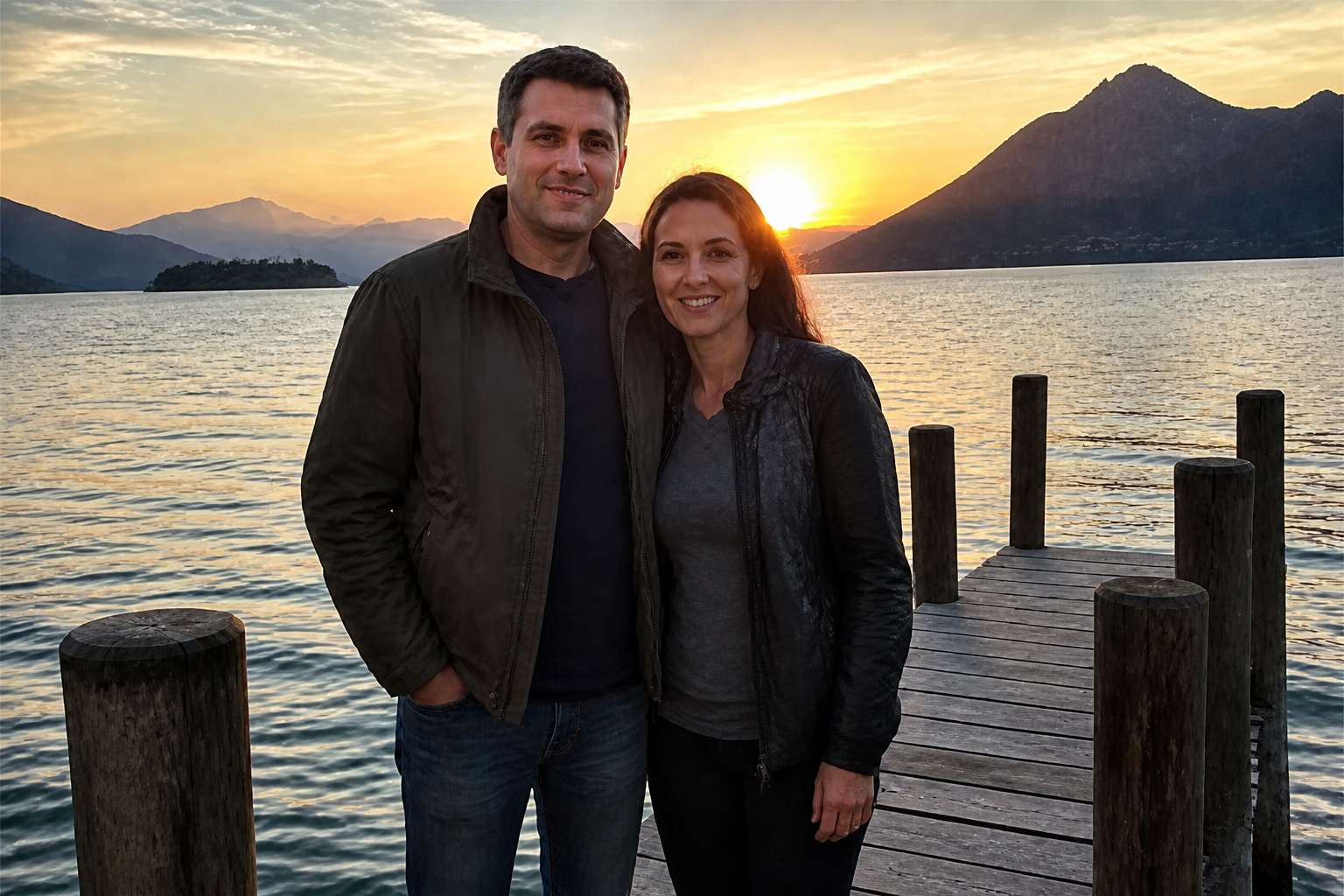
Keep the original look
The goal is not to remake the photo into something different. It keeps the same subject, framing, lighting, and overall mood while improving quality. That is important when you want a better version of a real image, not a new interpretation. Manual restoration often drifts because each adjustment can change color, contrast, or facial appearance.
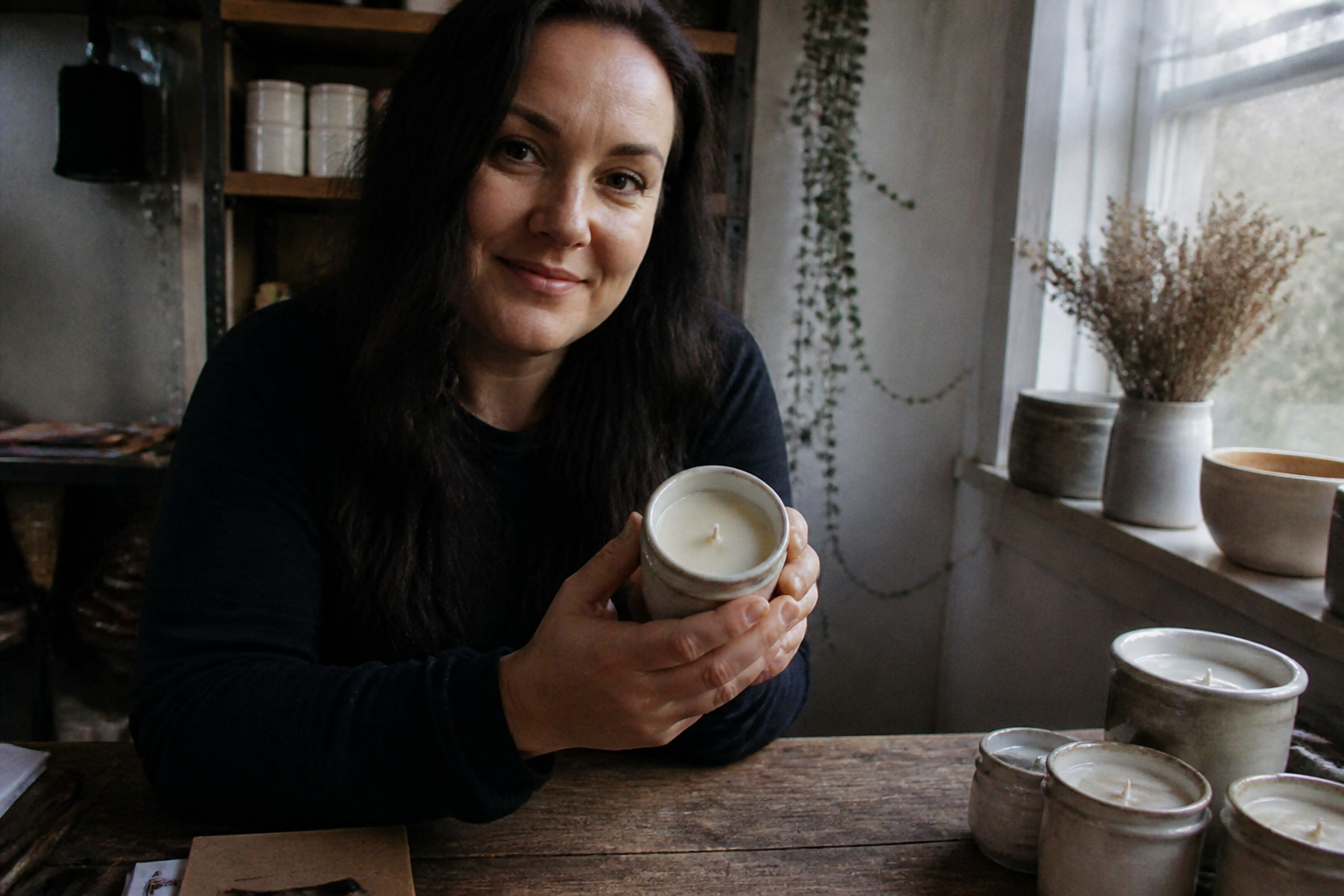
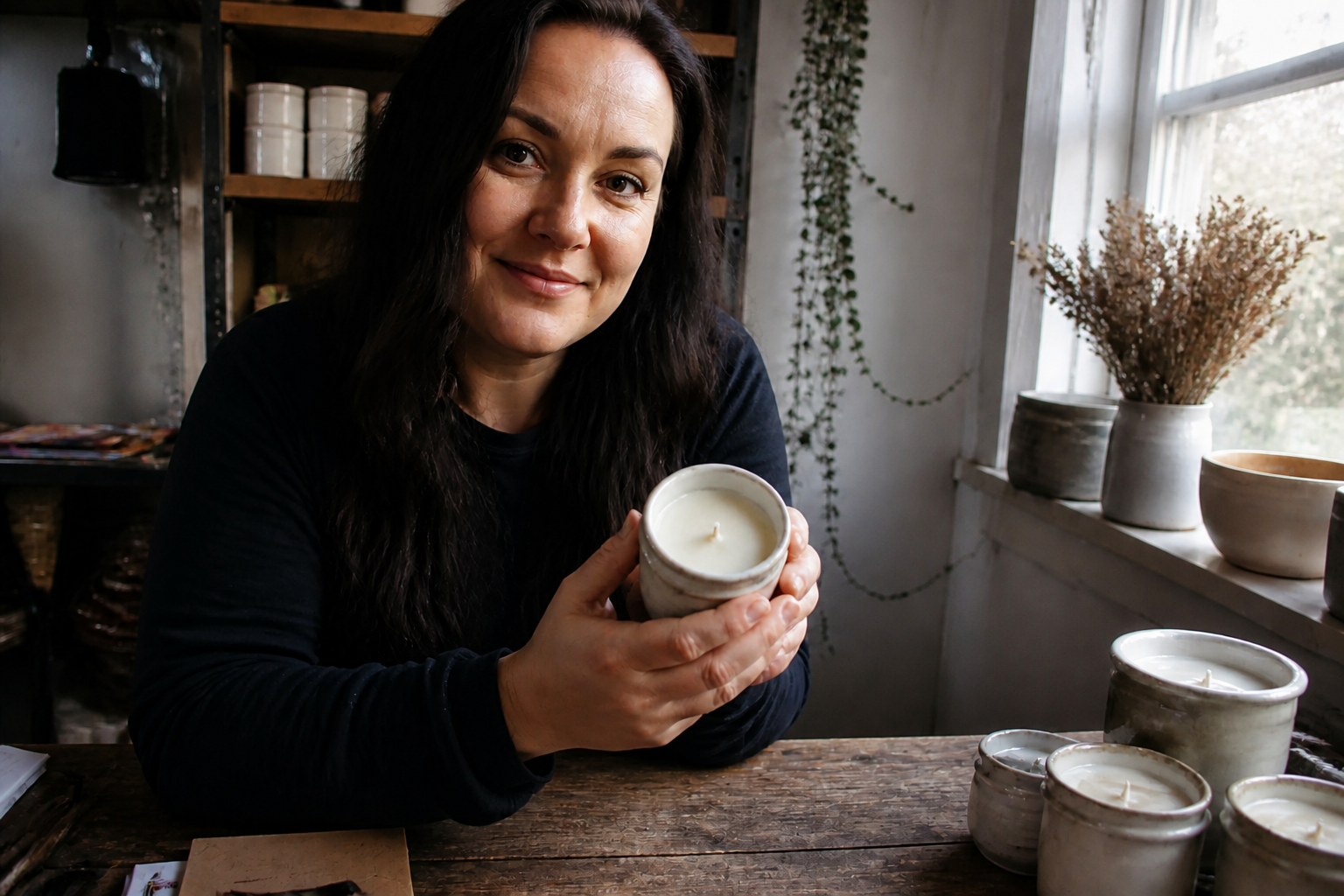
Works across photo types
You can use it on portraits, indoor shots, travel photos, product images, and social posts that came out weak. The same workflow handles different scenes without requiring a separate editing method for each one. That makes it practical for creators and teams who work with mixed image sources. Instead of learning a restoration process per image type, you apply one clear enhancement prompt.
How It Works
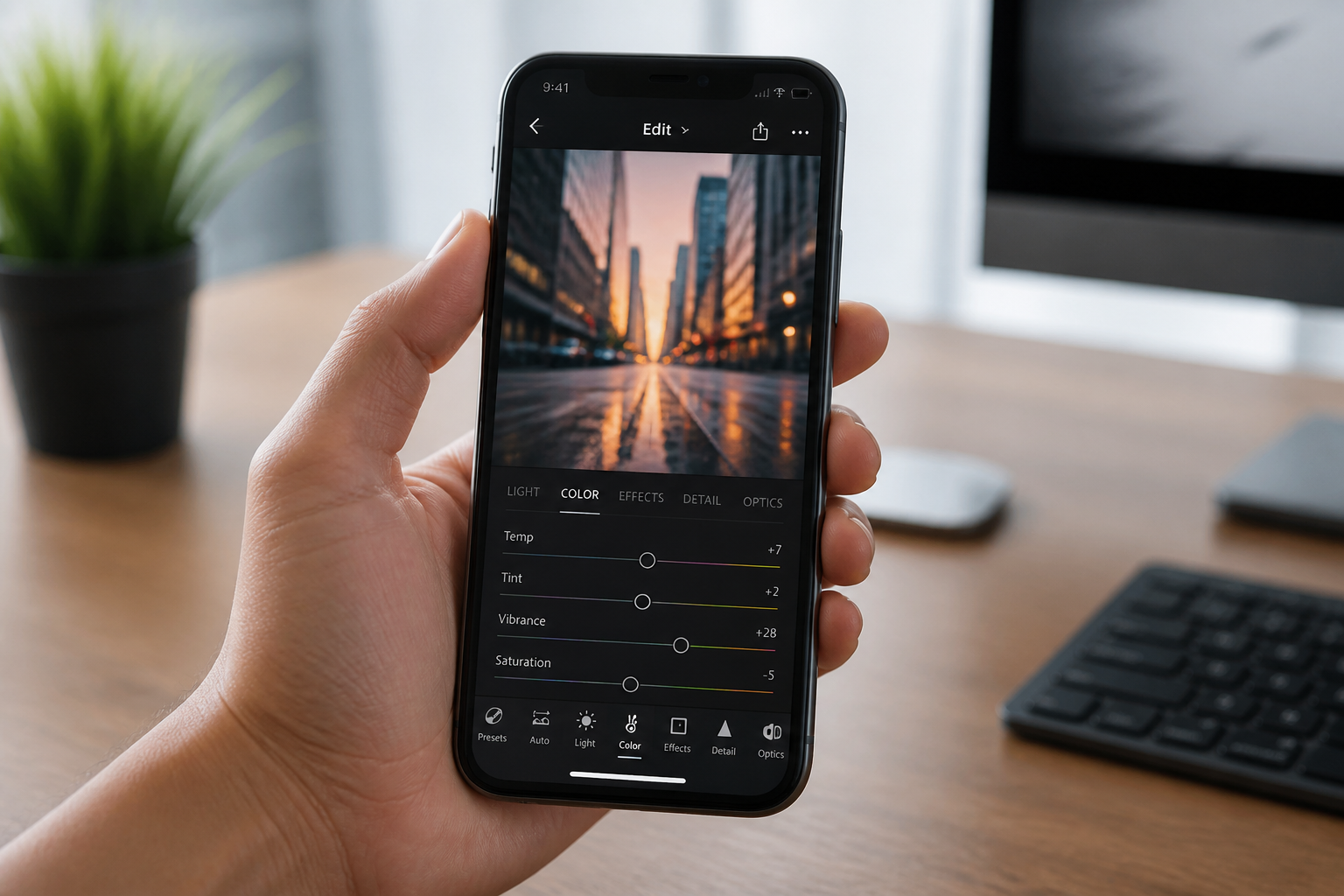
Upload your image
Start with the photo that looks blurry, noisy, small, or overly compressed. A clean upload gives our AI the best chance to preserve the original scene while improving quality.
Describe the fix
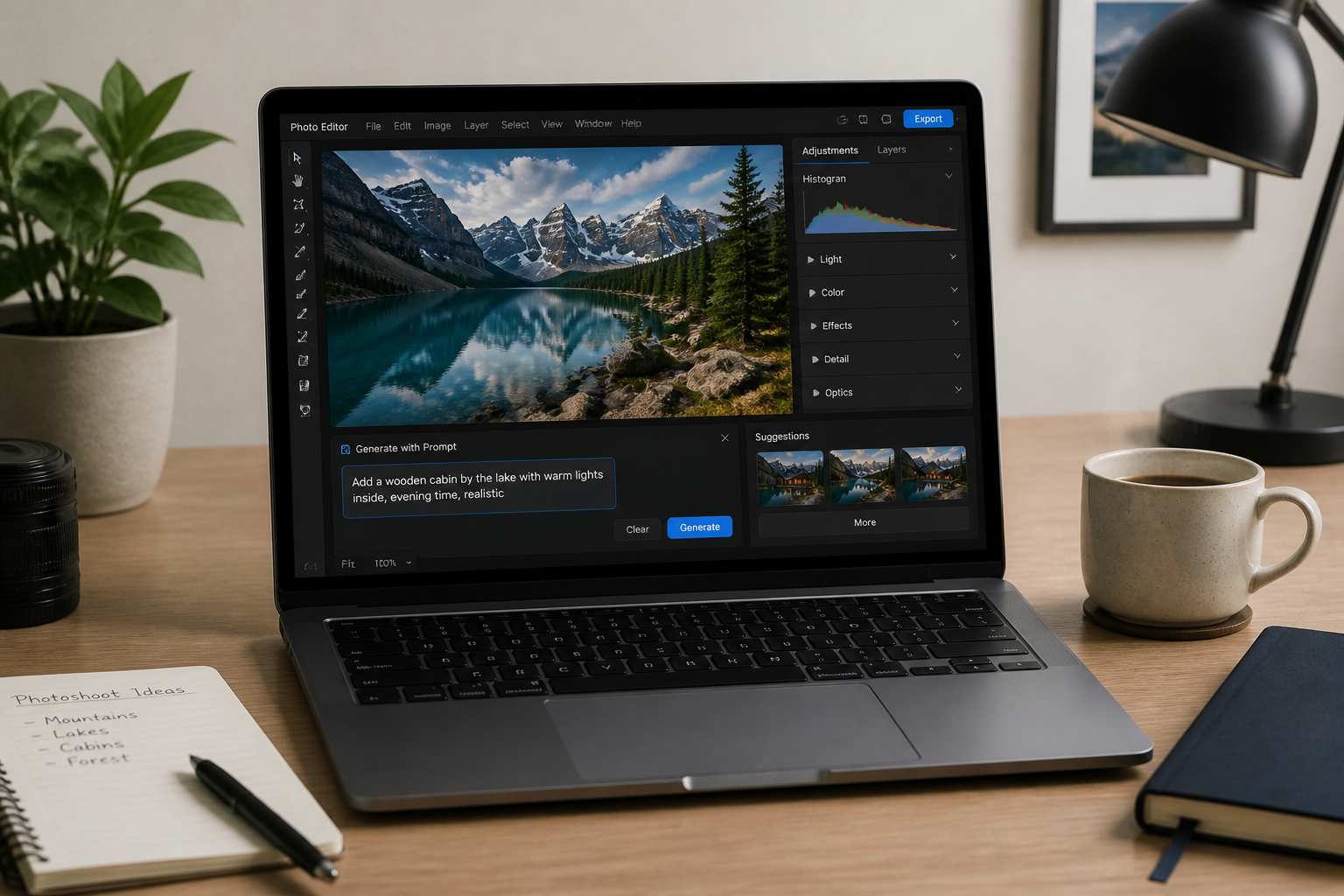
Tell the tool what you want improved, such as sharper details, less noise, or better clarity. Short instructions work well because the edit stays focused on restoration instead of changing the scene.
Compare and download
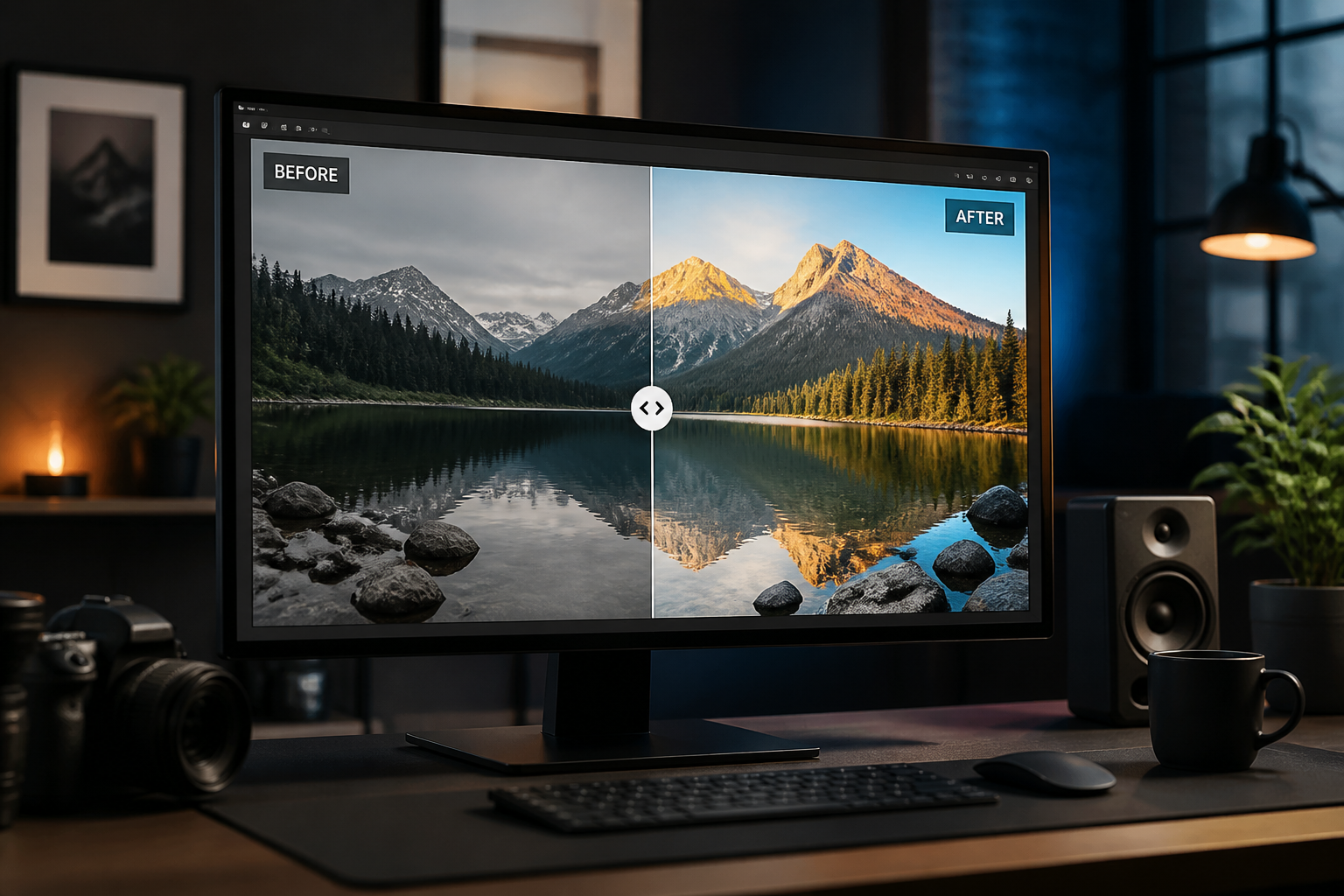
Review the before and after side by side to check clarity, texture, and overall realism. When the result looks right, download the enhanced version and use it anywhere you need a cleaner image.
Perfect For
Discover how creators and professionals use ai low quality image enhancer
Fix blurry phone photos
Clean up everyday shots that came out soft, noisy, or low-detail so they are easier to share or reuse.
Improve old social uploads
Refresh compressed images from past posts, chat apps, or downloaded copies that lost clarity over time.
Rescue low-light portraits
Reduce grain and restore face detail in indoor or nighttime photos without rebuilding the whole image manually.
Polish listing and marketing images
Make weak product, workspace, or lifestyle photos look cleaner before using them in ads, listings, or presentations.
Built For
Content creators
Upgrade soft or compressed images quickly before posting, repurposing, or bundling them into campaigns.
Small businesses
Improve product, team, and location photos without hiring an editor for every minor quality issue.
Everyday users
Recover personal photos that matter to you when the original file looks worse than you remember.
Why choose this over other options
A quick look at how we compare on the things that matter for this niche.
| Feature | BudgetPixel | Generic AI editors | Manual editing apps |
|---|---|---|---|
| Simple quality-restoration prompts | ✓ | ✓ | — |
| Before/after image editing workflow | ✓ | ✓ | — |
| Keeps original composition | ✓ | — | ✓ |
| Fast cleanup without sliders | ✓ | ✓ | — |
| Free to start | ✓ | — | — |
Frequently Asked Questions
What does the AI Low Quality Image Enhancer fix?
Will it change the subject or composition?
Can I use it on old phone photos and screenshots?
Do I need editing skills to use it?
Is this the same as upscaling?
Create together.
Share your creations, discover trending AI art, and grow with fellow creators.


















Ready to Try AI Low Quality Image Enhancer?
Get started for free. No credit card required.
Try it Free