AI Inpainting Tool for Fast, Precise Image Edits
Remove distractions, replace objects, and fill missing areas in seconds.
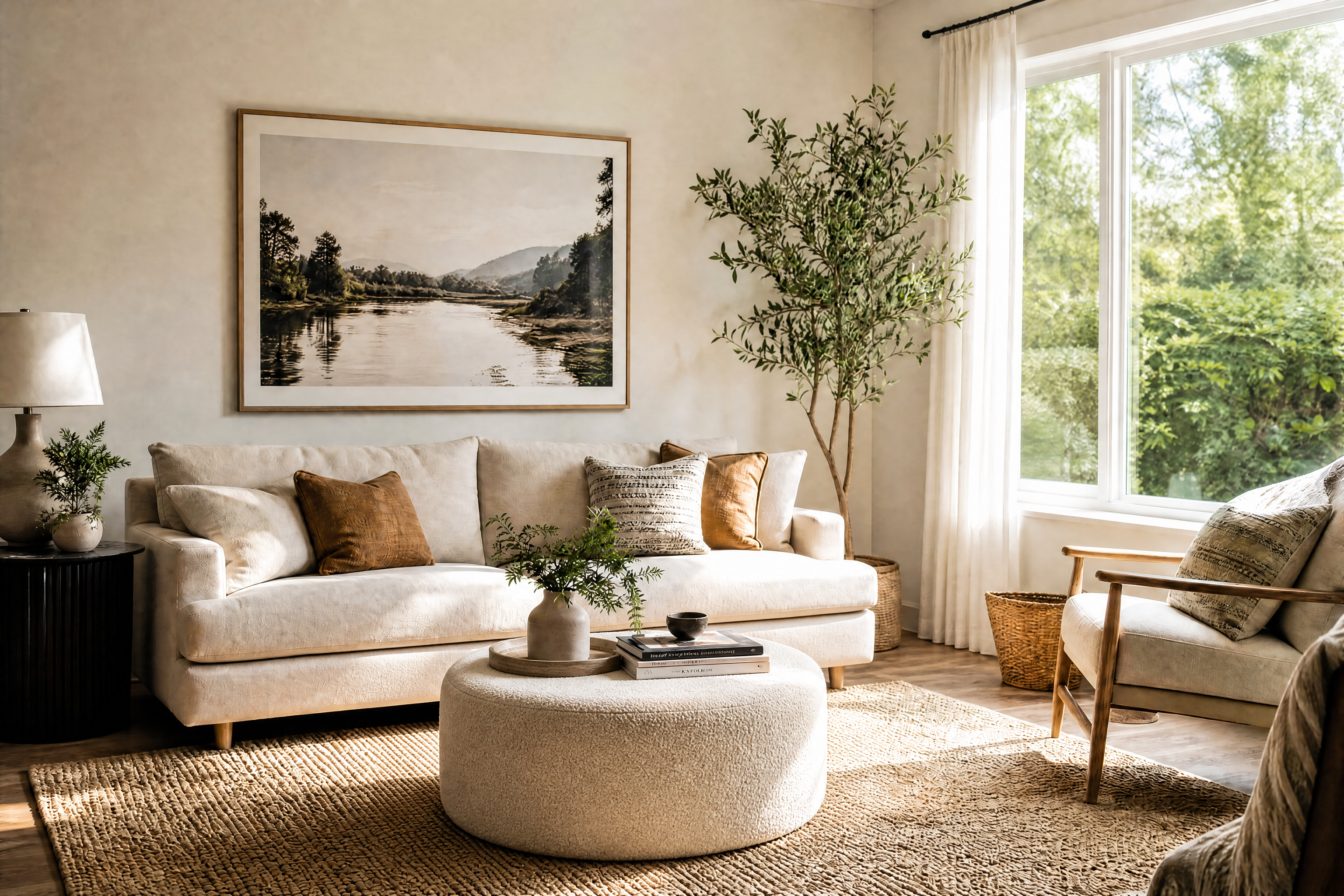
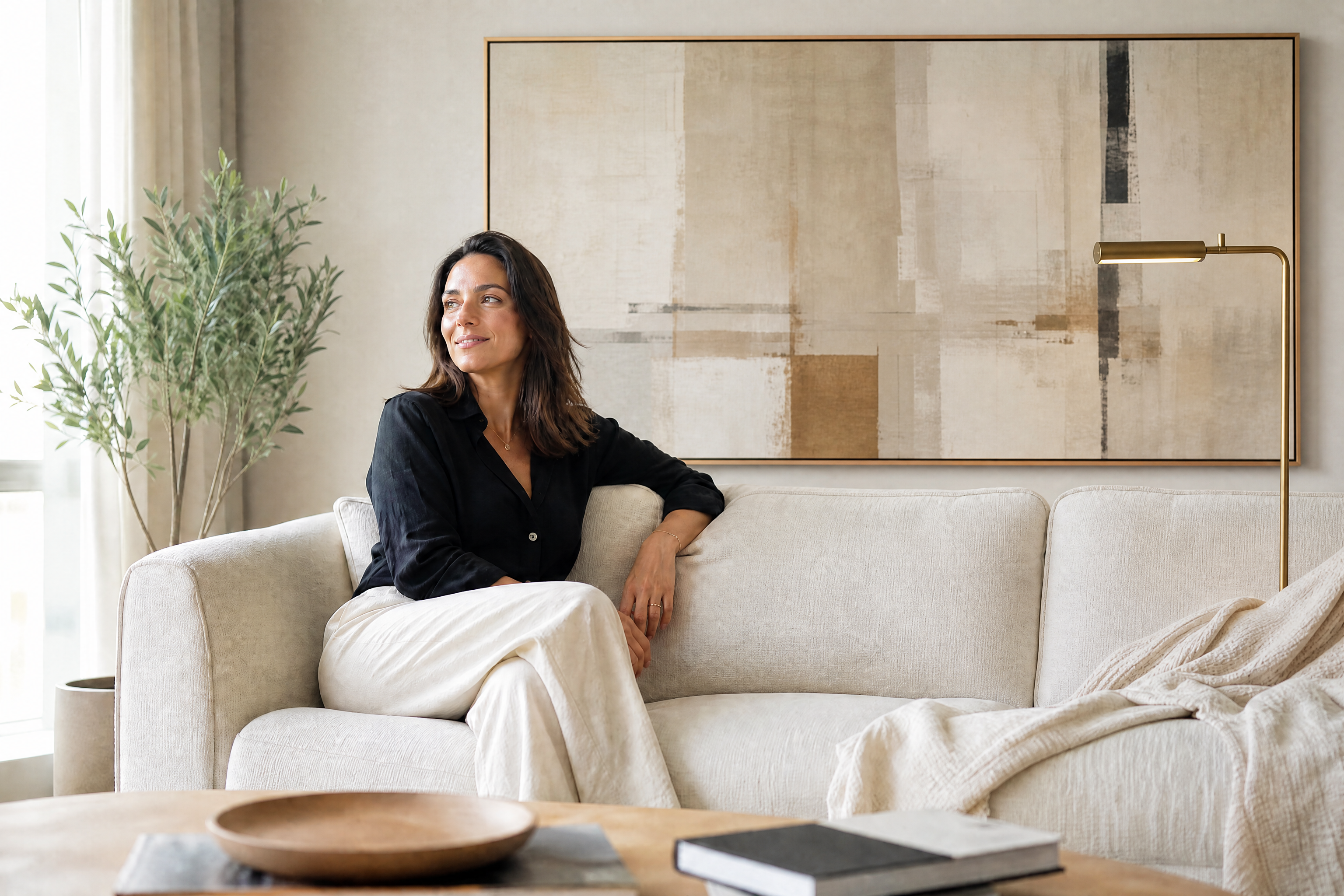
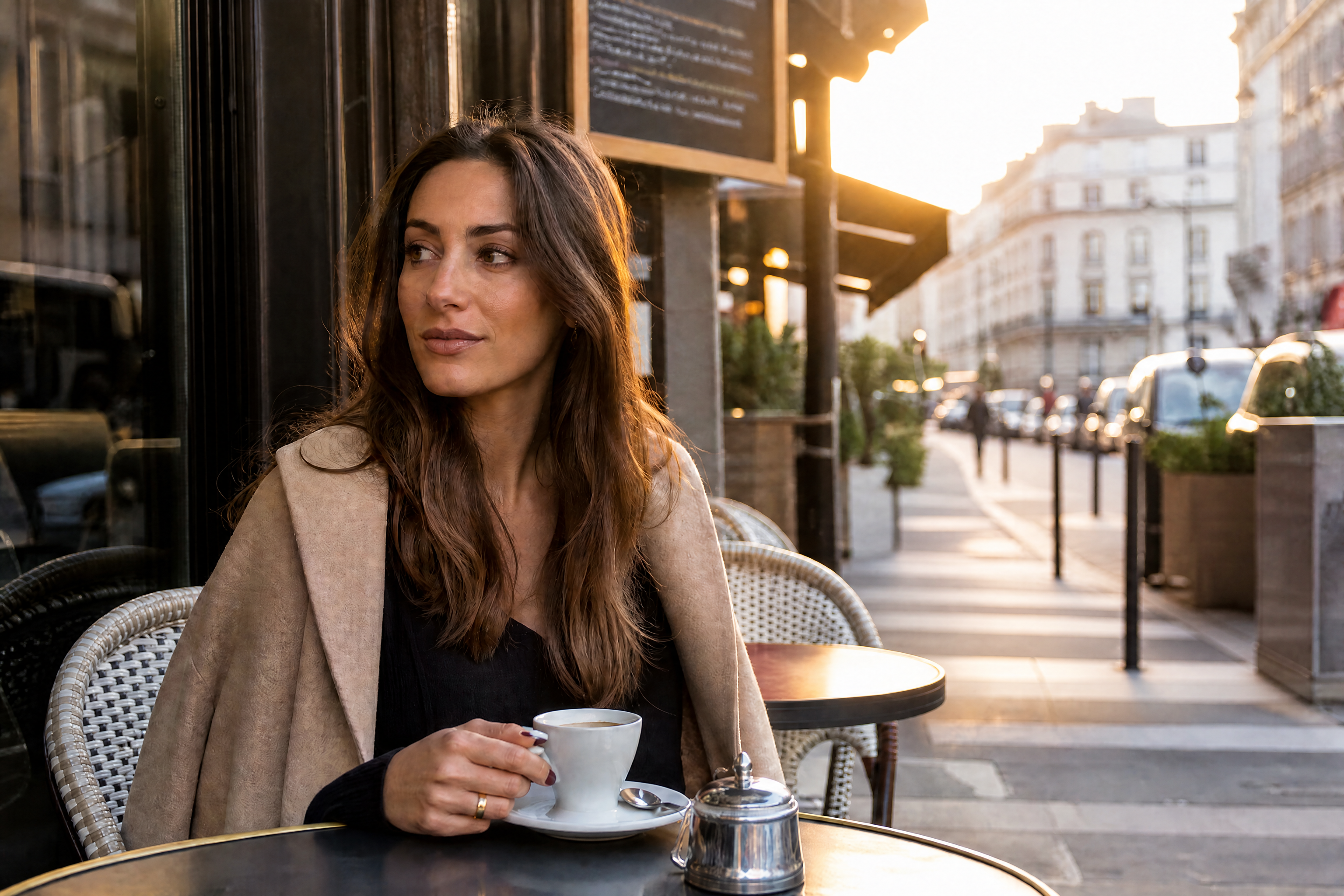
Our AI inpainting tool lets you edit only the part of an image you want to change. Remove unwanted objects, swap details, or reconstruct missing regions while keeping lighting, perspective, and the rest of the scene consistent.

Watch the Transformation
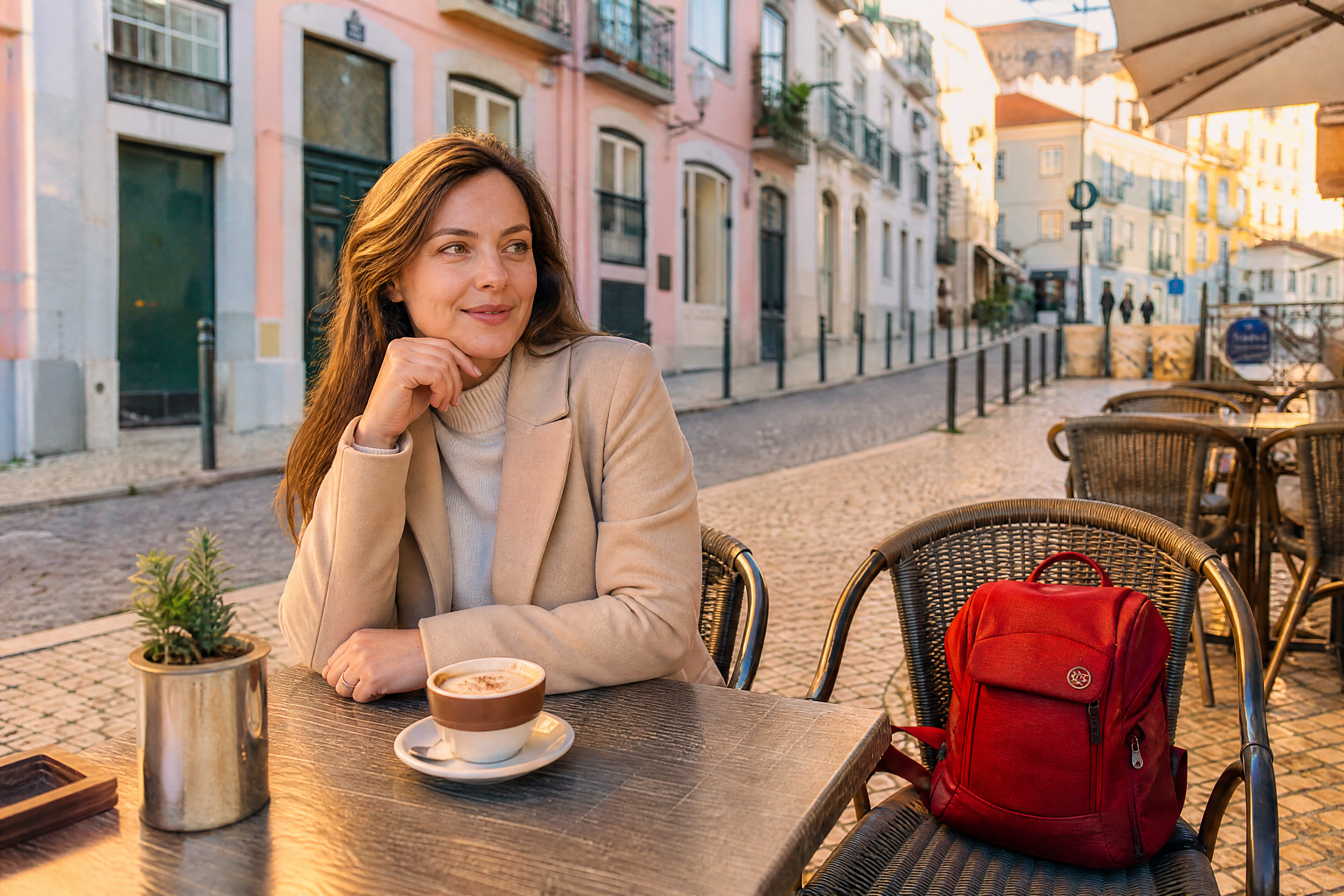
See ai inpainting tool in motion — generated end-to-end by our AI.
See It In Action
Real outputs from ai inpainting tool.
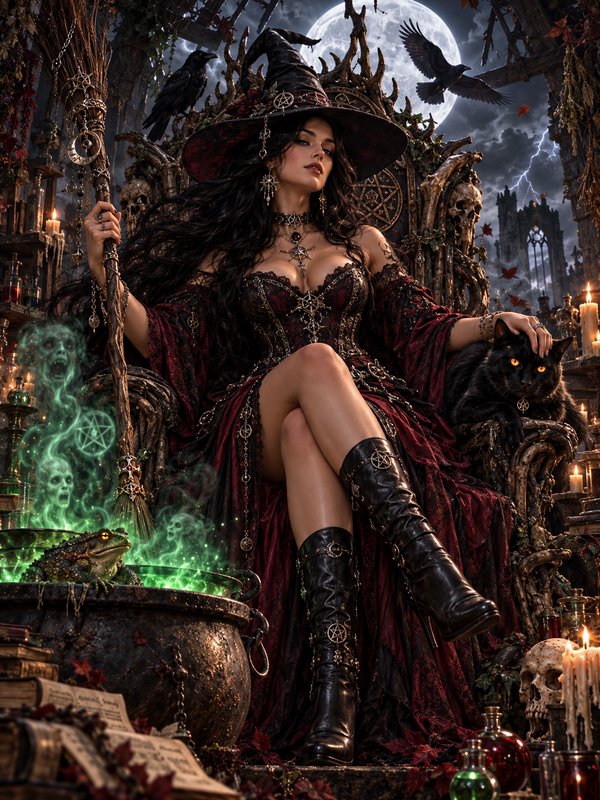
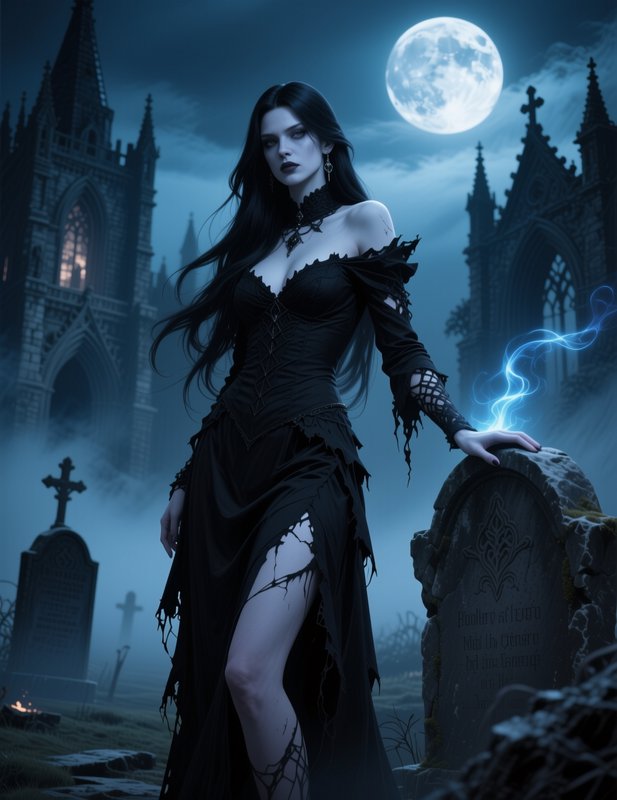
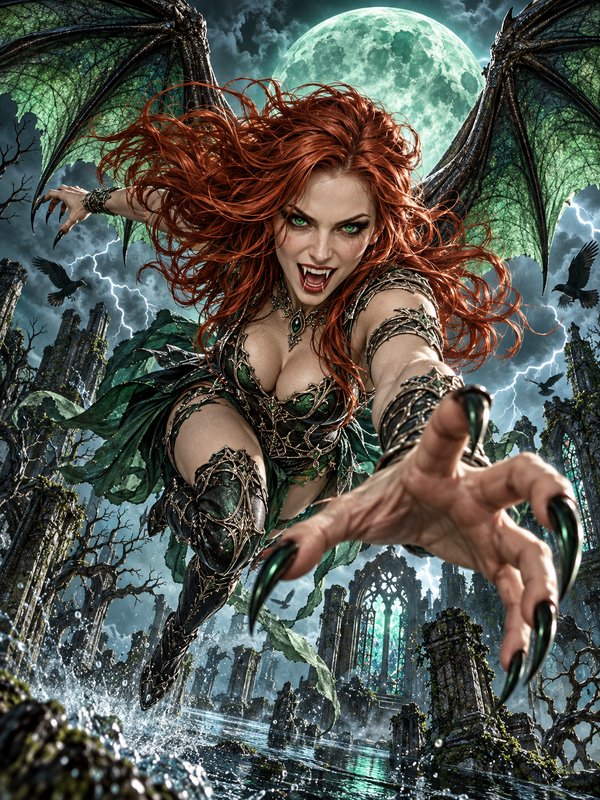
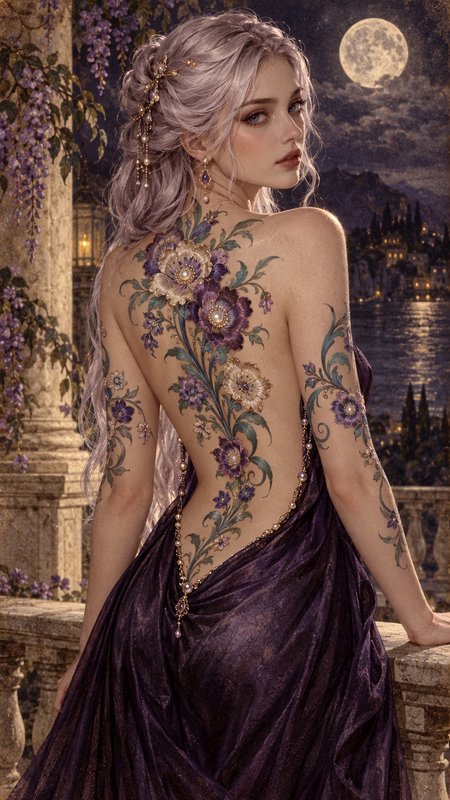
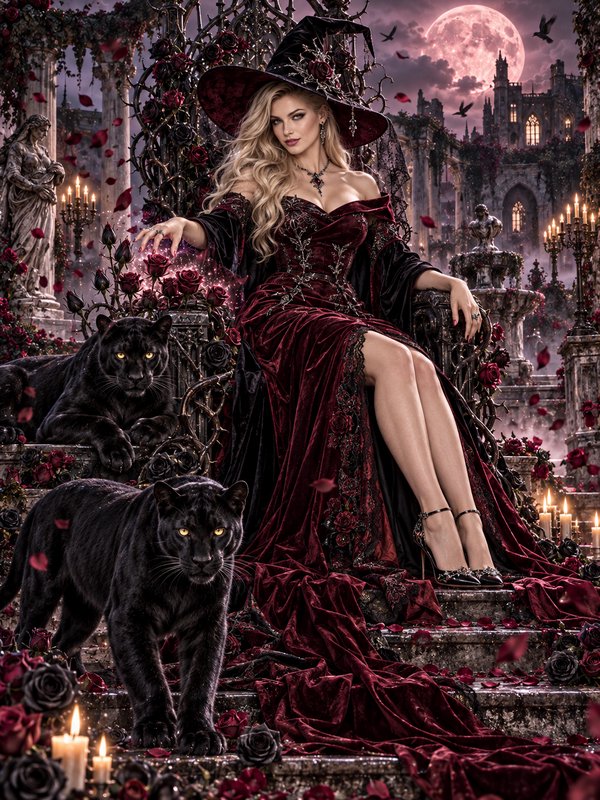
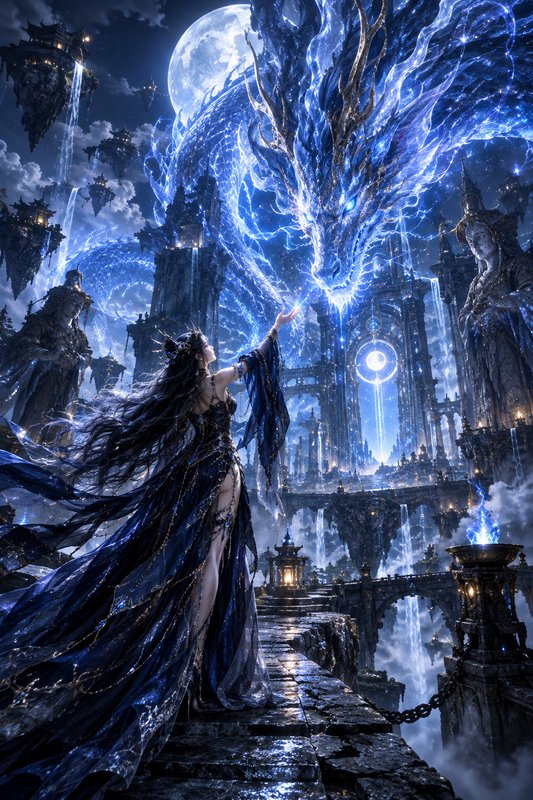
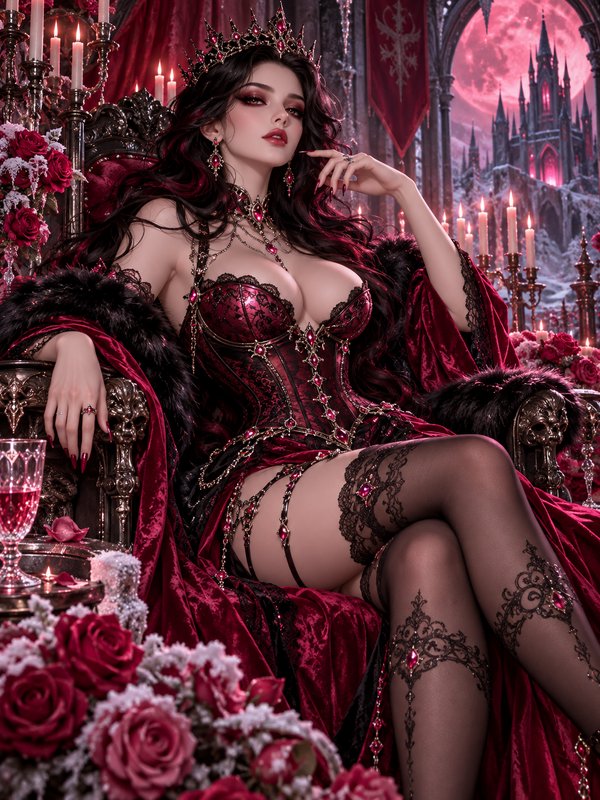
BEFOREAFTER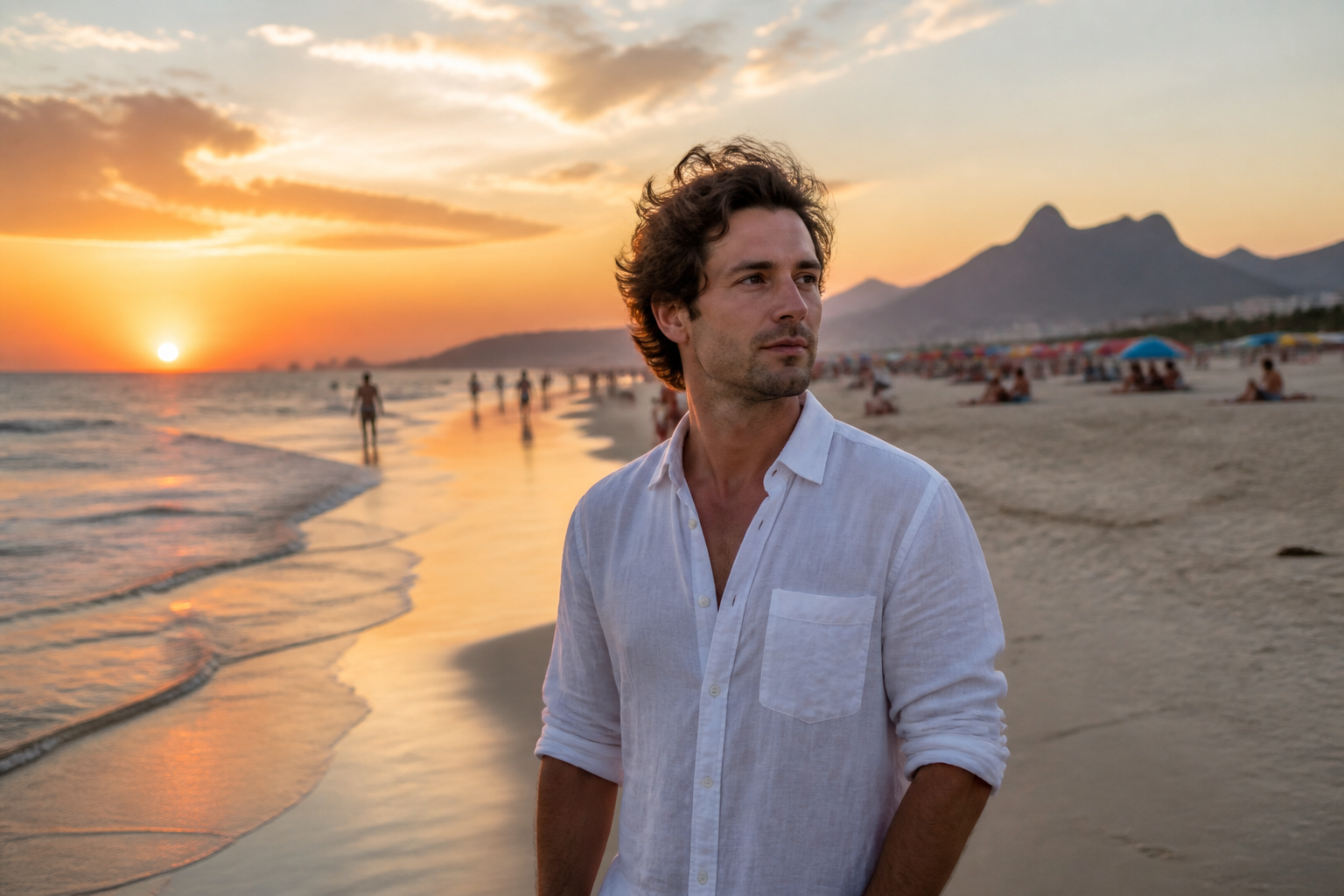 BEFORE
 AFTER
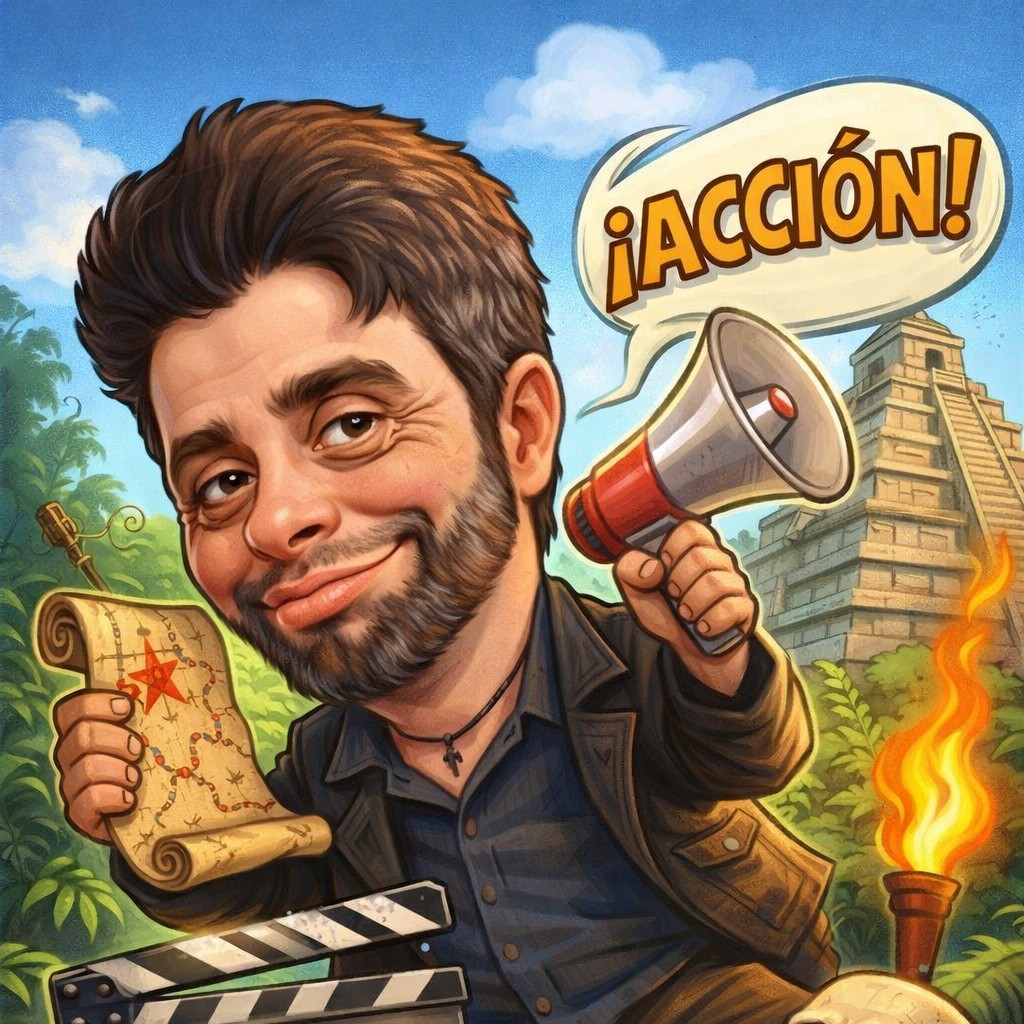
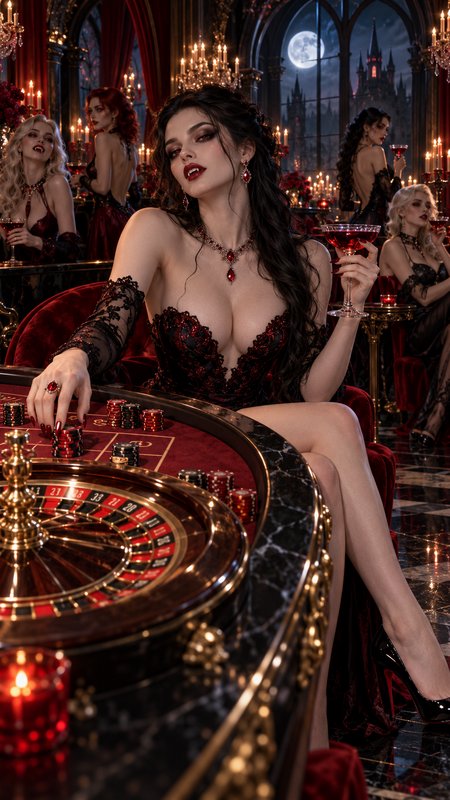
AFTER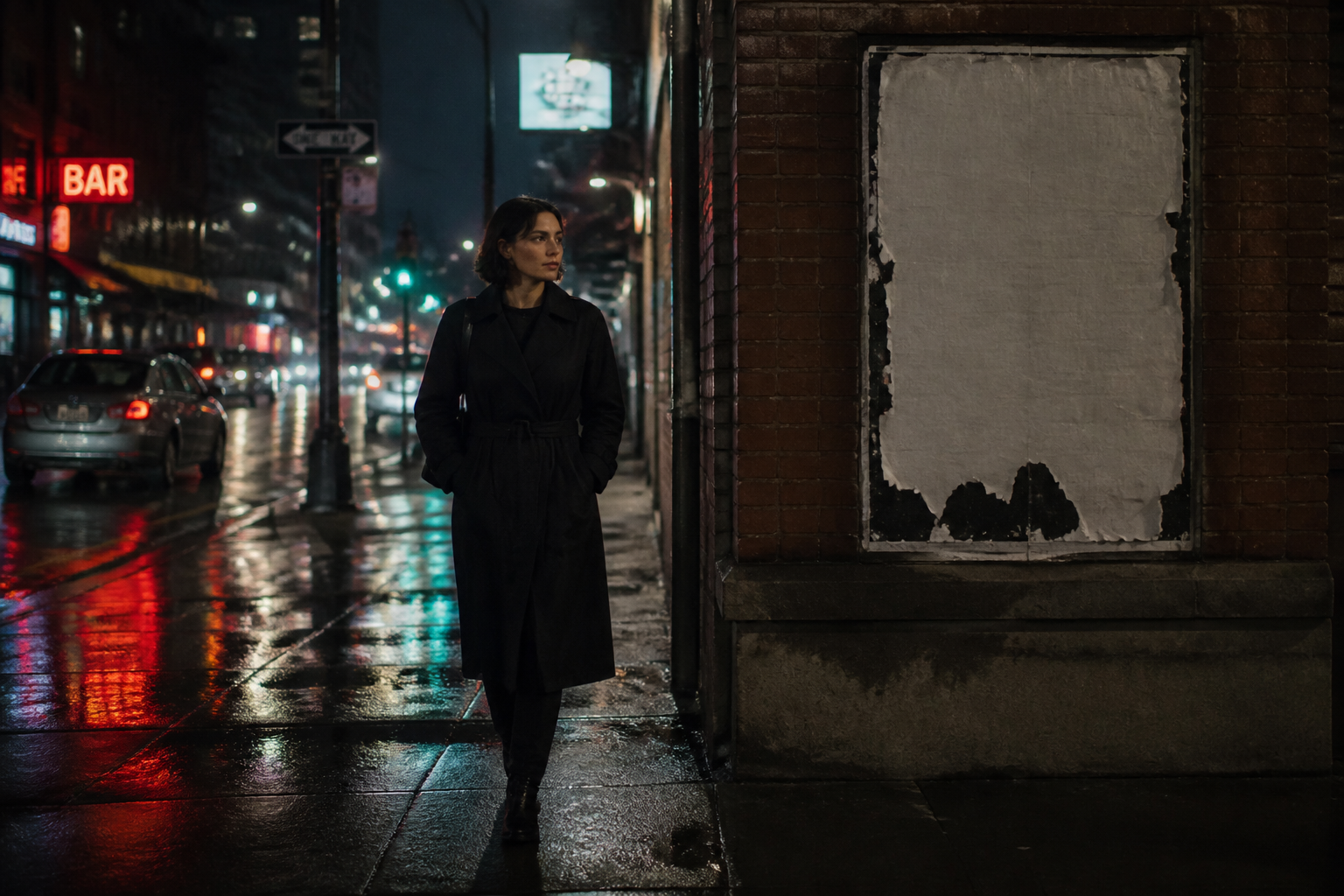 BEFORE
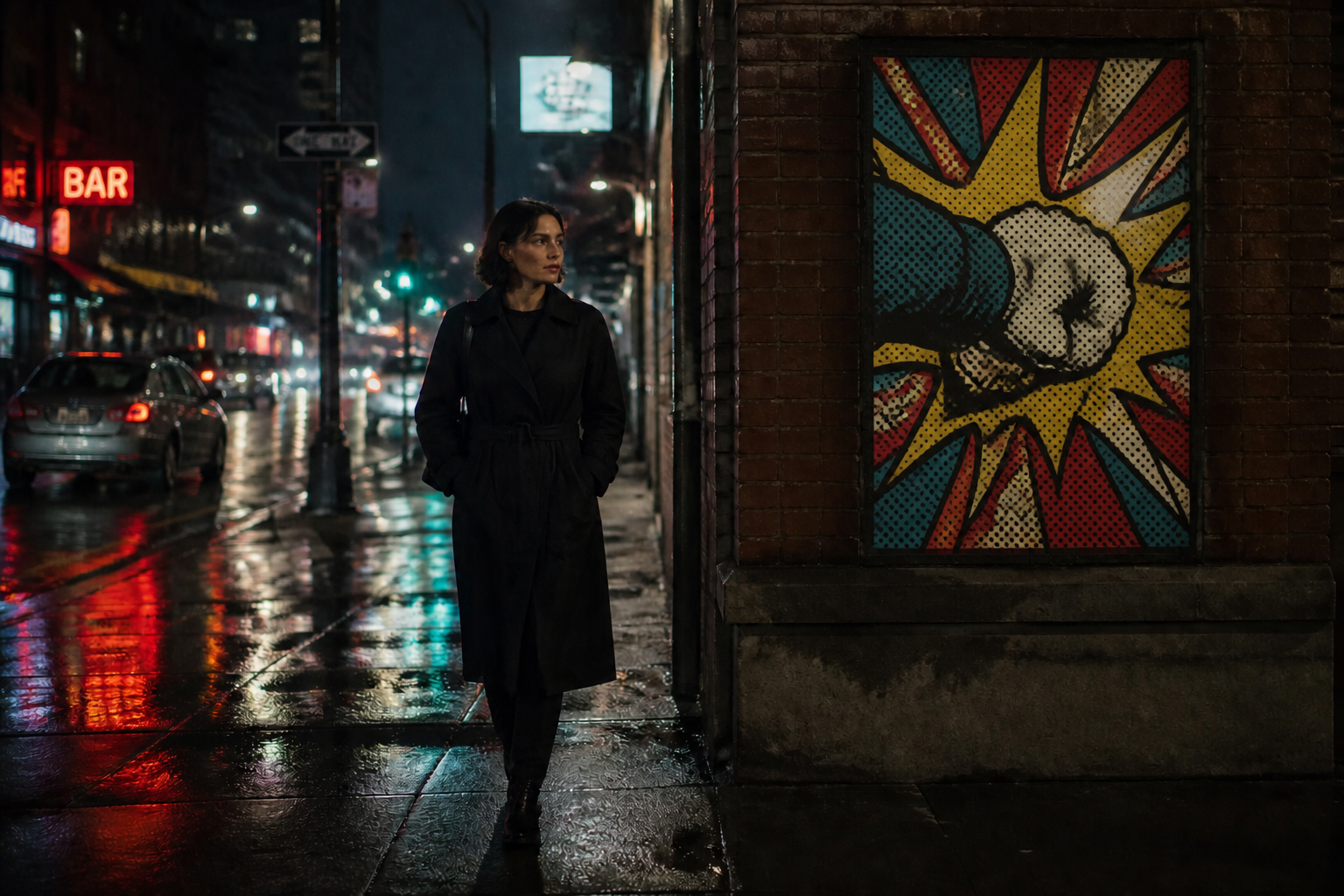 AFTER
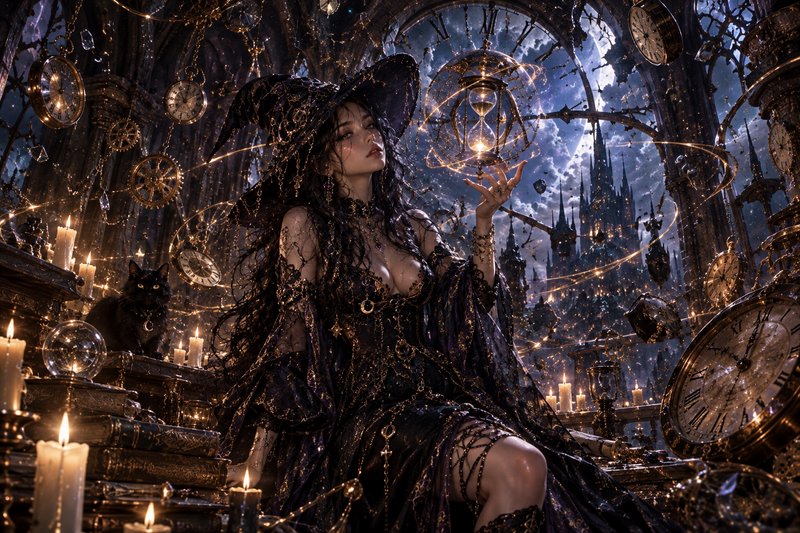
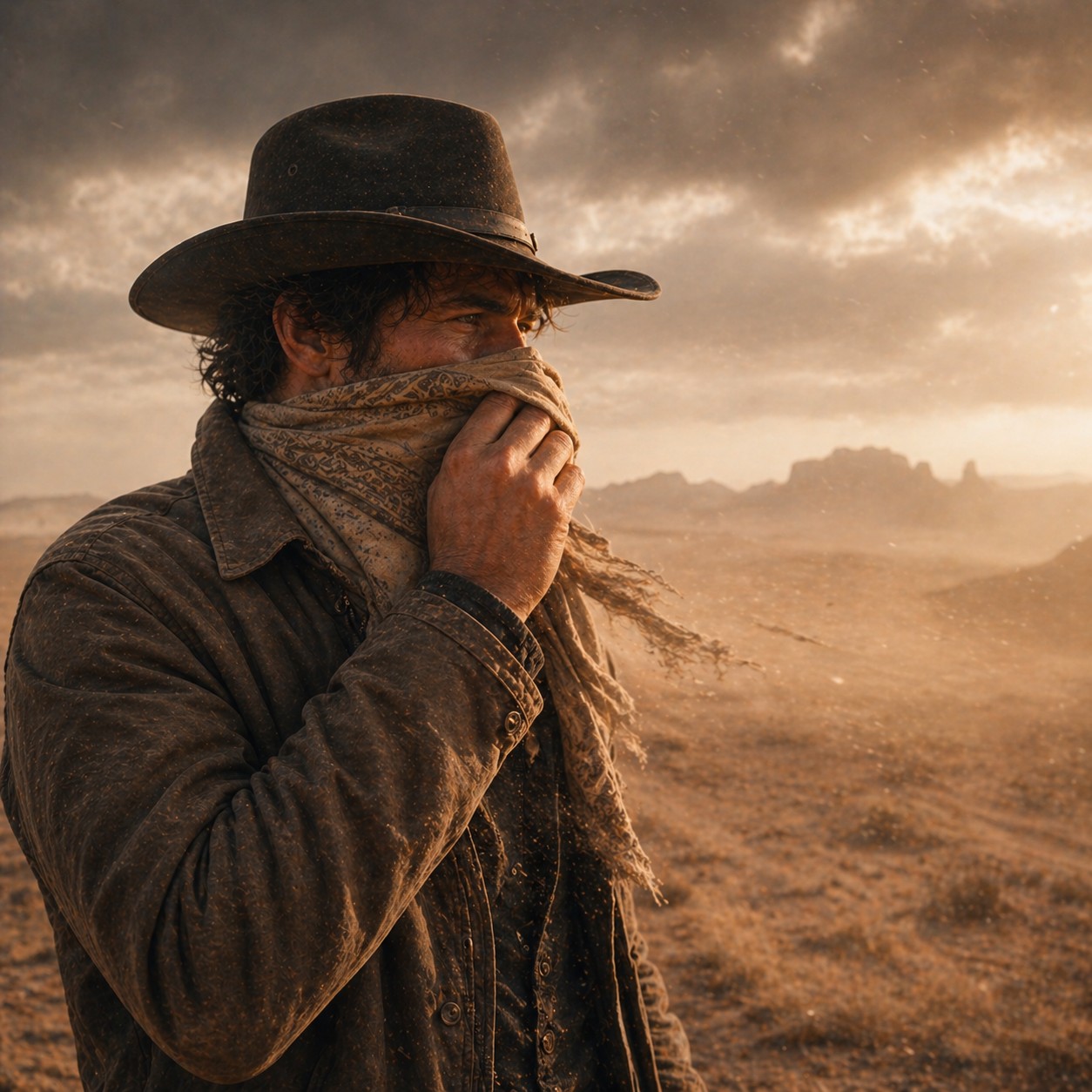
AFTER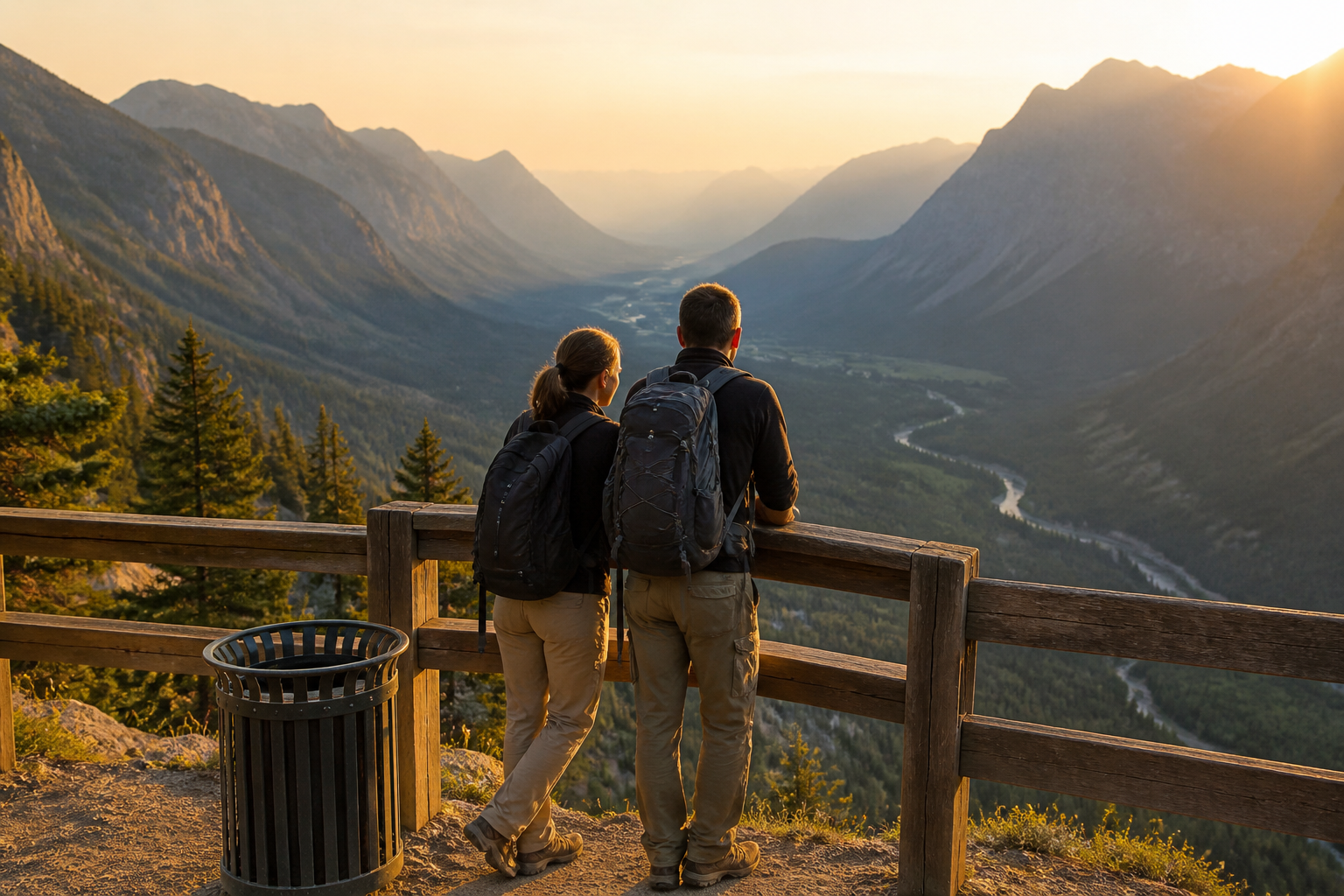 BEFORE
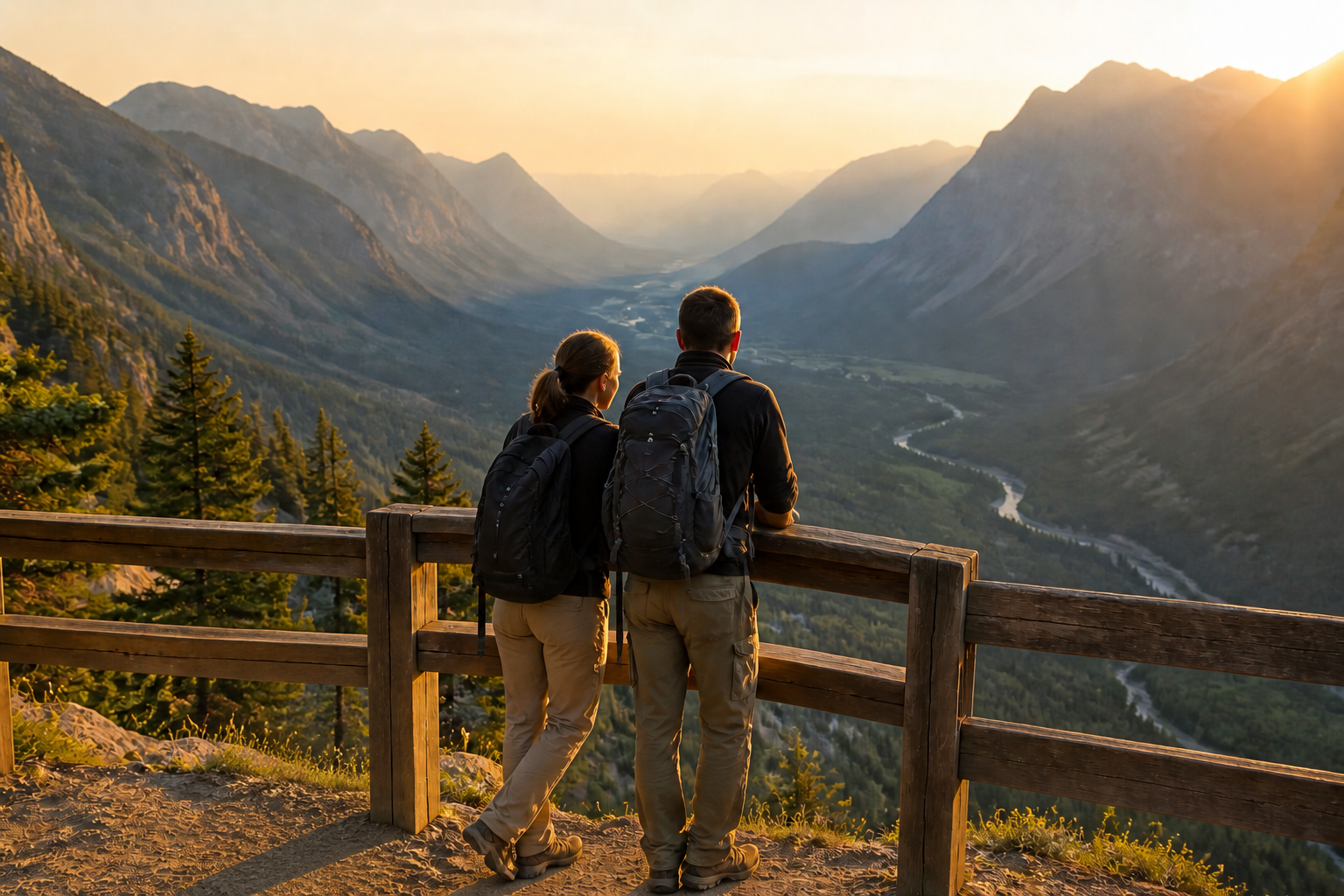 AFTER
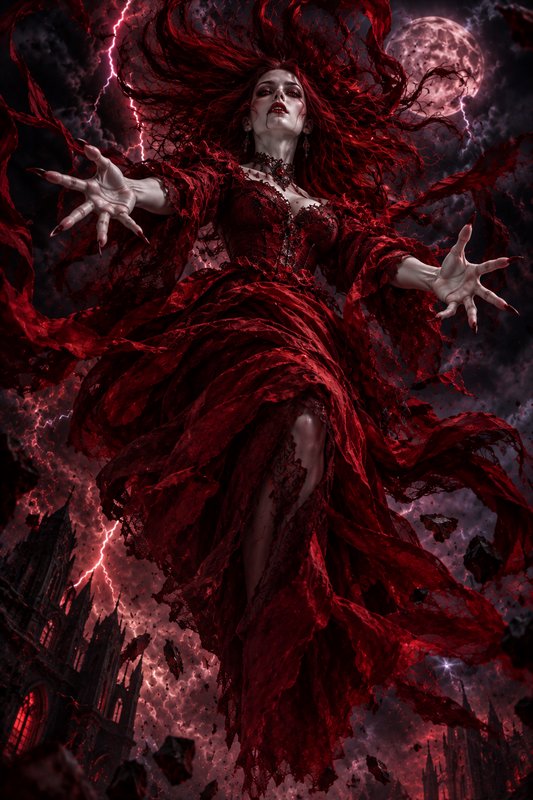
AFTER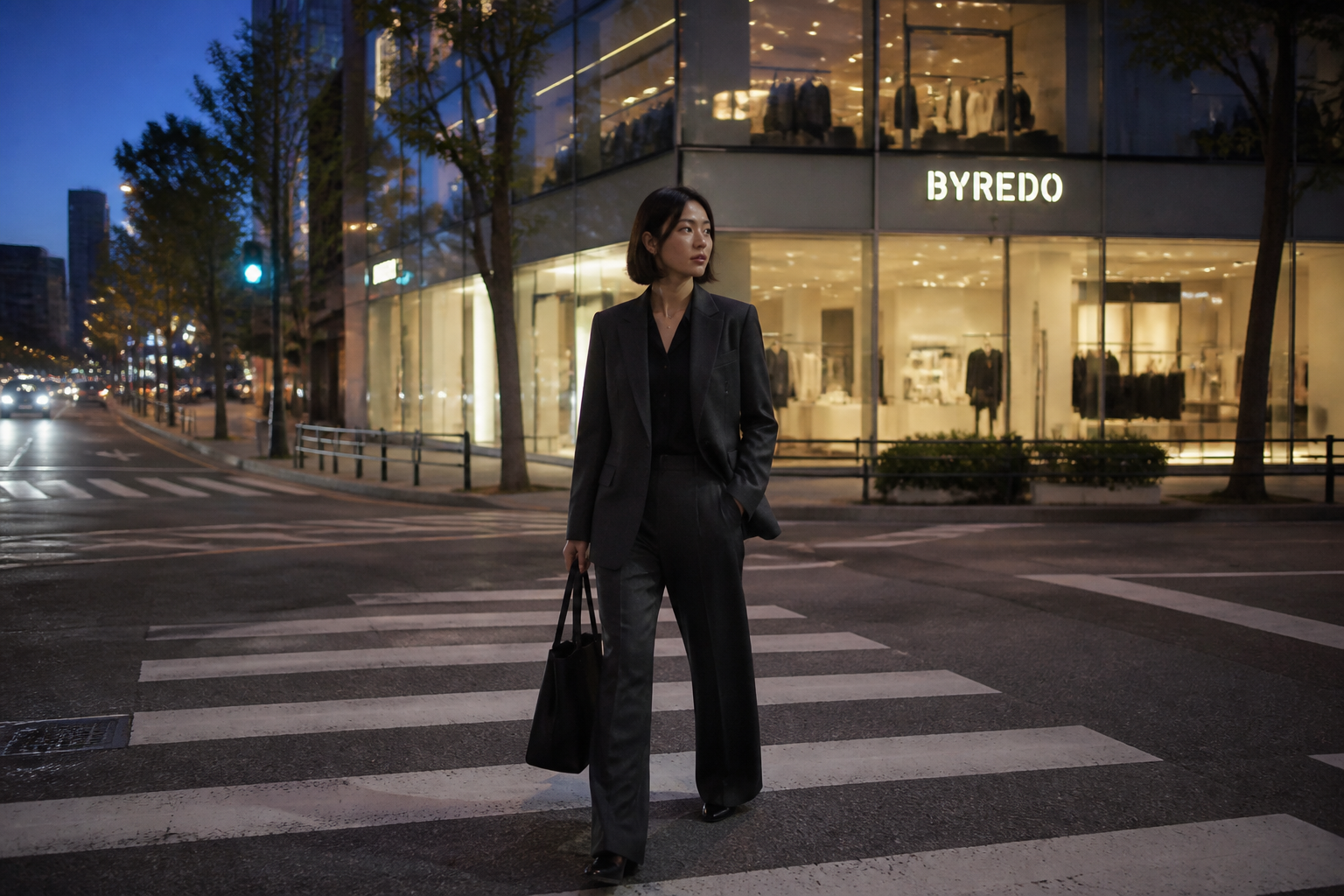 BEFORE
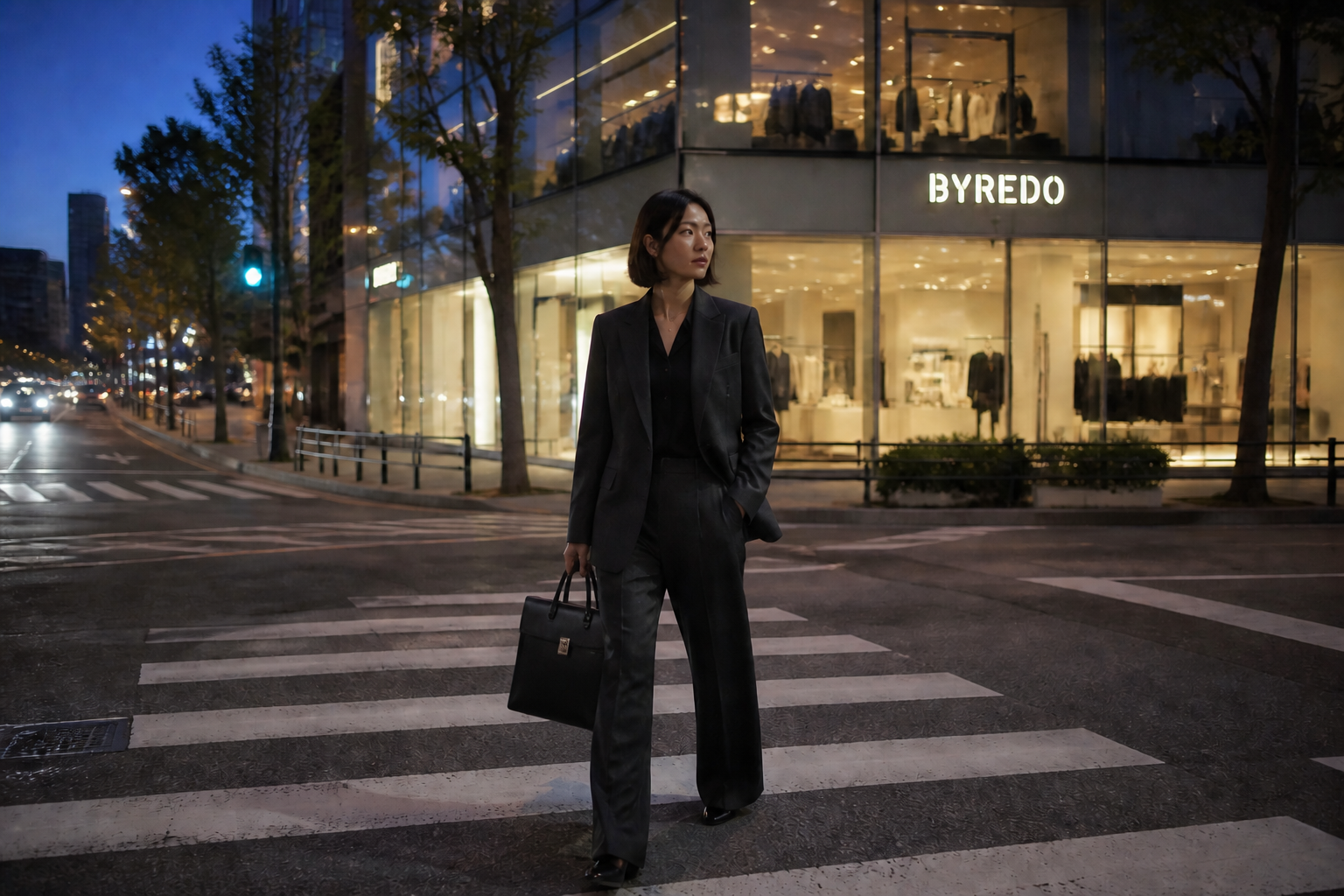 AFTERBEFOREAFTERBEFOREAFTERBEFOREAFTERBEFOREAFTERBEFOREAFTER
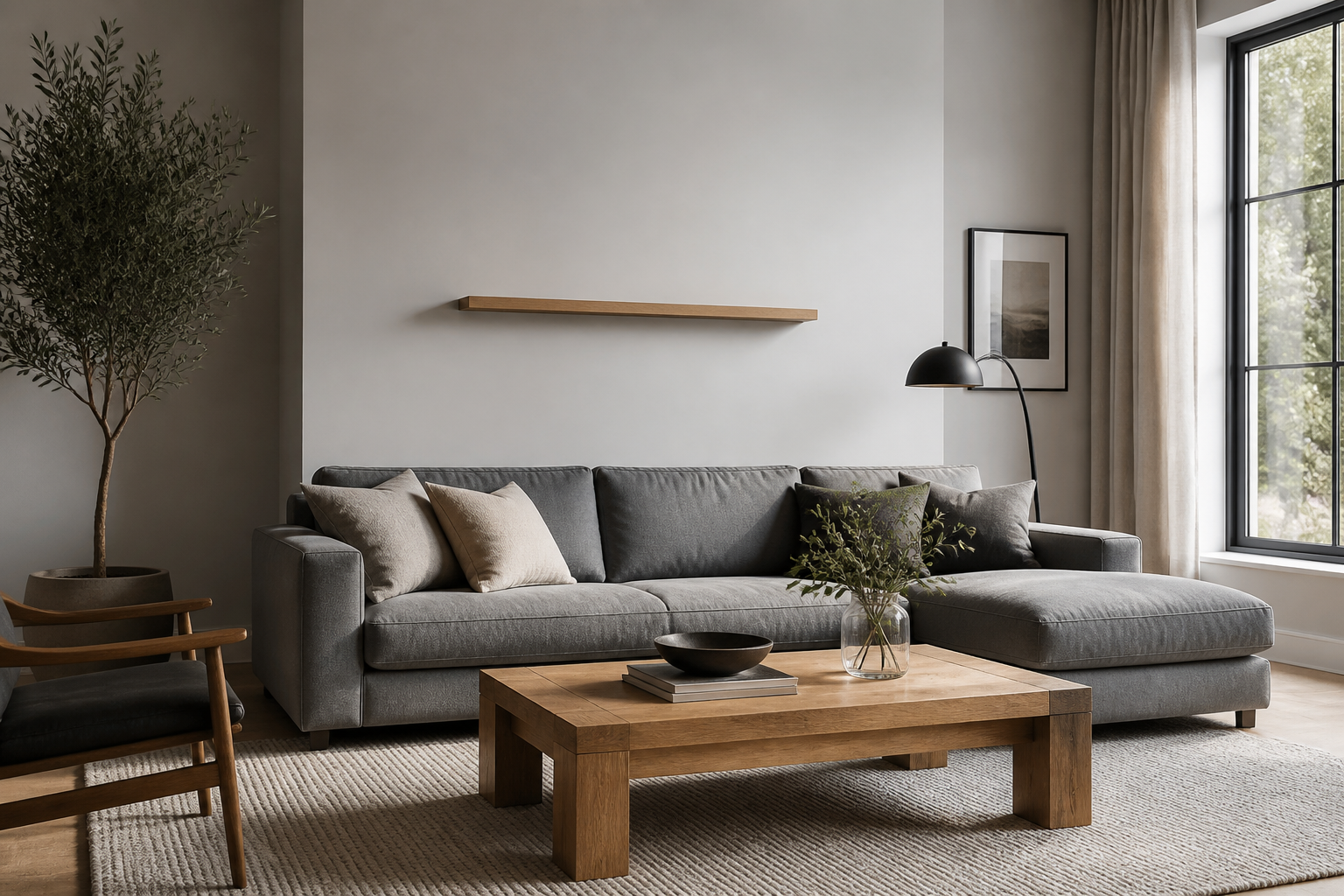 BEFORE
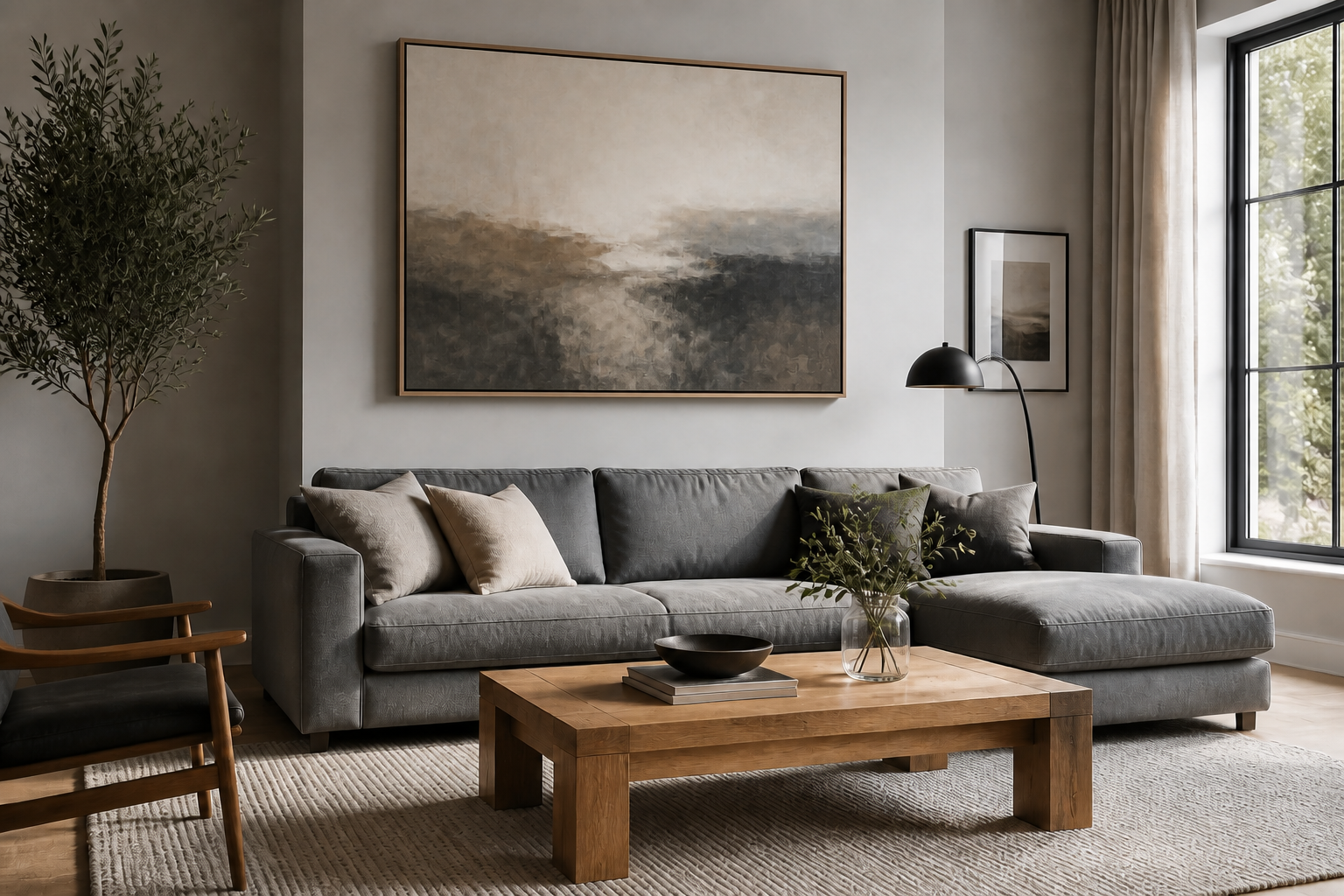 AFTER
AFTER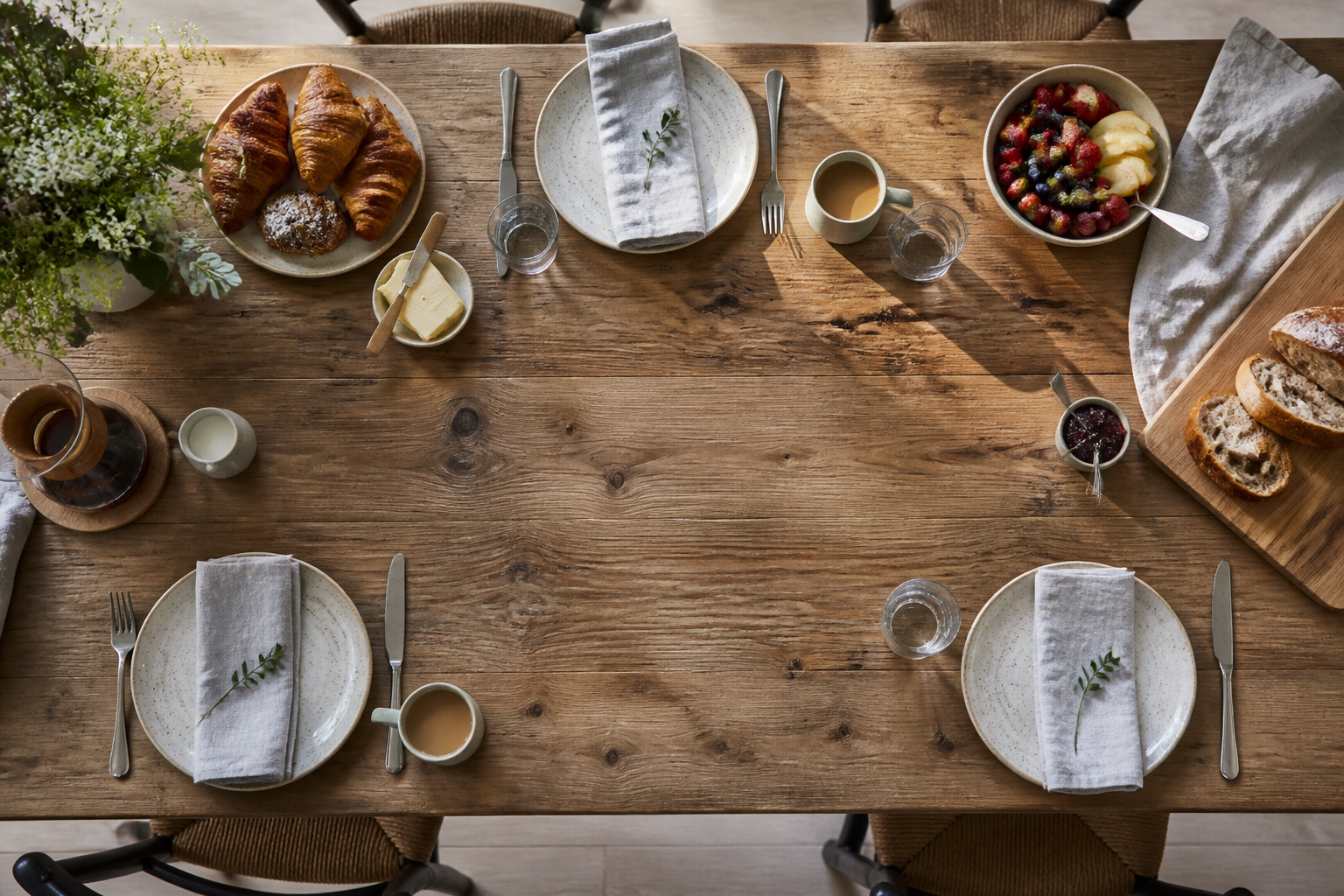 BEFORE
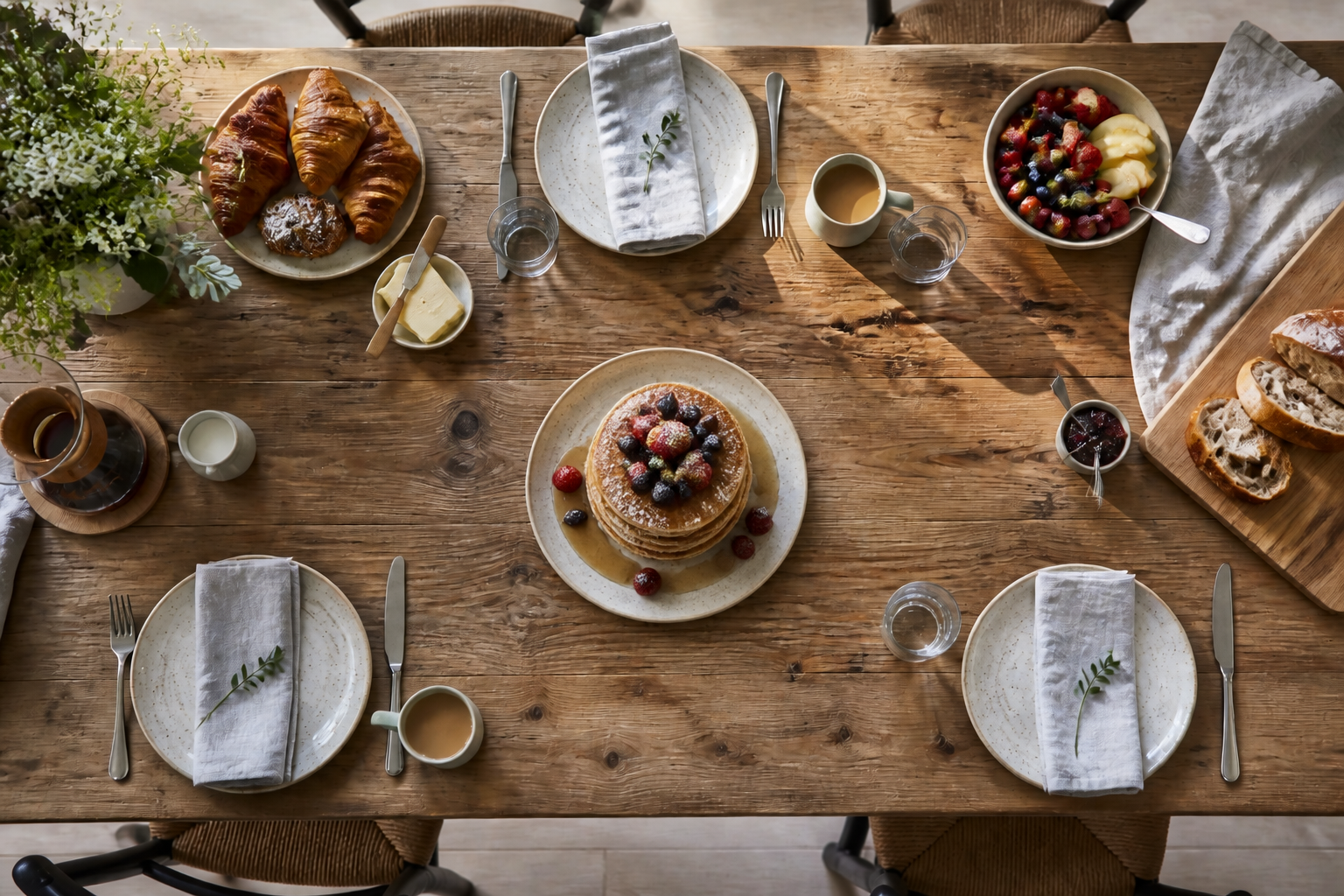 AFTER
AFTER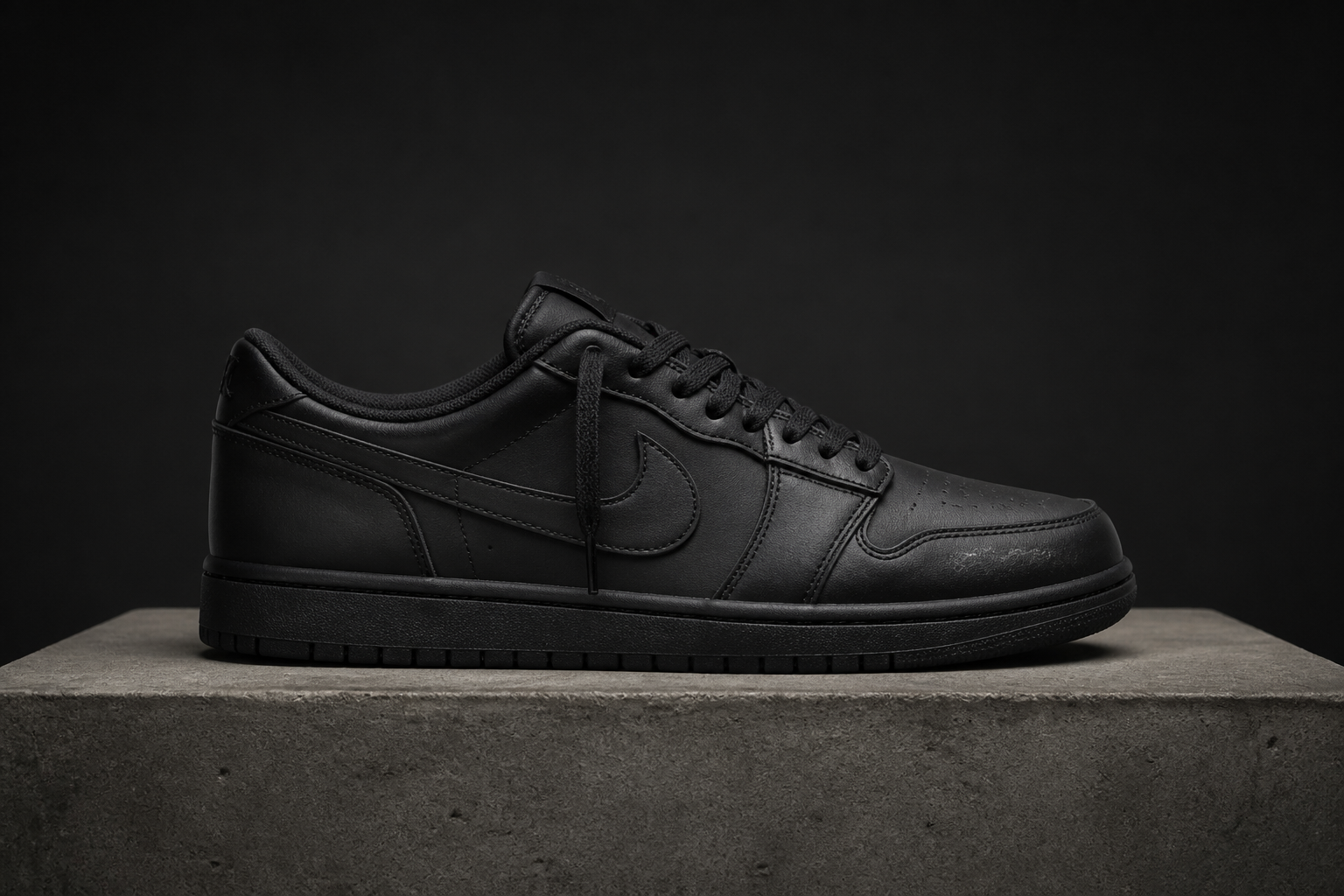 BEFORE
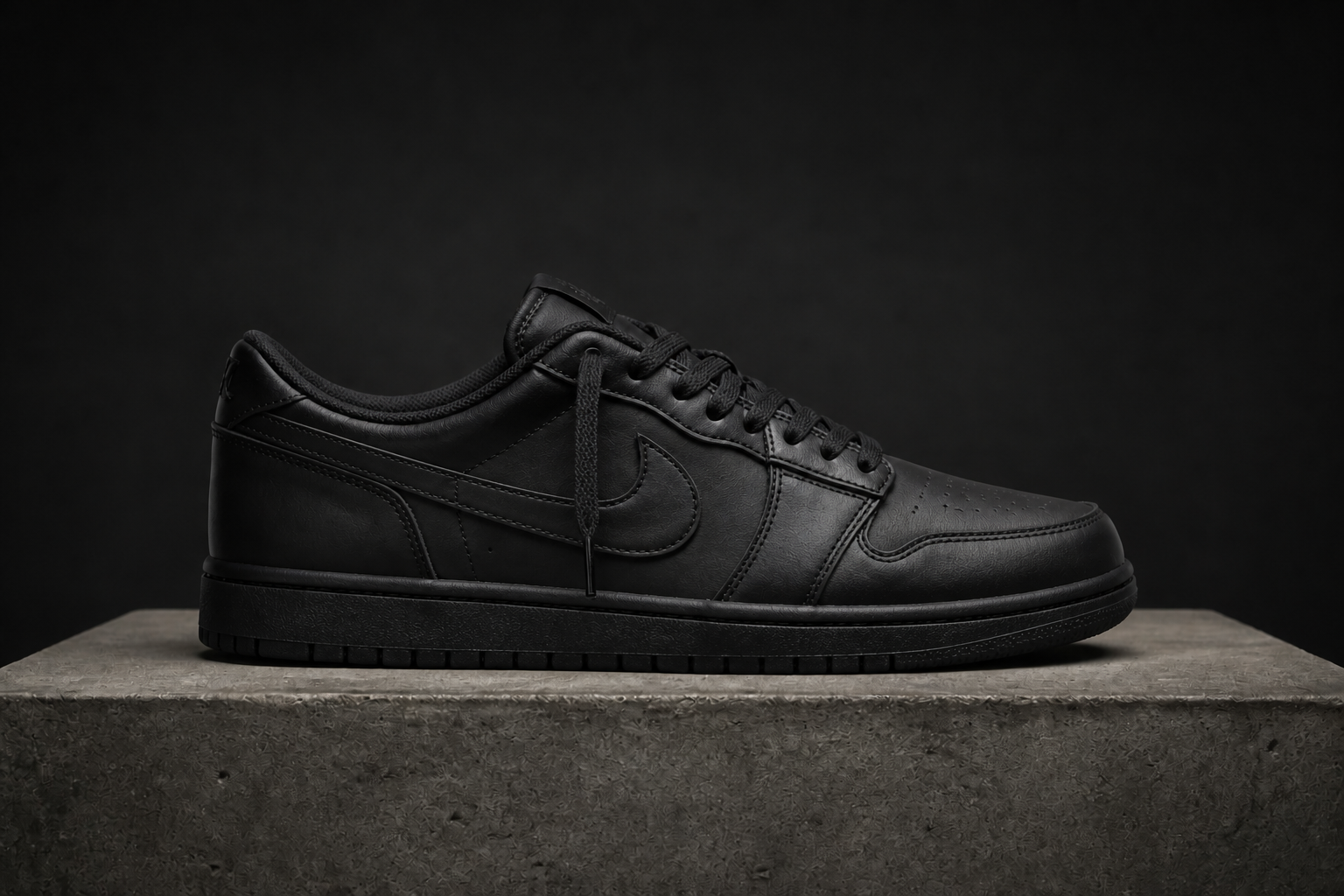 AFTER
AFTER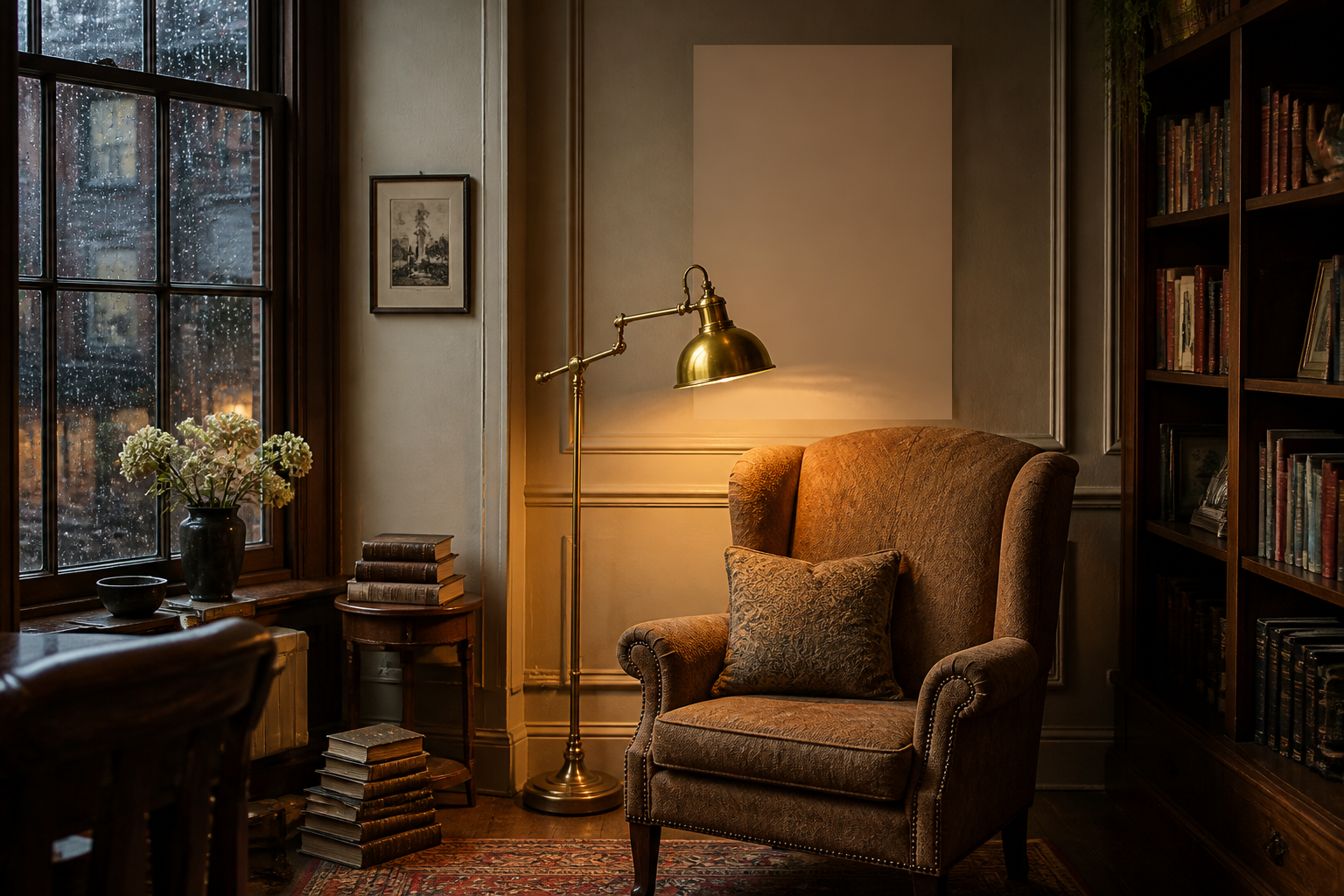 BEFORE
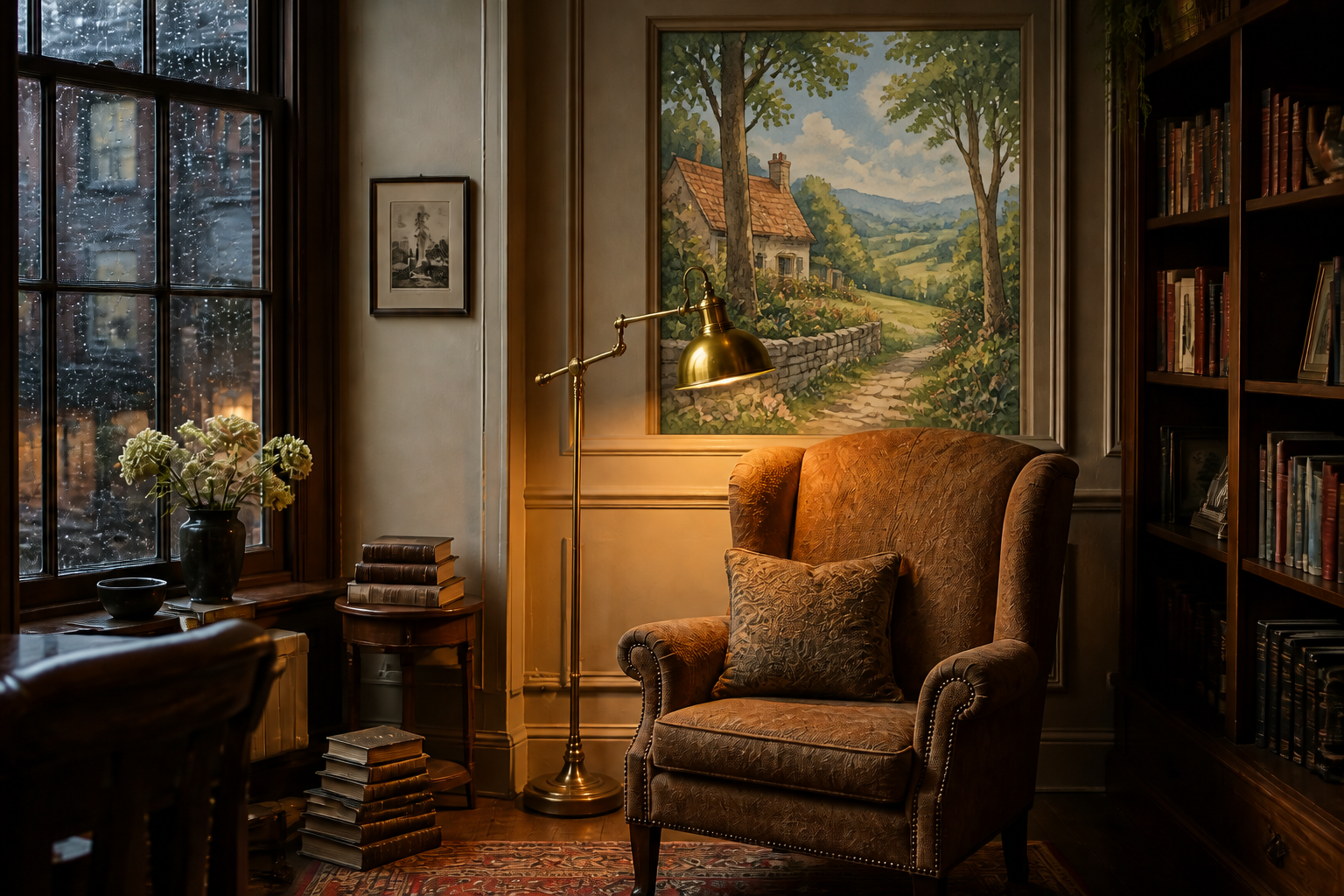 AFTER
AFTER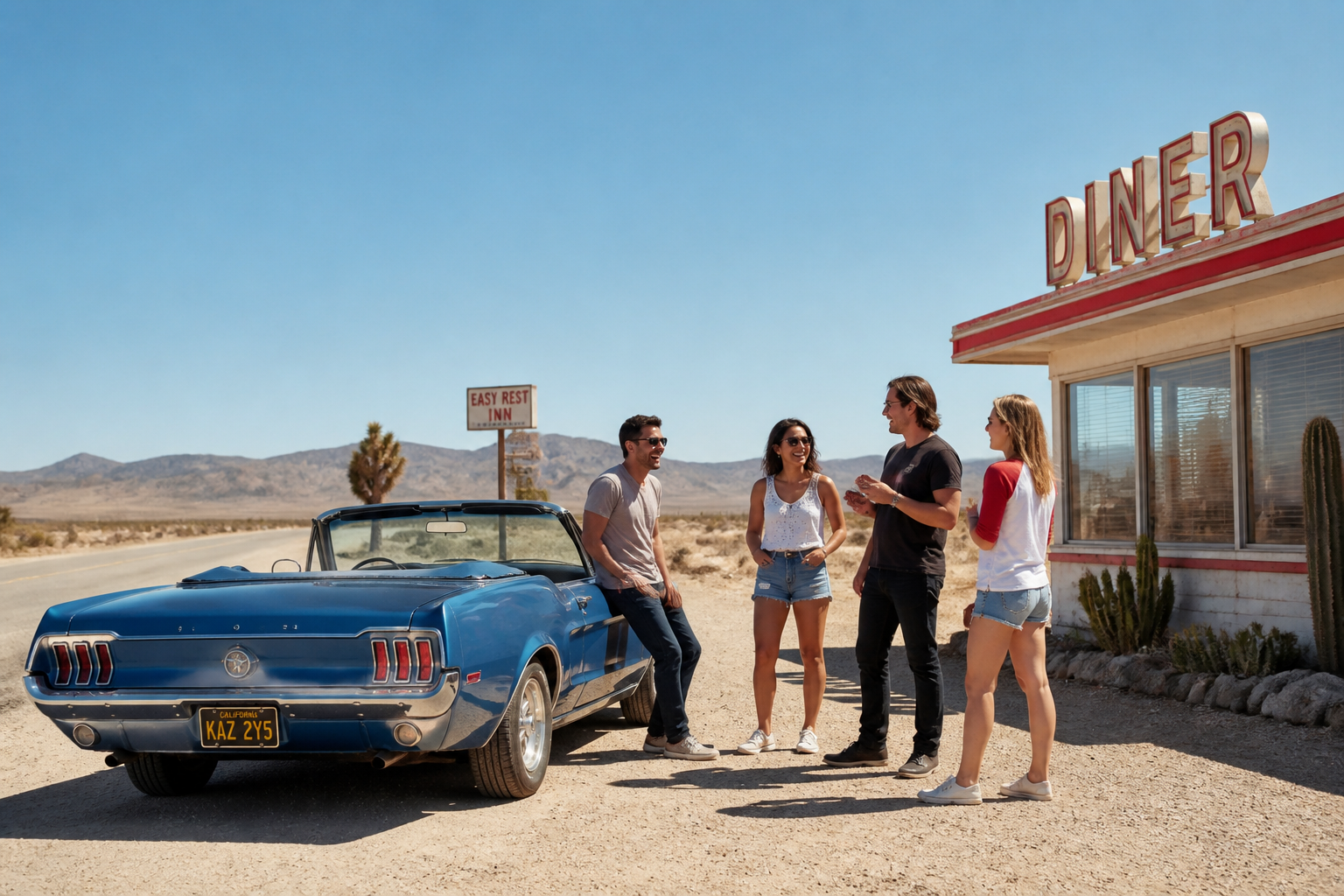 BEFORE
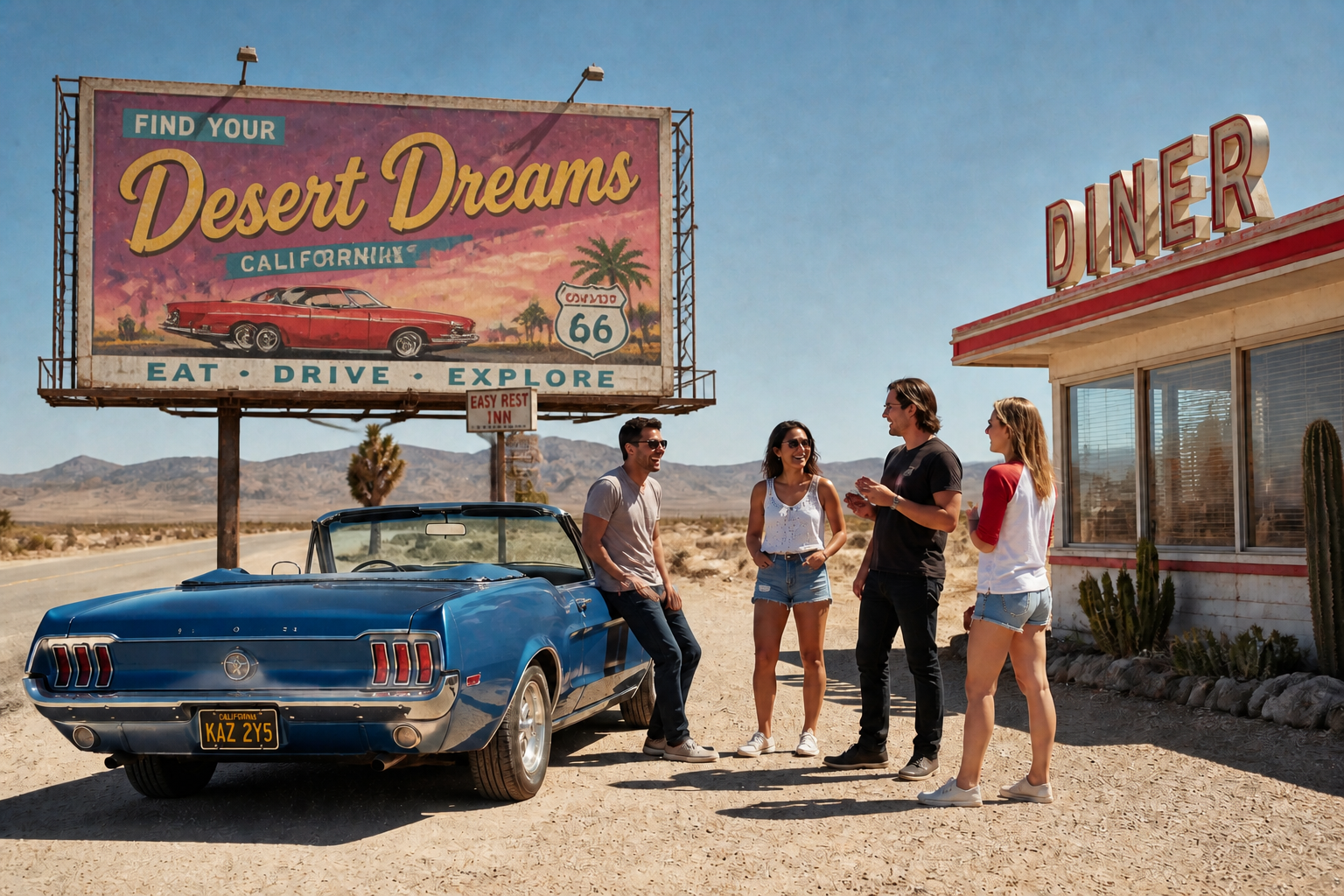 AFTERBEFOREAFTERBEFOREAFTERBEFOREAFTERBEFOREAFTERBEFOREAFTER
Key Features
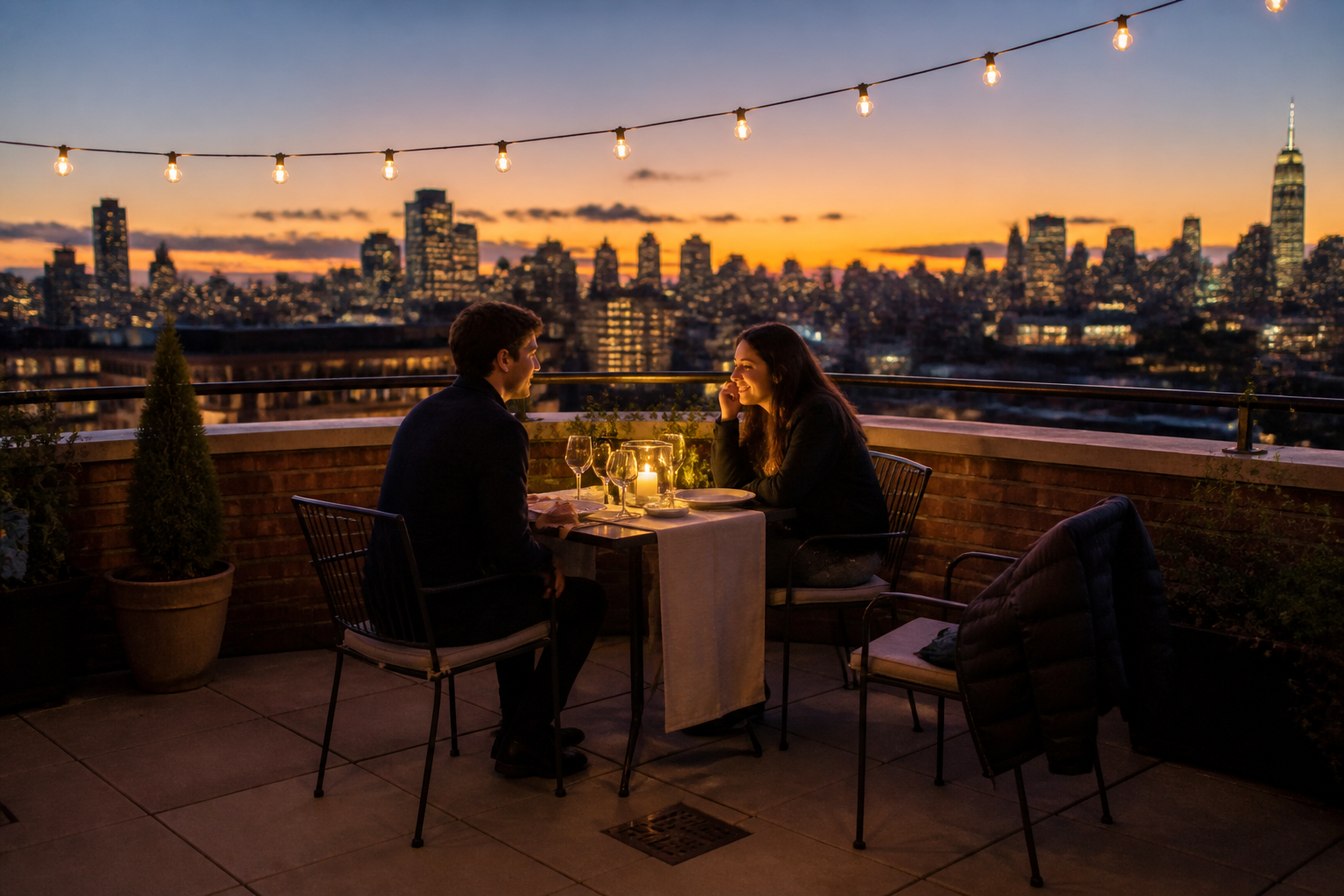
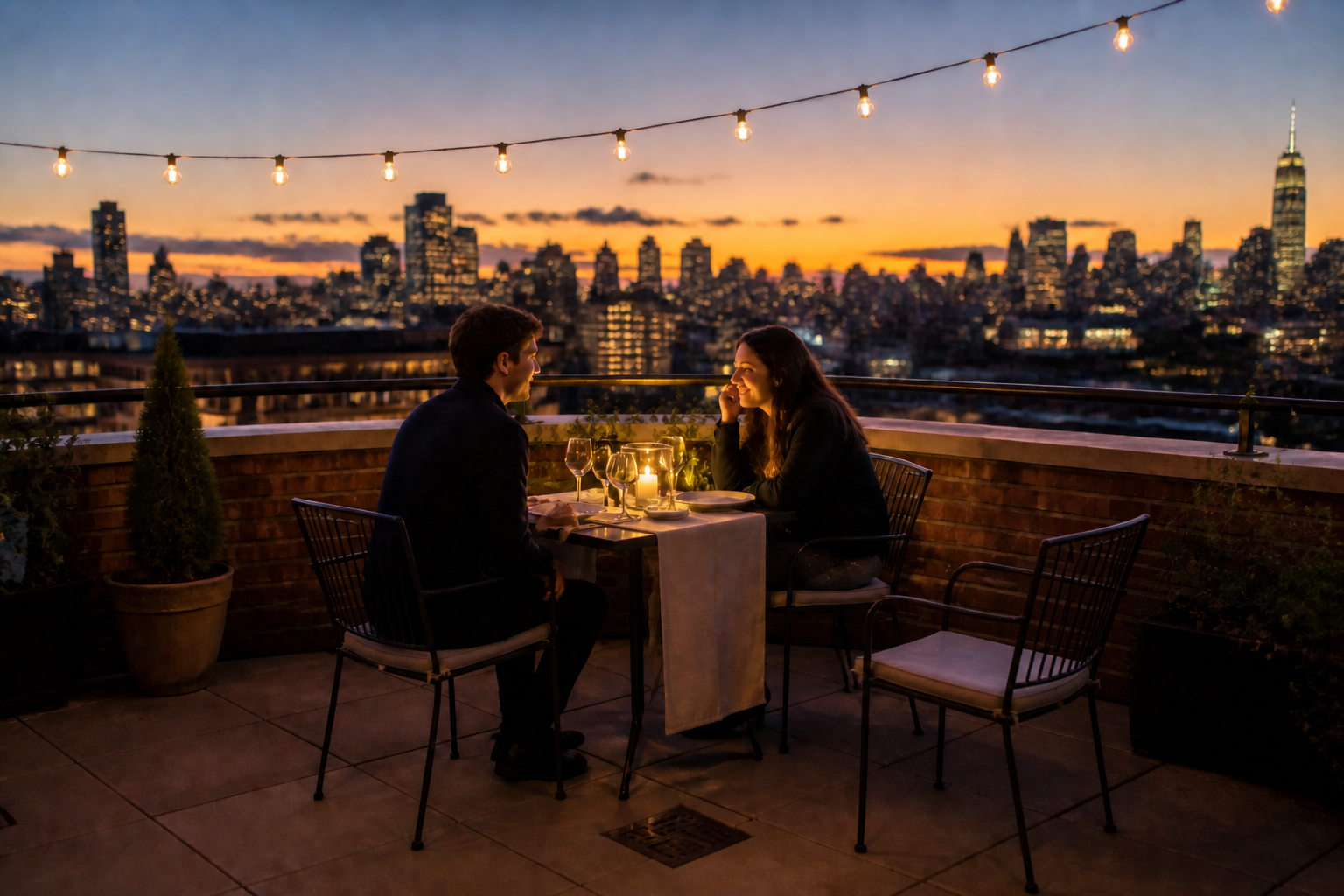
Edit Only What Matters
Inpainting lets you target one part of an image instead of regenerating the whole frame. That means you can remove a distraction, replace an object, or repair a damaged area without losing the original shot. It is faster than rebuilding the image from scratch and gives you tighter control over the final result.
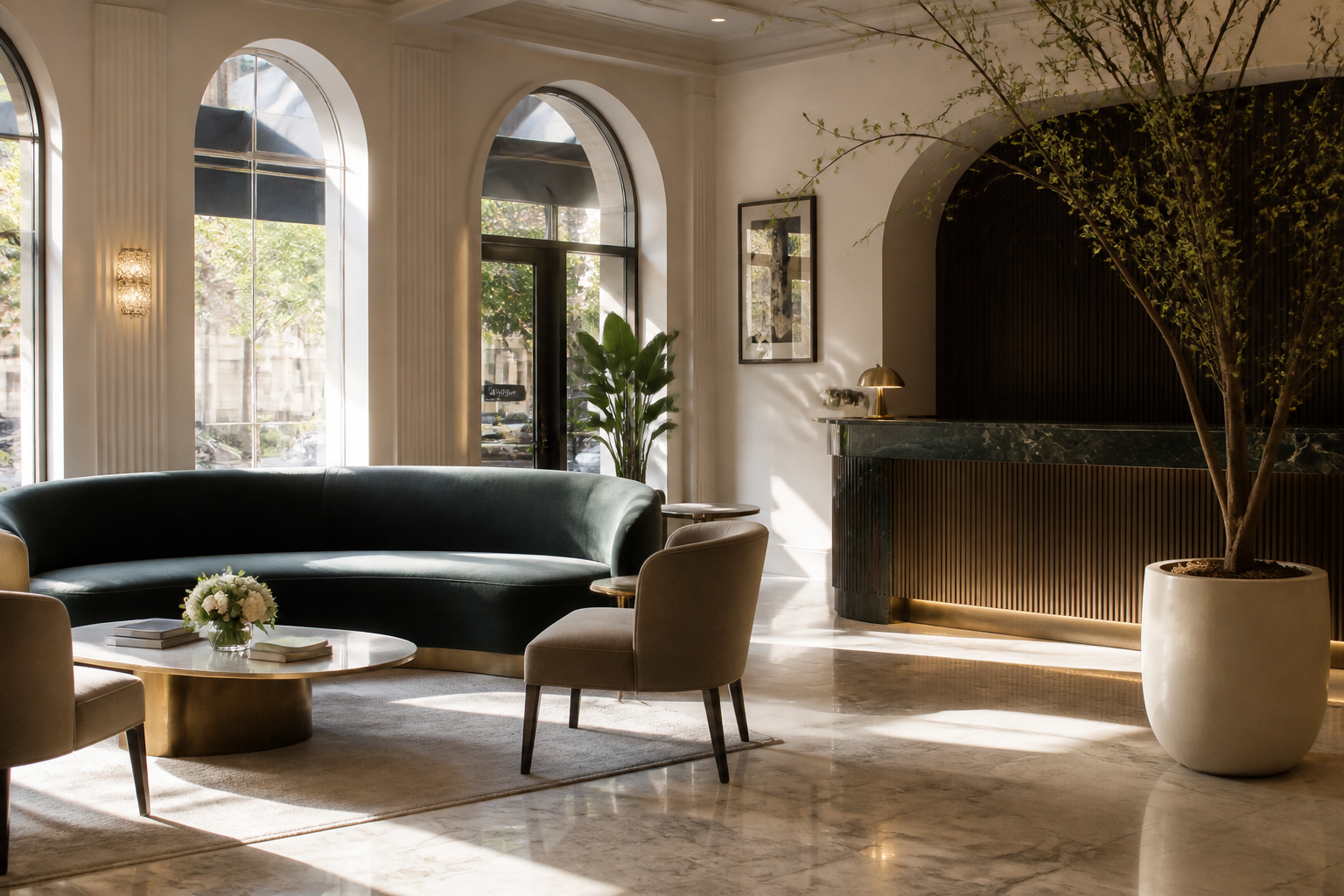
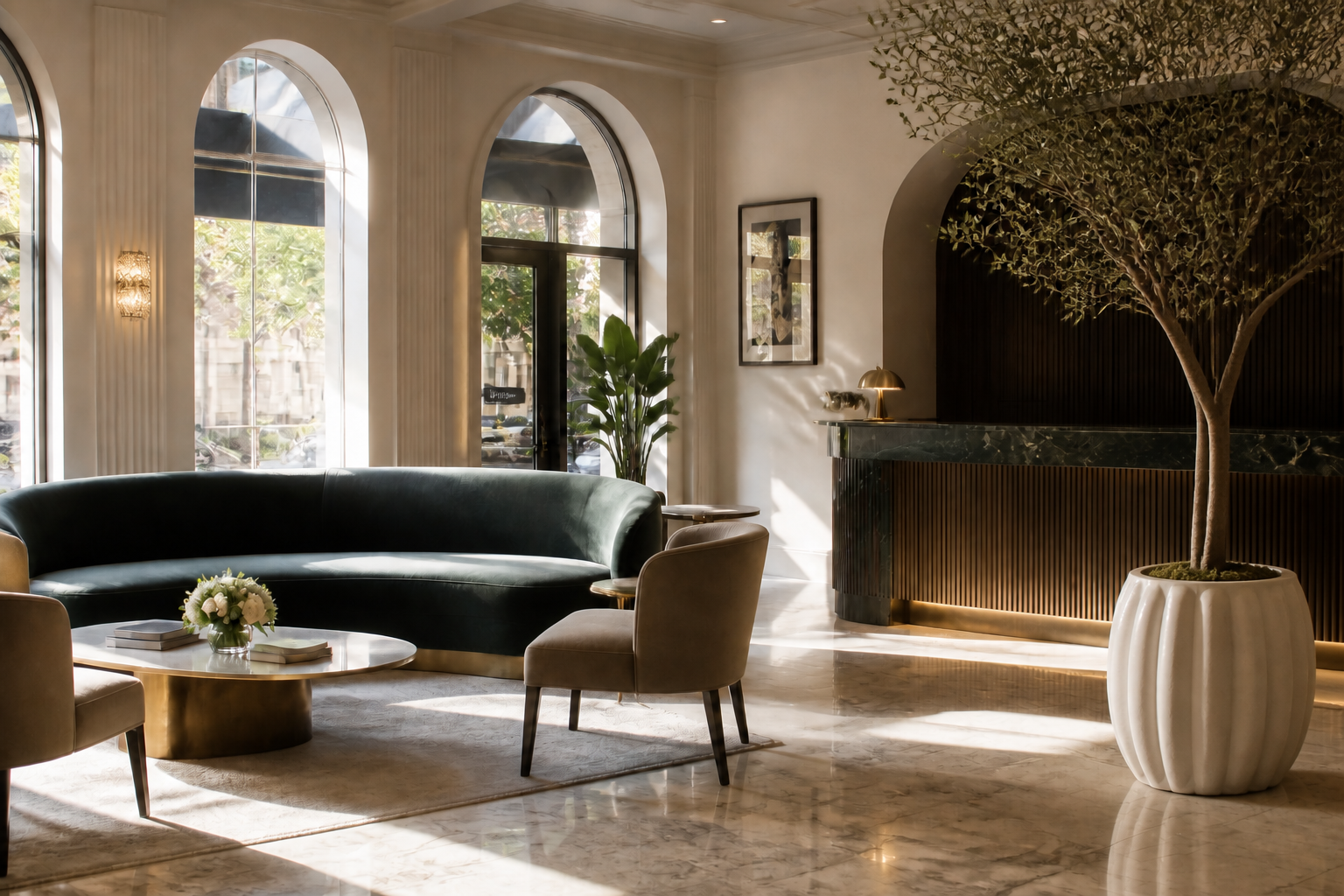
Match Light And Perspective
Good inpainting should not look pasted on. Our AI rebuilds the selected area to fit the camera angle, depth, shadows, and color of the original image. That helps edits blend into real scenes without the manual masking and compositing work typical of traditional editors.
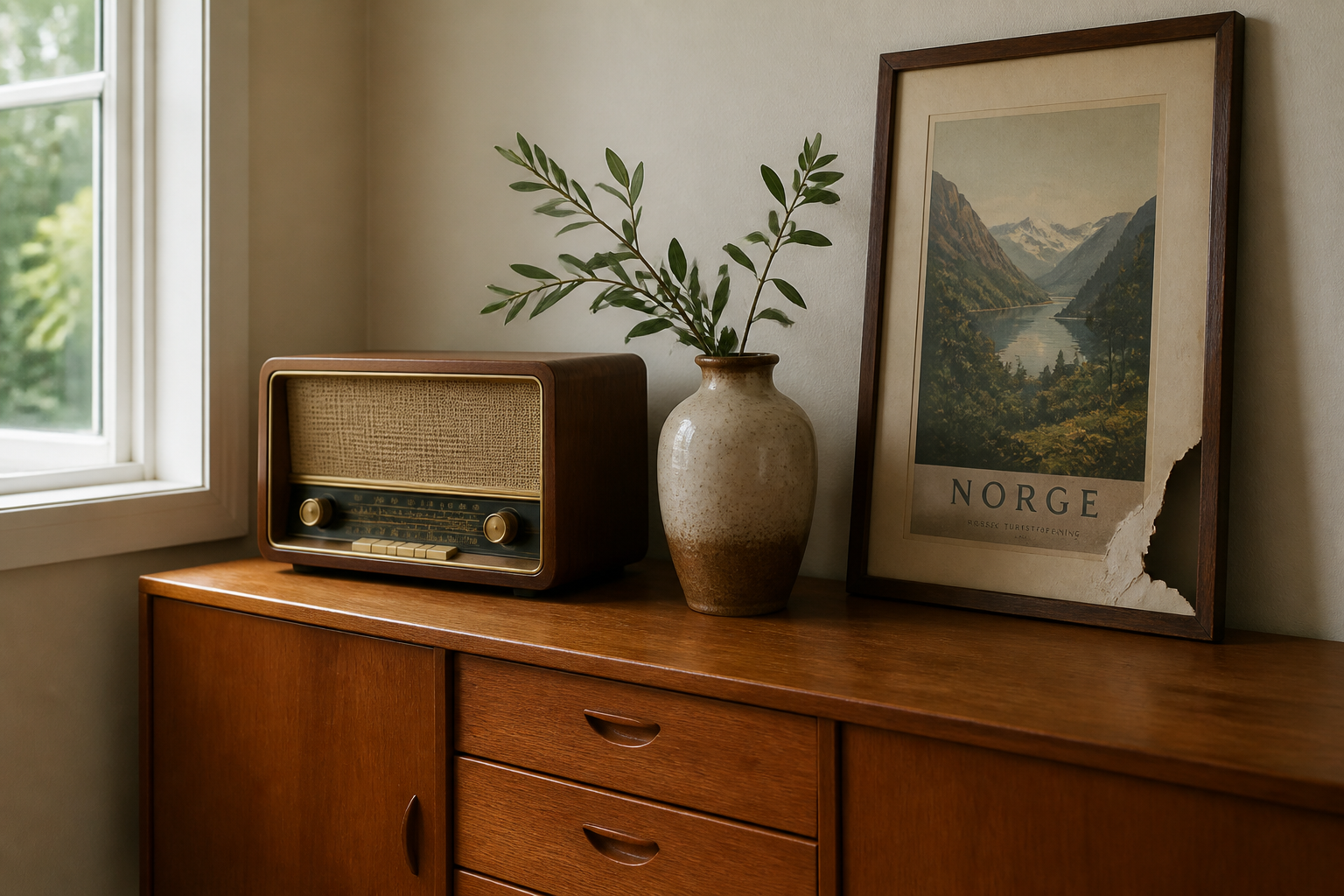
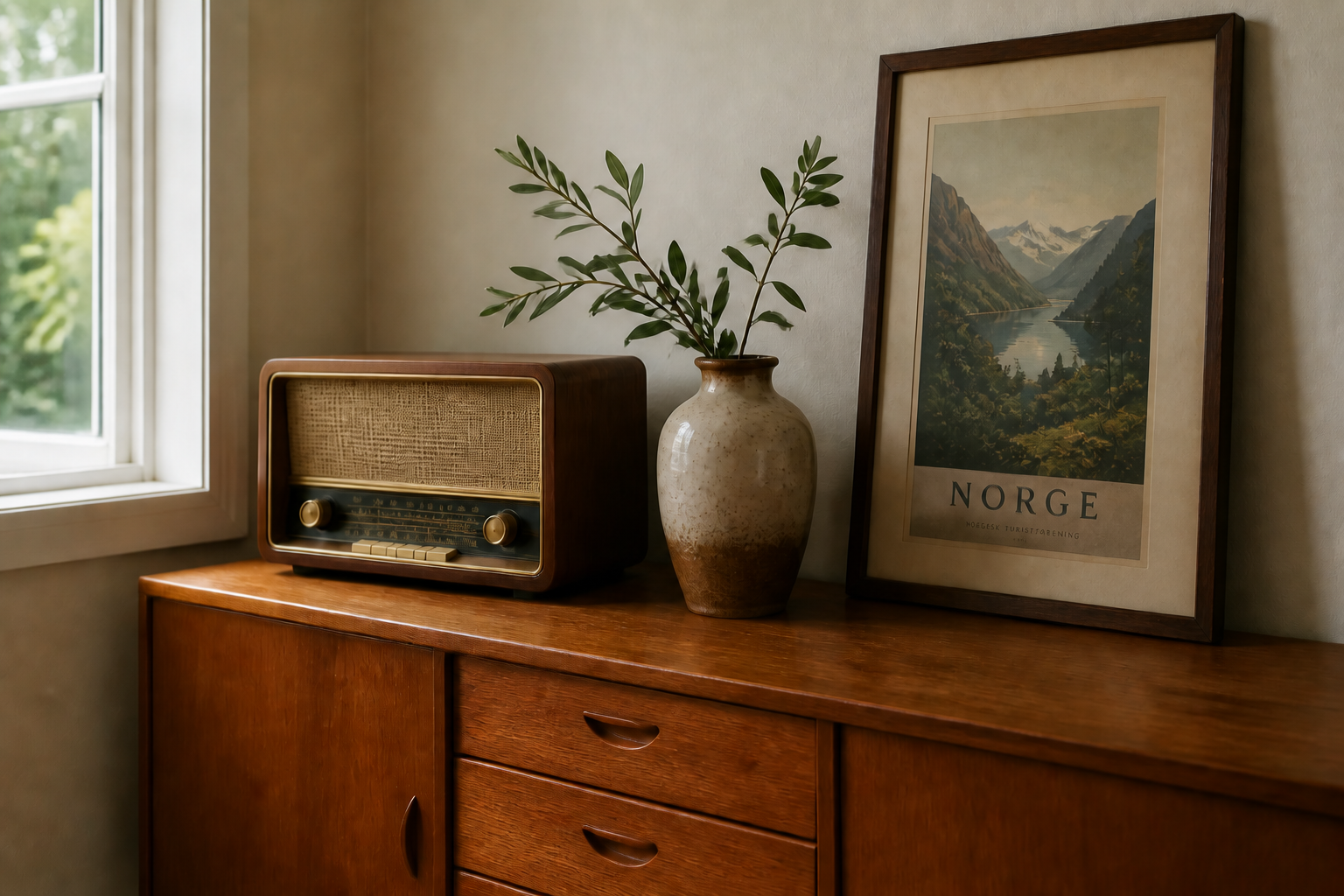
Restore Missing Or Damaged Areas
Inpainting is useful for more than object removal. You can rebuild torn edges, fill cropped regions, or repair worn product and archival images while keeping the original composition intact. This saves time when a photo is almost usable but needs one clean fix.
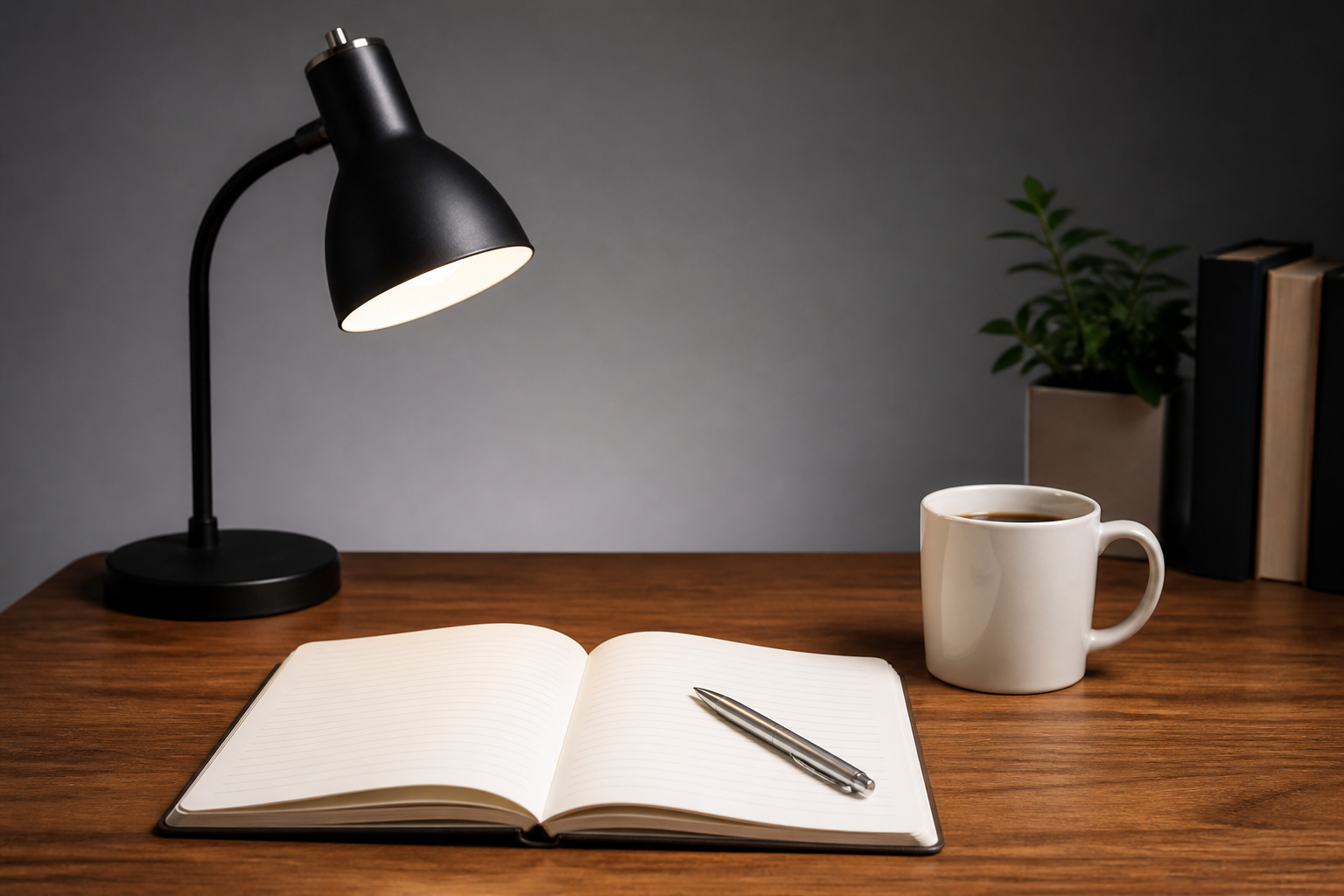
Replace Objects Without Re-Shooting
When a product, prop, or decor detail is wrong, you can swap it in place instead of setting up the shot again. The edit keeps the surrounding scene, styling, and framing while changing just the selected element. It is a practical way to test variations for ads, listings, and social posts.
How It Works
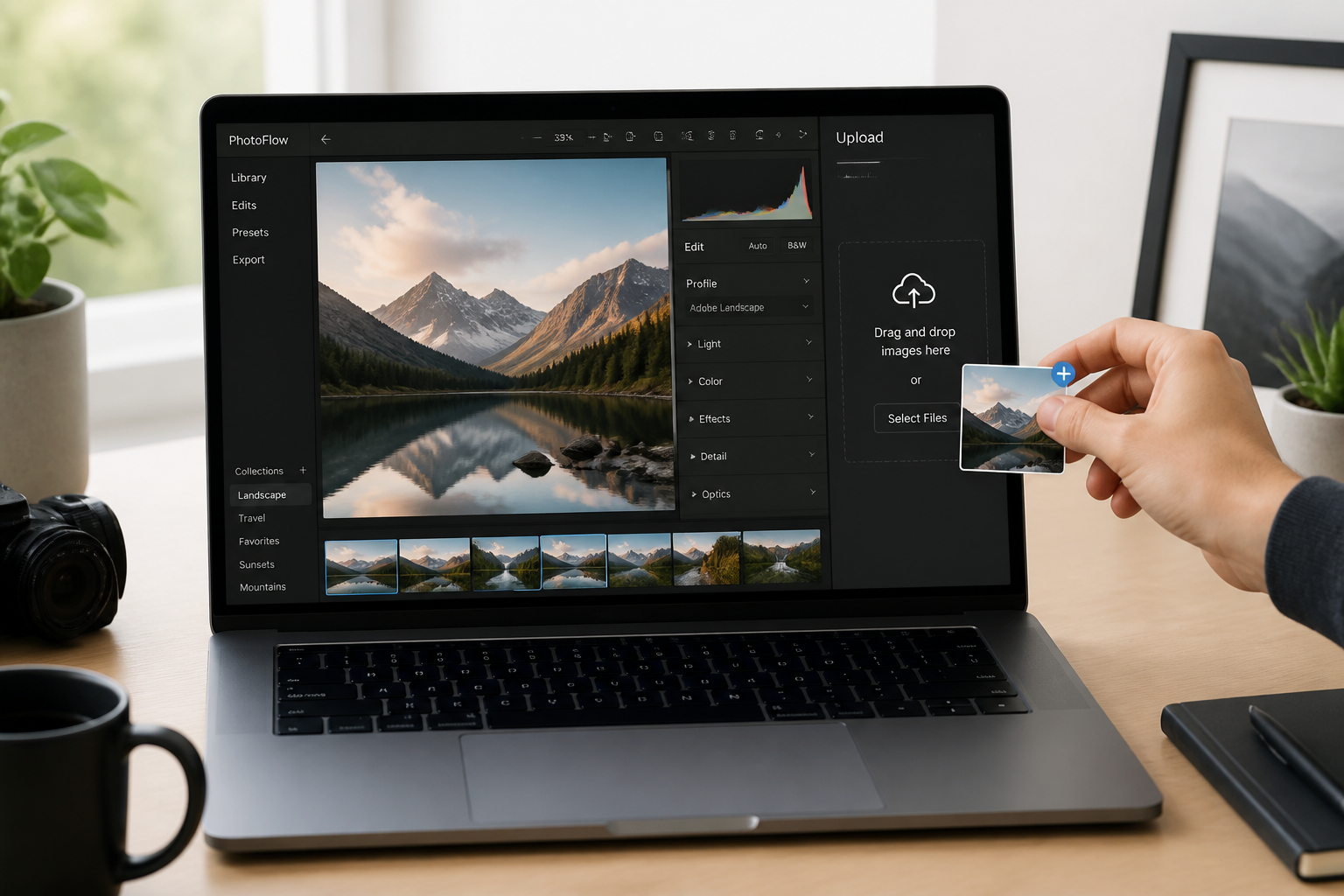
Upload your image
Start with the photo you want to fix or update. Choose an image where the area you want to change is clearly visible and well lit.
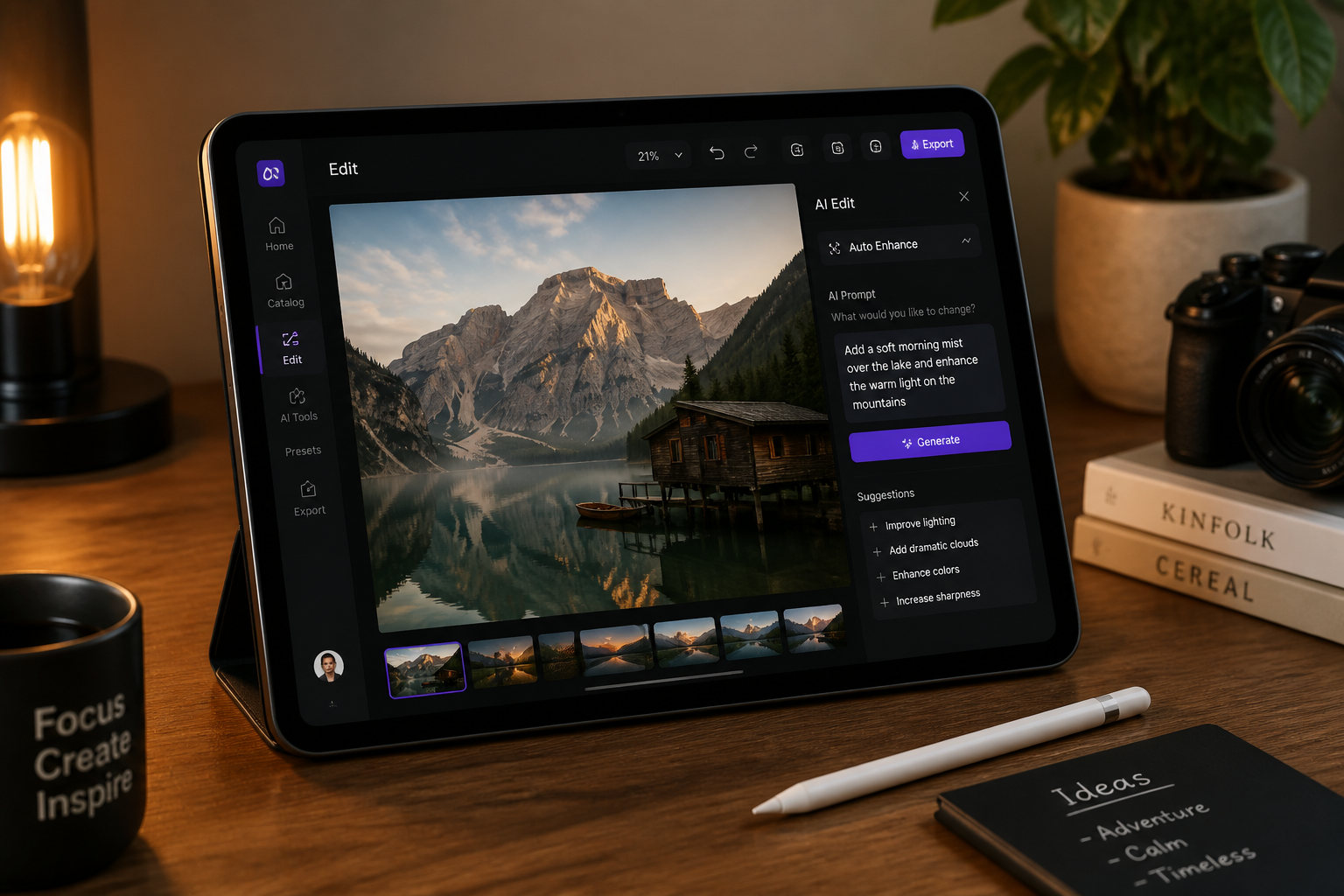
Describe the change
Tell the AI what to remove, replace, or rebuild in the selected area. Clear instructions like 'remove the chair' or 'replace the bag with a leather briefcase' usually work best.
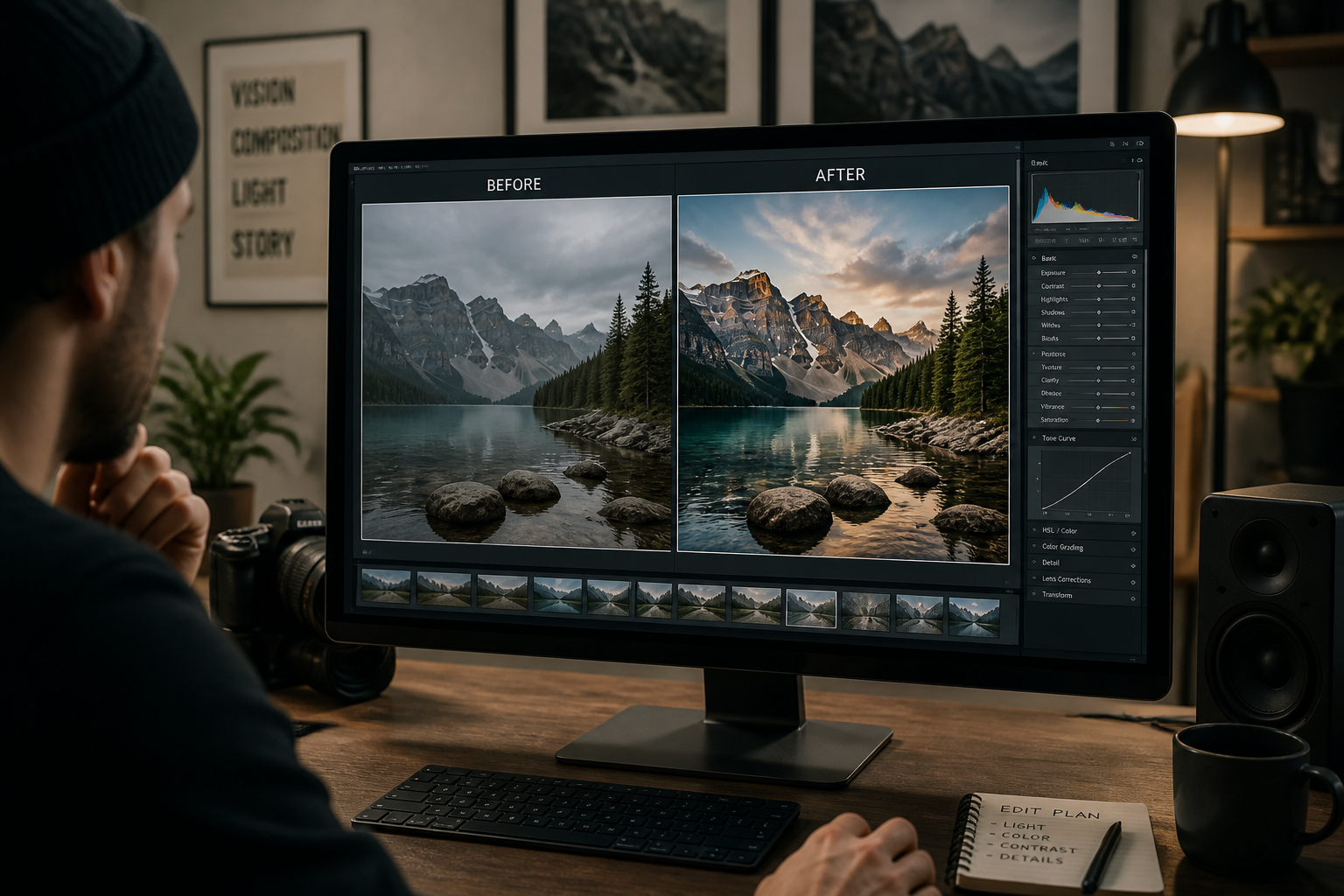
Review and refine
Compare the result with your original image and rerun if needed. You can try different replacement ideas until the edit fits the scene the way you want.
Perfect For
Discover how creators and professionals use ai inpainting tool
Remove unwanted objects
Clean up tourists, clutter, wires, signage, props, or small distractions that pull attention away from the main subject.
Replace products and props
Swap decor, accessories, packaging, or scene details to test alternatives without reshooting the full image.
Repair damaged photos
Fill scratches, torn sections, cropped edges, or worn areas in product photos, scans, and archival images.
Extend creative concepts
Insert new details into a scene for ads, social content, or mockups while keeping the original framing and mood.
Built For
Creators and marketers
Make fast visual fixes for ads, landing pages, and social posts without opening a complex editing stack.
Ecommerce teams
Clean product photos, replace small scene elements, and prepare polished listing images with less manual retouching.
Photographers and designers
Use inpainting for quick object removal, scene cleanup, and concept variations before moving into deeper manual edits.
Why use this AI inpainting tool
A quick look at how we compare on the things that matter for this niche.
| Feature | BudgetPixel | Generic AI editors | Manual editing apps |
|---|---|---|---|
| Targeted image edits | ✓ | ✓ | ✓ |
| Natural scene reconstruction | ✓ | — | Depends on skill |
| Object replacement from text | ✓ | — | — |
| Fast cleanup workflow | ✓ | ✓ | — |
| No advanced retouching skills needed | ✓ | ✓ | — |
Frequently Asked Questions
What is an AI inpainting tool?
Can I remove objects from a photo with this tool?
Can it replace one object with another?
Does inpainting change the whole image?
What kinds of images work best?
Create together.
Share your creations, discover trending AI art, and grow with fellow creators.