AI Generative Fill for Fast, Natural Photo Edits
Expand, replace, remove, and complete any scene with a simple prompt.
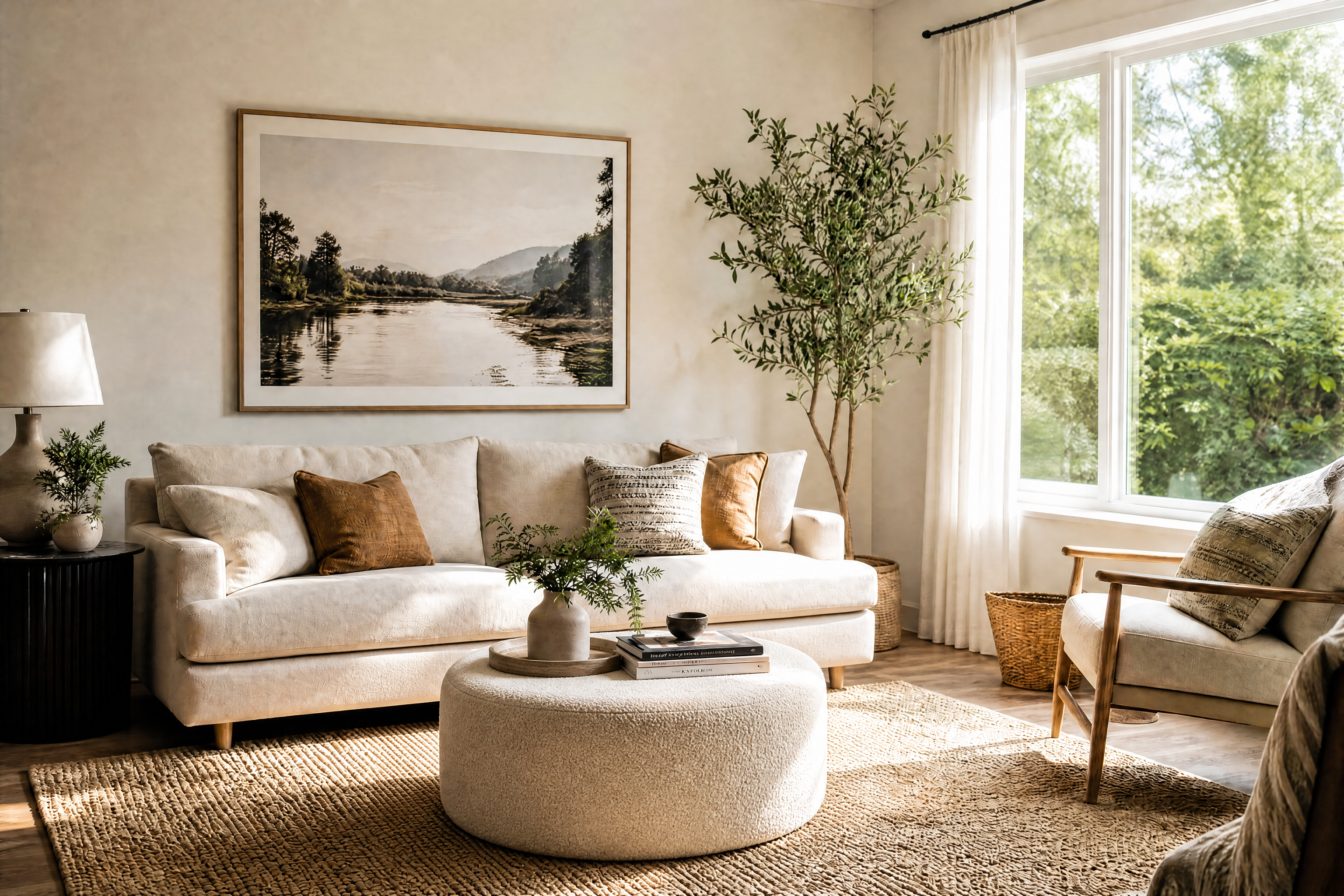
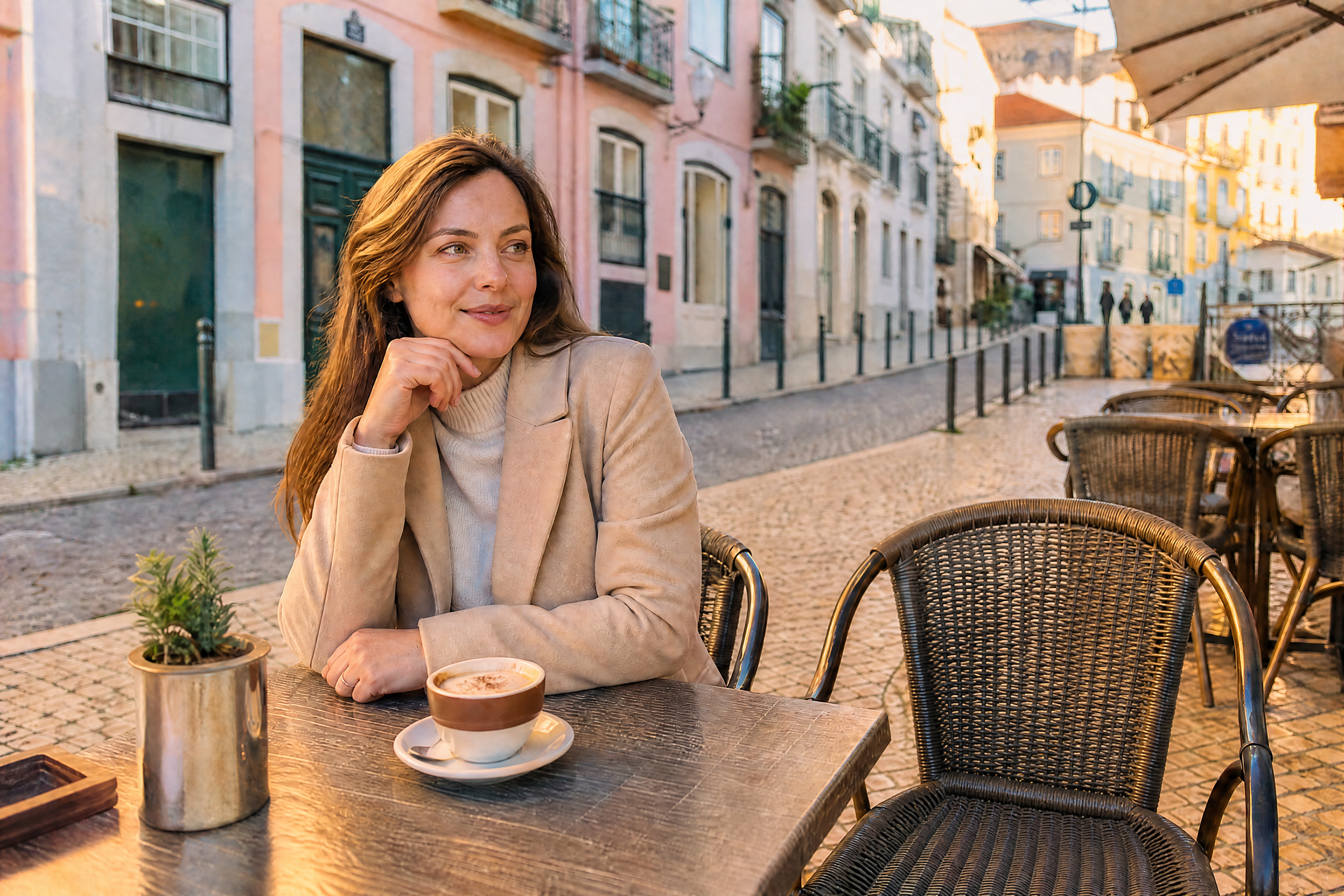
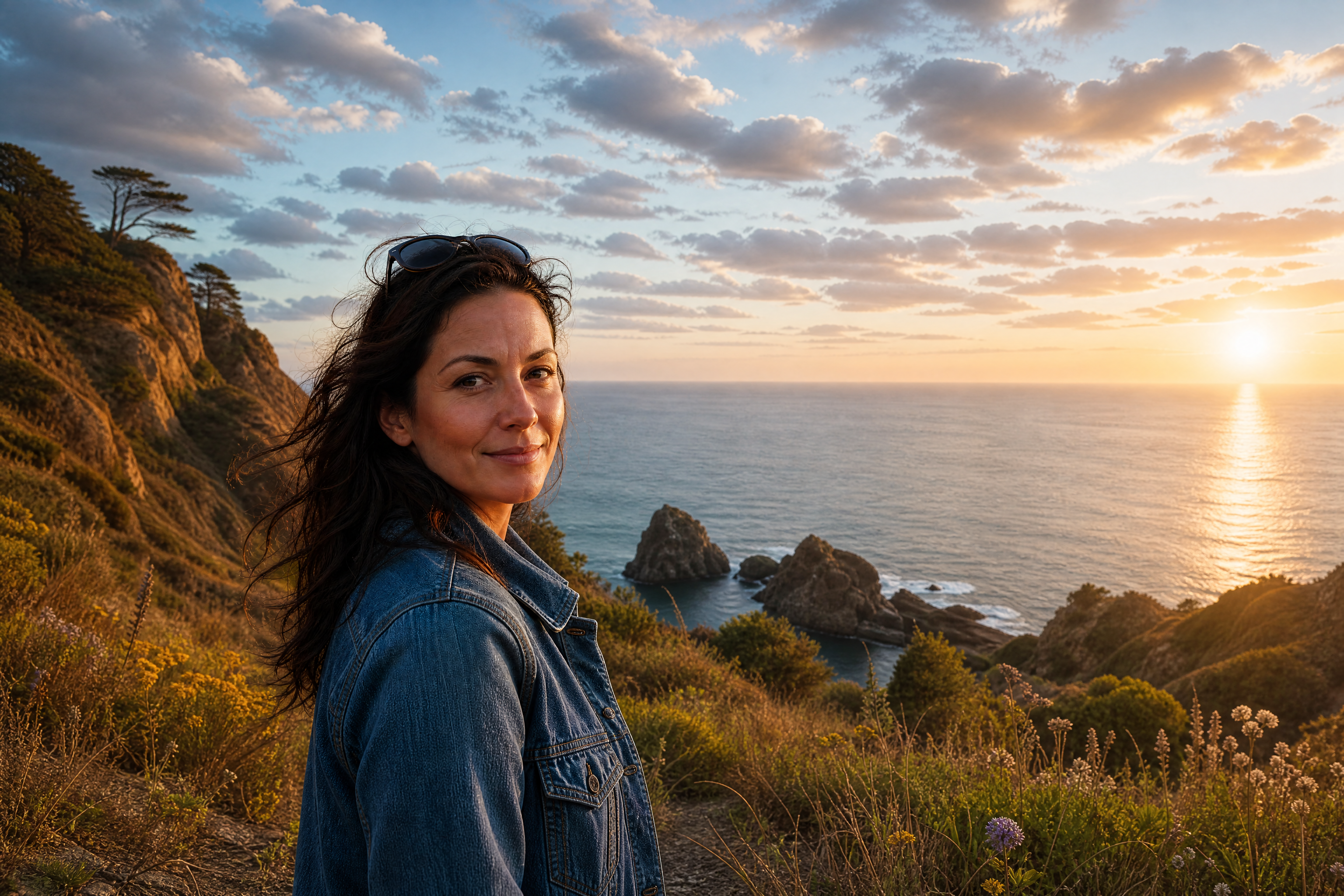
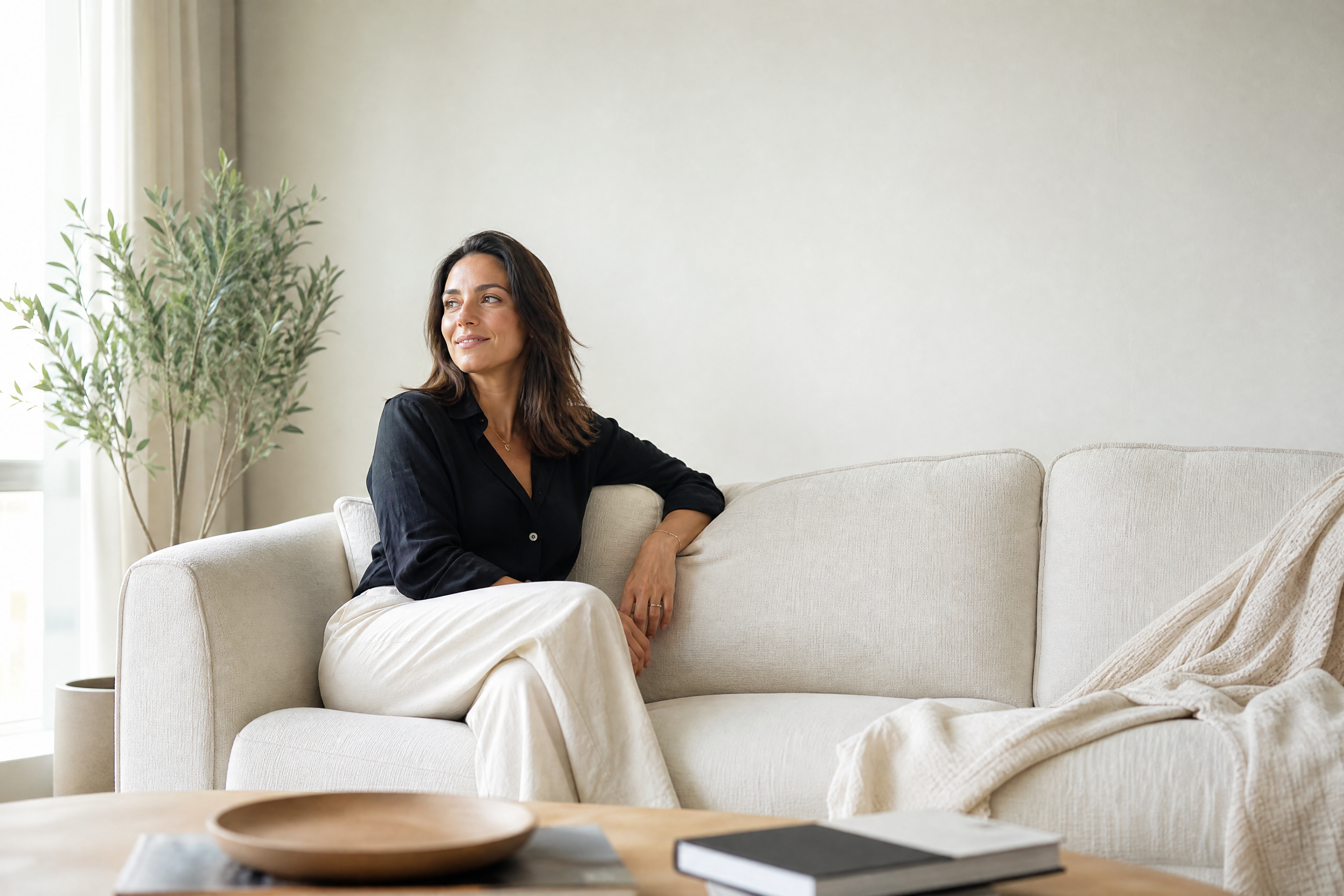
AI Generative Fill lets you add missing space, swap distracting objects, or complete unfinished edges without rebuilding the whole image. Upload a photo, describe what should appear, and our AI fills the area to match the lighting, perspective, and overall scene.
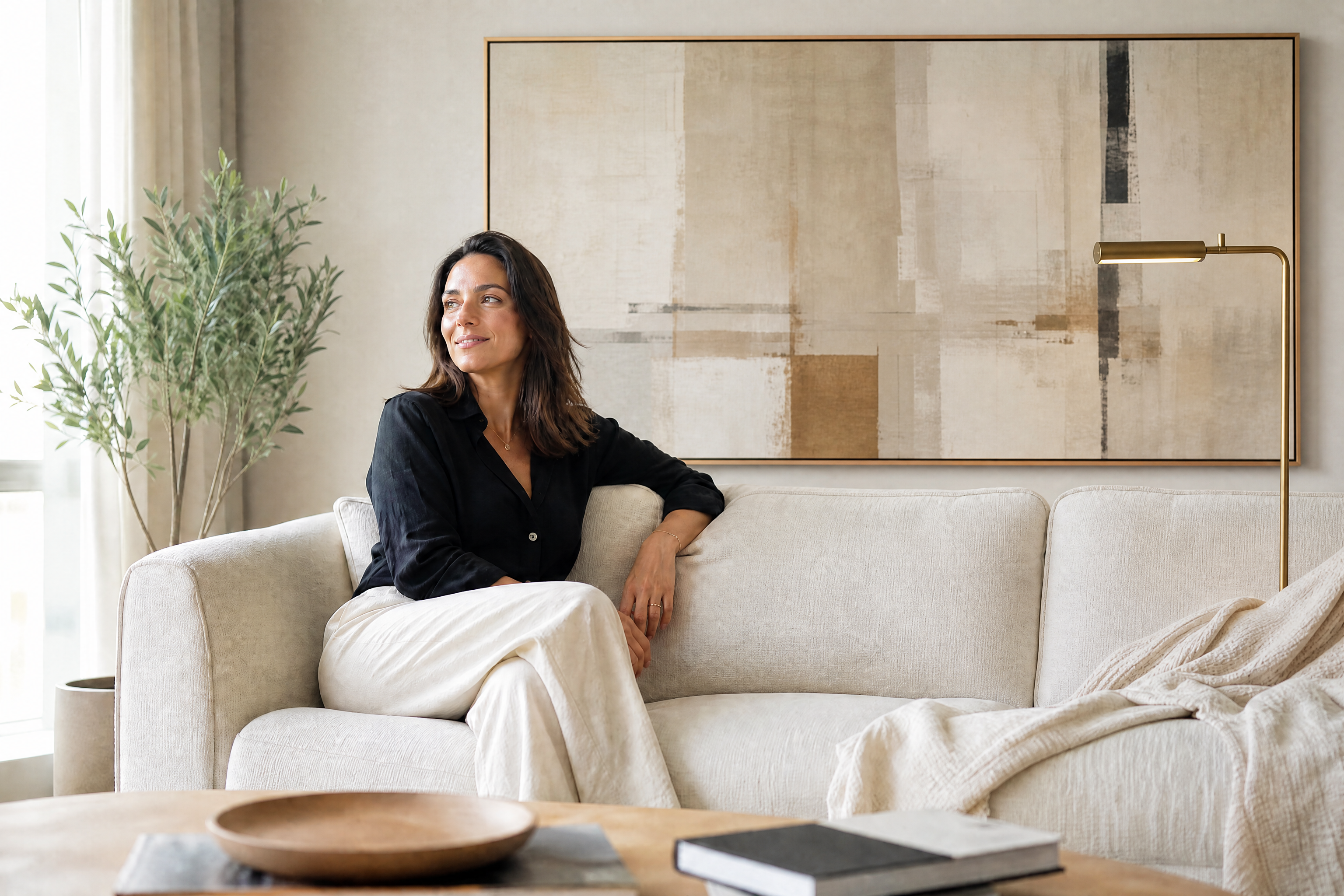
Watch the Transformation
See ai generative fill in motion — generated end-to-end by our AI.
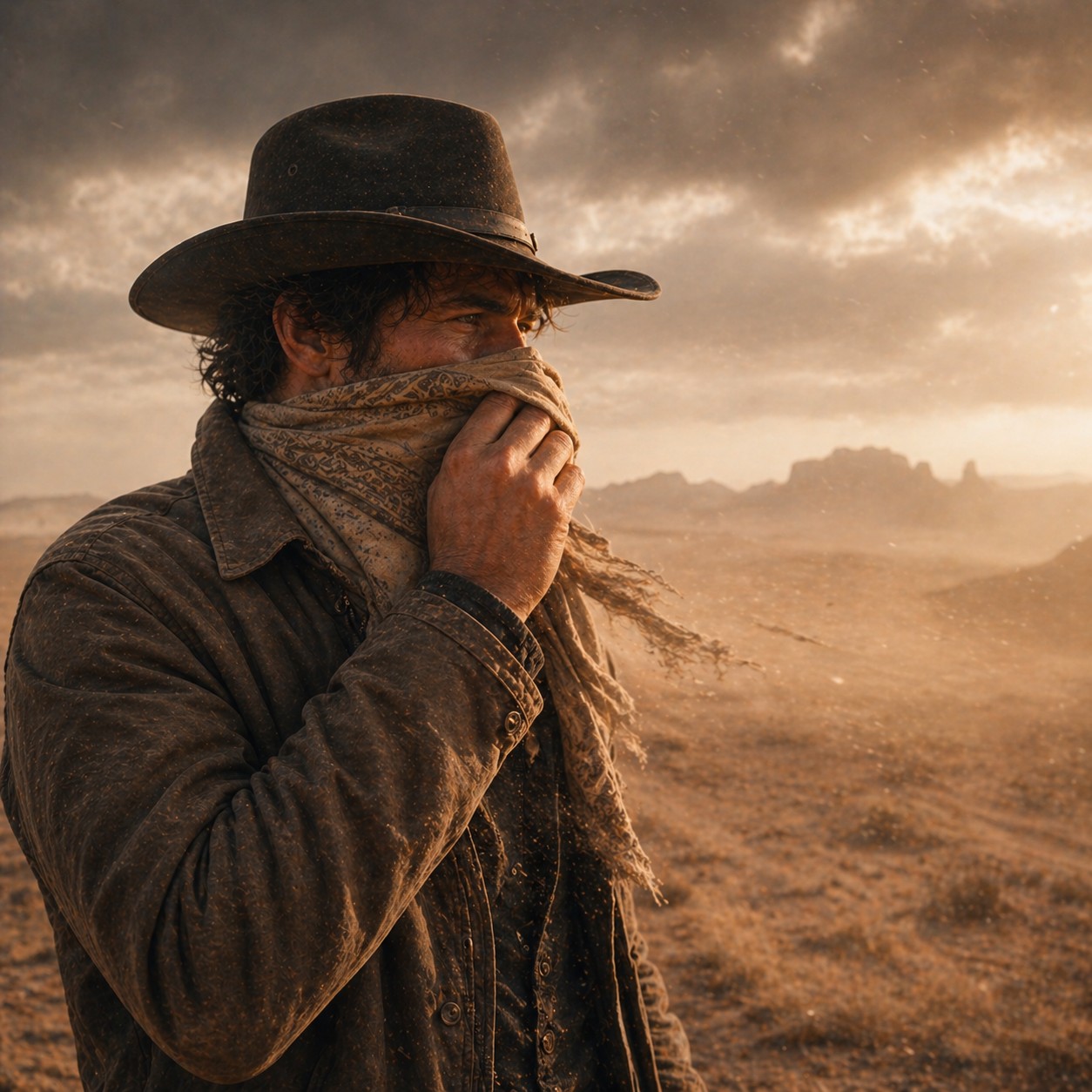
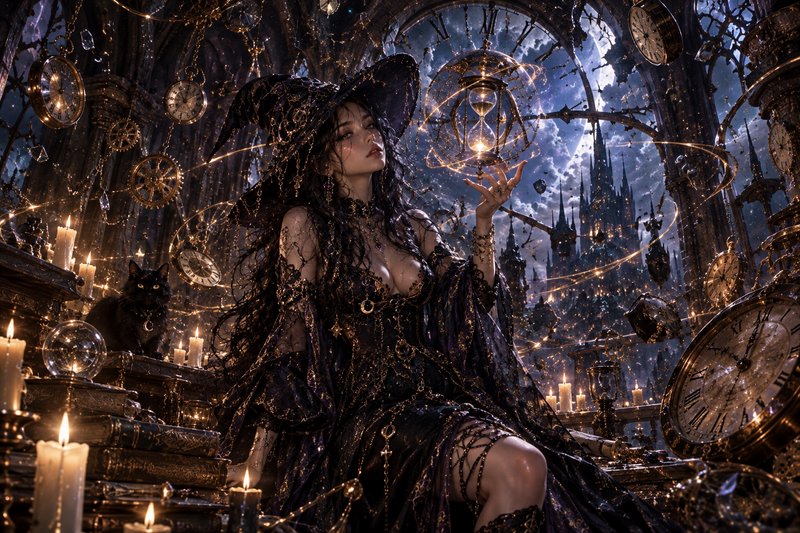
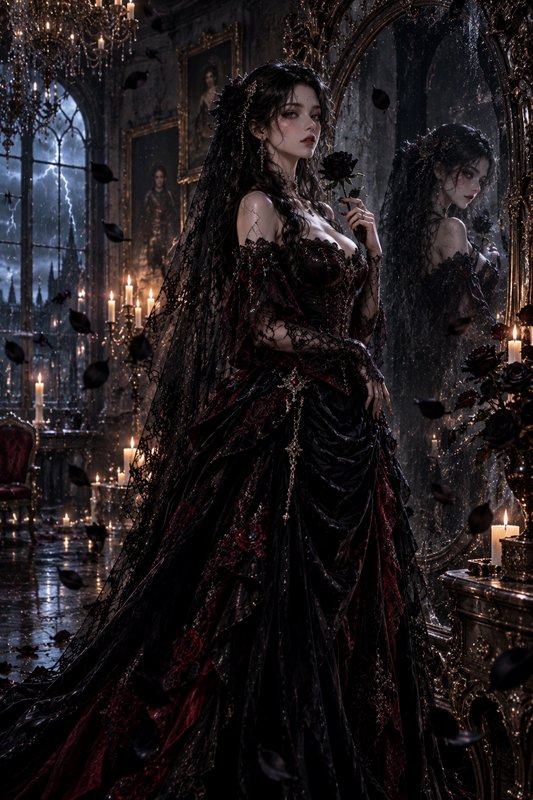
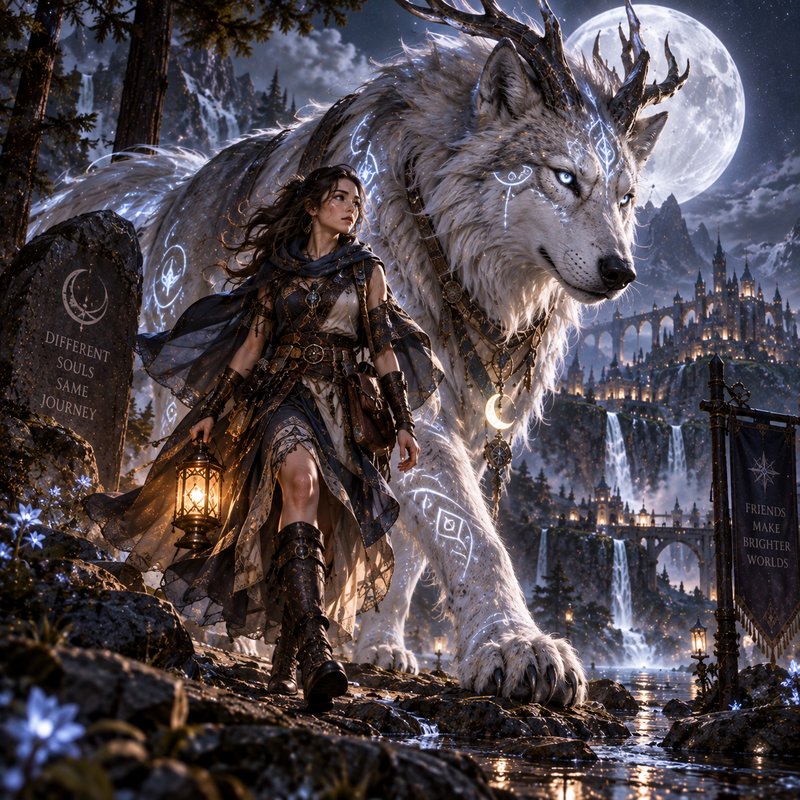
See It In Action
Real outputs from ai generative fill.
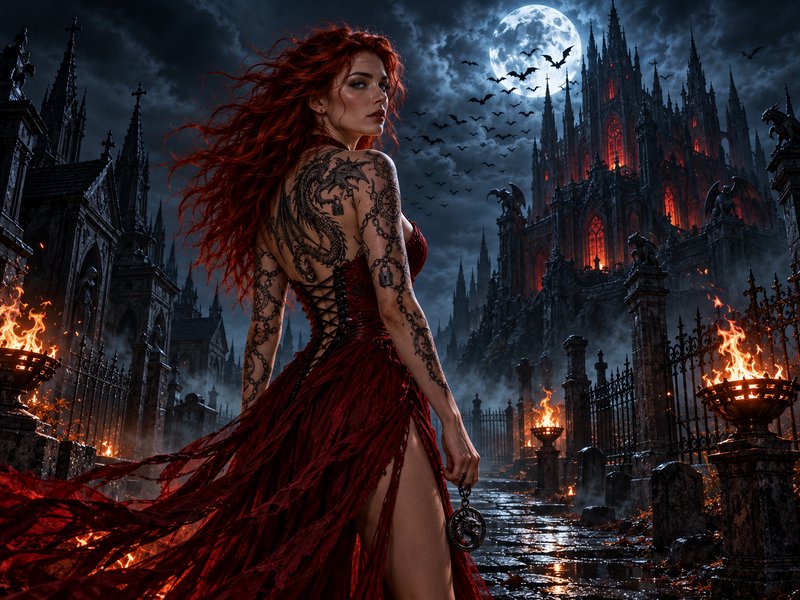
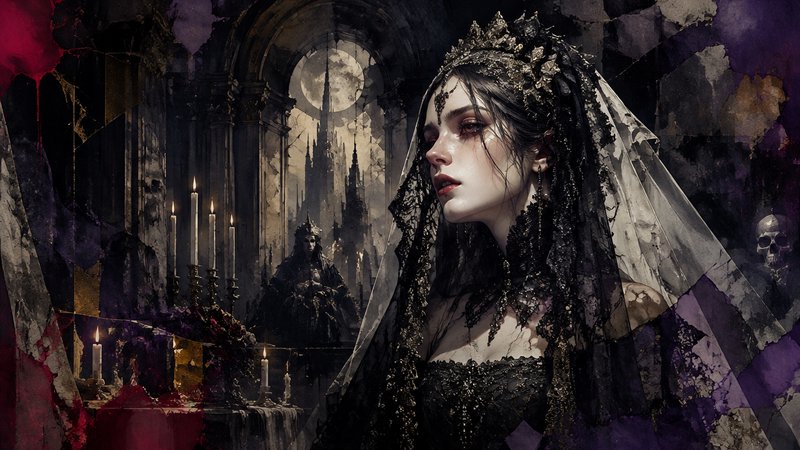
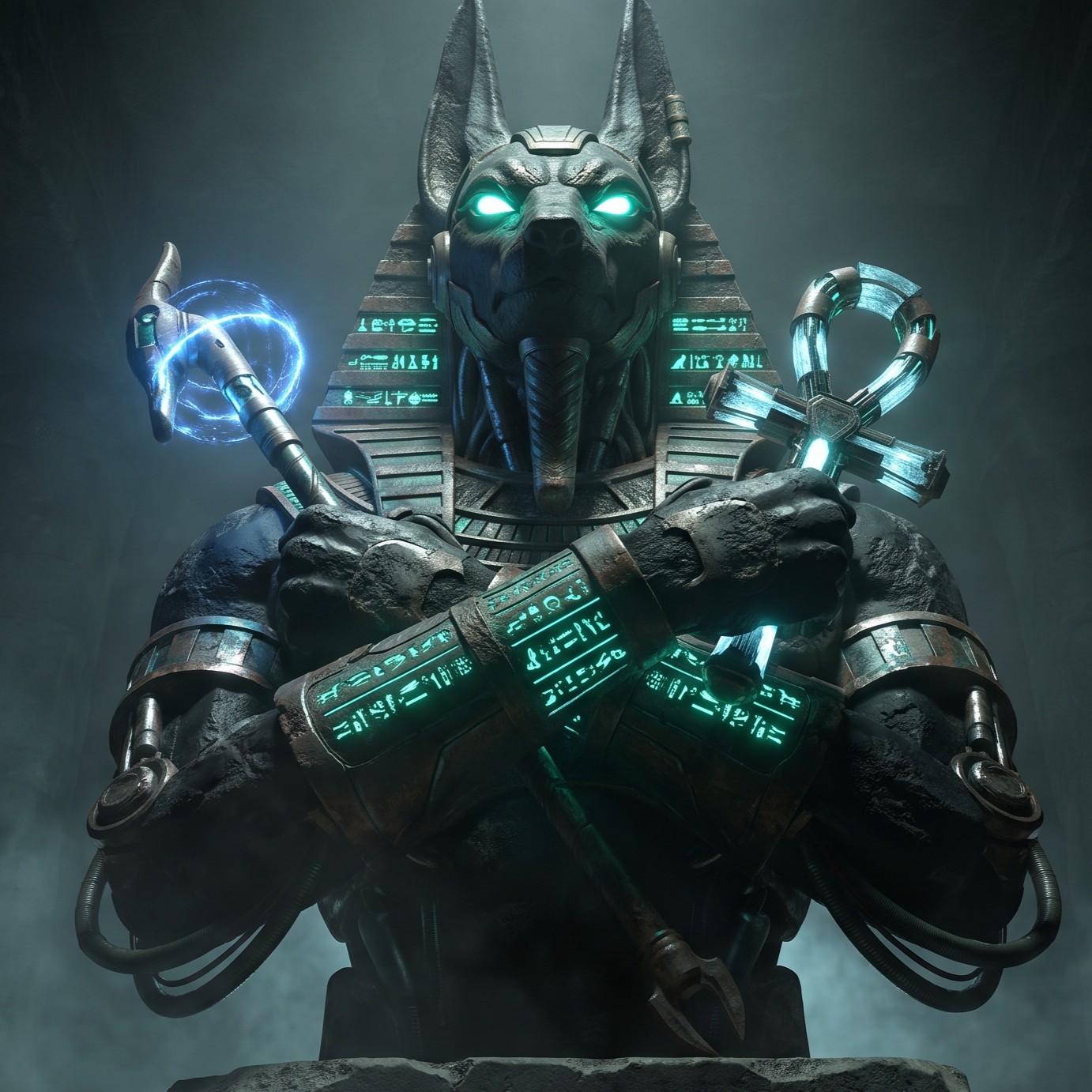
BEFOREAFTER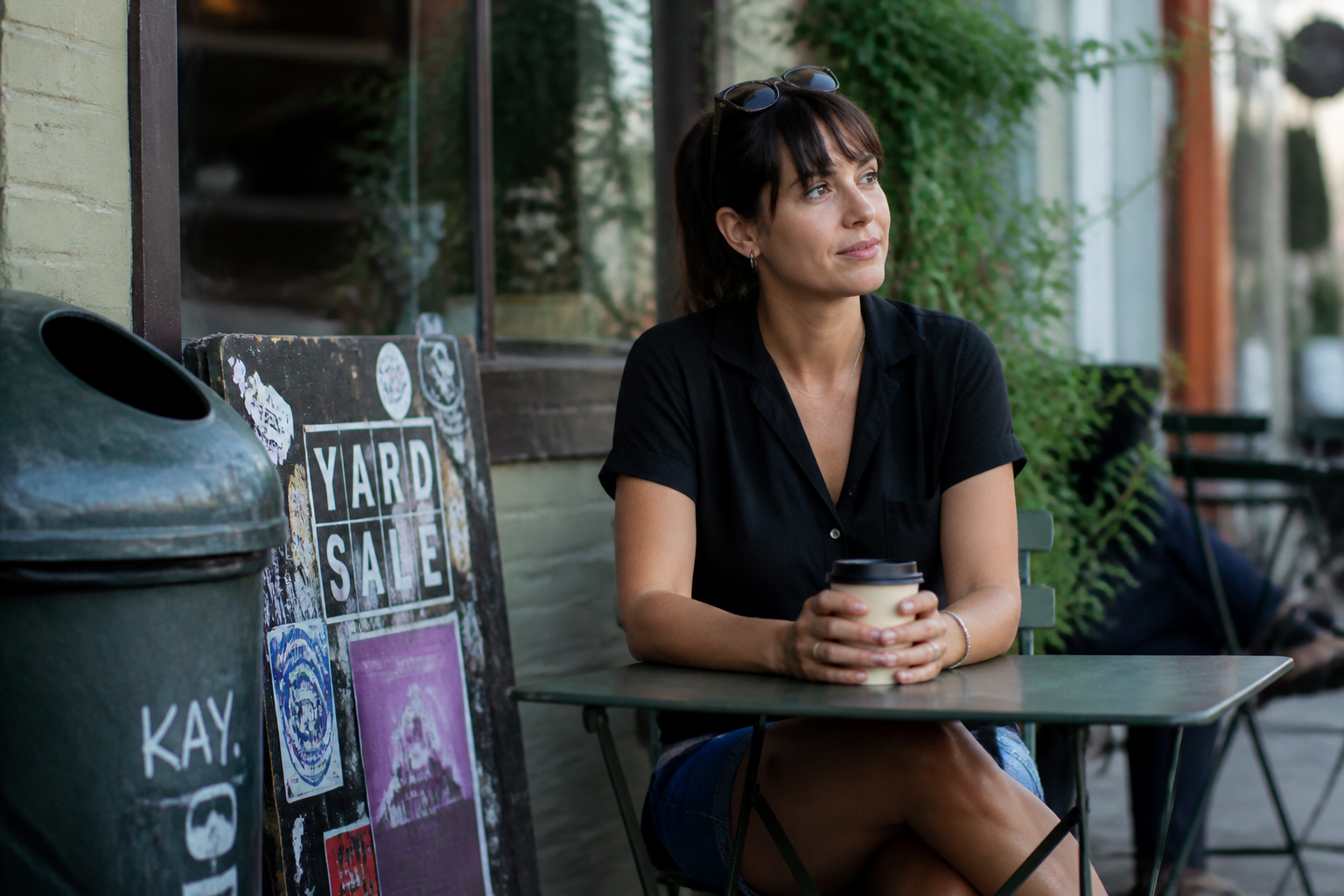 BEFORE
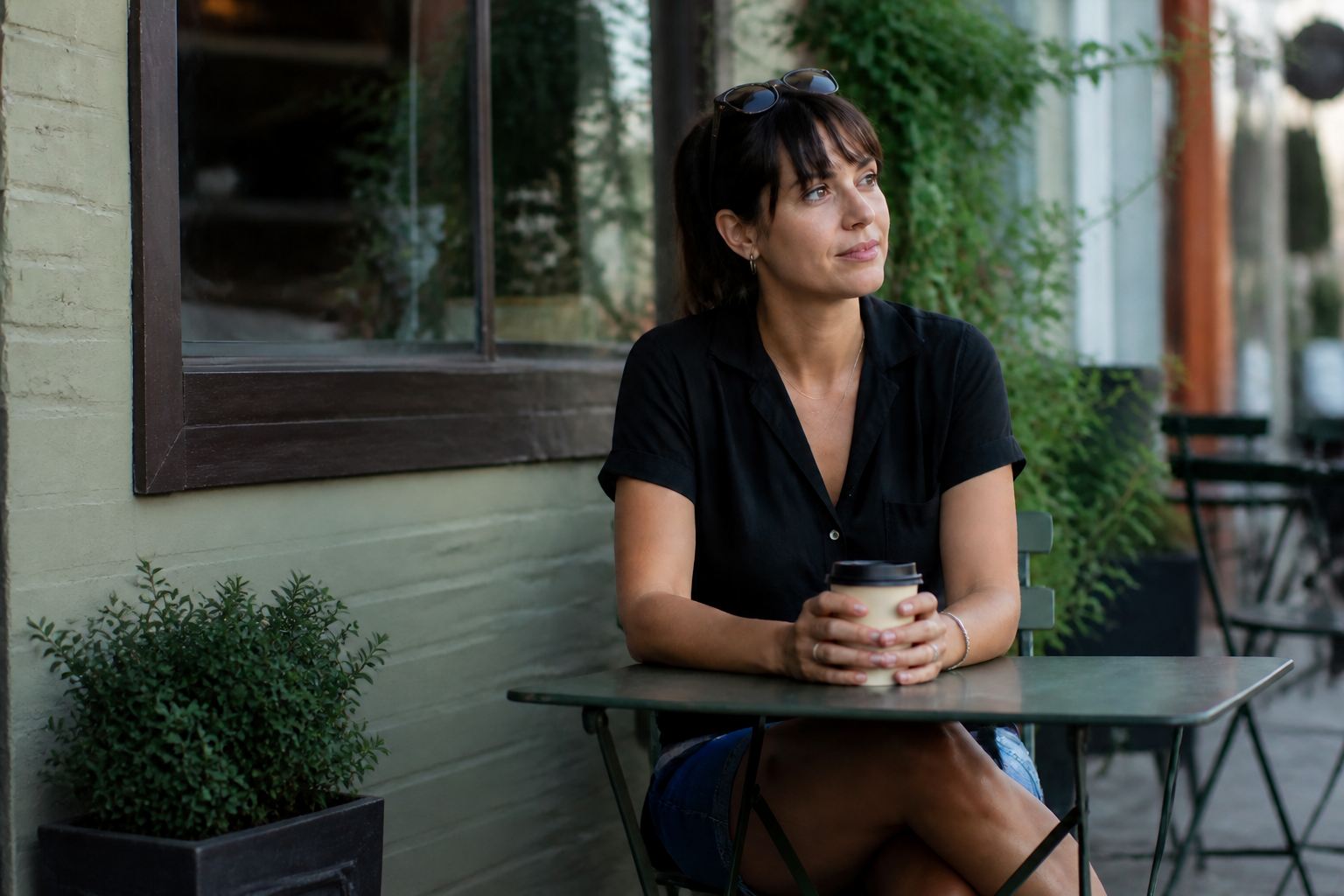 AFTER
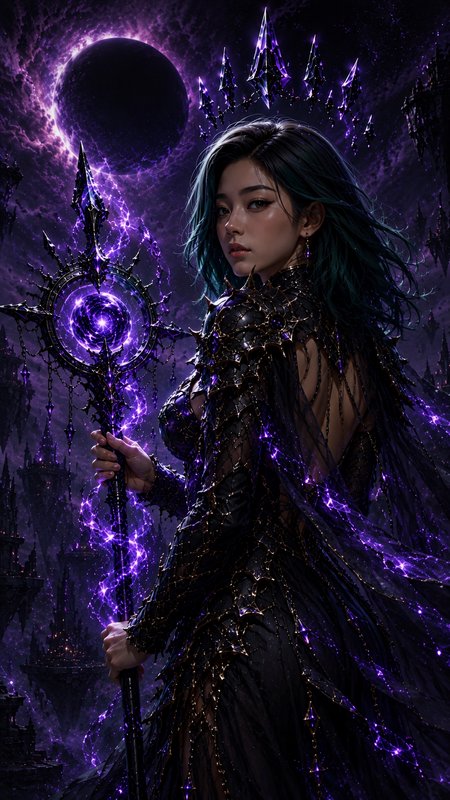
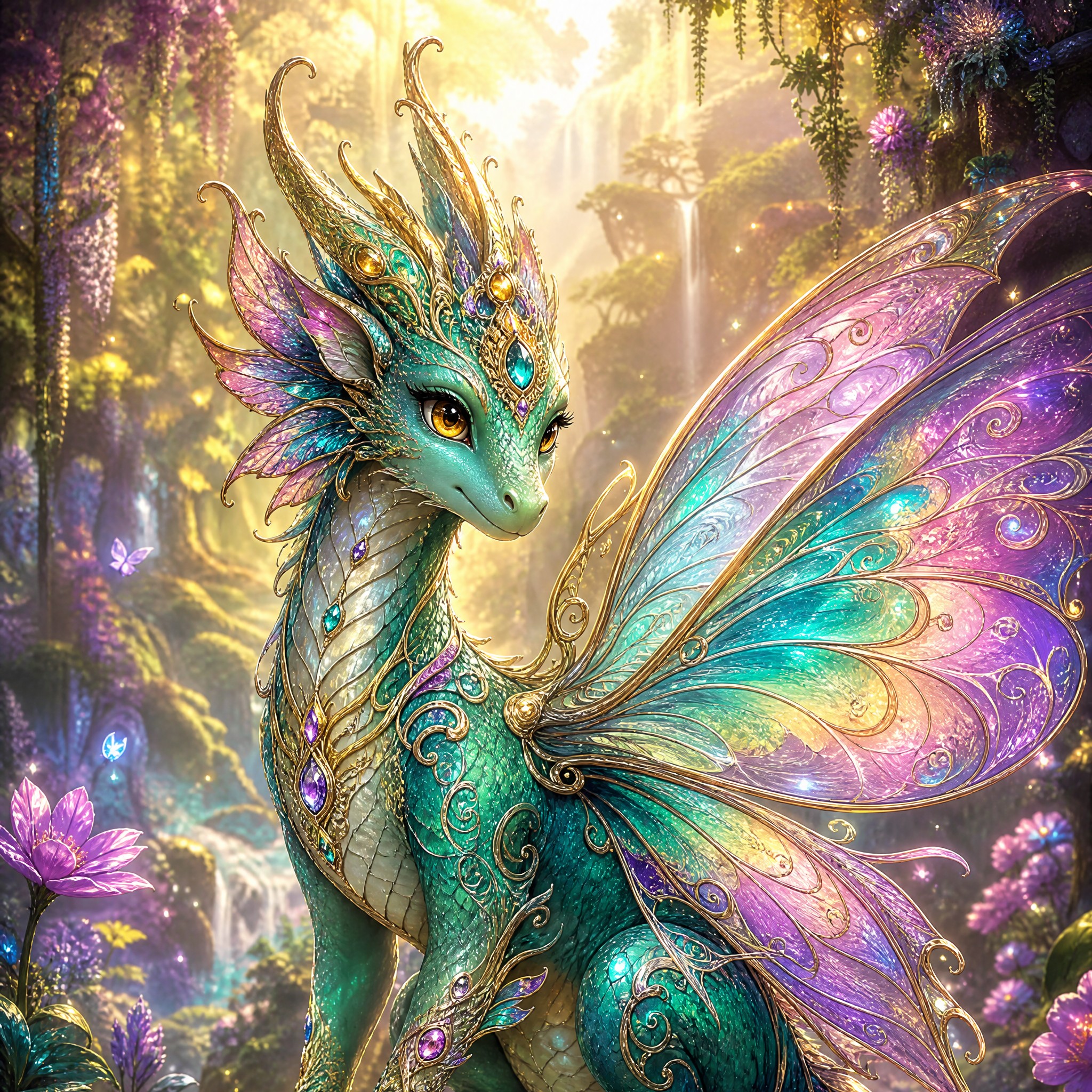
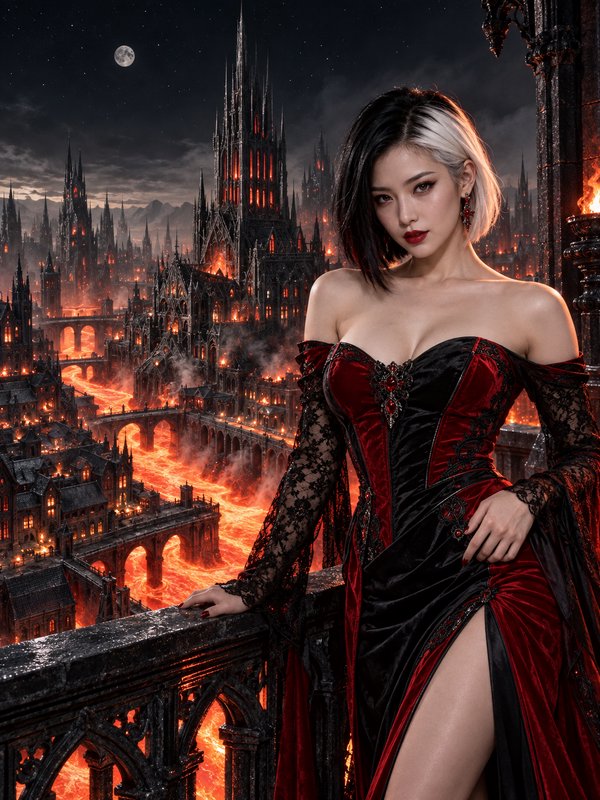
AFTER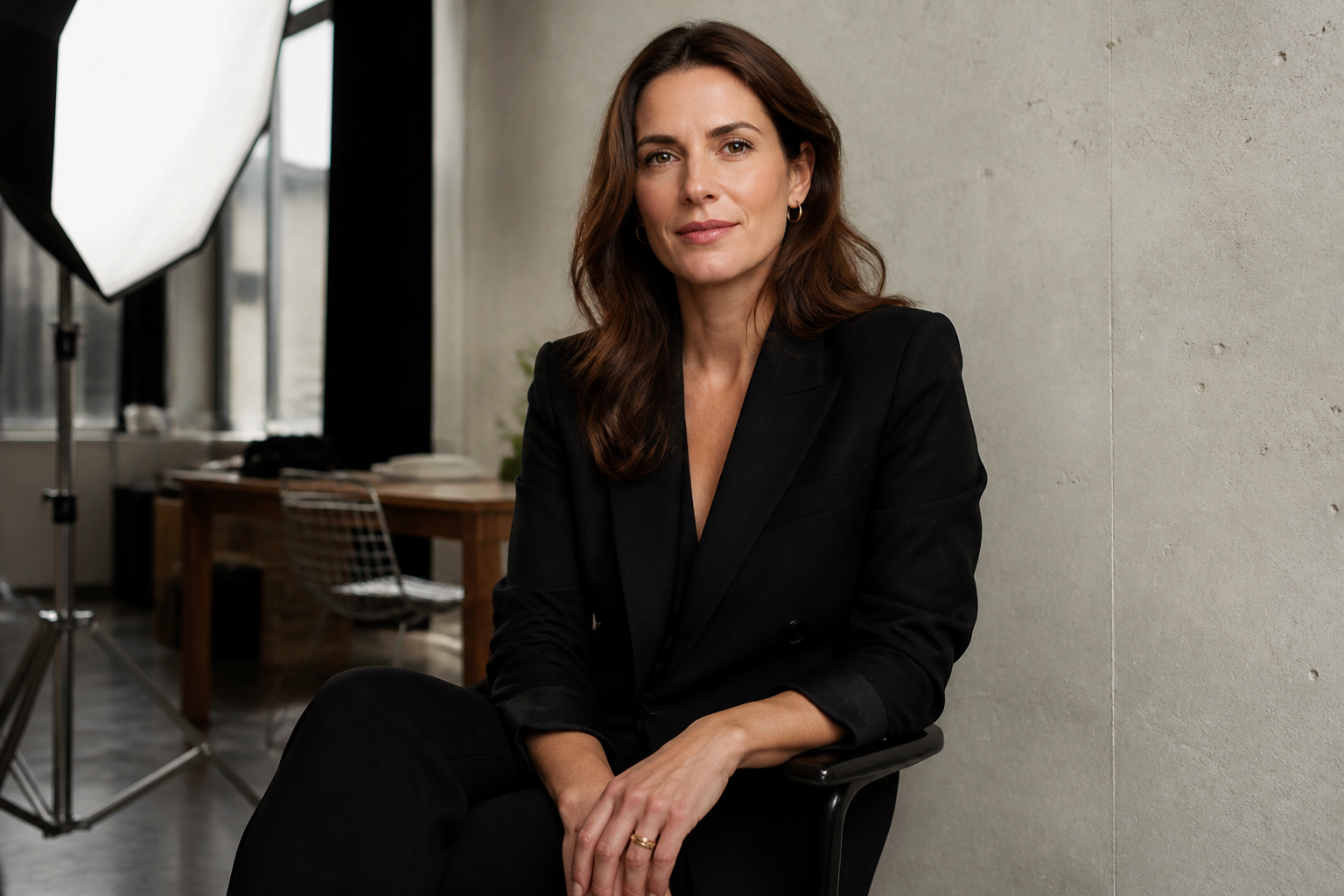 BEFORE
 AFTER
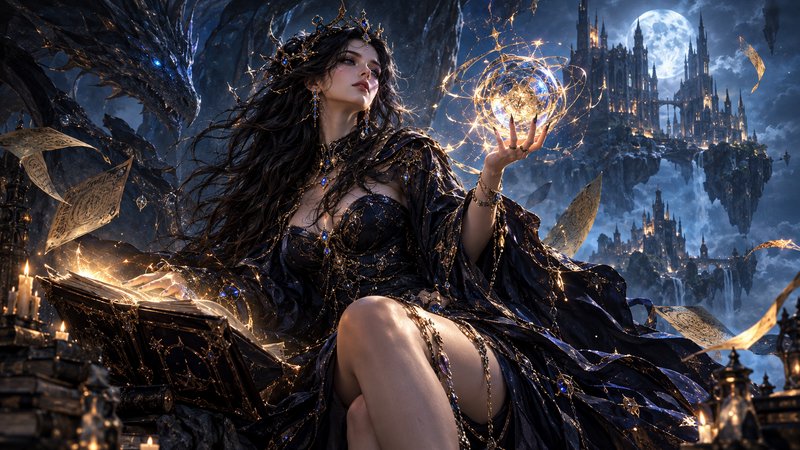
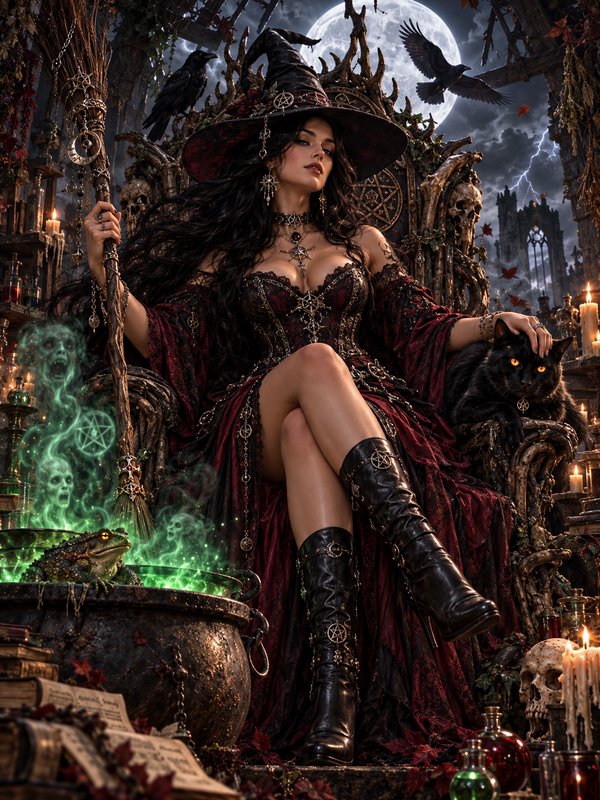
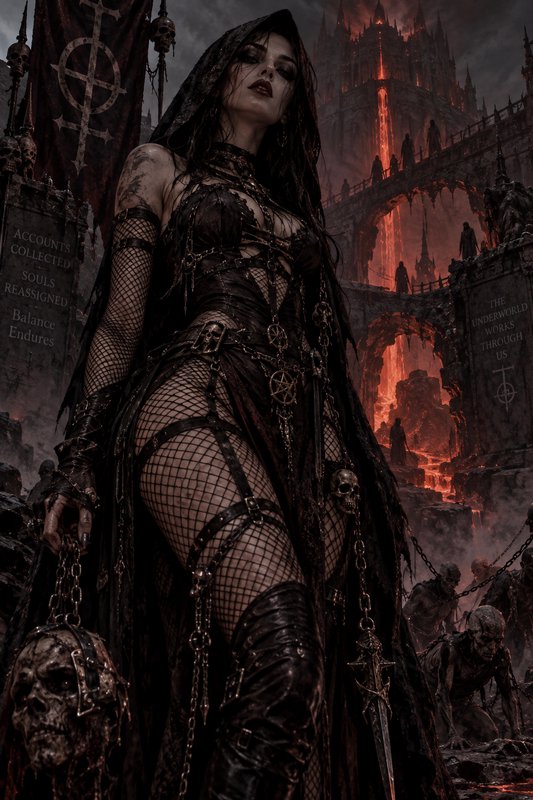
AFTER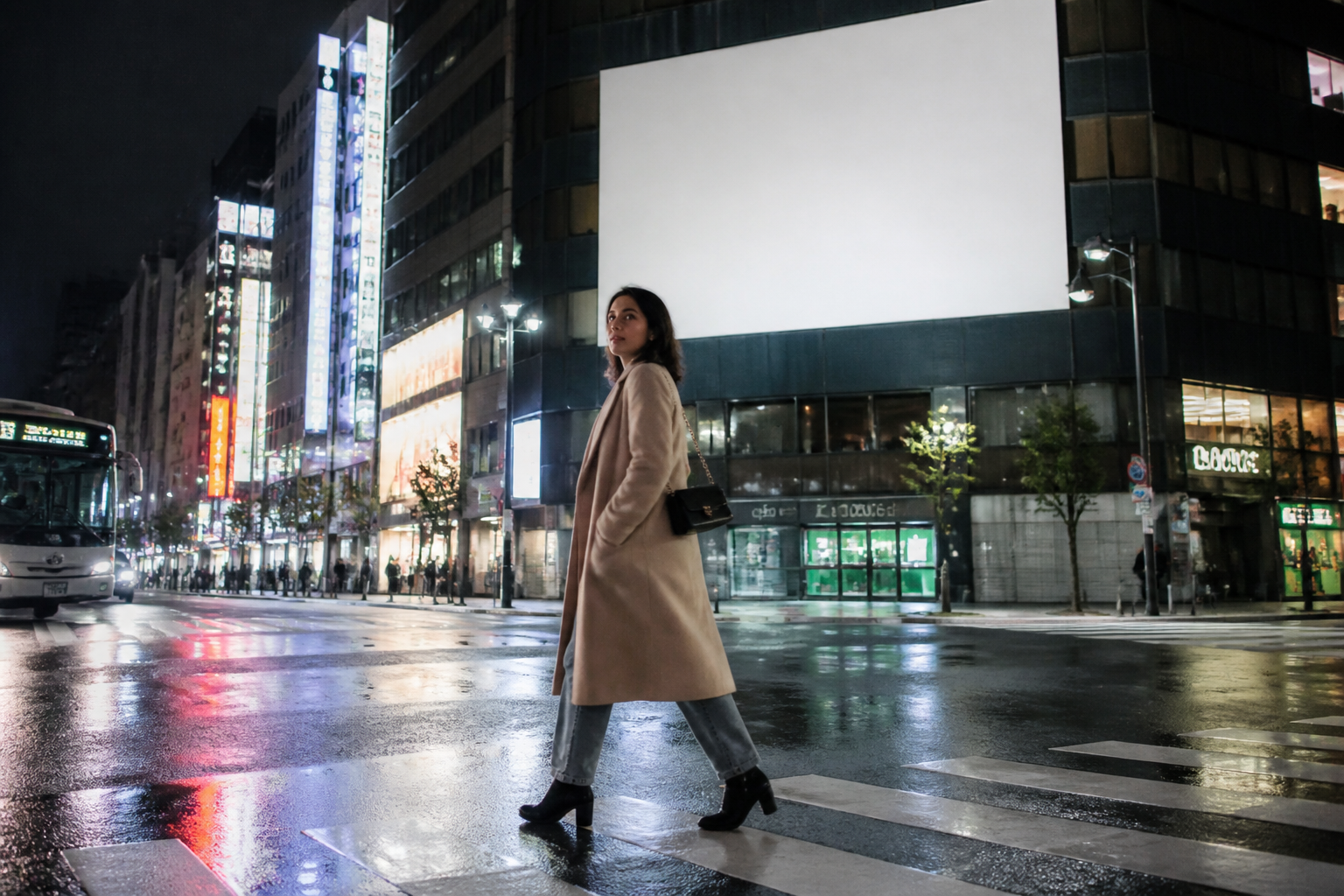 BEFORE
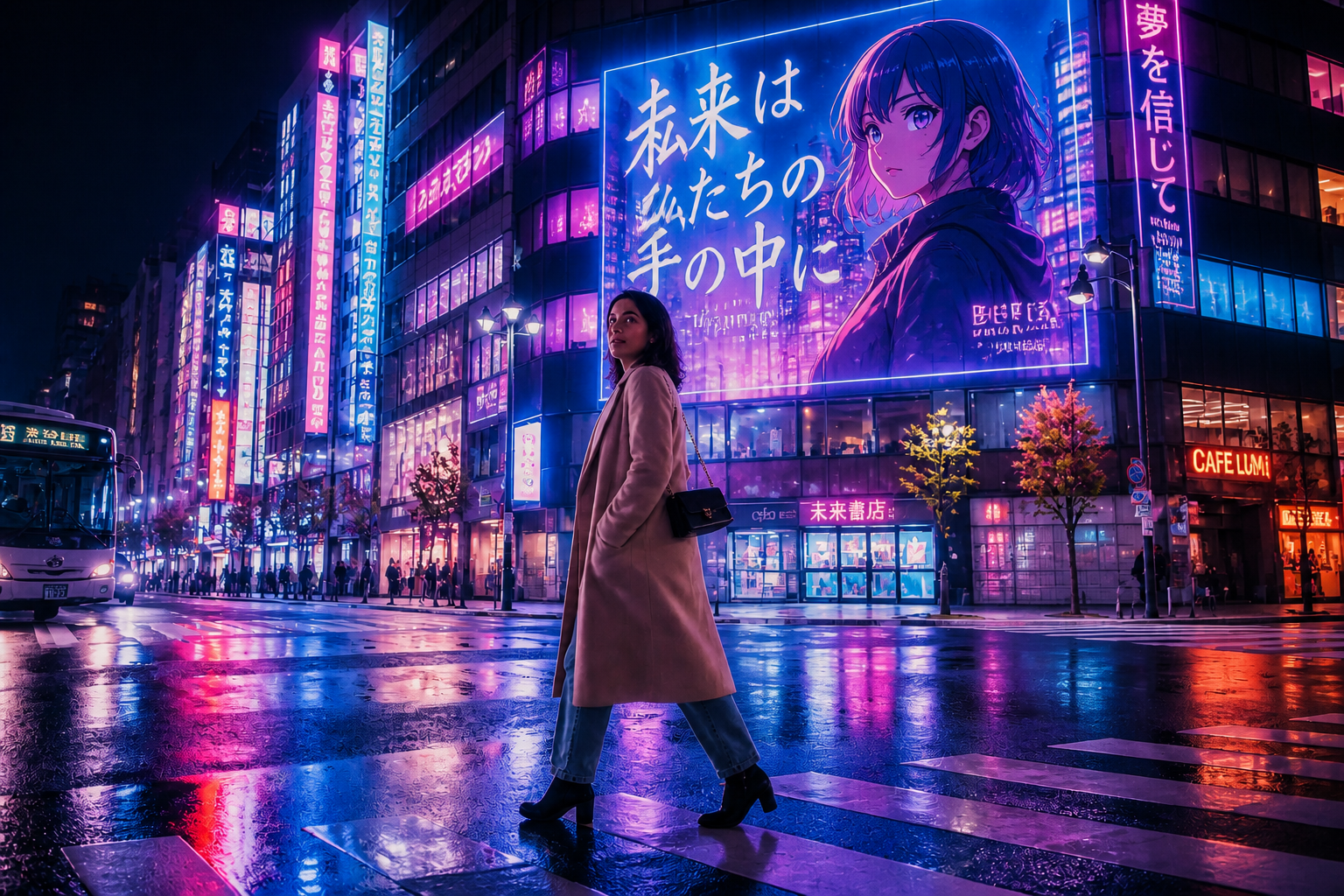 AFTER
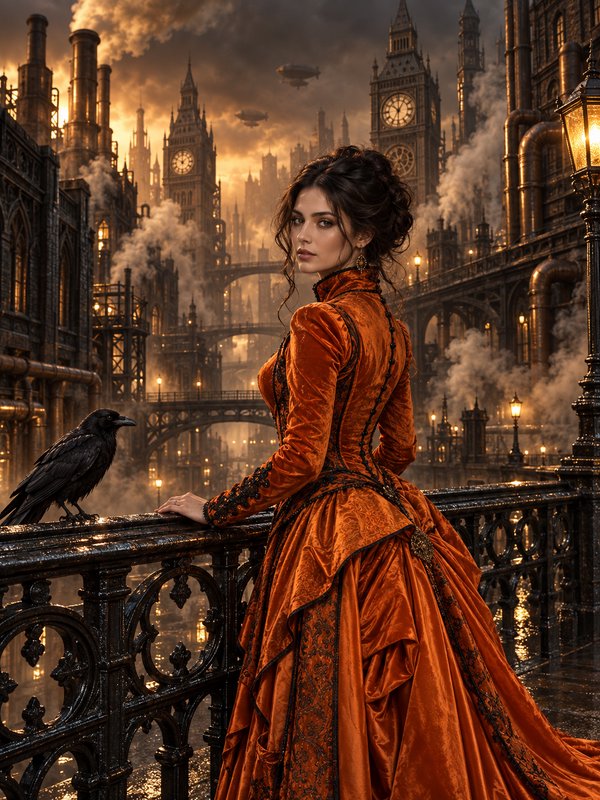
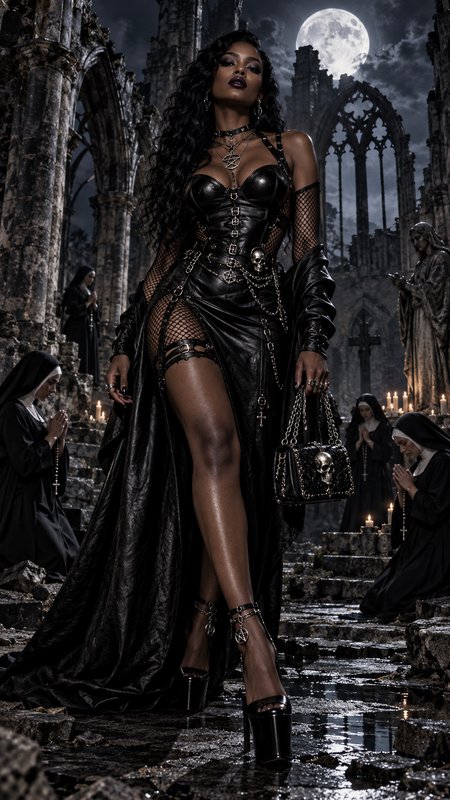
AFTER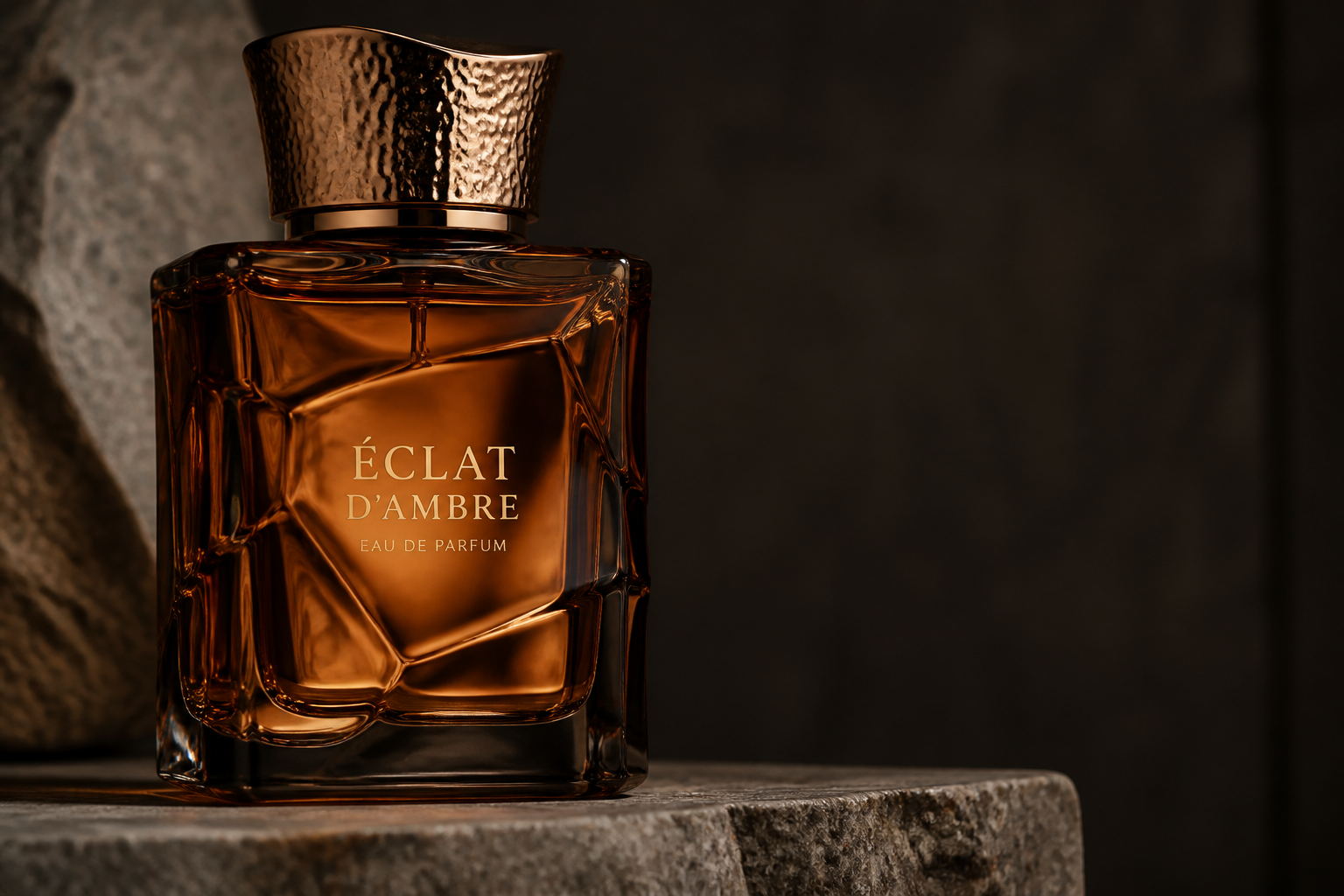 BEFORE
 AFTERBEFOREAFTERBEFOREAFTERBEFOREAFTERBEFOREAFTERBEFOREAFTER
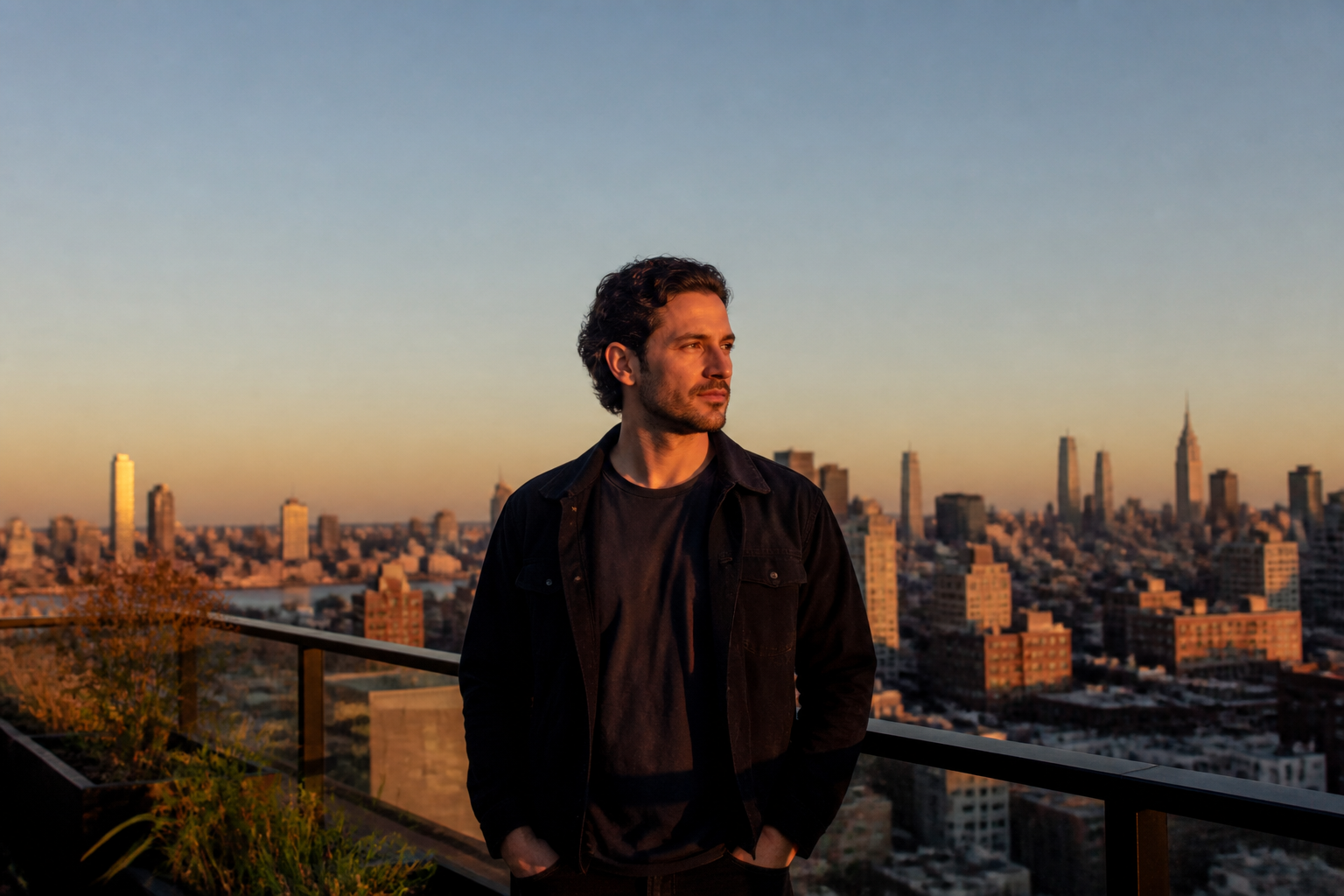 BEFORE
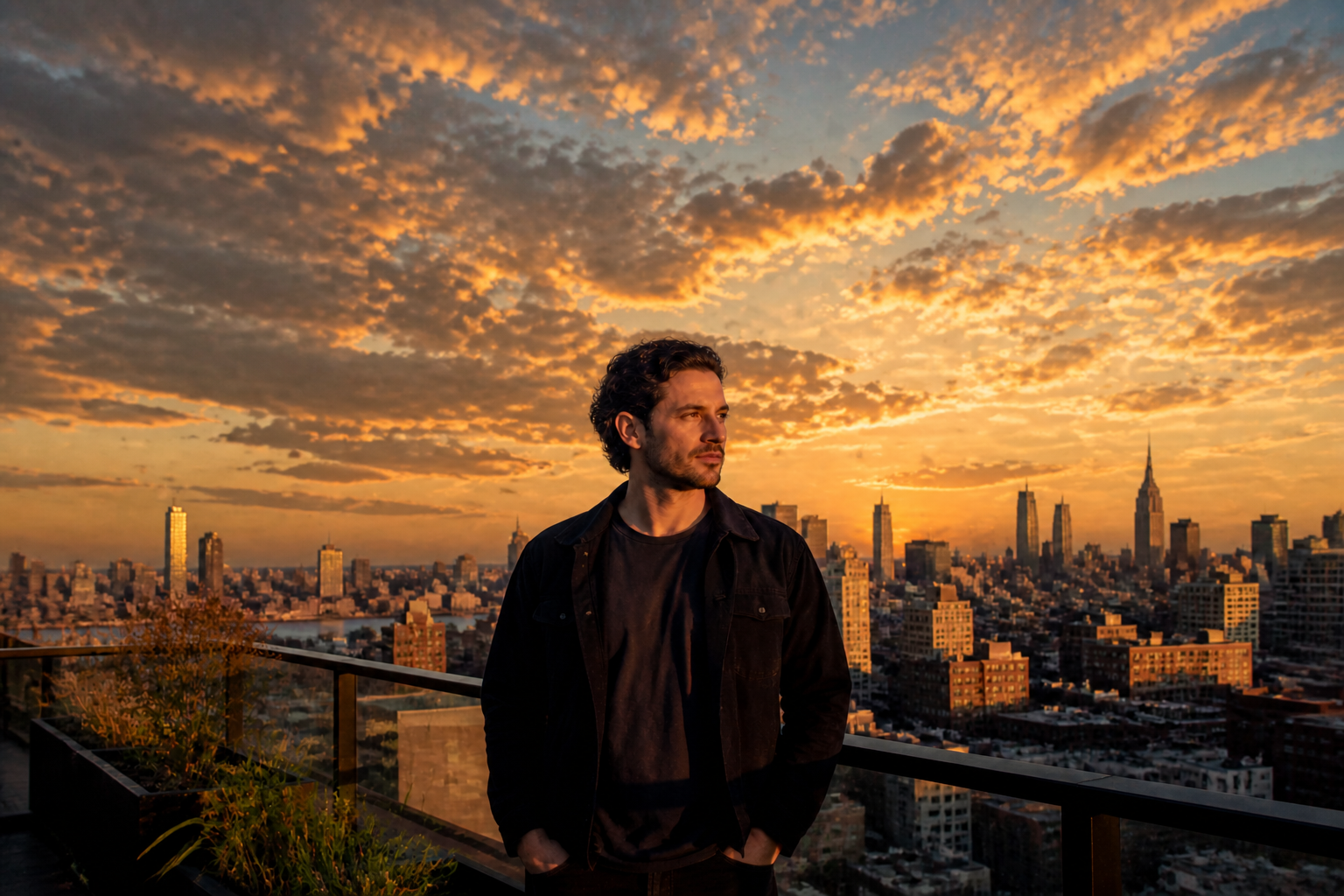 AFTER
AFTER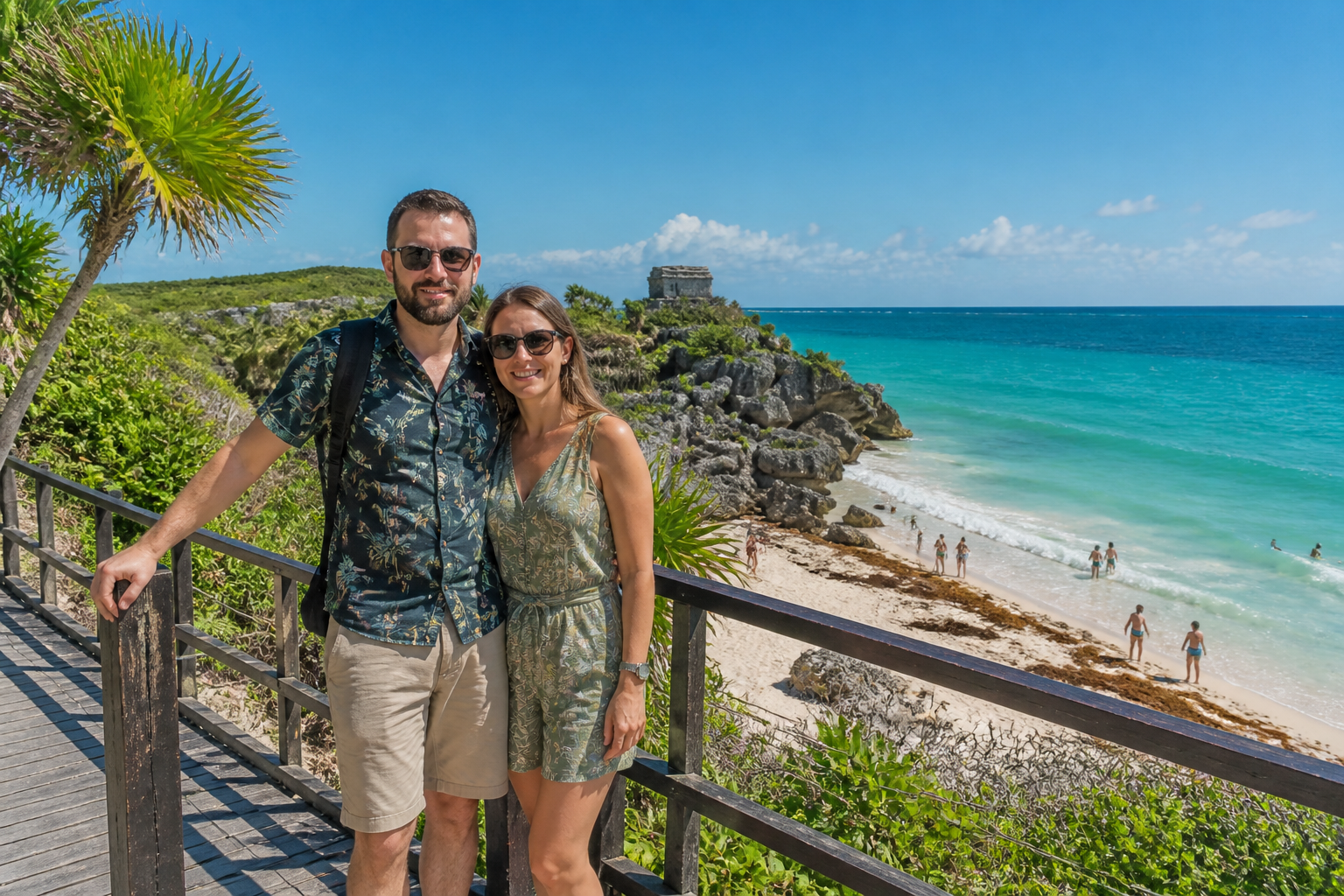 BEFORE
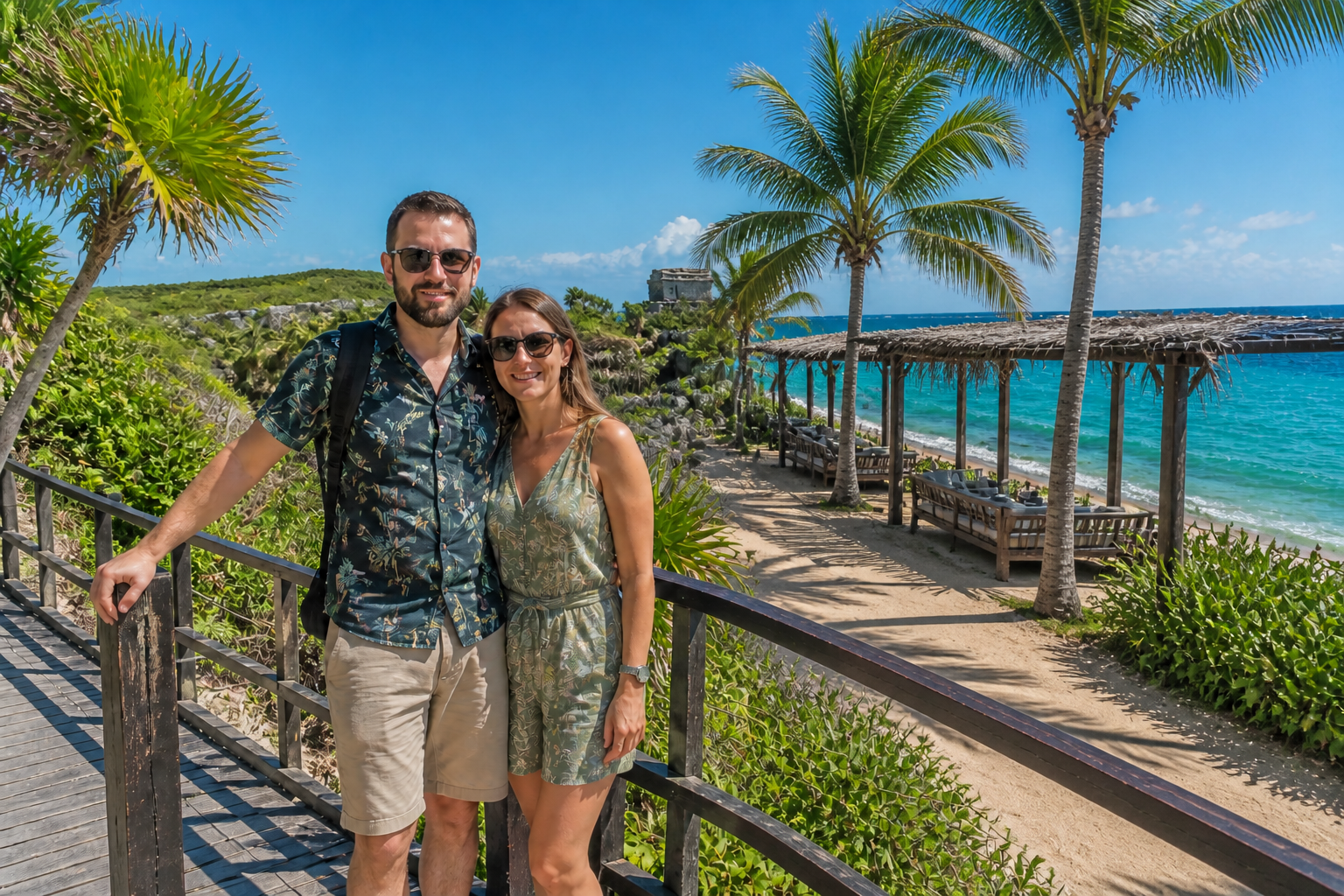 AFTER
AFTER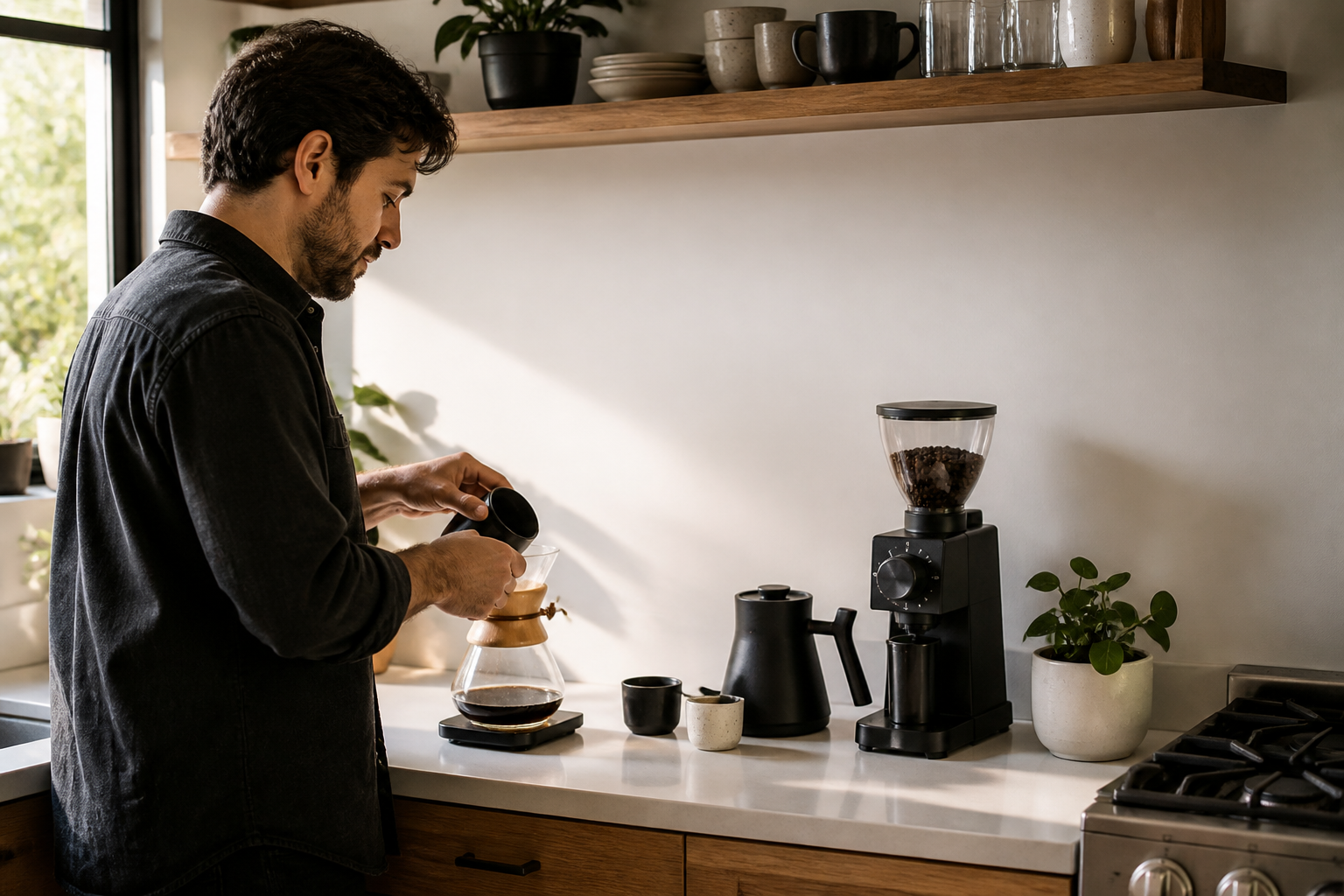 BEFORE
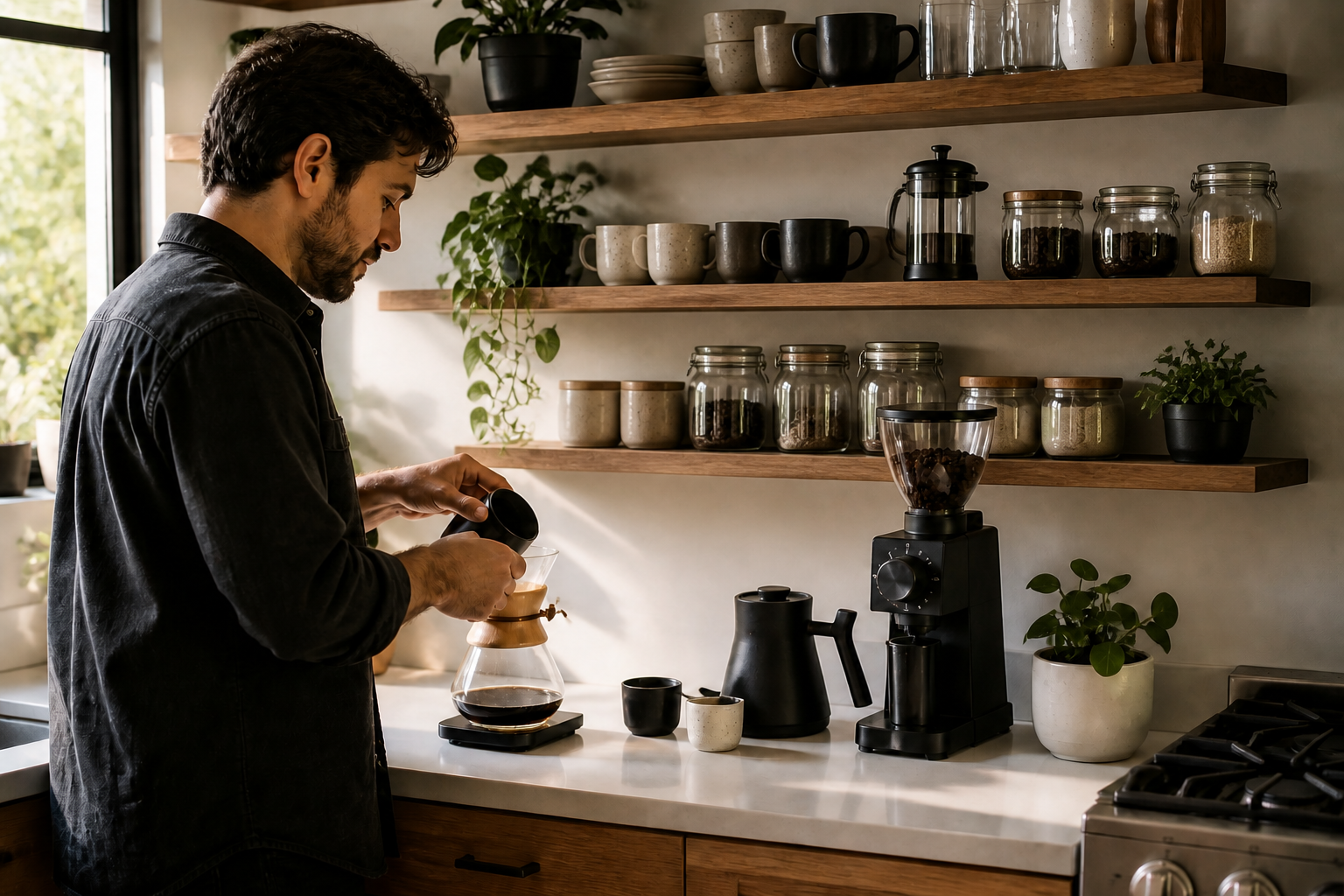 AFTER
AFTER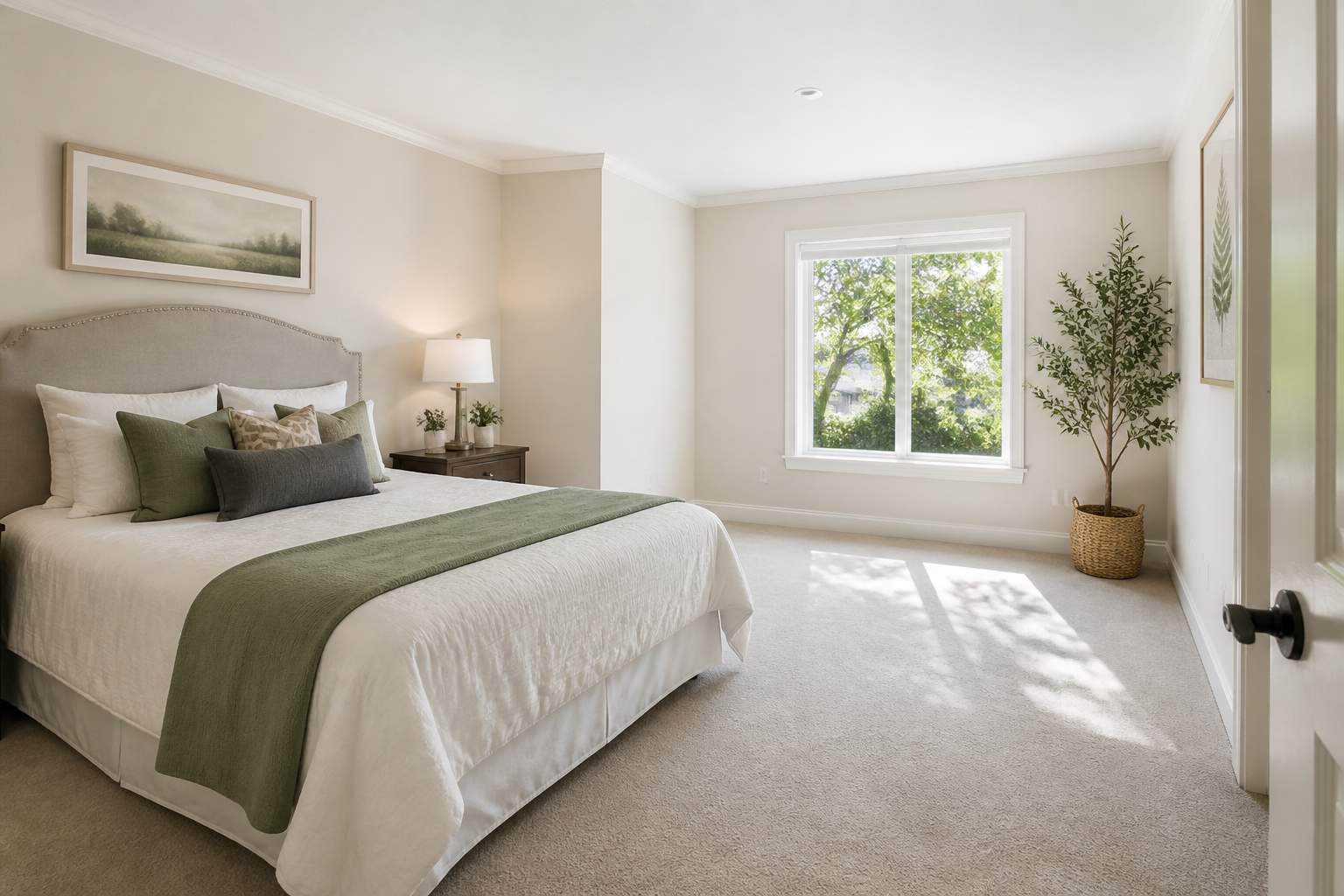 BEFORE
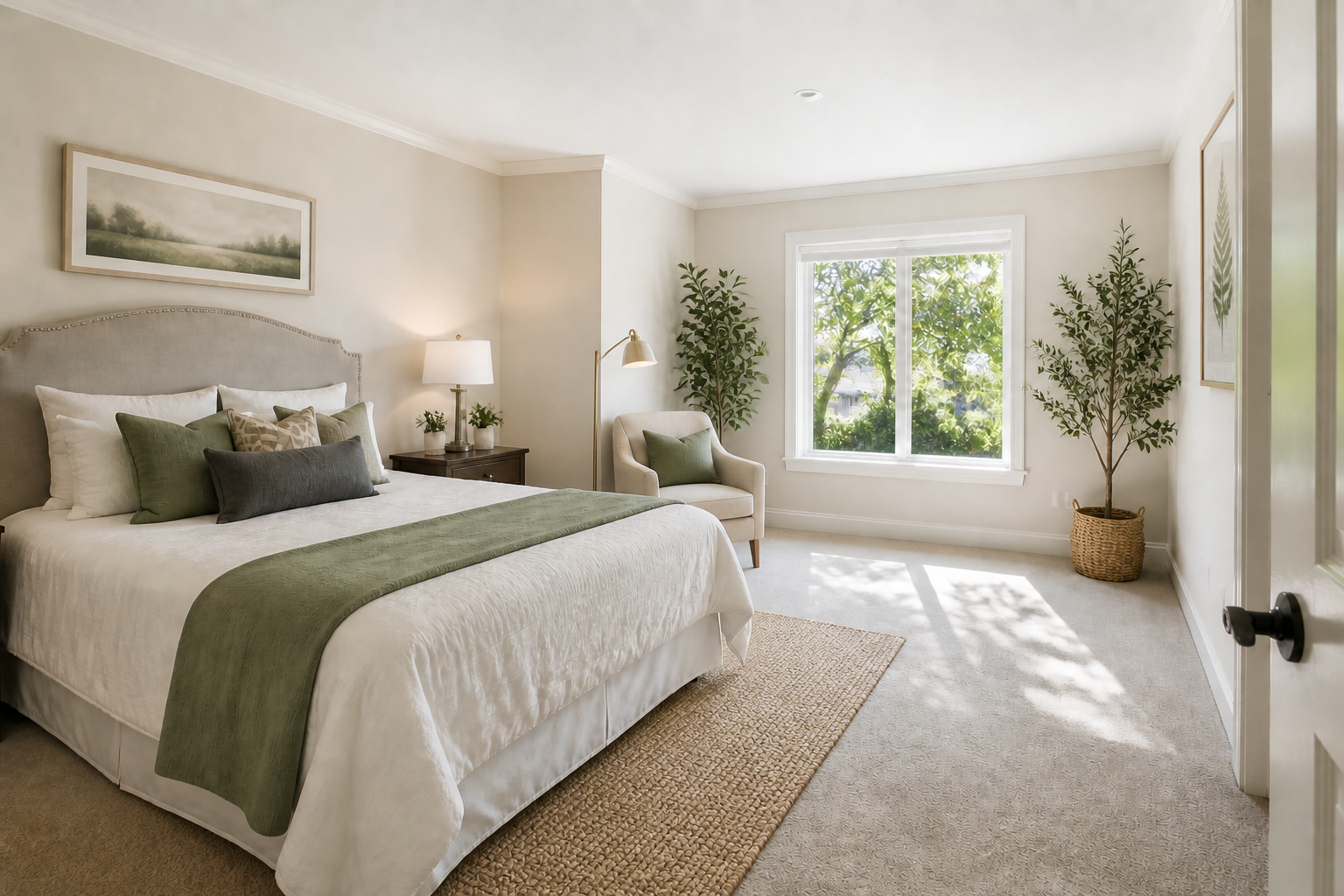 AFTER
AFTER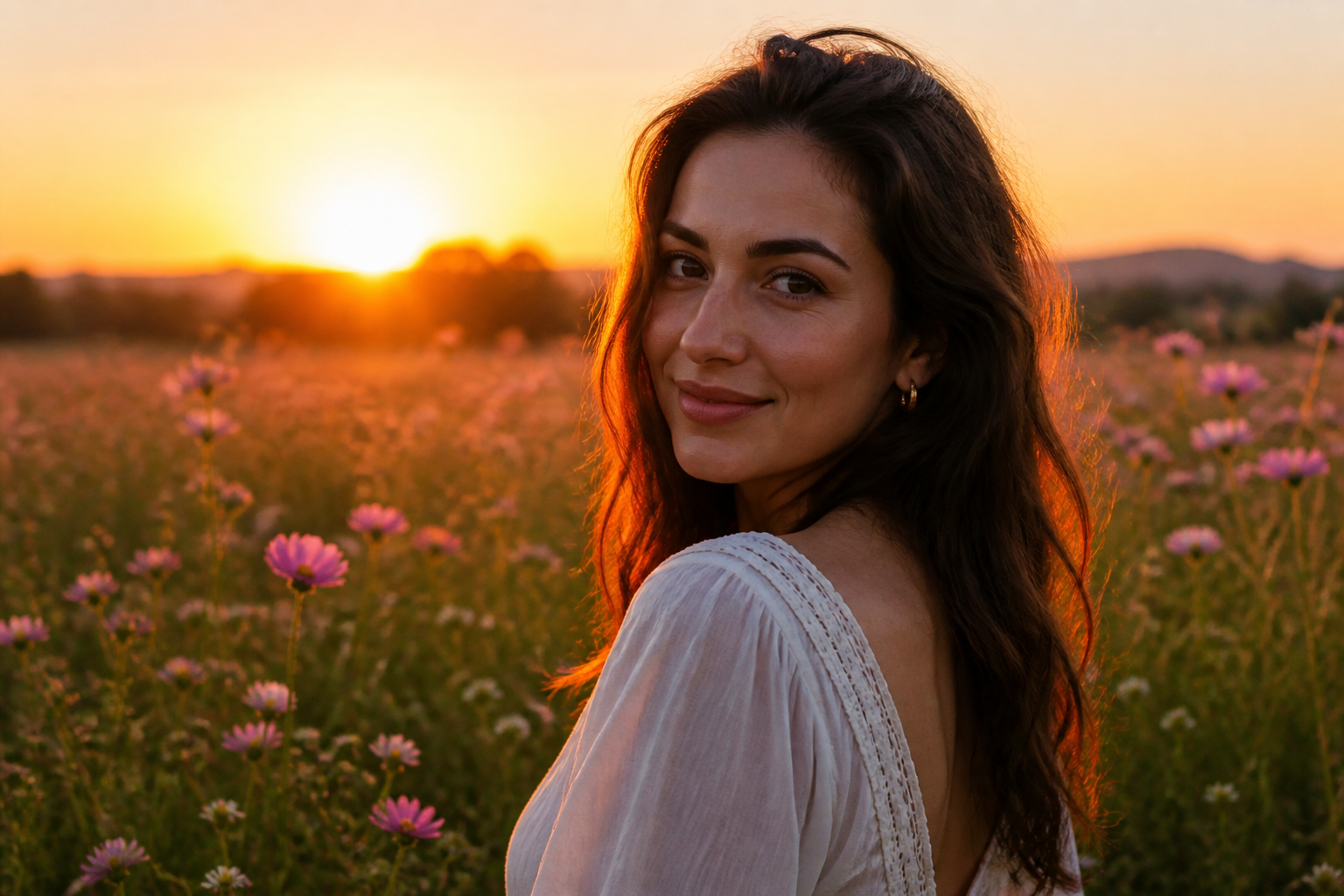 BEFORE
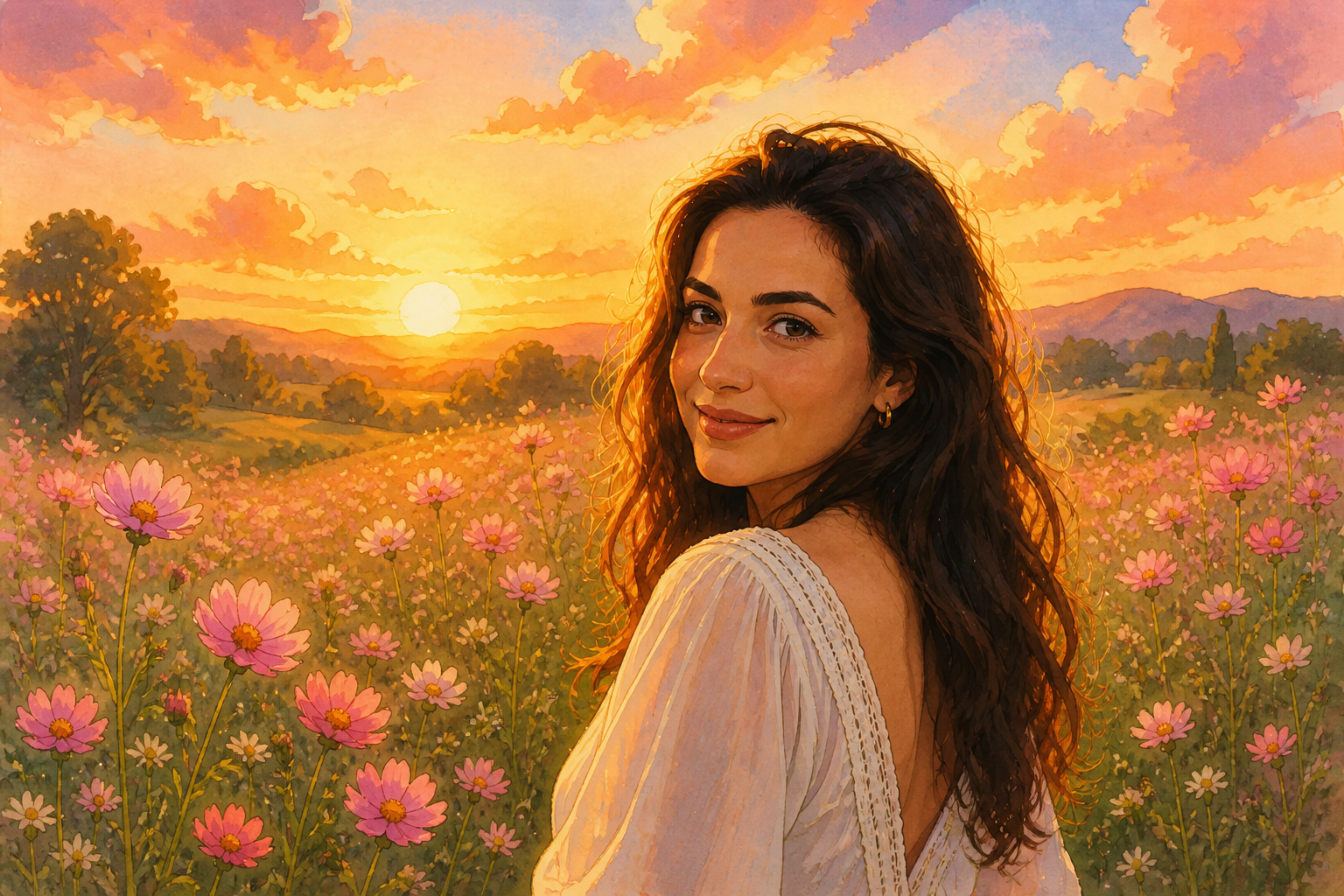 AFTERBEFOREAFTERBEFOREAFTERBEFOREAFTERBEFOREAFTERBEFOREAFTER
Key Features
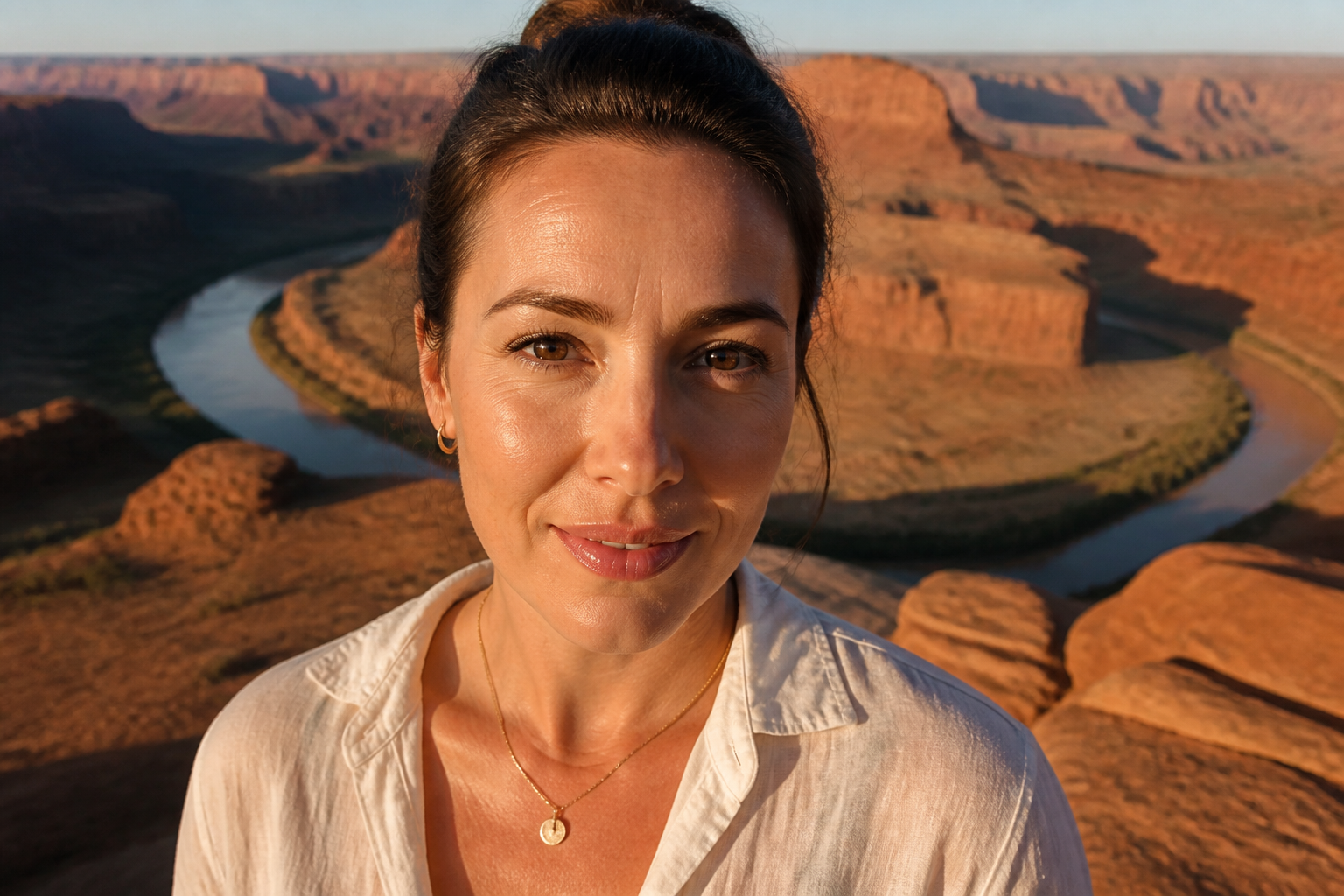
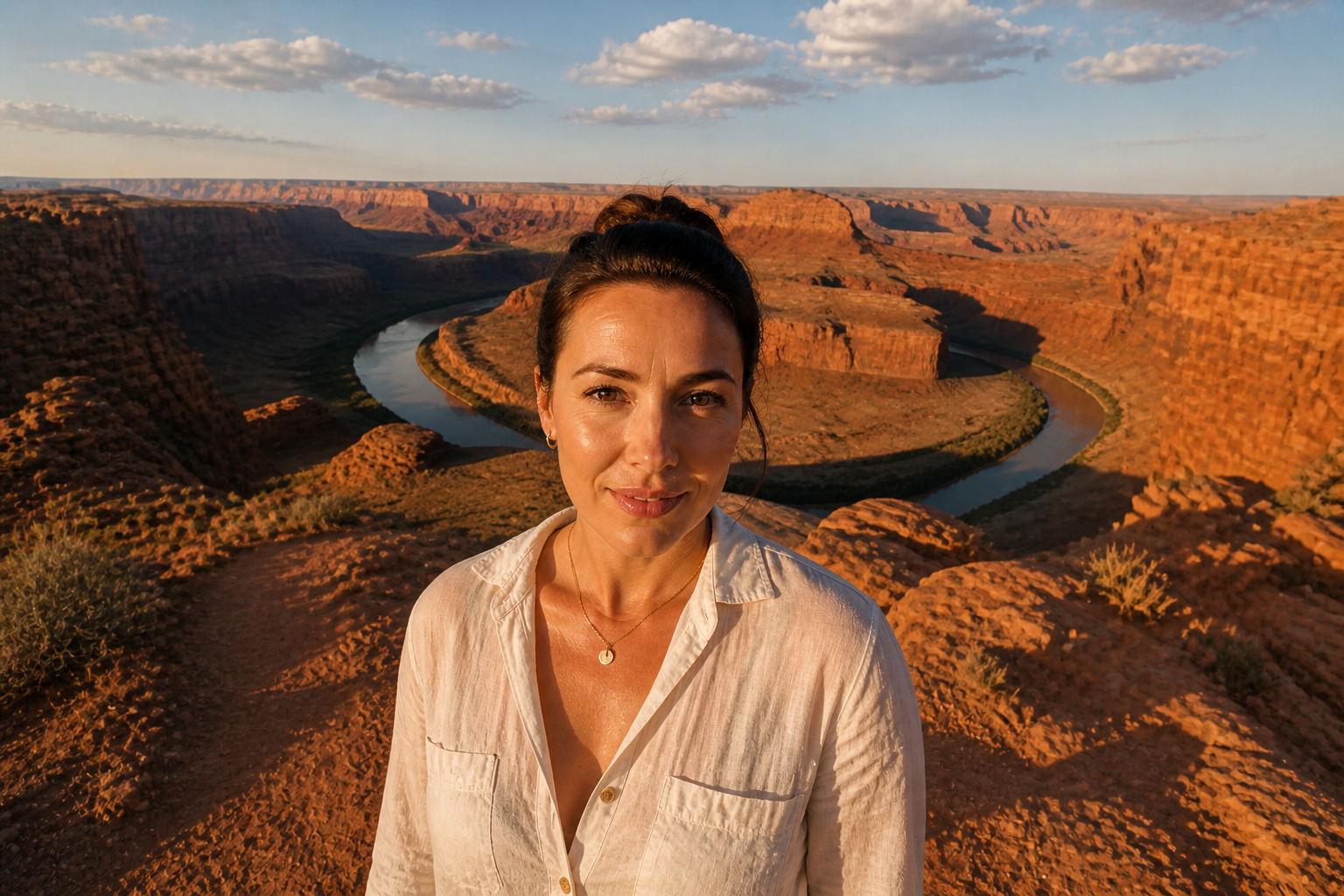
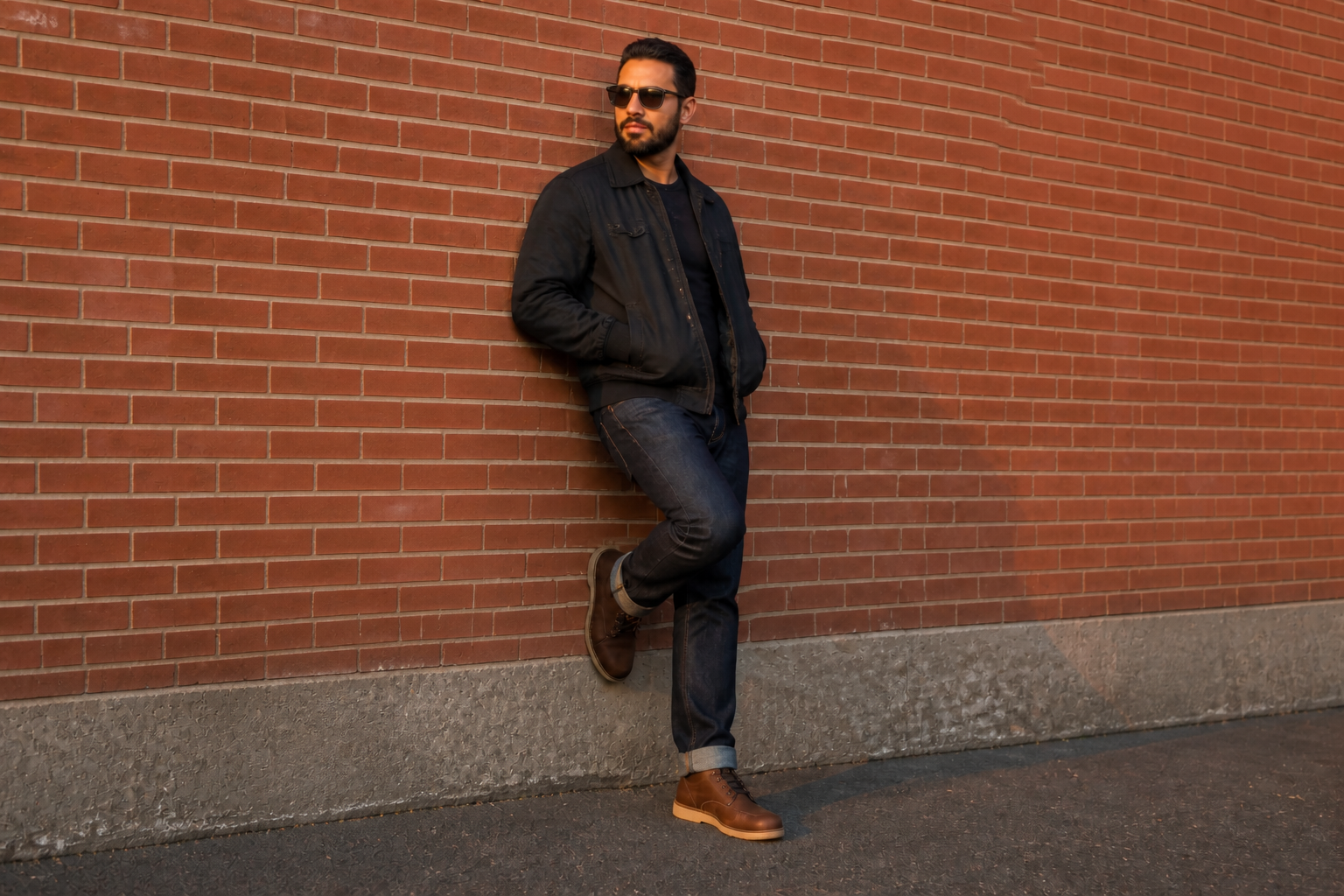
Extend Cropped Photos Cleanly
When a photo feels too tight, you can add believable space around the subject instead of starting over. Our AI continues skies, walls, floors, and scenery so the new frame looks intentional. That makes it useful for social posts, thumbnails, and banners that need a wider crop. Manual compositing takes time and often shows obvious seams, but generative fill handles the transition in one step.
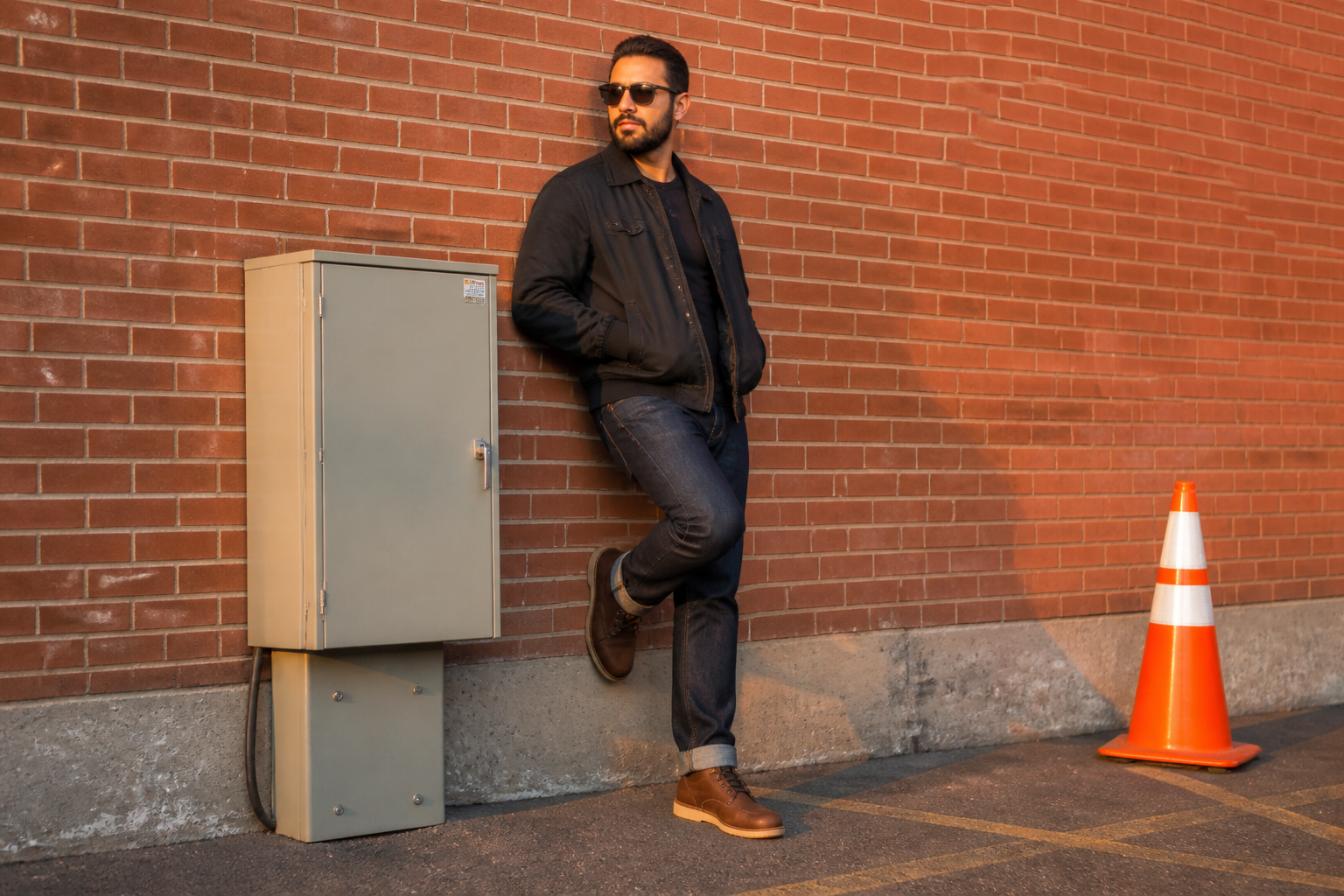
Replace Distracting Objects Fast
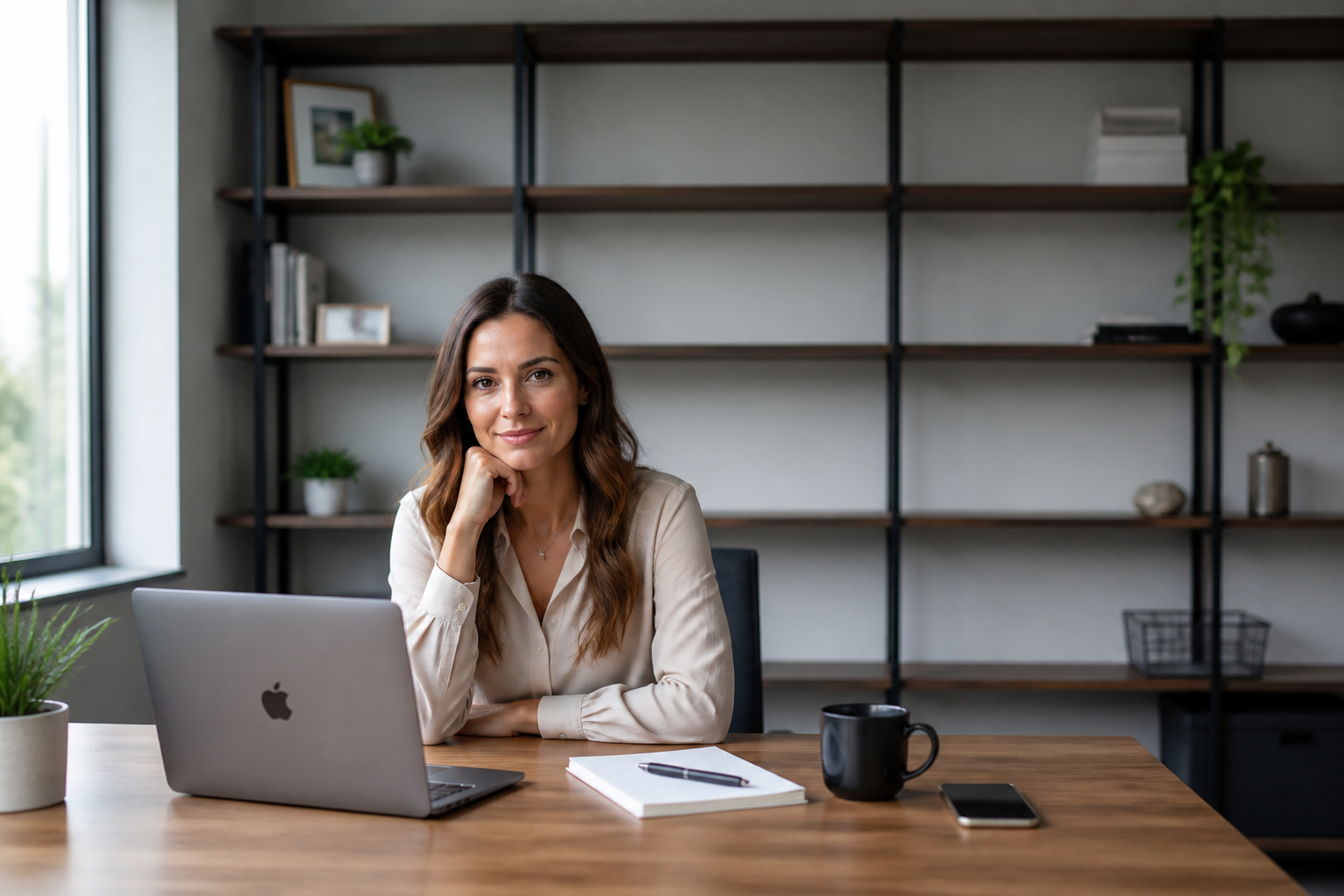
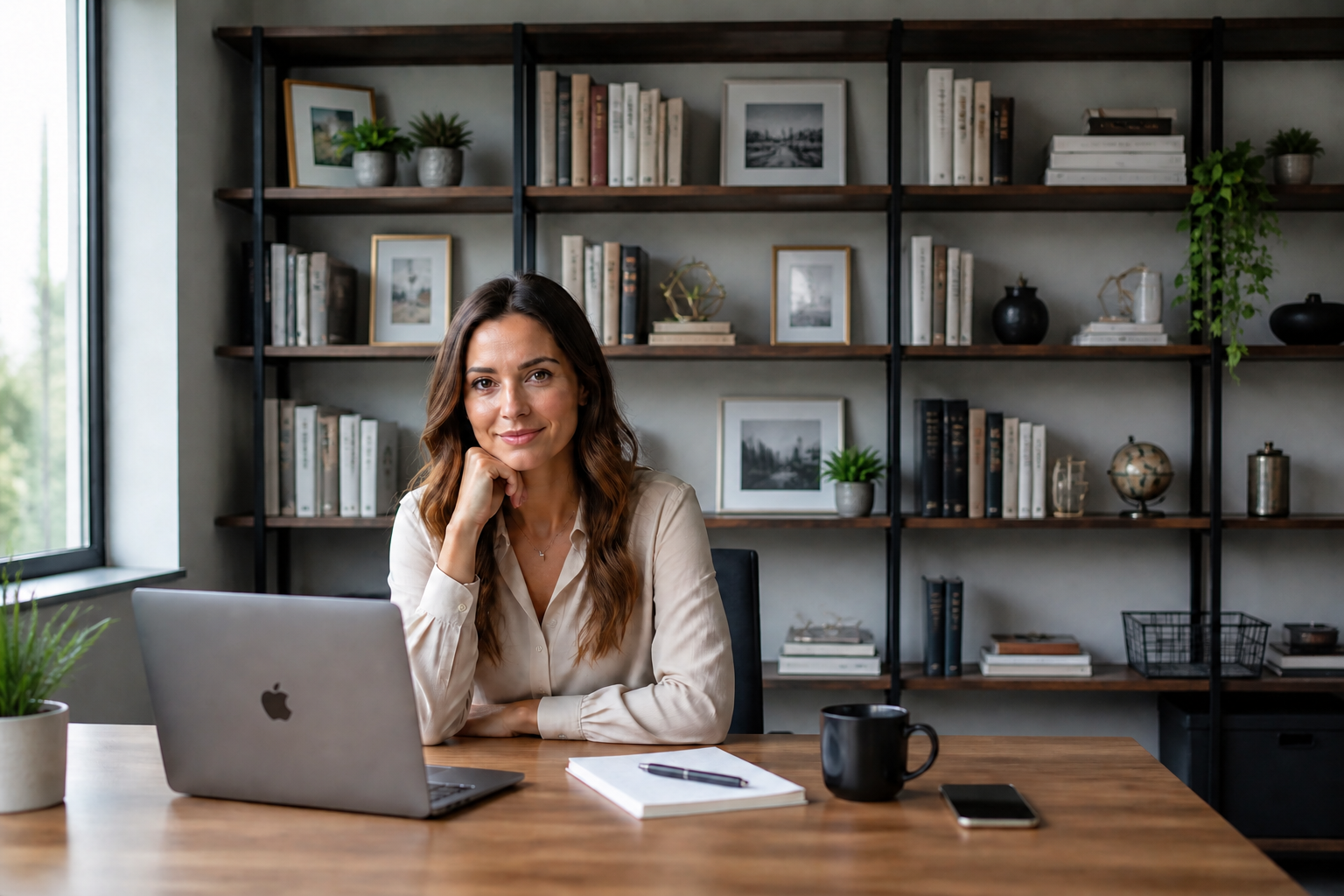
Busy objects near the edge of a shot can ruin an otherwise strong image. With a targeted prompt, you can replace them with background detail that matches the original scene. This is faster than cloning and patching by hand, especially on textured surfaces like foliage, pavement, or furniture. The result keeps the focus on the subject instead of the cleanup work.
Add Missing Scene Details
Generative fill is useful when a room, set, or landscape feels unfinished. You can add props, decor, or environmental elements that belong in the image without rebuilding everything else. Because the edit is anchored to the existing photo, the new content follows the original composition better than creating a fresh image from scratch. That helps when you want a fuller, more polished result with minimal changes.
Works Beyond Realism
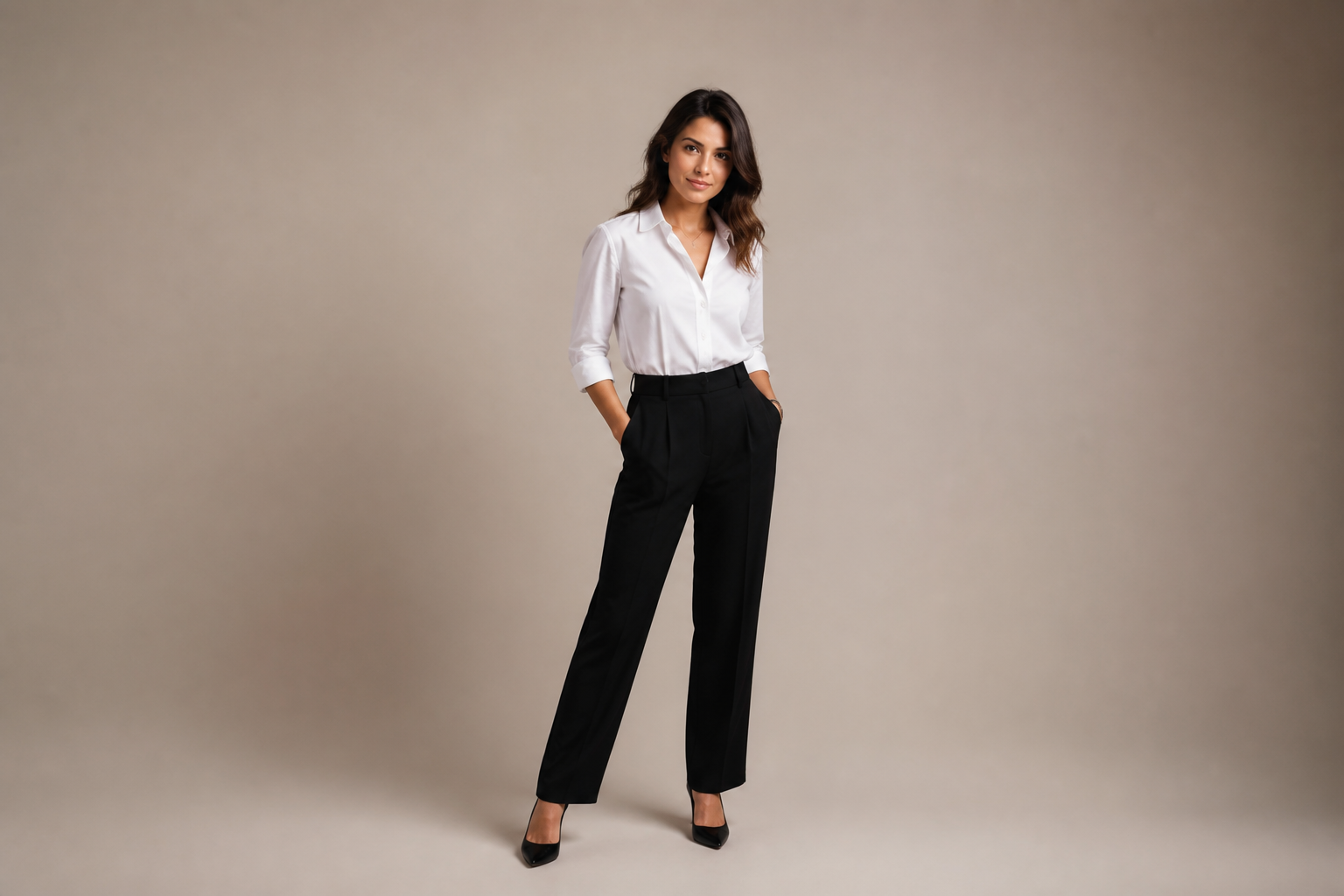
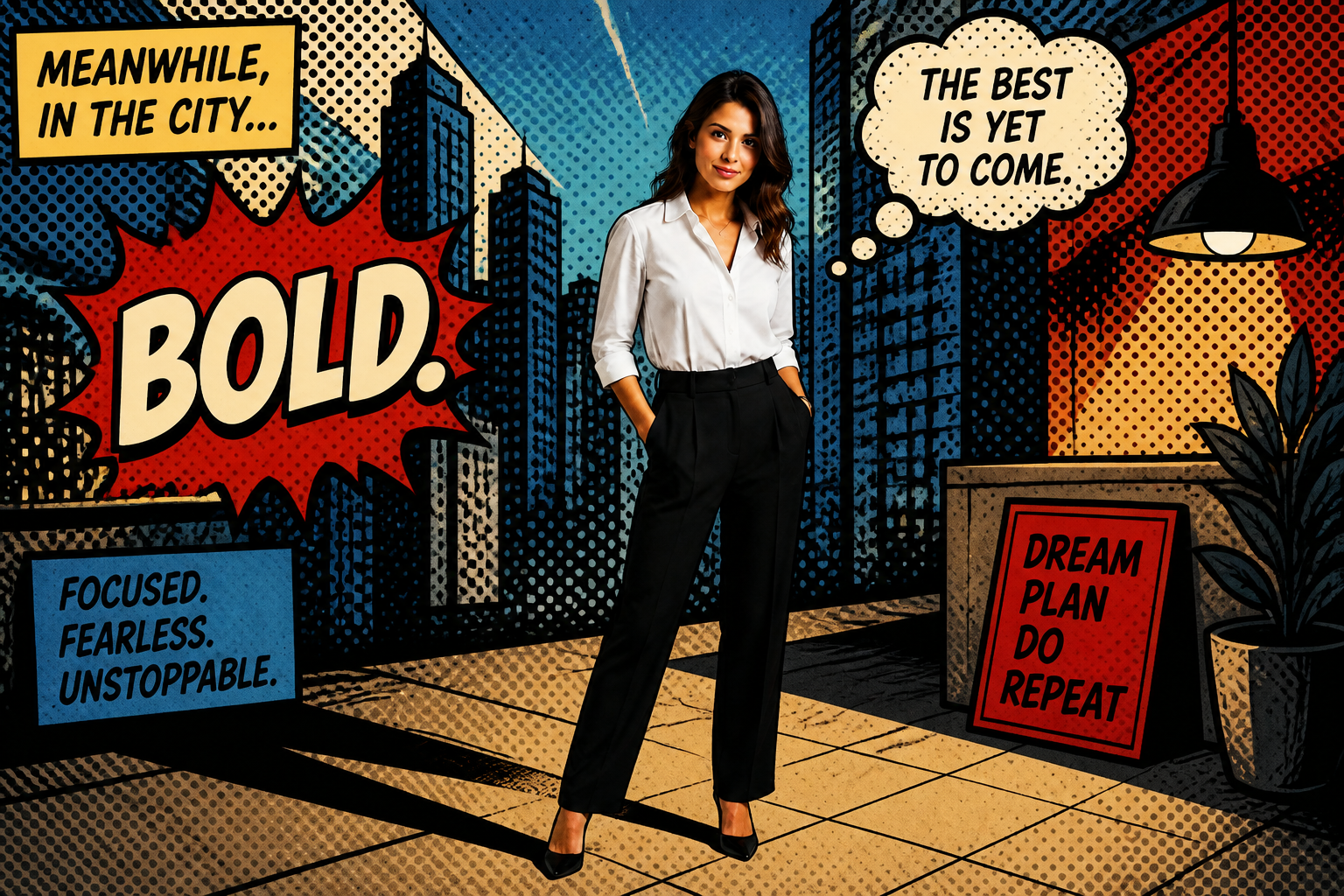
You are not limited to practical photo repairs. The same fill workflow can add artistic environments, stylized props, or graphic set extensions while keeping the original pose and layout intact. That makes it useful for creators who want both realistic fixes and more expressive content from the same tool. Switching styles is much quicker than manually painting or rebuilding the scene piece by piece.
How It Works
Upload your photo
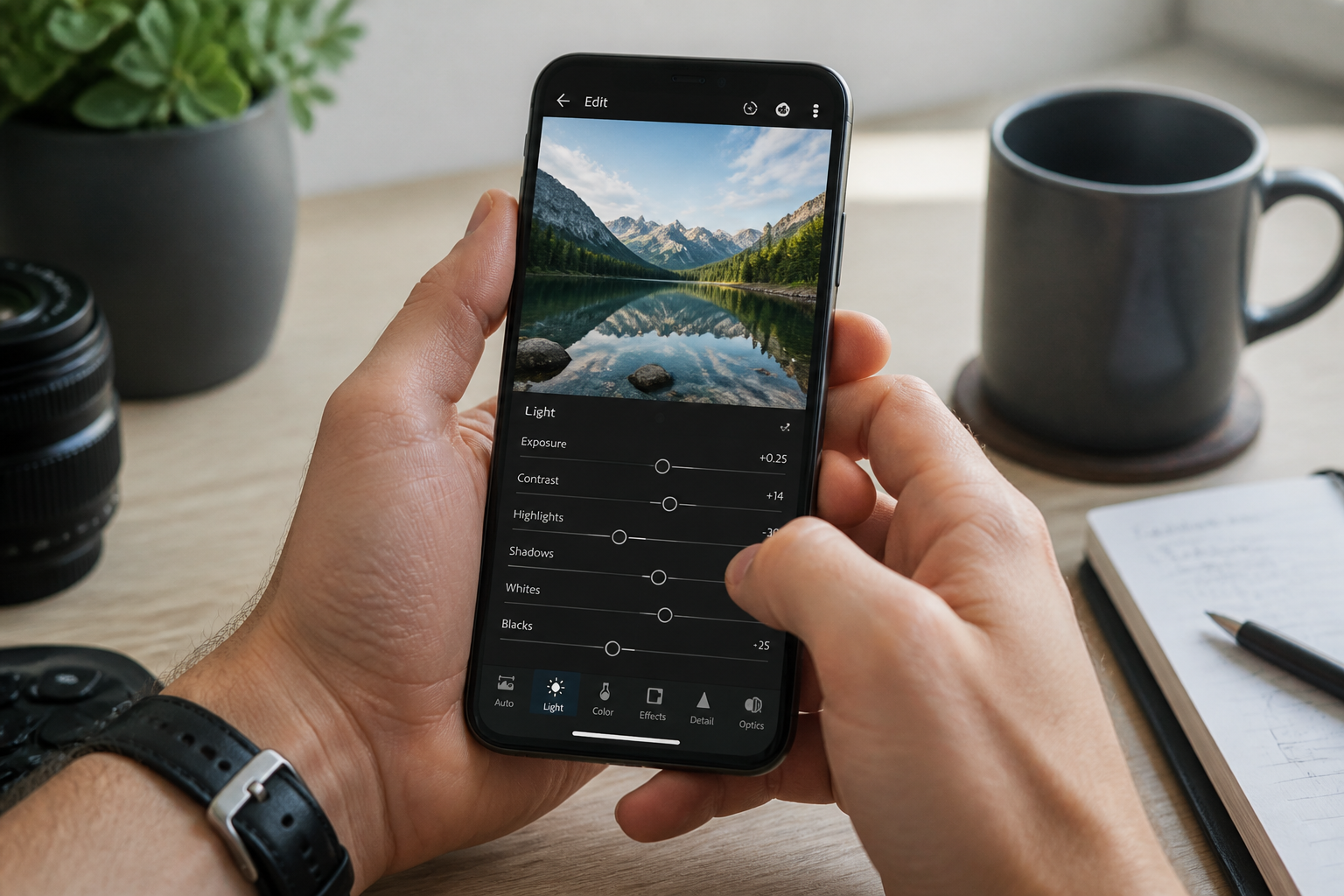
Start with any image that needs more space, less clutter, or additional detail. Wide scenes, interiors, products, and portraits all work well when you want to fill a specific area.
Describe what to fill
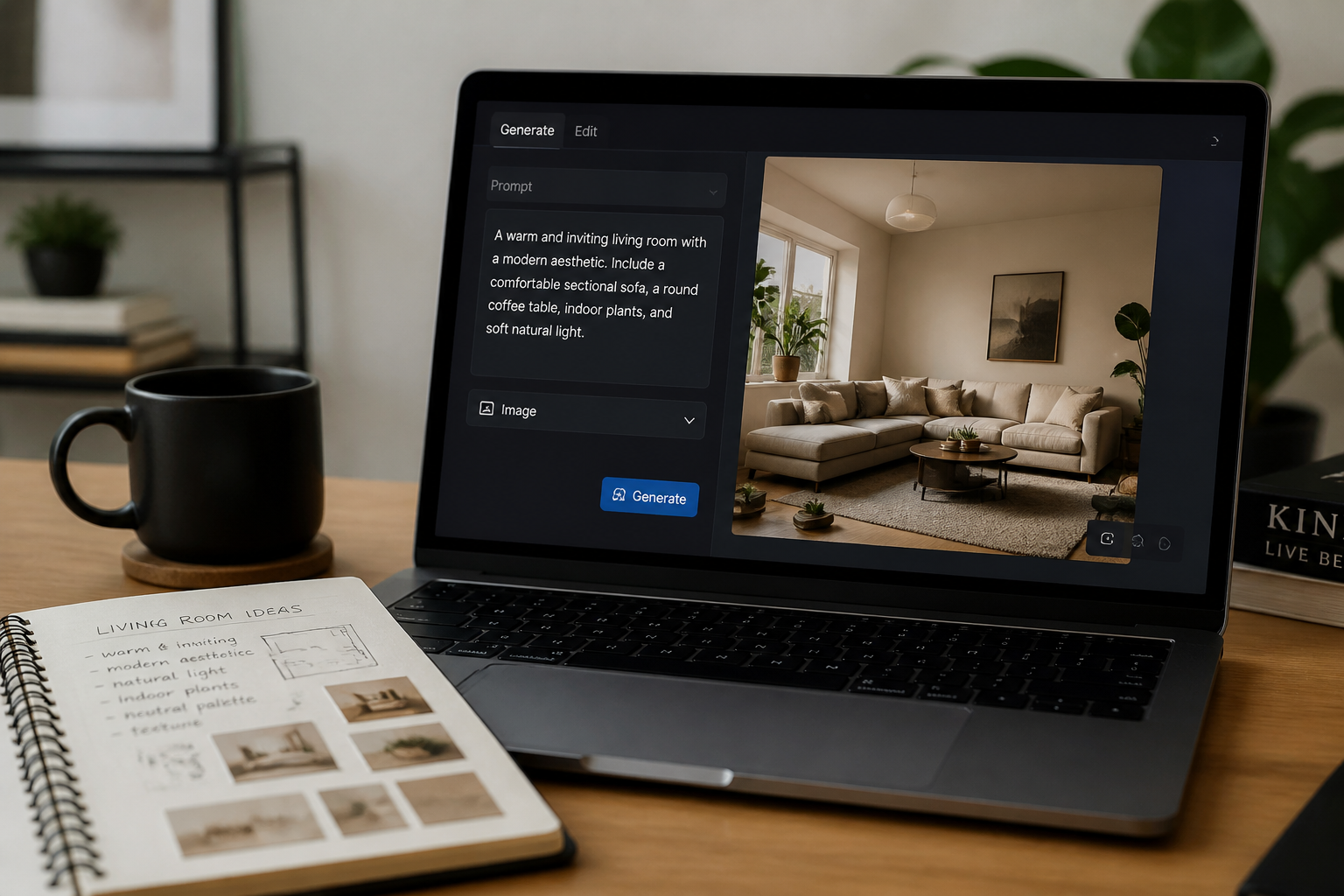
Tell the editor what should appear in the empty or selected area. Be direct, such as adding furniture, extending the sky, or replacing an object with matching background.
Review and refine
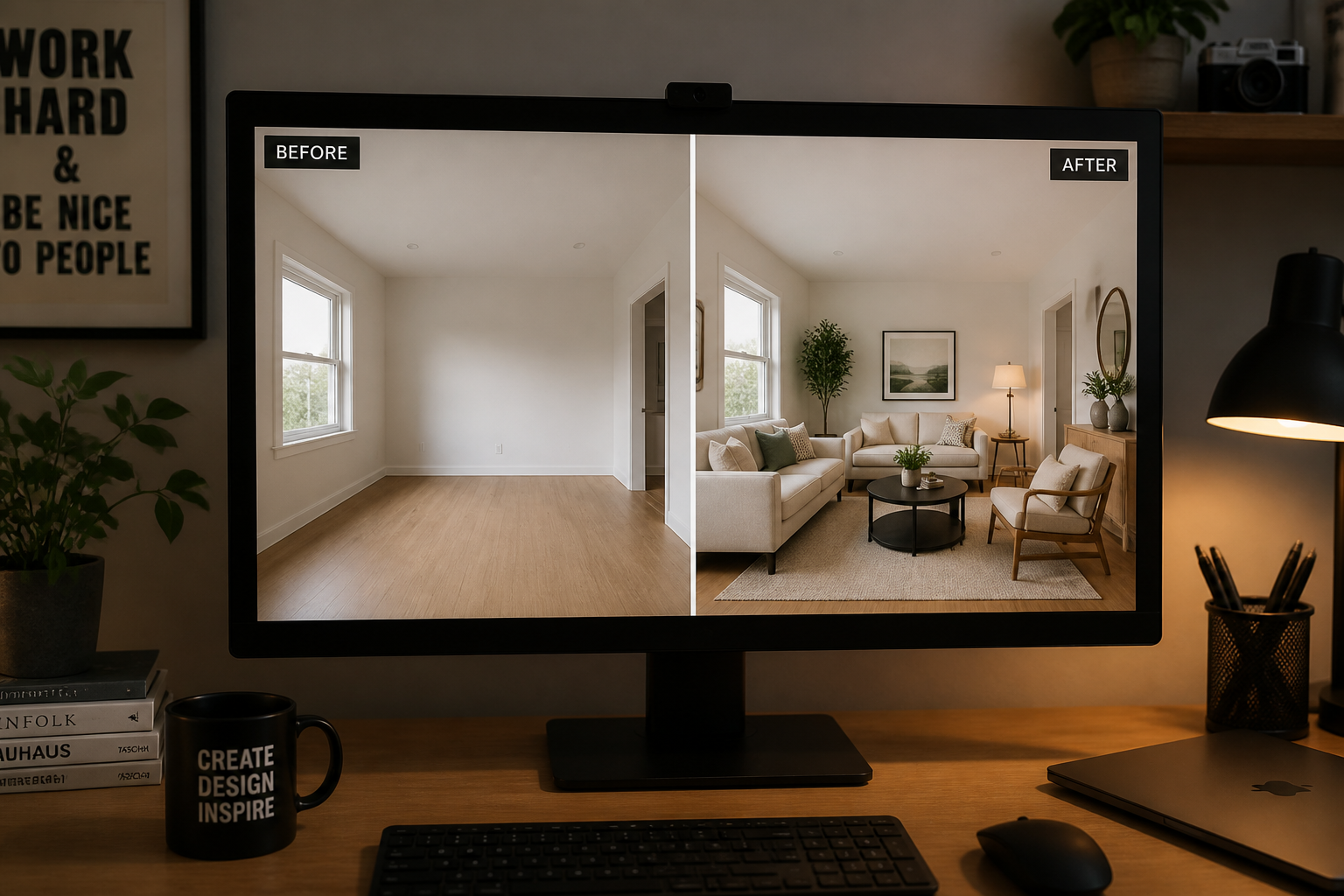
Compare the result and check whether the new content matches the scene naturally. If needed, adjust the wording and run another pass for a different fill direction.
Perfect For
Discover how creators and professionals use ai generative fill
Expand photos for new formats
Turn tight crops into banner-friendly images for ads, thumbnails, headers, and social posts.
Clean up distracting backgrounds
Remove signs, clutter, empty gaps, or awkward edge objects without rebuilding the whole shot.
Stage interiors and sets
Add decor, props, and environmental details to make rooms, studios, and scenes feel complete.
Create stylized variations
Use generative fill for graphic or illustrated scene extensions while keeping the original layout.
Built For
Content creators
Quickly resize and polish images for reels, thumbnails, posts, and branded content.
Online sellers and marketers
Improve product and lifestyle photos by extending frames, cleaning backgrounds, and adding context.
Designers and photographers
Test composition ideas, scene expansions, and object replacements without slow manual retouching.
Why use BudgetPixel for generative fill
A quick look at how we compare on the things that matter for this niche.
| Feature | BudgetPixel | Generic AI editors | Manual editing apps |
|---|---|---|---|
| Scene extension | ✓ | ✓ | — |
| Object replacement by prompt | ✓ | ✓ | — |
| Natural perspective matching | ✓ | — | Manual |
| Stylized fill options | ✓ | — | Manual |
| Fast to try | ✓ | ✓ | — |
Frequently Asked Questions
What does AI Generative Fill do?
Can it expand a photo beyond its original frame?
Will it keep the original subject intact?
Is this only for realistic edits?
Do I need masking skills to use it?
Create together.
Share your creations, discover trending AI art, and grow with fellow creators.