AI Erase Object Tool
Delete distractions and keep the photo looking natural.
The AI Erase Object Tool removes unwanted people, clutter, text, and objects from your image while rebuilding the background to match. Use it to clean up product shots, travel photos, interiors, and social posts without manual retouching.


Watch the Transformation
See ai erase object tool in motion — generated end-to-end by our AI.
See It In Action
Real outputs from ai erase object tool.
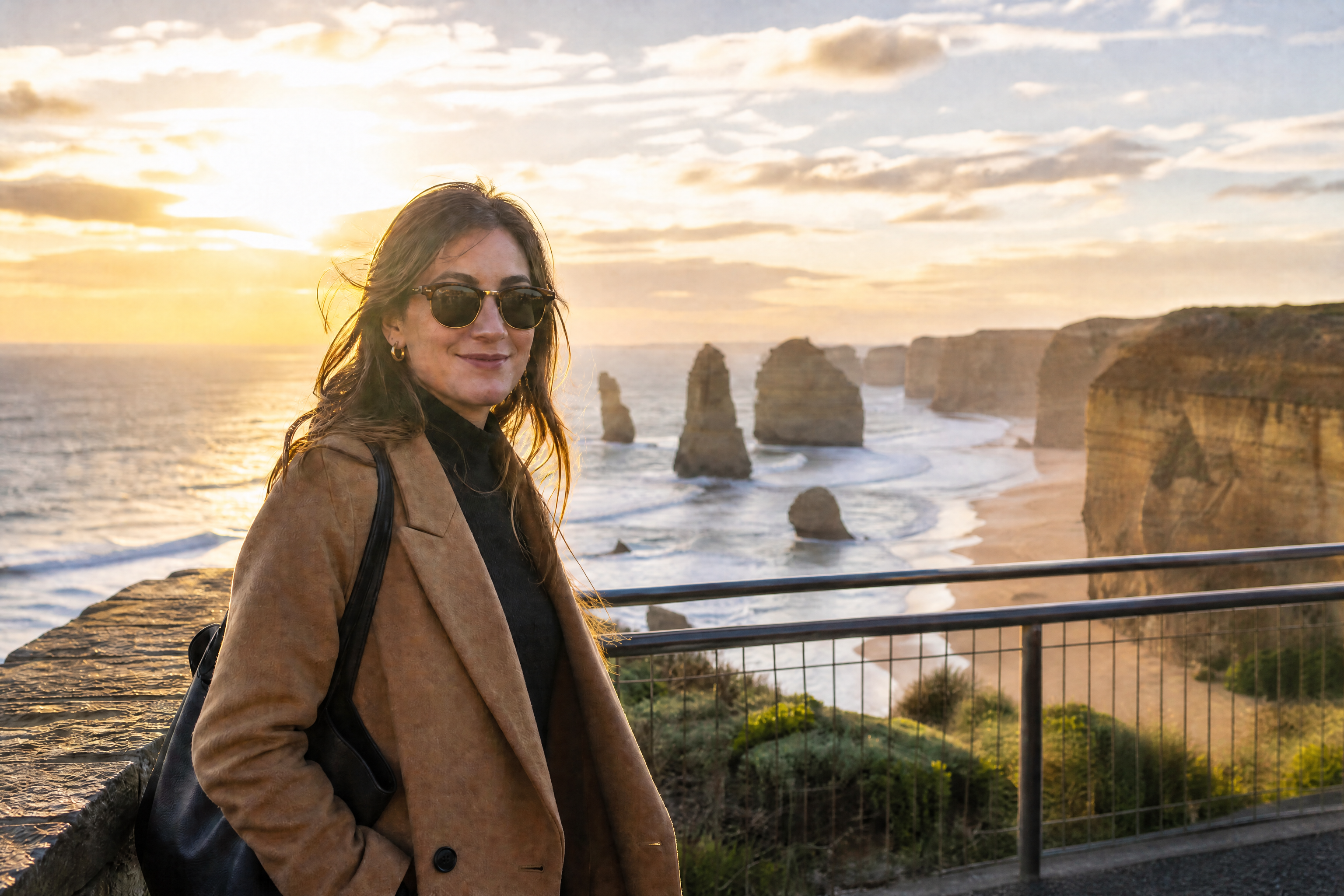
BEFOREAFTER BEFORE
 AFTER
AFTER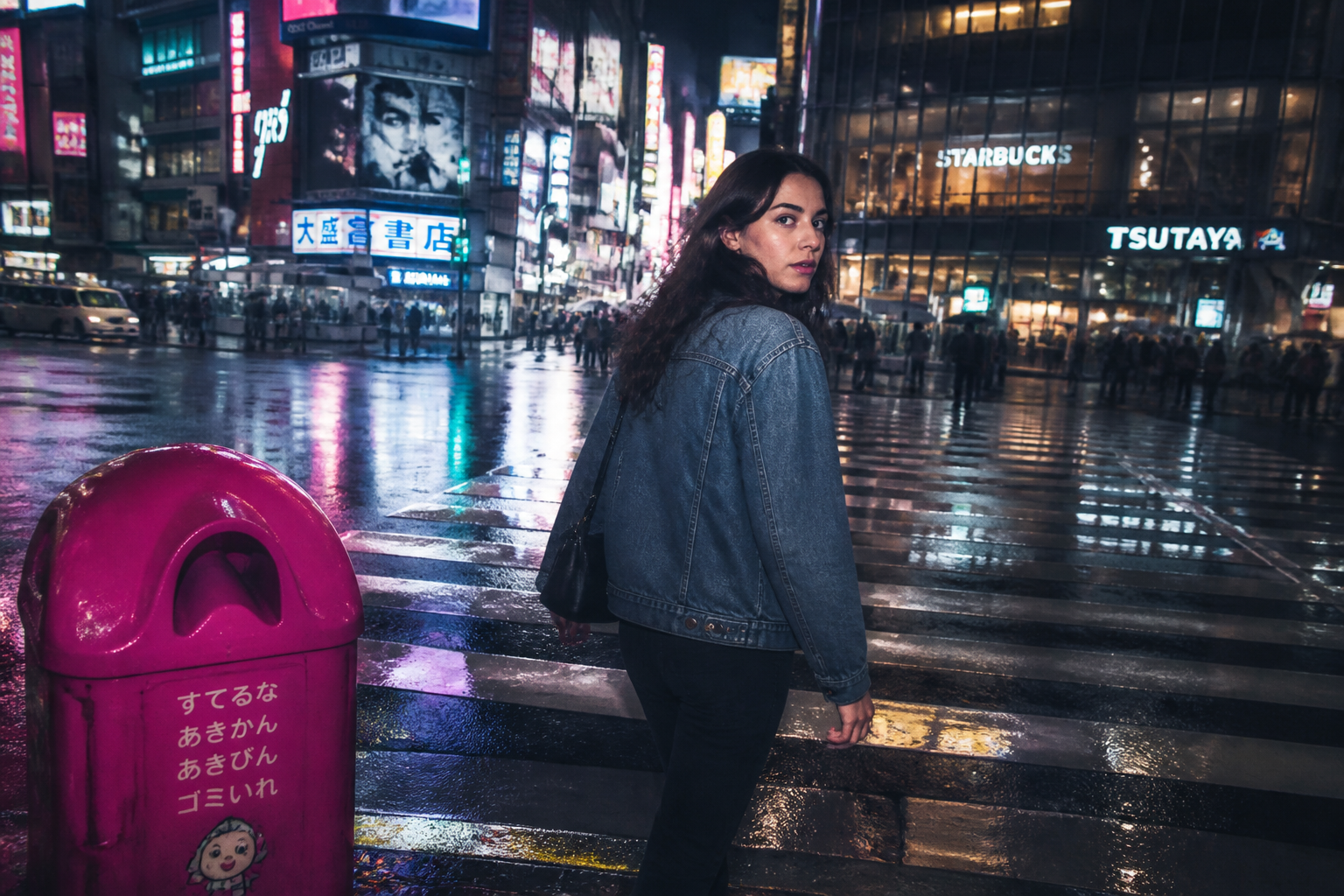 BEFORE
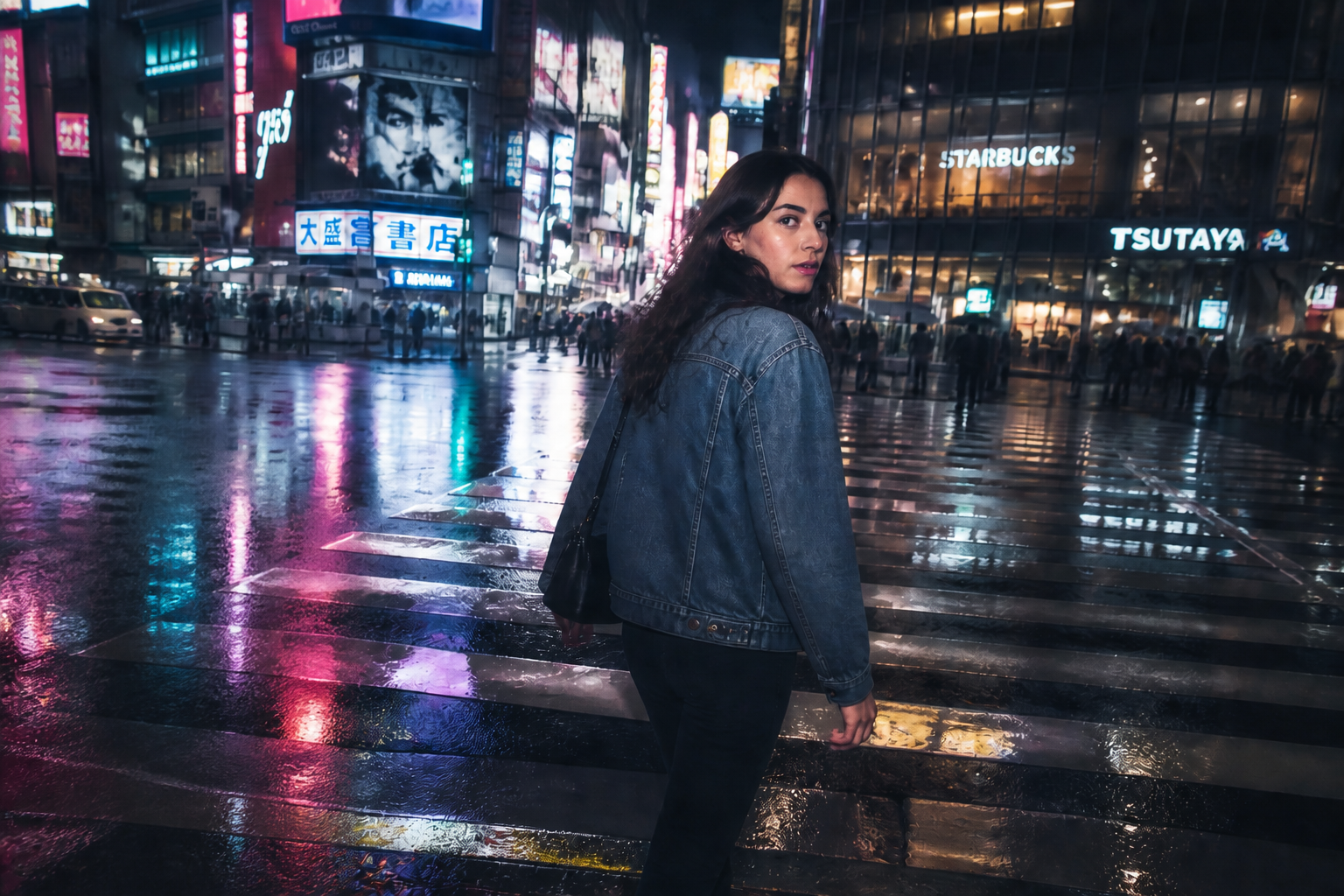 AFTER
AFTER BEFORE
 AFTER
AFTER BEFORE
 AFTERBEFOREAFTERBEFOREAFTERBEFOREAFTERBEFOREAFTERBEFOREAFTER
 BEFORE
 AFTER
AFTER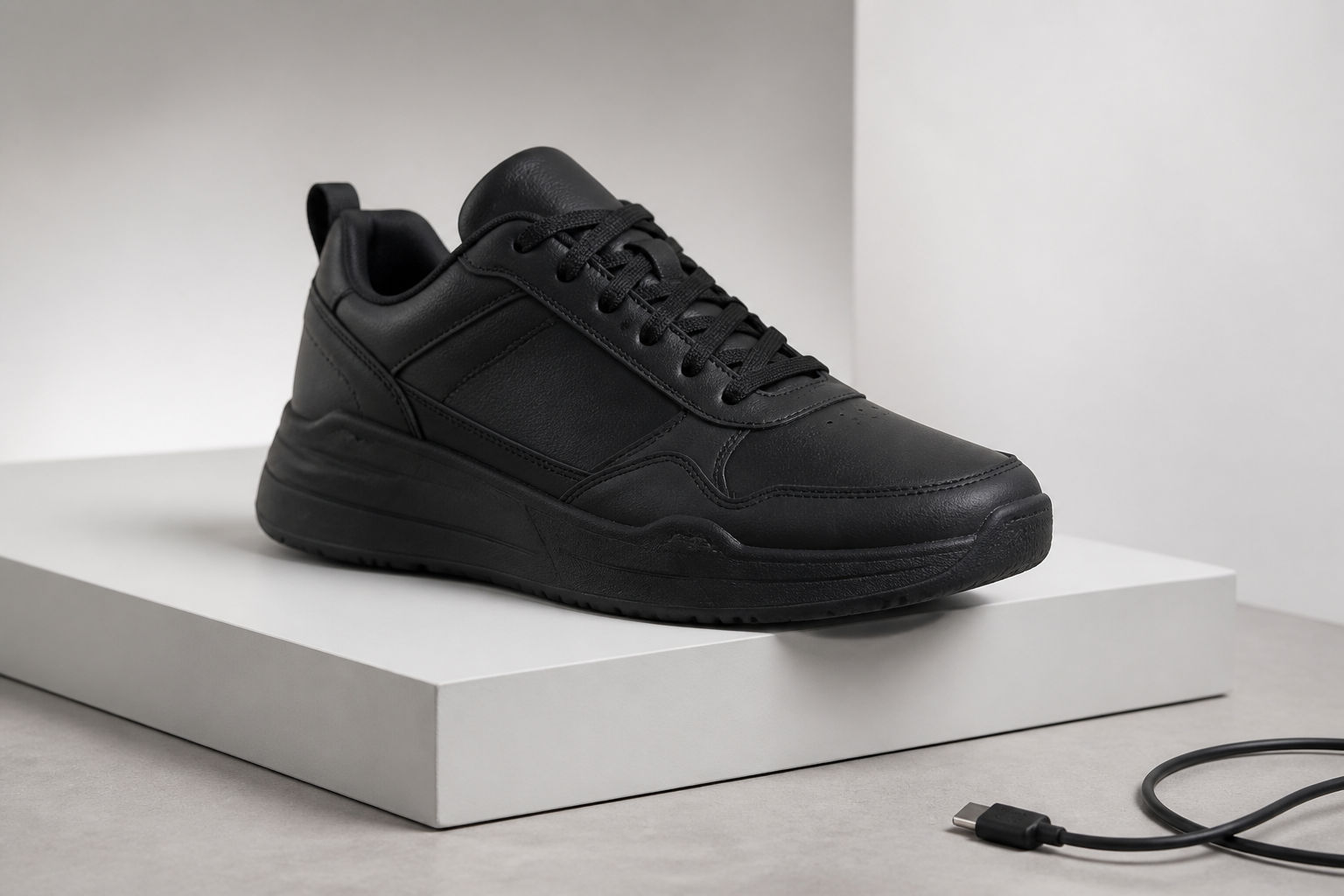 BEFORE
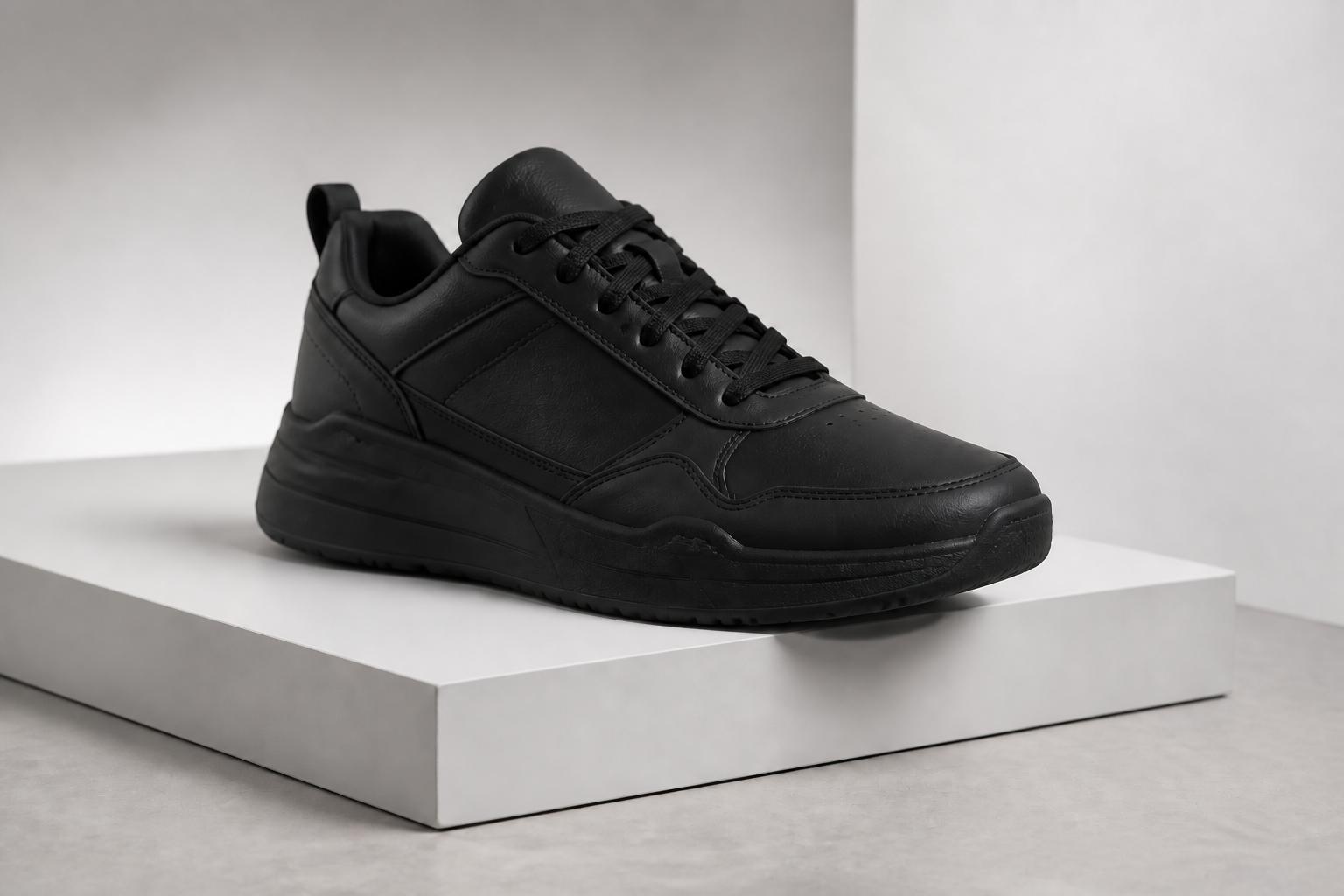 AFTER
AFTER BEFORE
 AFTER
AFTER BEFORE
 AFTER
AFTER BEFORE
 AFTERBEFOREAFTERBEFOREAFTERBEFOREAFTERBEFOREAFTERBEFOREAFTER
Key Features
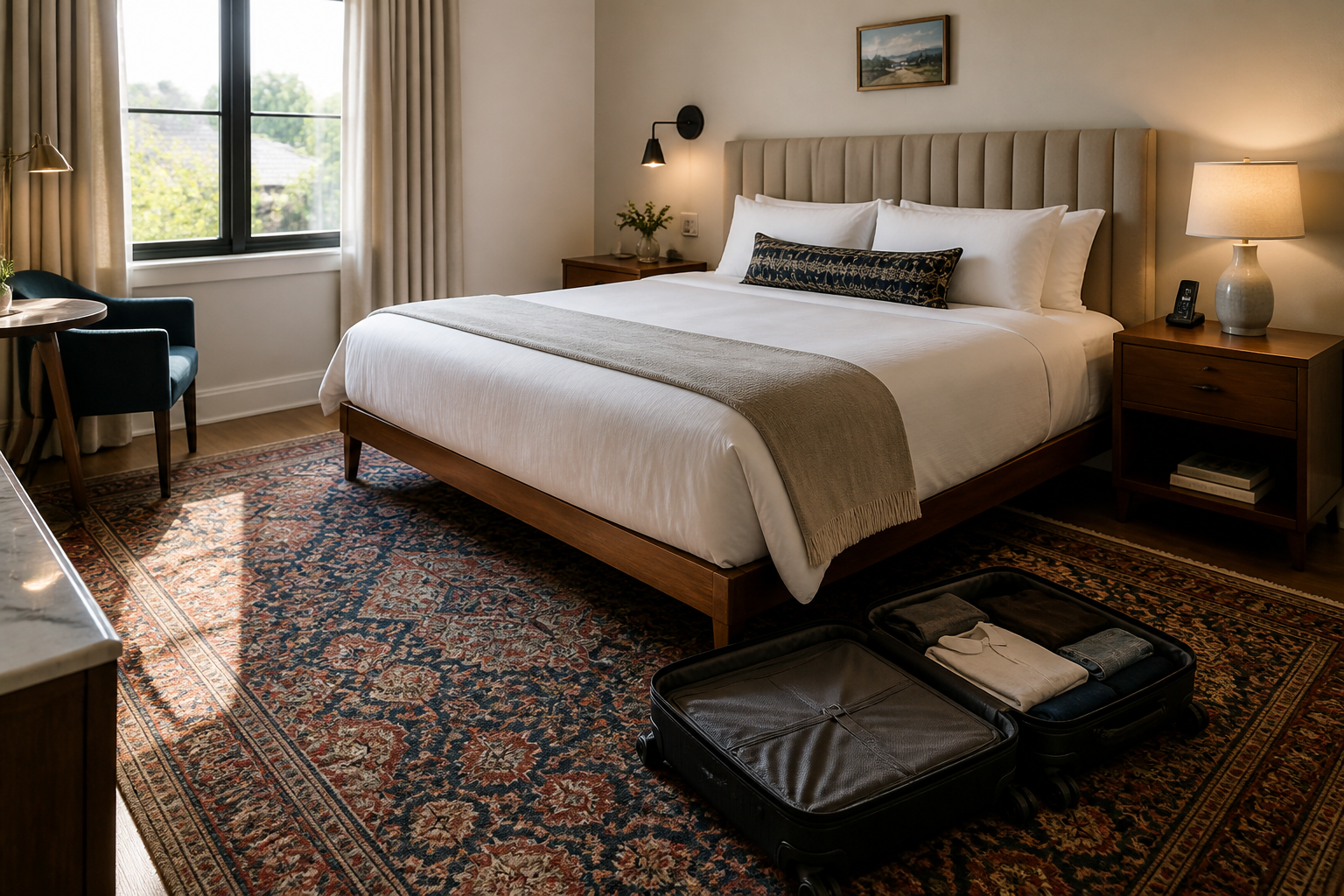

Remove distractions cleanly
Delete unwanted objects without leaving obvious patches or blurry smears behind. Our AI fills the empty area to match nearby textures, lighting, and perspective so the edit looks coherent. This makes quick cleanup possible even when the removed item overlaps detailed backgrounds like streets, rugs, or walls. It is much faster than manual clone stamping every edge by hand.


Keep the main subject intact
The tool is built to preserve the person, product, or room you actually want in the frame. Instead of changing the whole image, it focuses on removing the selected distraction while keeping identity, styling, and scene layout stable. That matters for portraits, listings, and product images where small accidental changes are noticeable. You get a cleaner photo without losing what made the original work.


Works across many scenes
Use the same workflow for travel shots, interiors, product photos, food images, and social content. Our AI adapts to different surfaces such as sky, fabric, wood, pavement, and water so you do not need a separate editing method for each case. That flexibility is useful when you are cleaning up a batch of mixed images for a listing, campaign, or portfolio. One tool handles common photo distractions across categories.


Natural results, less retouching
A strong cleanup tool should reduce follow-up work, not create more of it. By rebuilding backgrounds with matching tone and structure, the edit often looks ready to use for listings, posts, and mockups right away. That saves time compared with masking, healing, and checking every edge manually. It is especially helpful when you need a polished image quickly.
How It Works
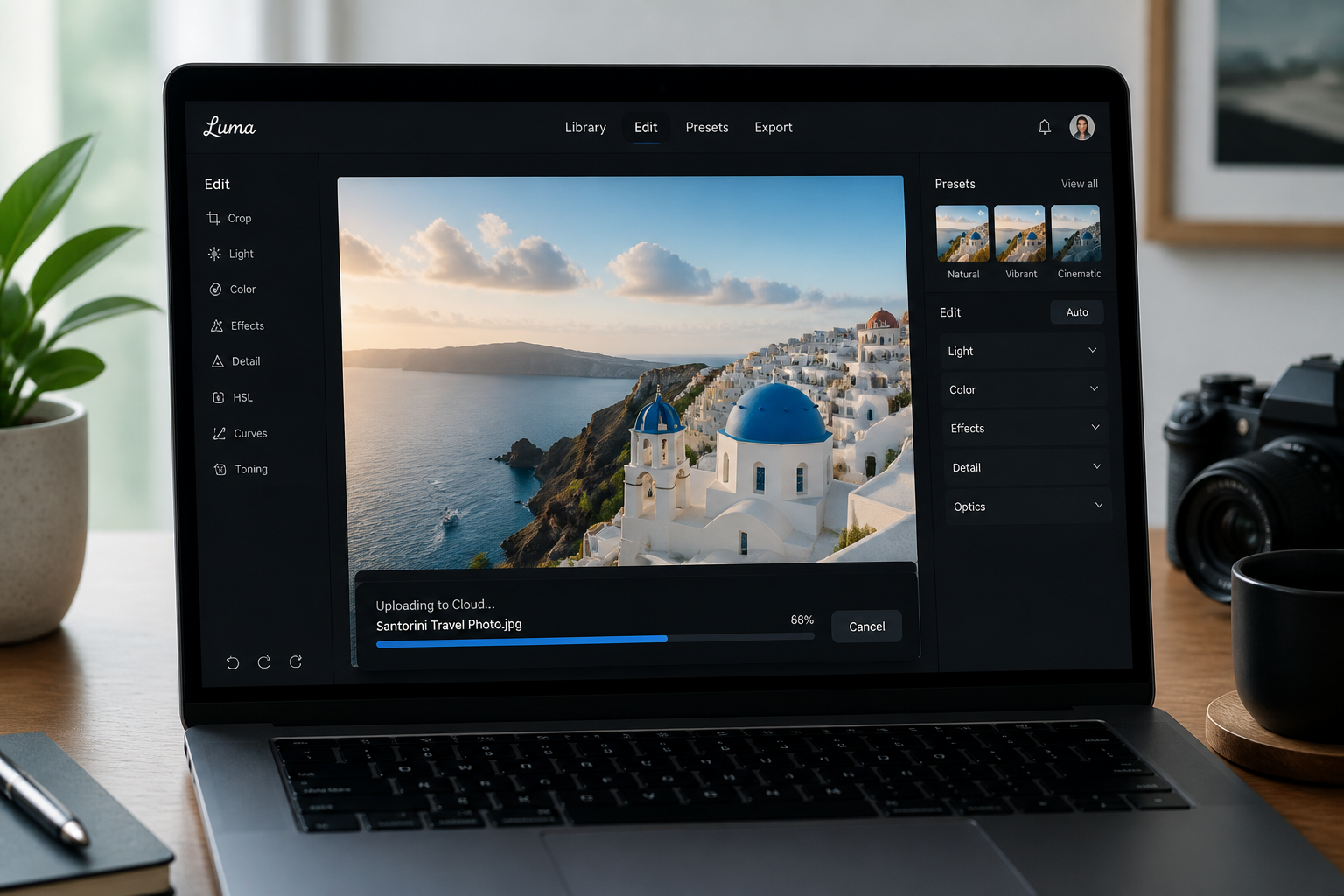
Upload your photo
Start with any image that has an unwanted object, person, sign, or bit of clutter. Clear framing helps the edit look more convincing, especially when the removed area is easy to identify.
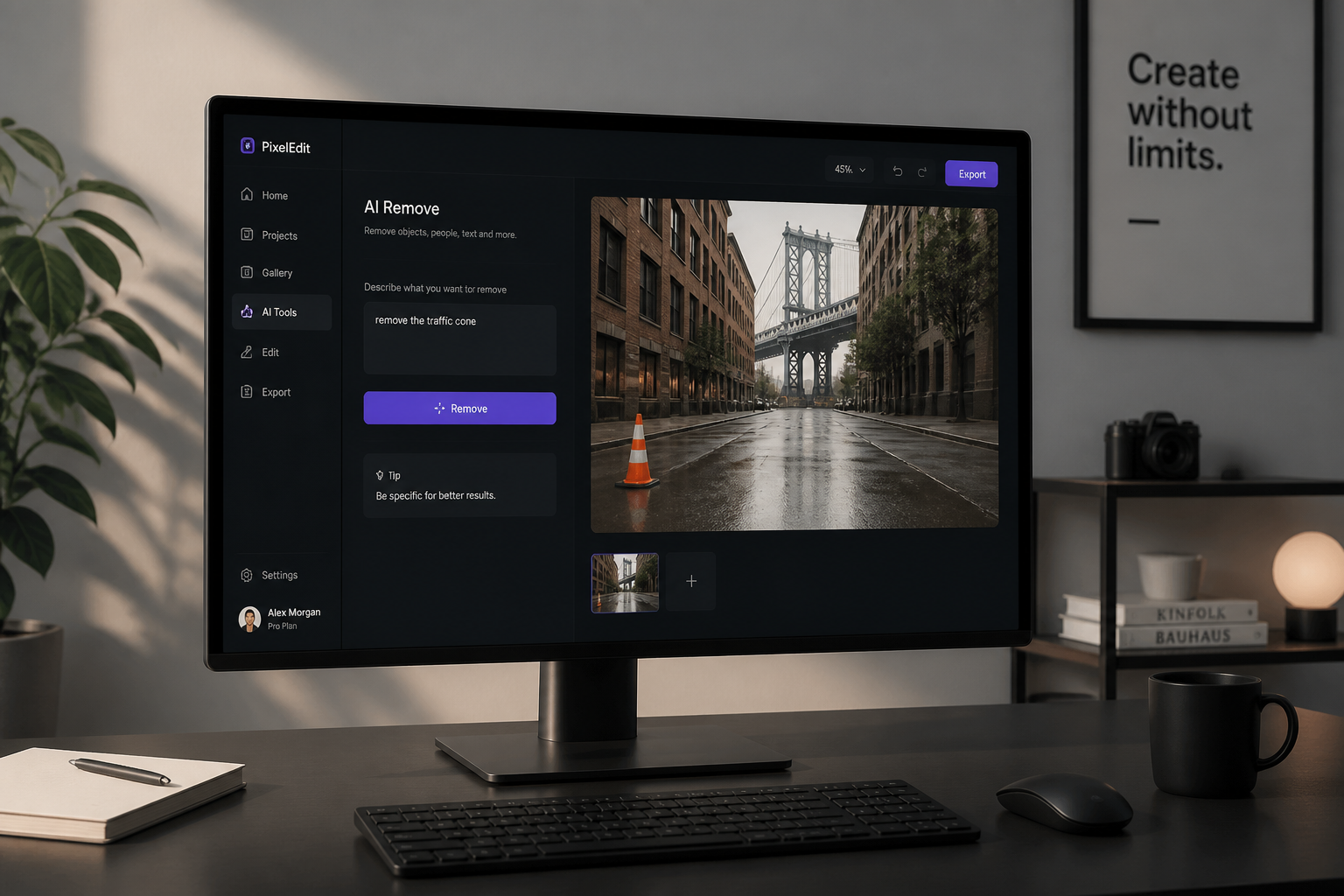
Describe what to erase
Tell the AI exactly what should be removed, such as a bag on the floor, a person in the background, or a sign on the wall. A direct instruction gives the model a clearer target and usually produces a better cleanup.
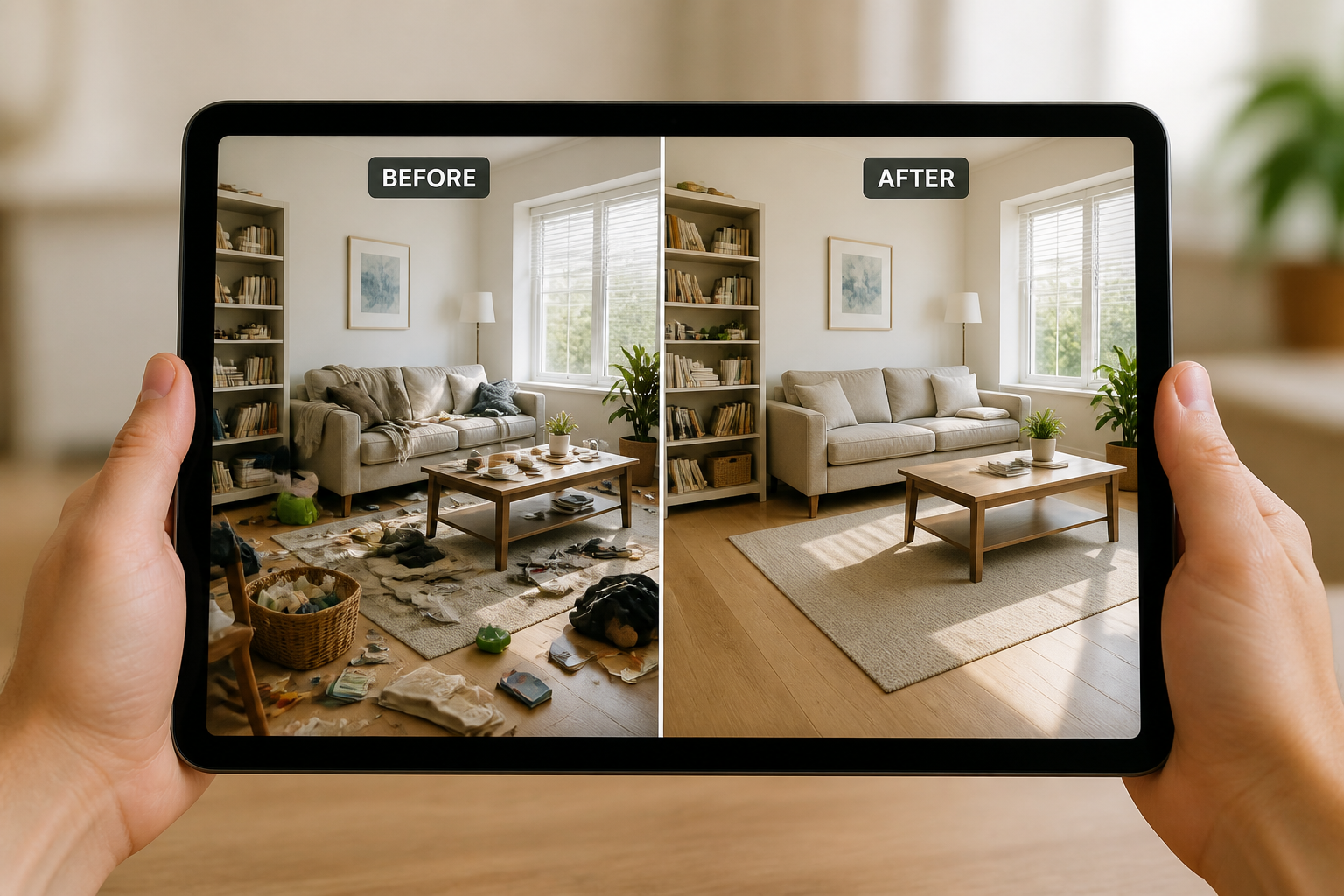
Review and export
Compare the cleaned result with the original and check edges, shadows, and textures. If needed, revise the prompt and generate again, then download the version that looks best.
Perfect For
Discover how creators and professionals use ai erase object tool
Travel photo cleanup
Remove tourists, signs, bins, and other distractions from scenic shots without changing the main moment.
Product image polish
Delete cables, tags, props, and stray objects so the product stays the focus.
Interior and real estate prep
Clear clutter from rooms to create tidier listing photos and cleaner design presentations.
Social content retouching
Erase background distractions from portraits, food photos, and lifestyle images before posting.
Built For
Sellers and marketers
Useful for cleaning product and listing photos quickly when visual distractions make the image look less polished.
Creators and photographers
Helps refine travel, portrait, and editorial images without spending as much time on manual retouching.
Everyday photo editors
Good for casual users who want a simple way to remove unwanted objects from personal photos.
Why use this instead of manual cleanup
A quick look at how we compare on the things that matter for this niche.
| Feature | BudgetPixel | Generic AI editors | Manual editing apps |
|---|---|---|---|
| Object removal from photos | ✓ | ✓ | ✓ |
| Natural background reconstruction | ✓ | — | Manual work |
| Fast cleanup workflow | ✓ | ✓ | — |
| Preserves main subject | ✓ | — | Manual work |
| Beginner-friendly | ✓ | ✓ | — |
Frequently Asked Questions
What kinds of objects can this tool remove?
Will it keep the rest of my photo the same?
Does it work for product photos and listings?
Can I remove people from the background?
Do I need editing skills to use it?
Create together.
Share your creations, discover trending AI art, and grow with fellow creators.