
Part 3 of Merchandise
Turn Any Image Into a Phone Lock Screen
 @germancowboy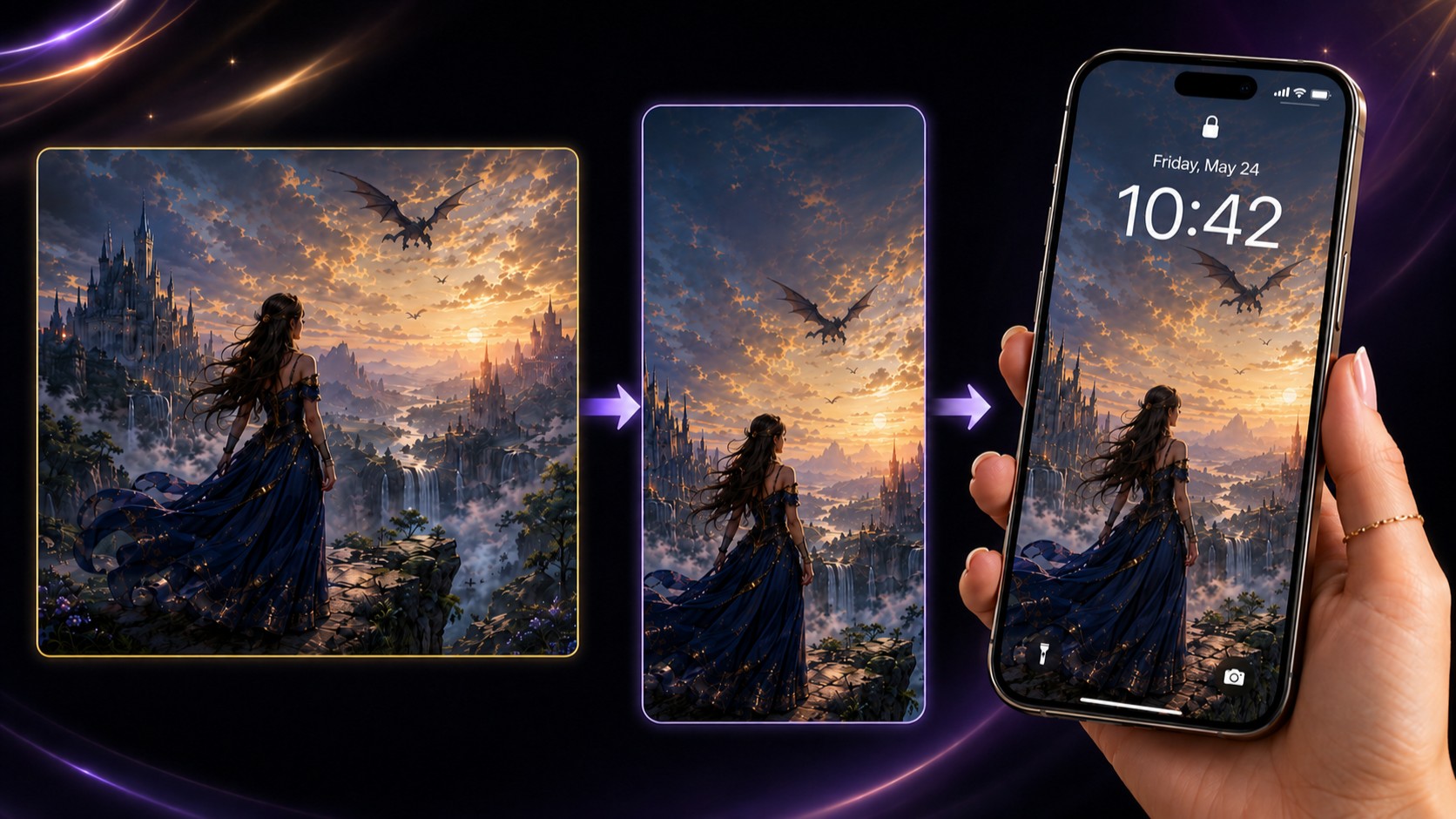
A Quick Method Using GPT Image 2
A favorite image can become more than something stored in a gallery. With a simple reference-image workflow, you can turn almost any artwork into a personalized phone lock screen that fits a vertical display and leaves important facial details visible.
The source can be a portrait, fantasy scene, animal image, landscape, challenge entry, photograph, or older creation you would like to use in a new way.
1. Choose Your Image
Upload or select the image you want to transform and place it in the first reference-image position.
Reference Image 1: Your original artwork
Images with a clear subject usually adapt most easily, but wider or square compositions can also work. GPT Image 2 can extend the environment, adjust the framing, and reposition the subject for a taller screen.
A vertical format is best for the final result. 9:16 works well for most examples, although your phone may crop the image slightly when the wallpaper is applied.
Before generating, look at the original image and decide which part must remain visible. This could be a face, a character, an animal, a vehicle, or a landmark. The prompt should protect that important area while allowing less essential scenery to be rearranged.

The selected original artwork used as Reference Image 1 for the lock screen design.
2. Create the Lock Screen
Choose the version that matches your phone settings. If your lock screen displays the date and time, keep faces away from the upper screen area. If those elements are hidden, the subject can be placed anywhere in the composition.
With Date and Time Visible
Use this when the phone displays the clock and date:
Use reference image 1 as the source artwork. Transform it into a high-quality vertical phone lock-screen wallpaper in a 9:16 format. Preserve the main subject, atmosphere, colors, and recognizable details. Adapt or extend the composition naturally so it fills the complete vertical image without obvious empty borders. If a person or face is present, position the face below the upper date-and-time area so it will not be covered. Background scenery, sky, buildings, lighting, decorative elements, and other objects may remain in the upper part of the image. Keep important details away from the very bottom edge, where phone controls may appear. Do not add a phone frame, clock, date, notifications, icons, buttons, or other interface elements. Create only the finished wallpaper.Without Date and Time Visible
Use this when the user has hidden the clock and date, or when they simply want a full-screen wallpaper without reserving space:
Use reference image 1 as the source artwork. Transform it into a high-quality vertical phone lock-screen wallpaper in a 9:16 format. Preserve the main subject, atmosphere, colors, and recognizable details. Adapt or extend the composition naturally to fill the complete vertical format. Position the subject wherever it creates the strongest and most attractive composition. There is no need to reserve space at the top for a date or time display. Do not add a phone frame, clock, date, notifications, icons, buttons, or interface elements. Create only the finished wallpaper.Generate the image and compare it with the original. The goal is not necessarily an identical crop. A successful lock screen may include more sky above the subject, additional scenery at the sides, or a slightly lower placement of the main figure.
3. Check the Result
The most important issue is the placement of faces. On many phones, the date and time appear near the top of the lock screen. Background elements can sit behind that area, but a face may become difficult to see.
Check that:
The finished image is vertical.
The main subject remains recognizable.
Faces are below the date-and-time area.
The top still looks natural rather than artificially empty.
Important details are not placed at the extreme bottom.
No fake phone interface has been added.
The image remains sharp after being adapted.
When something needs correcting, request only that specific change.
Keep the complete wallpaper unchanged, but move the face slightly lower so it will not be covered by the date and time.
Keep the subject unchanged, but extend the scenery above it to create a taller composition.
Keep everything else unchanged, but remove the added clock, date, and icons.
Preserve the current composition, but restore the facial details from reference image 1 more accurately.
Focused corrections usually work better than asking the model to recreate the entire wallpaper.

The finished artwork—ready to be used as the lock screen on your phone.
4. Use the Finished Artwork
Download the finished image and save it to your phone.
Open the phone’s wallpaper or display settings, select the image, and assign it to the lock screen. The exact crop may vary between devices, so preview the result before saving it.
You may need to move the image slightly up or down or reduce the zoom. Check where the date, time, notifications, and lower controls appear. If the phone crops too much of the artwork, return to the generated image and create a version with a little more space around the main subject.
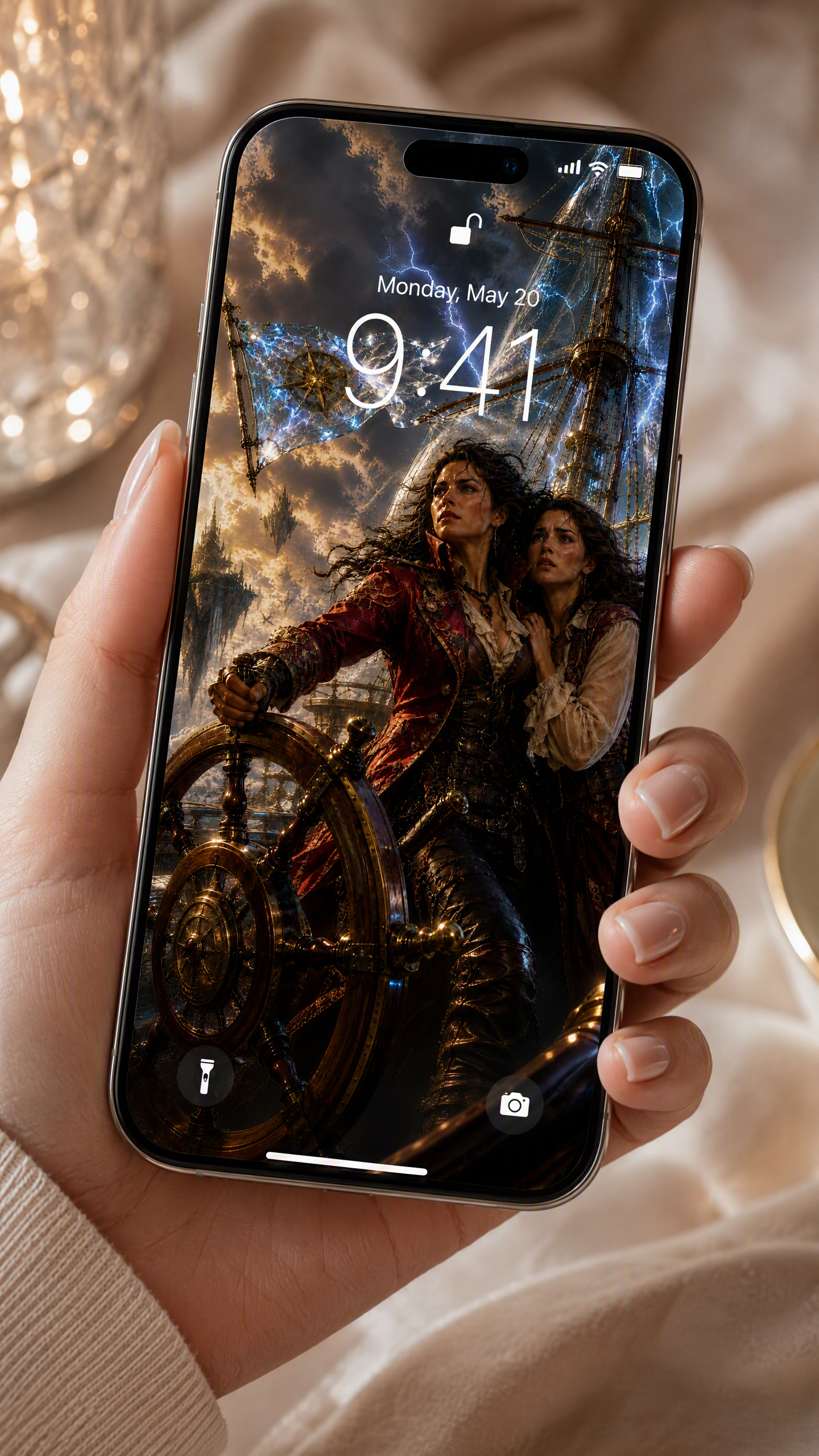
The finished lock screen image displayed on a phone screen to show how it looks in use.






 @EternaSky
 @CaylaCatz
 @DavidP
 @Sealine
 @pikpoo
 @southamericanmyth
Comments (4)
Of that, I am certain, my dear friend!!!
It's fun to do
Sign in to read all 4 comments and add yours.