AI Double Exposure Effect for Creative Portraits
Blend a recognizable portrait with landscapes, city lights, galaxies, and artistic effects.
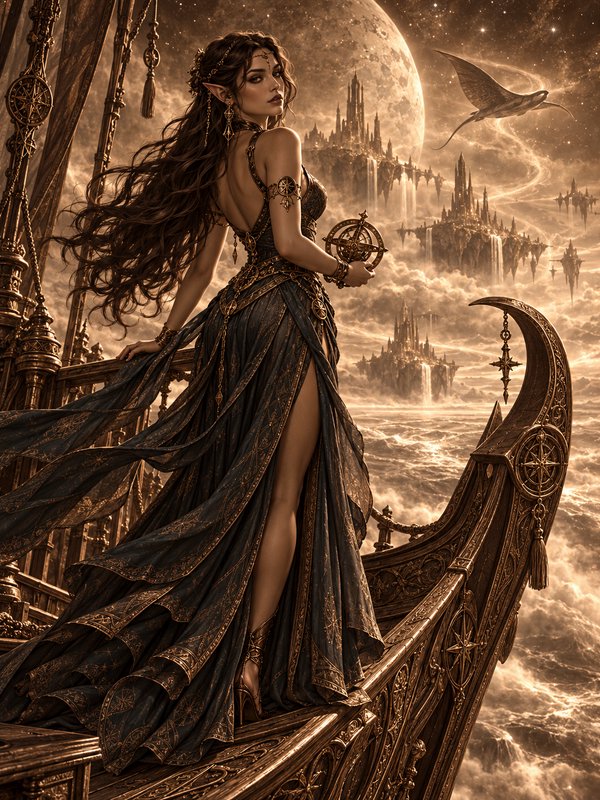
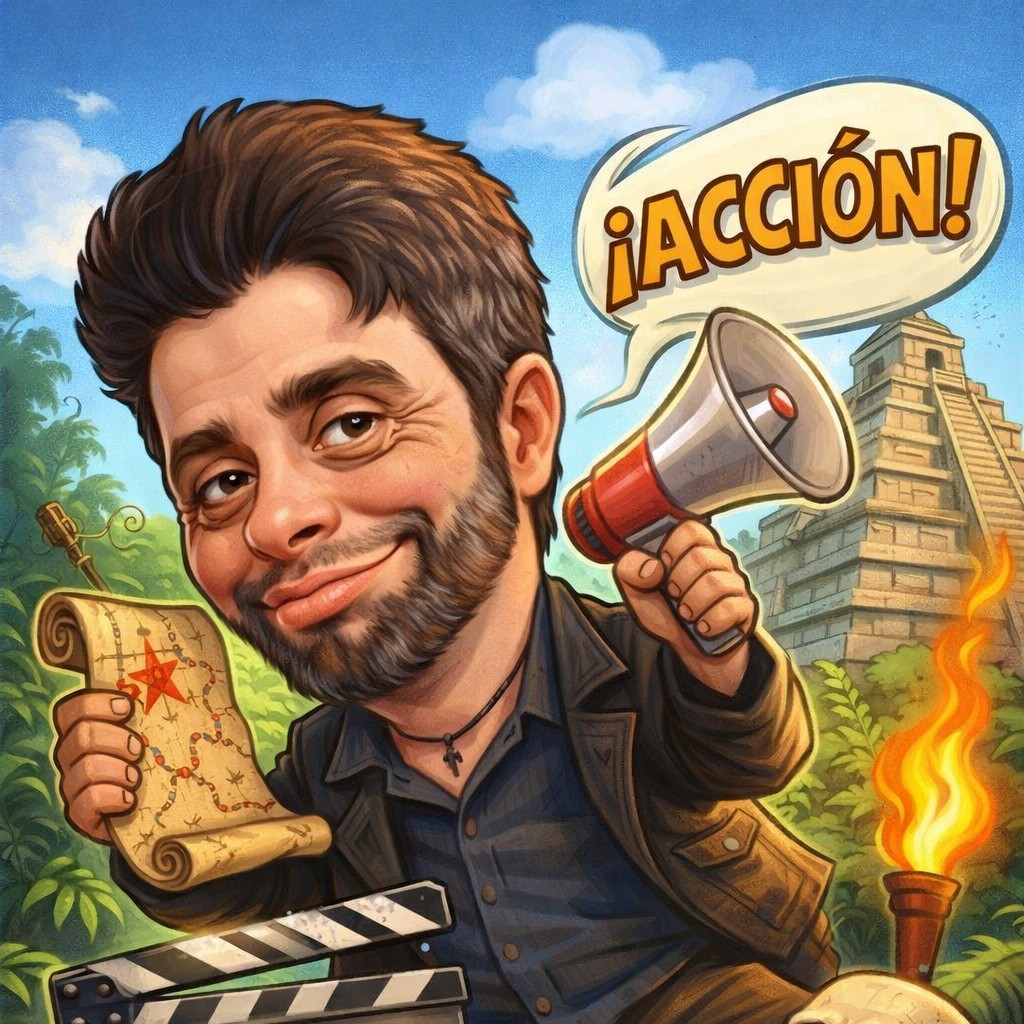
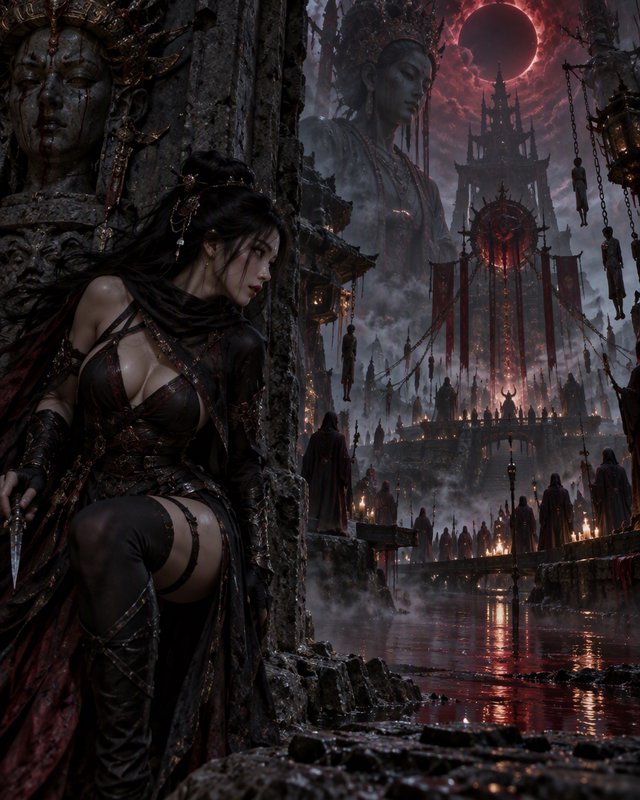
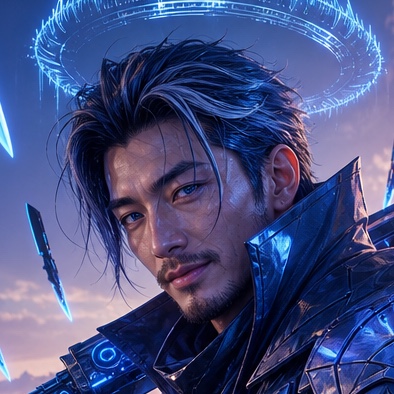
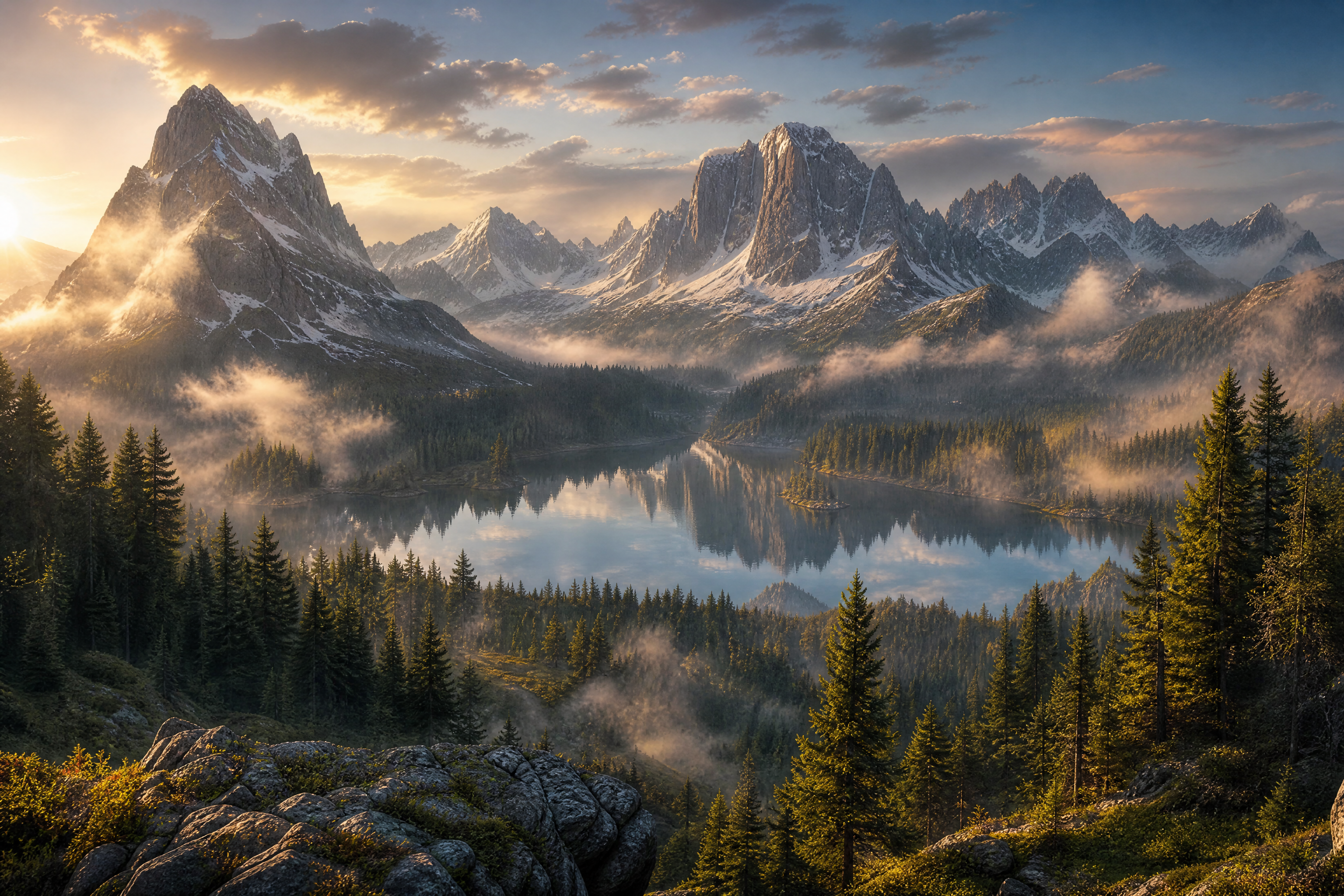
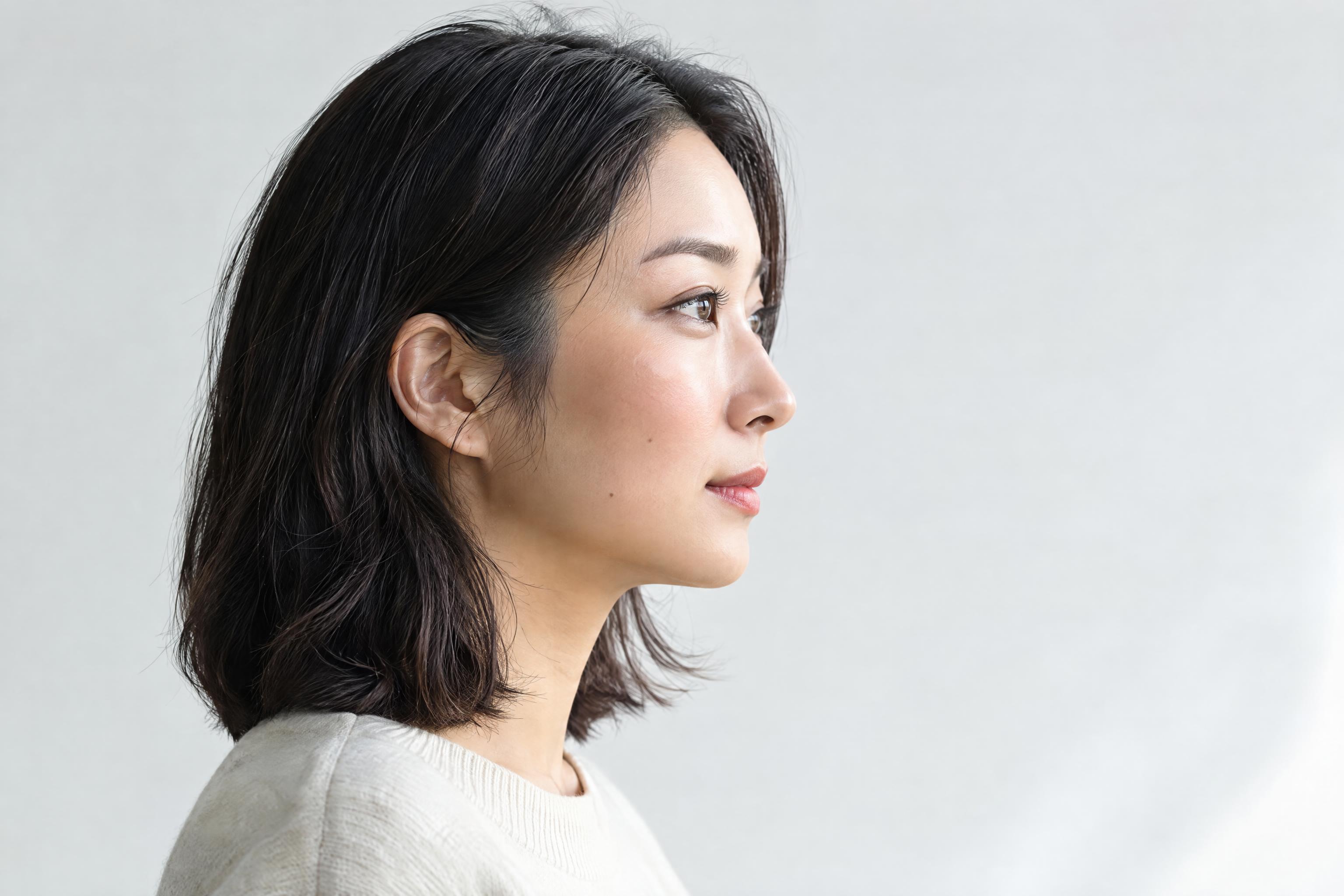
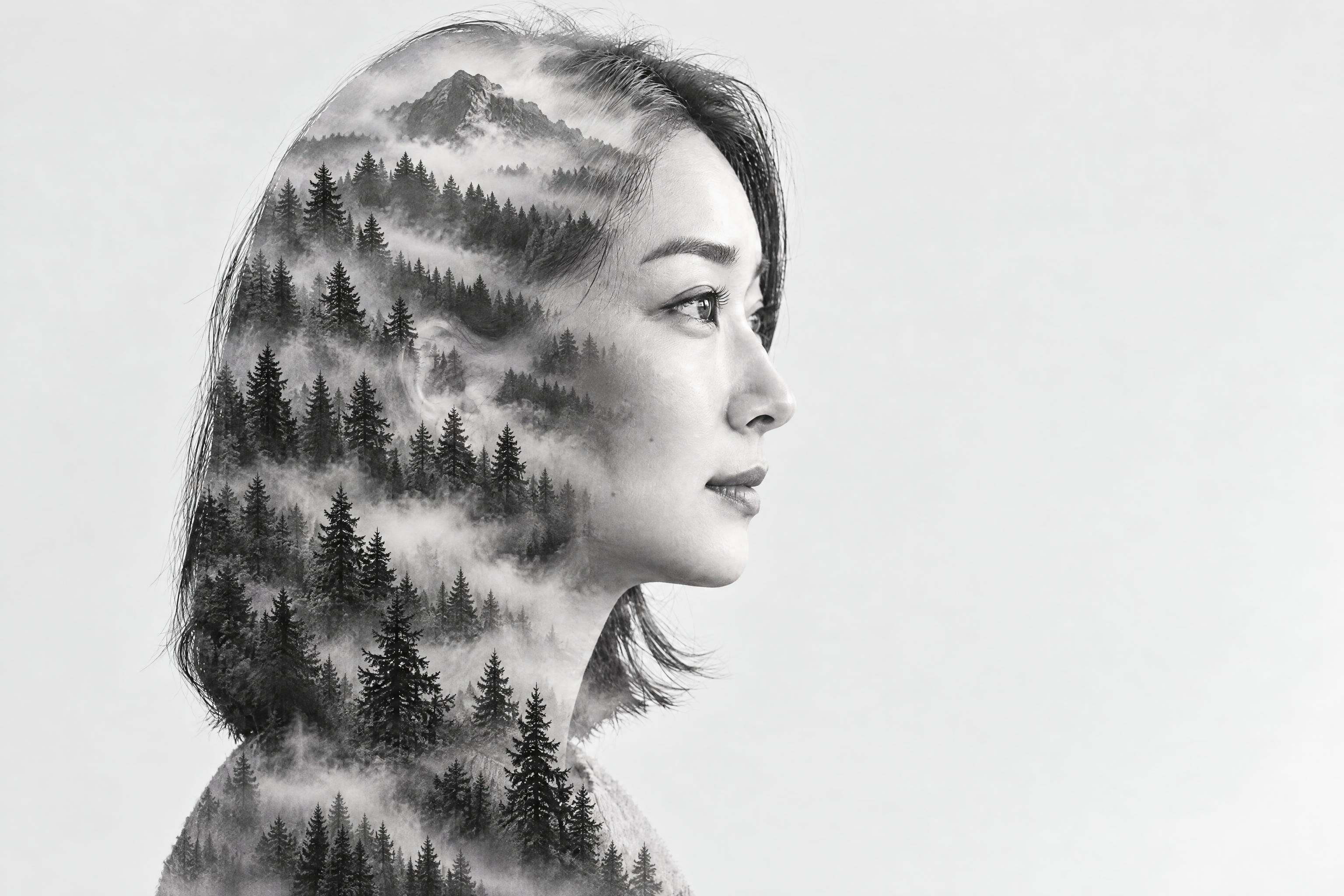
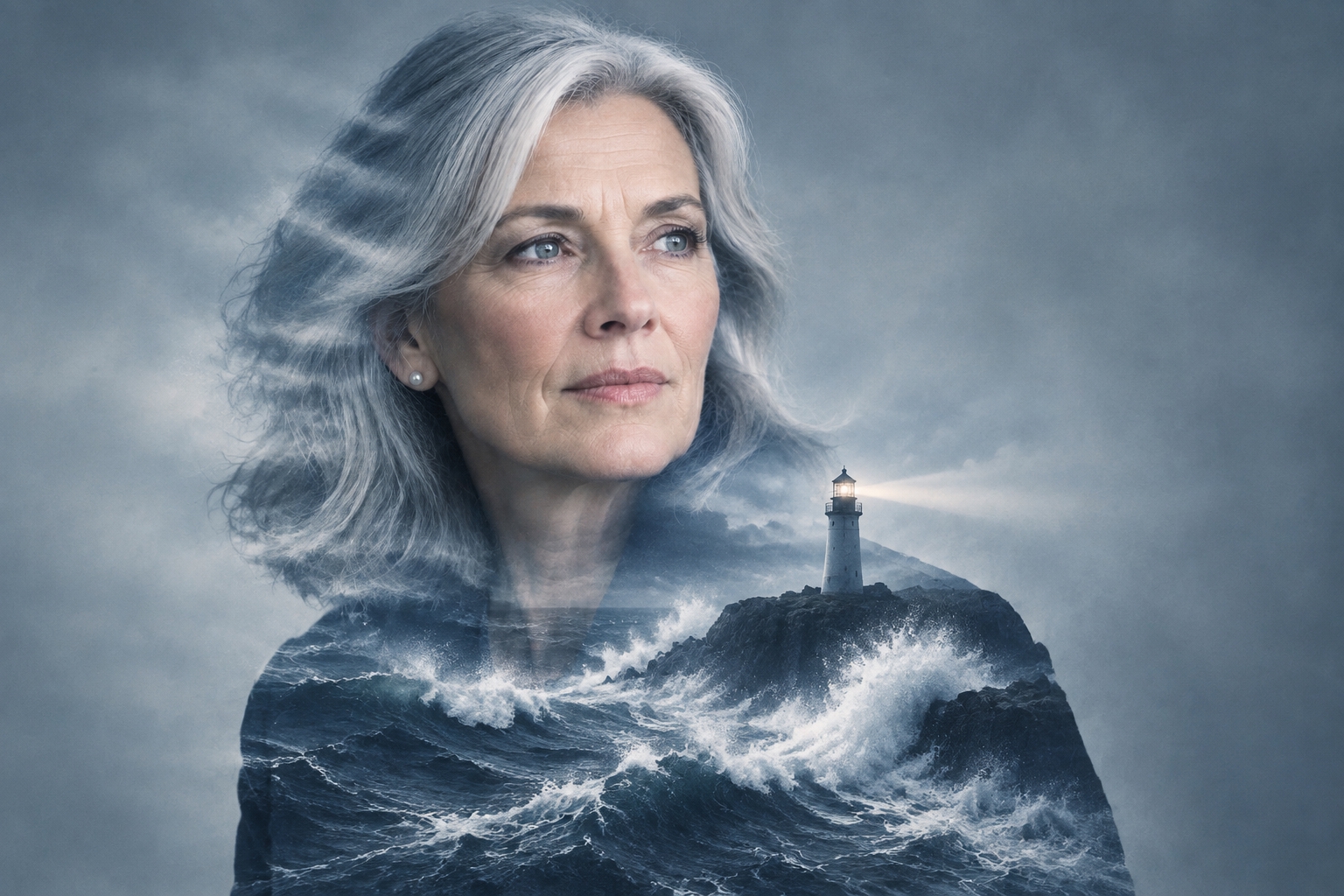
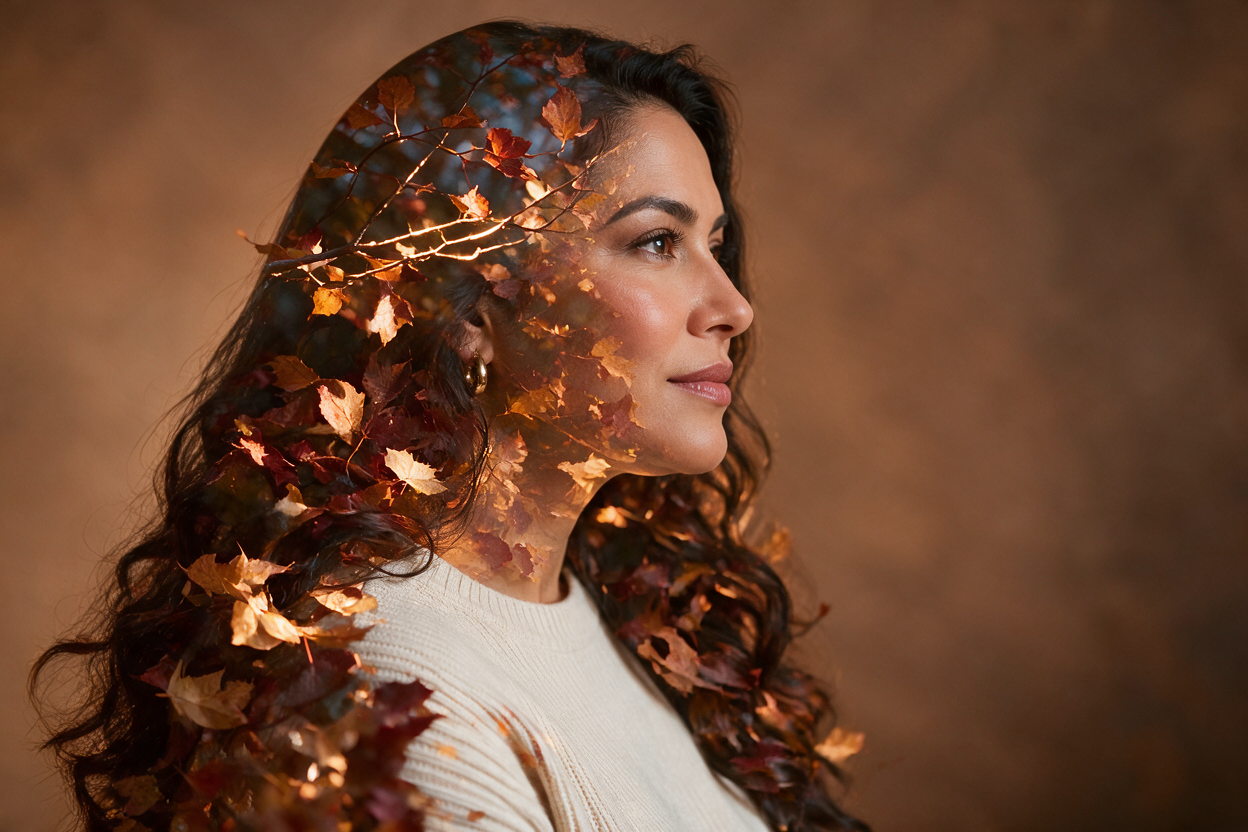
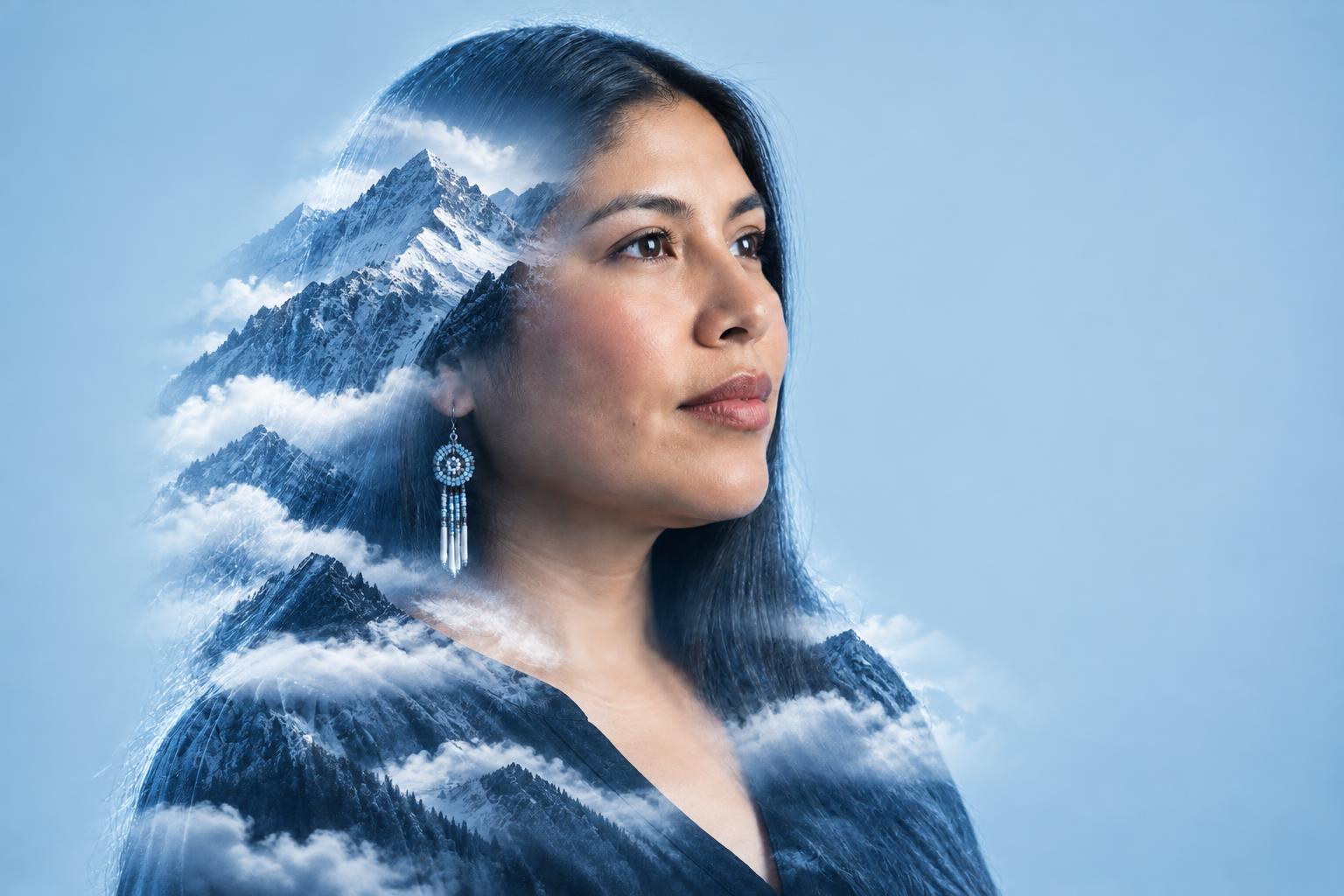
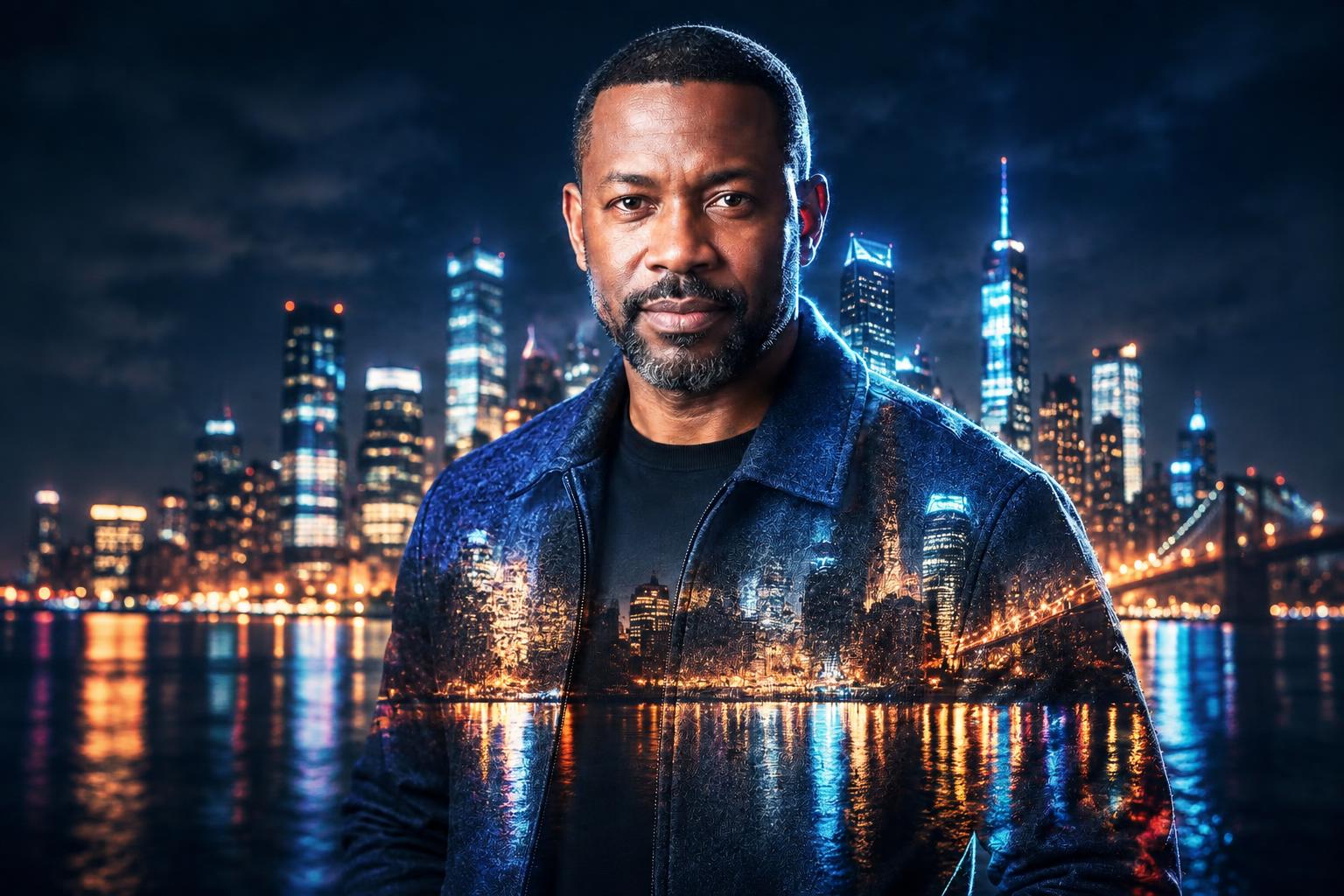
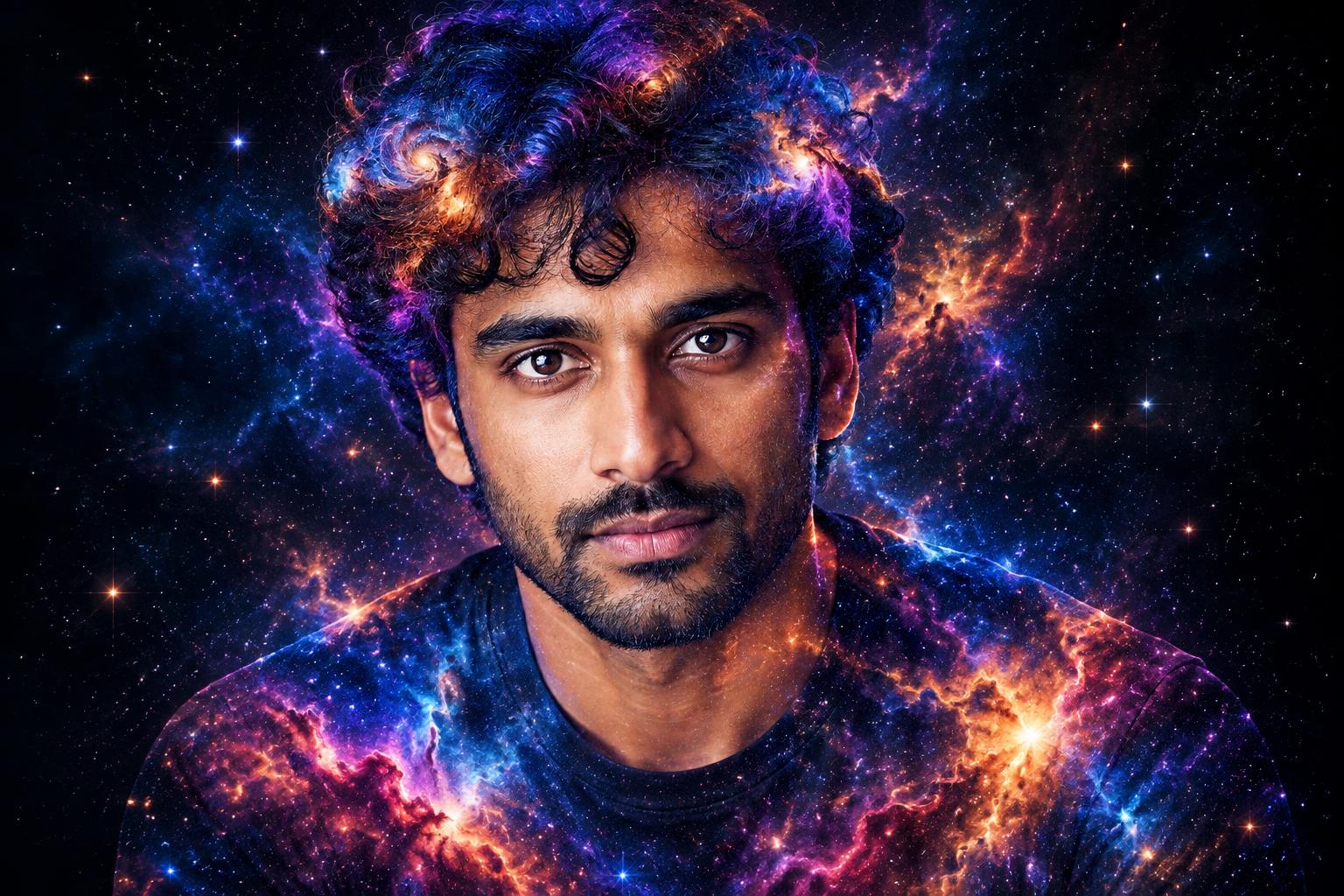
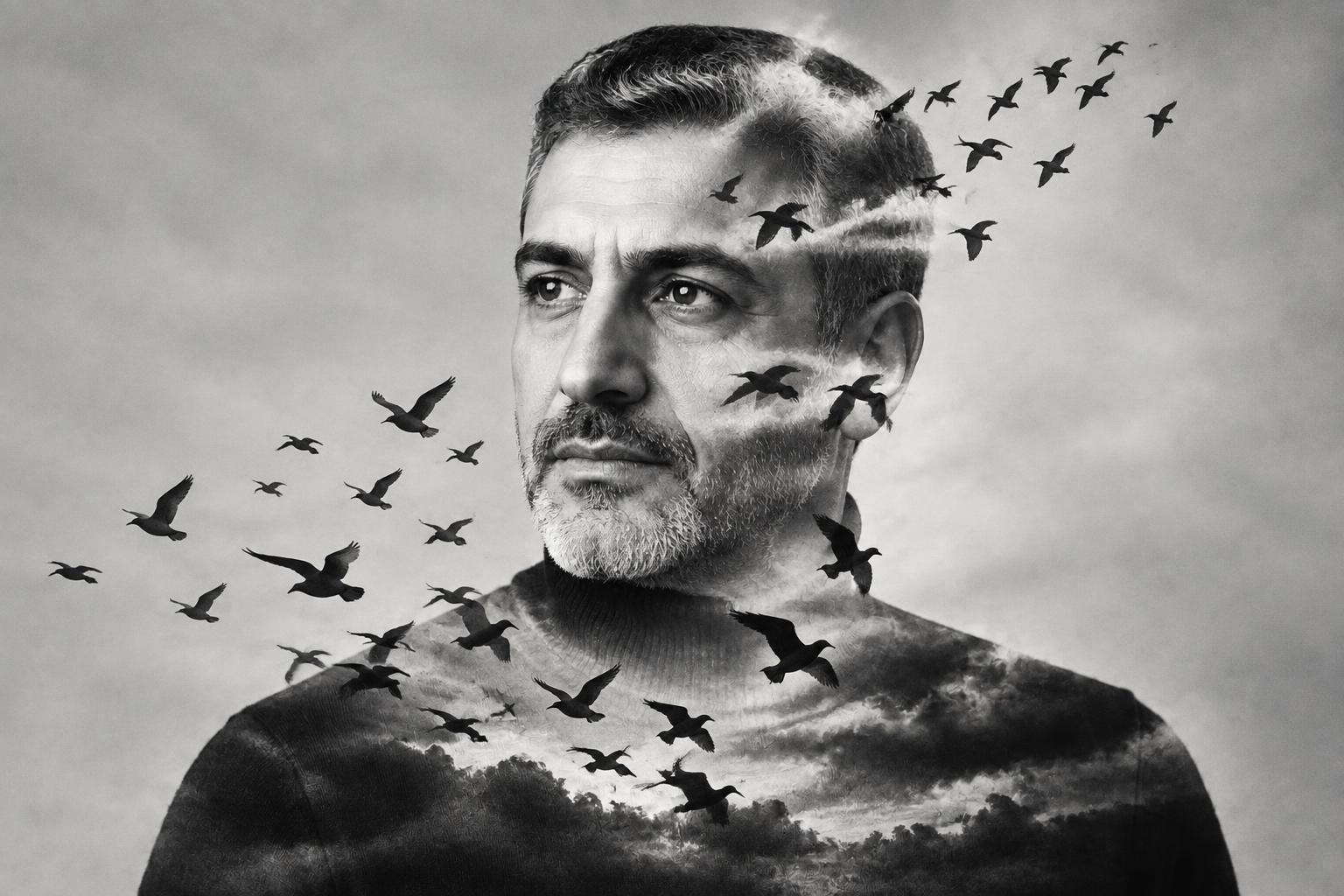
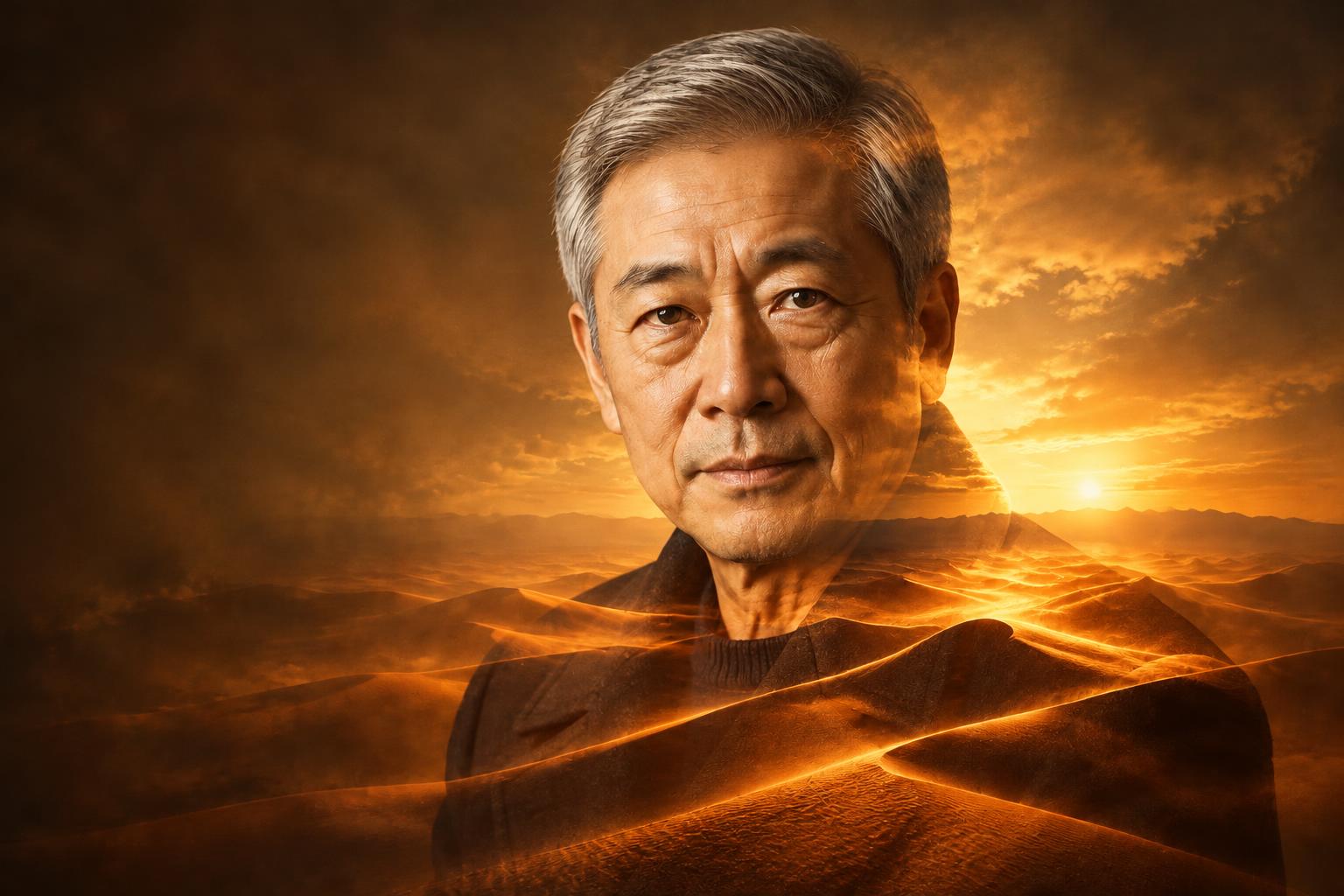
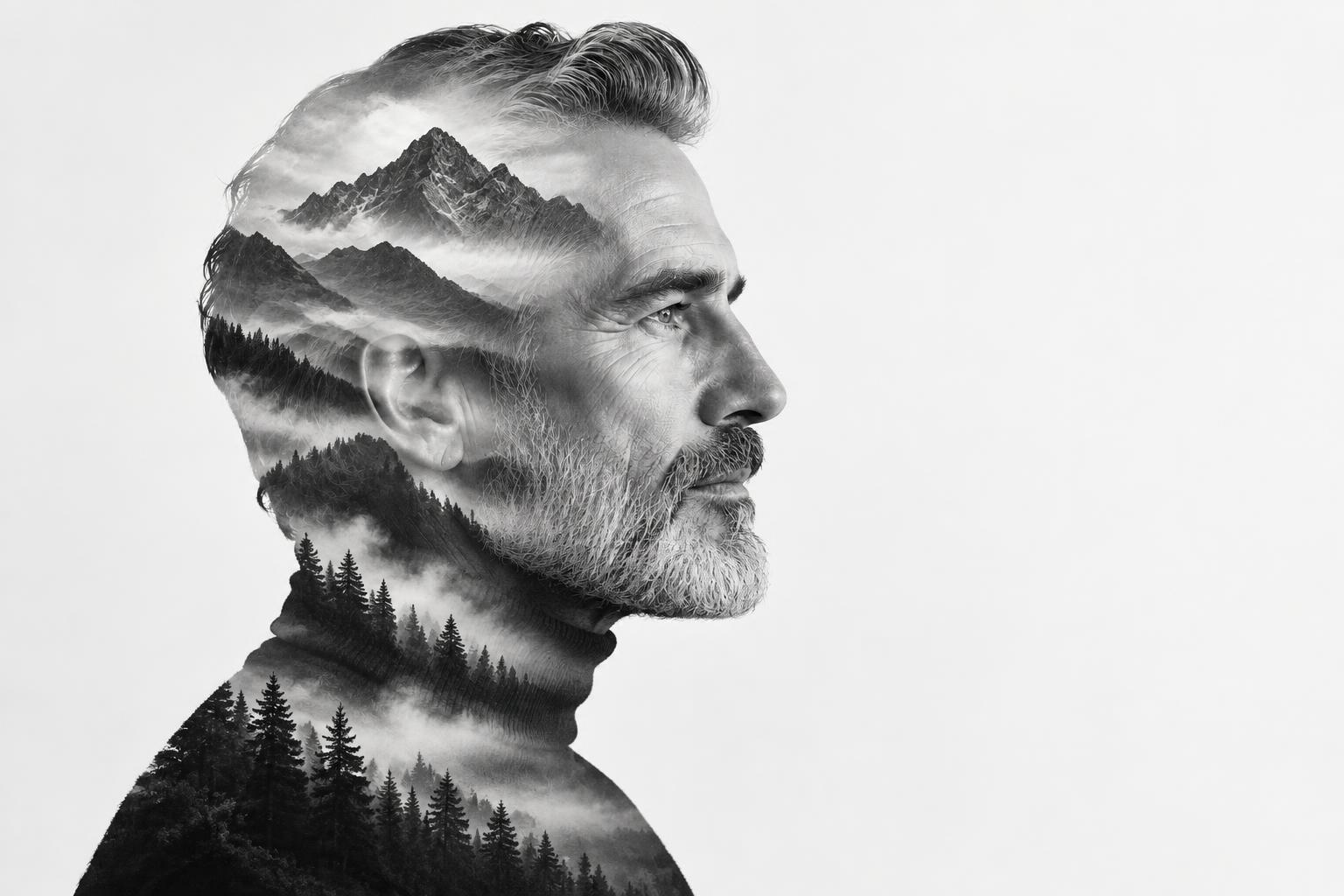
Turn a portrait into a gallery-quality double exposure while keeping the face and silhouette identifiable. Use a reference image or describe a second layer such as a misty forest, skyline, ocean, or nebula.
See It In Action
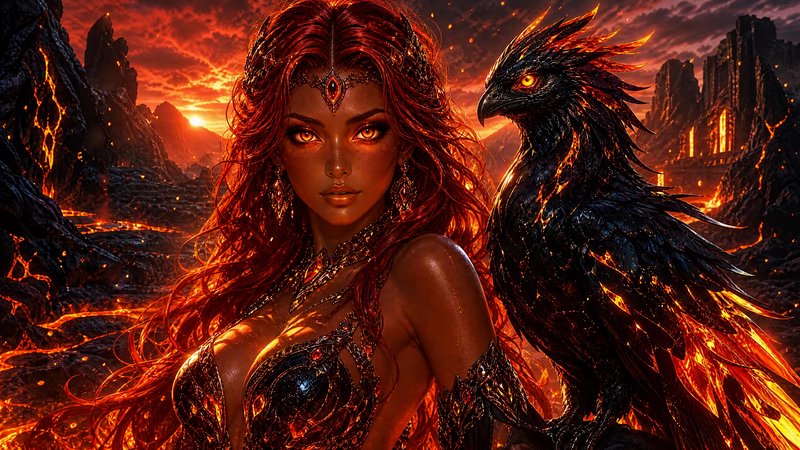
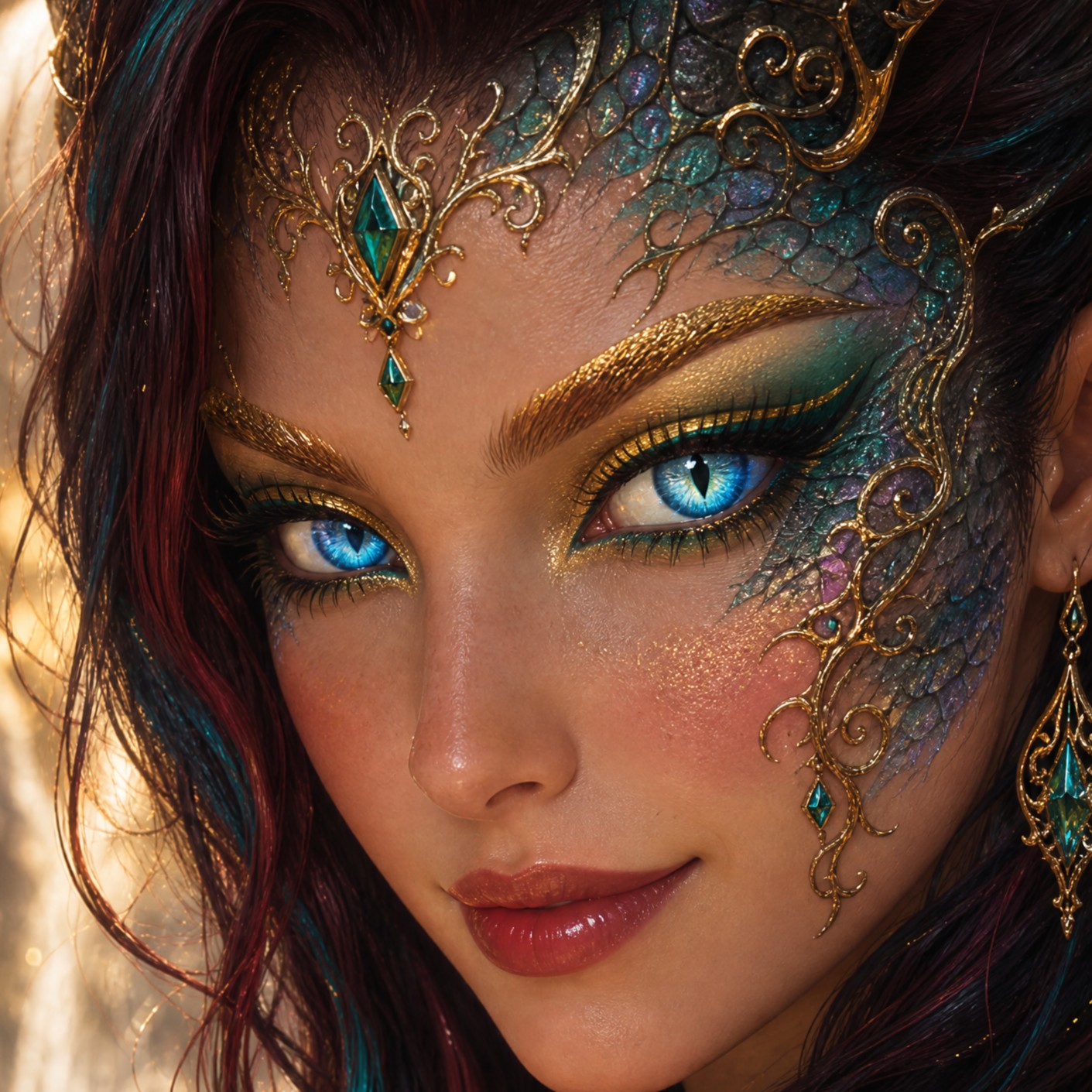
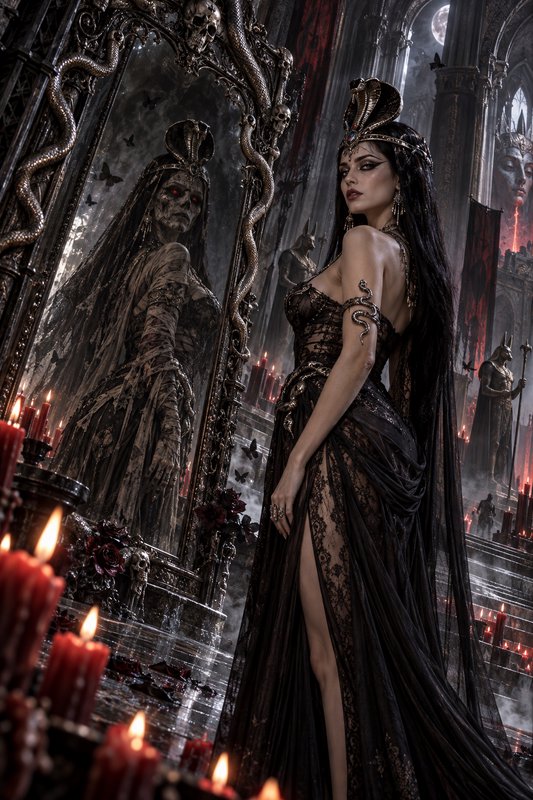
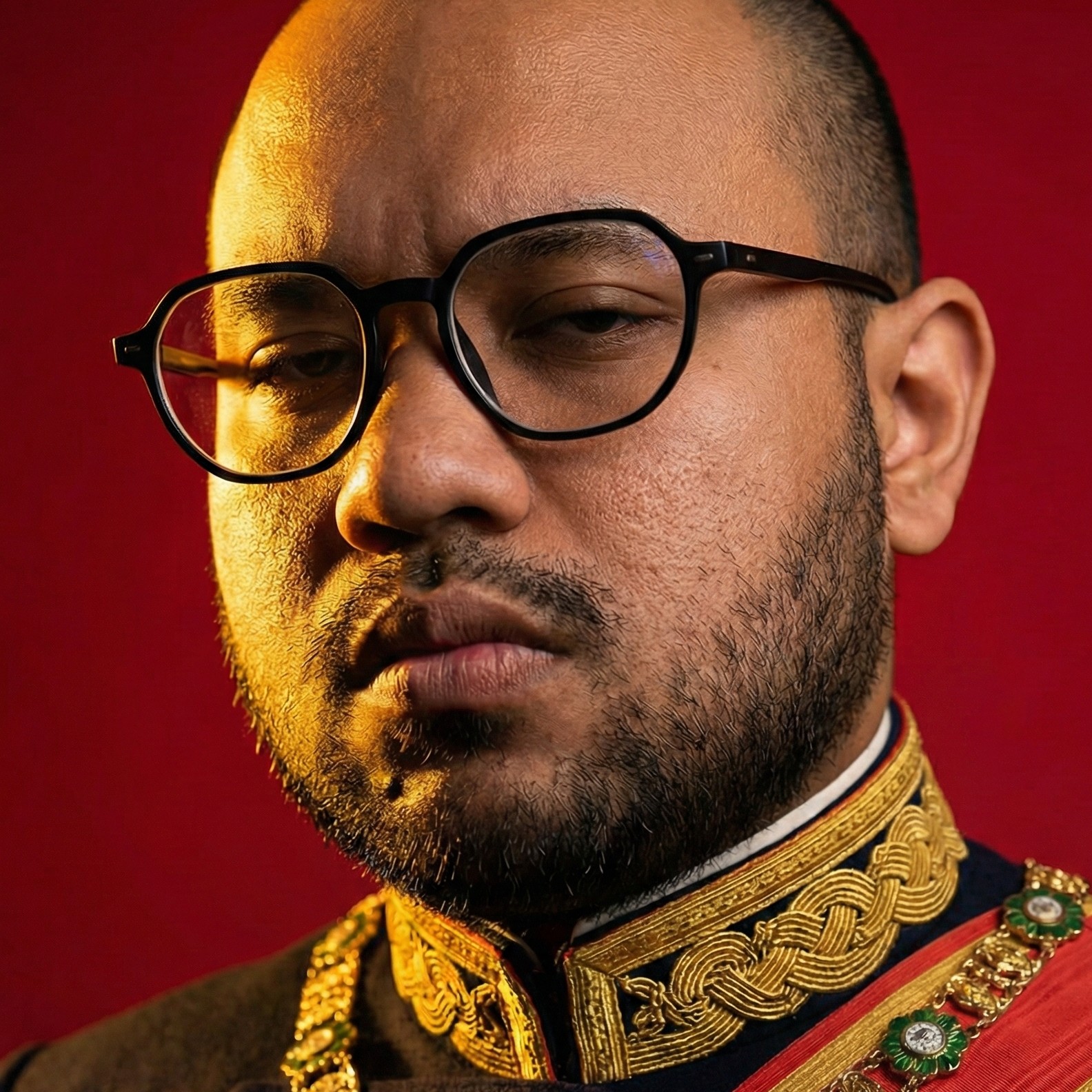
Real outputs from ai double exposure effect.
BEFOREAFTER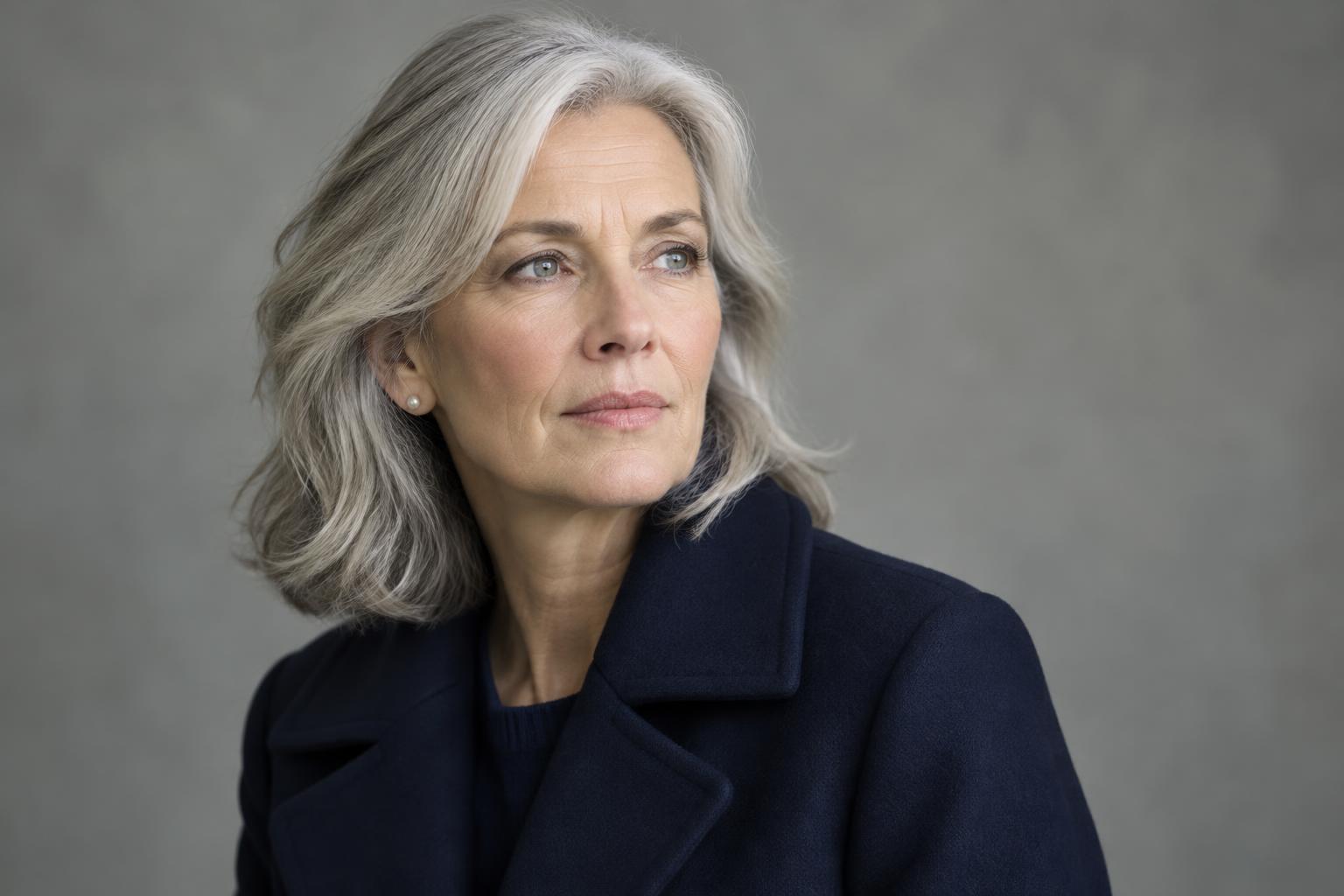 BEFORE
 AFTER
AFTER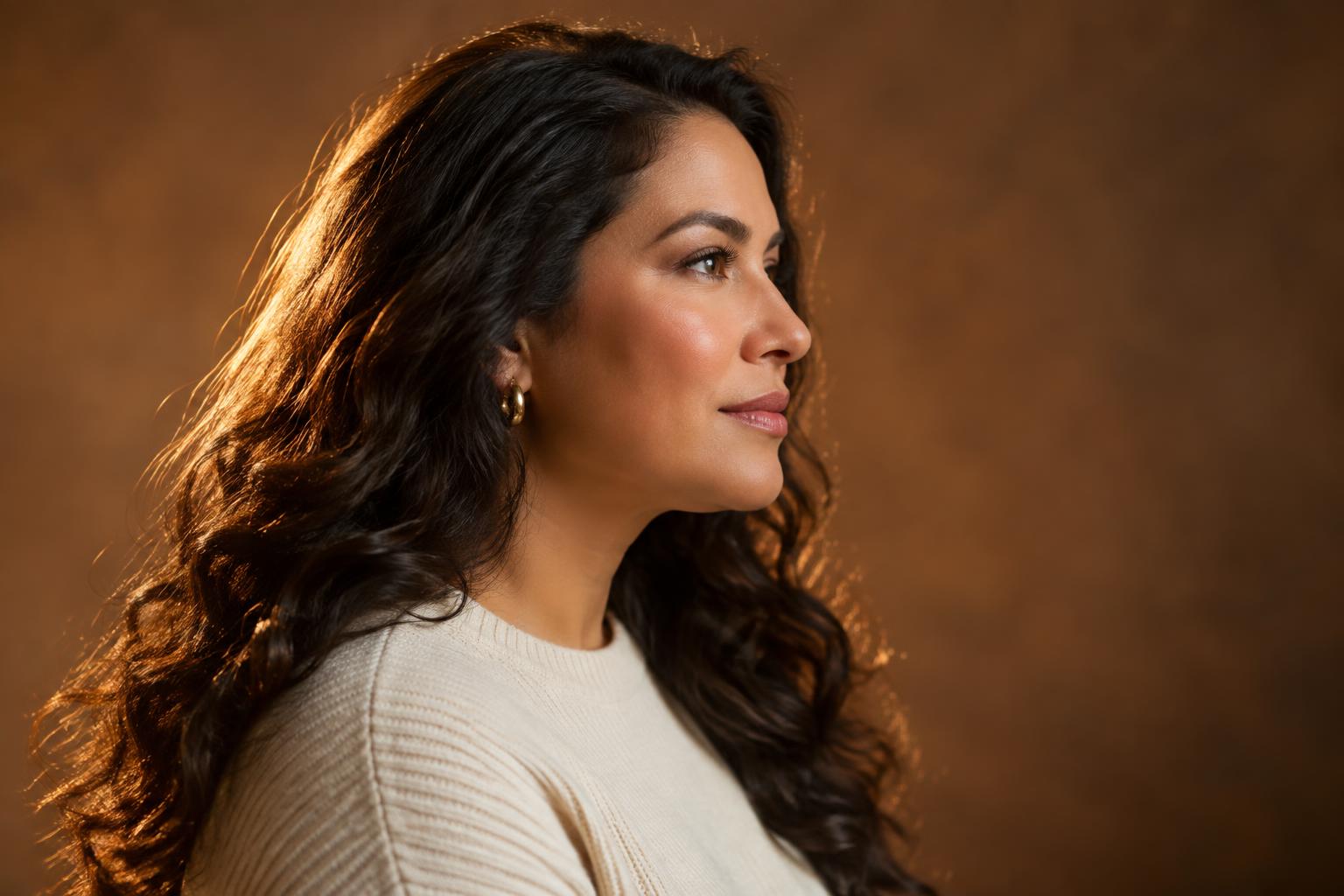 BEFORE
 AFTER
AFTER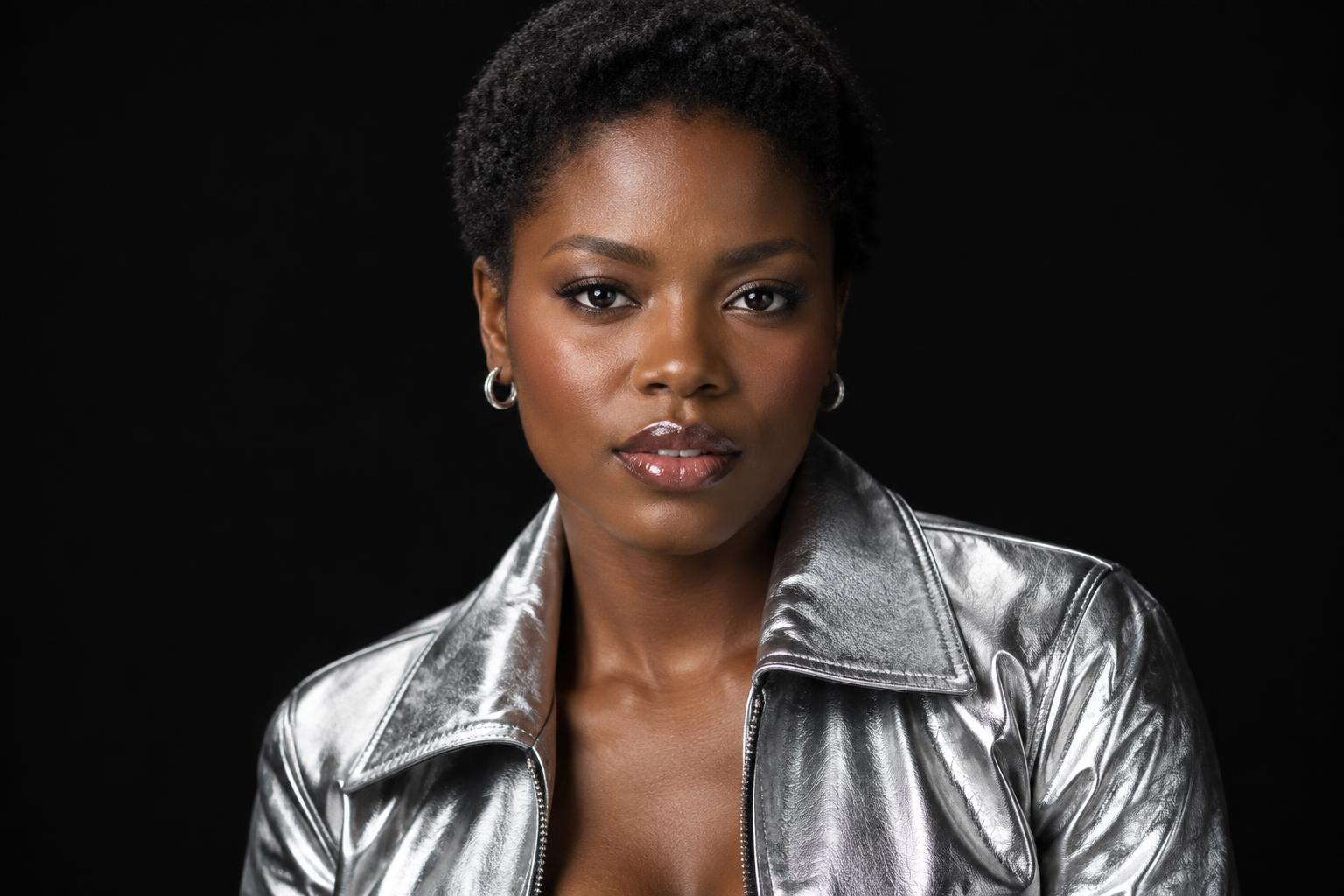 BEFORE
 AFTER
AFTER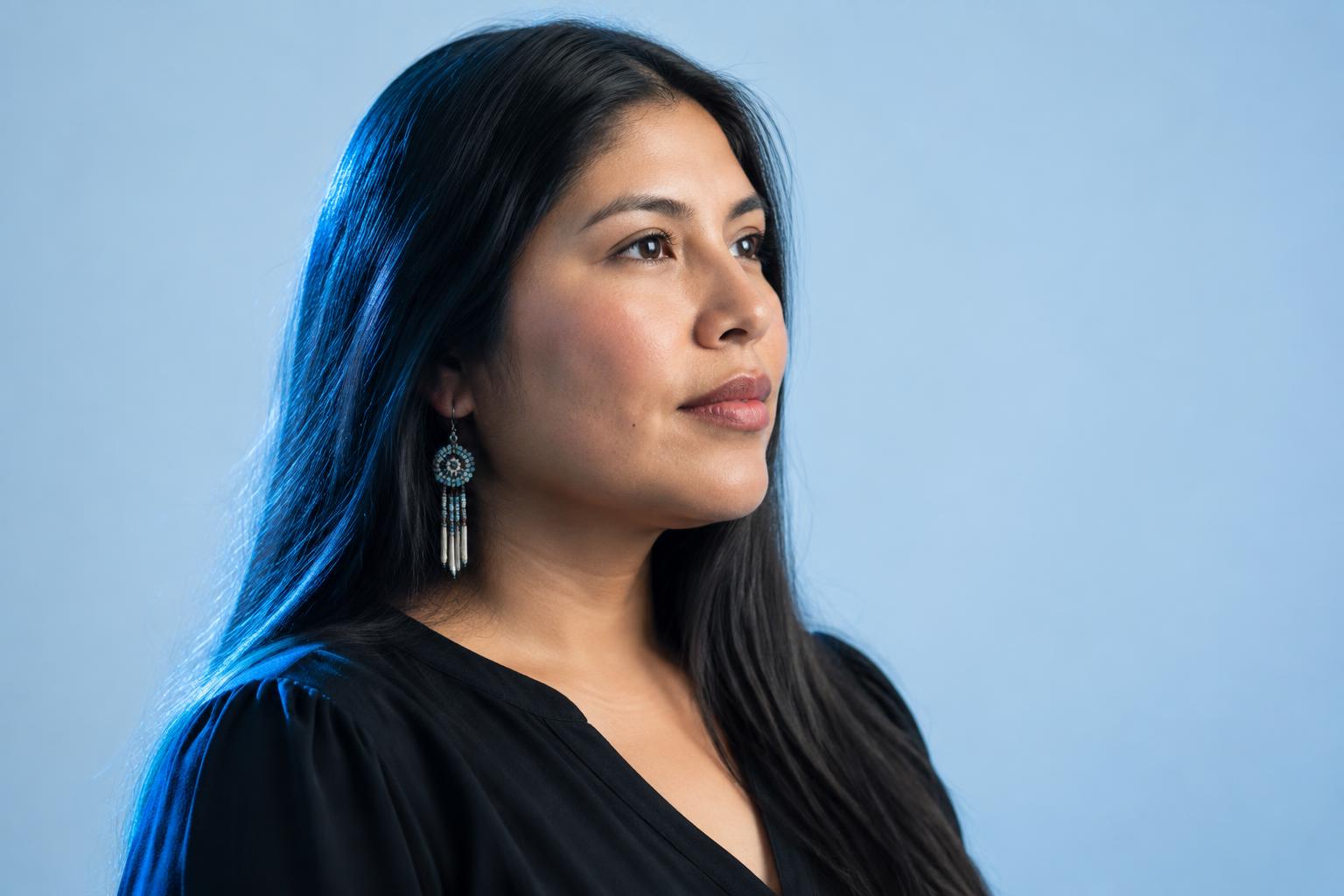 BEFORE
 AFTERBEFOREAFTERBEFOREAFTERBEFOREAFTERBEFOREAFTERBEFOREAFTER
 BEFORE
 AFTER
AFTER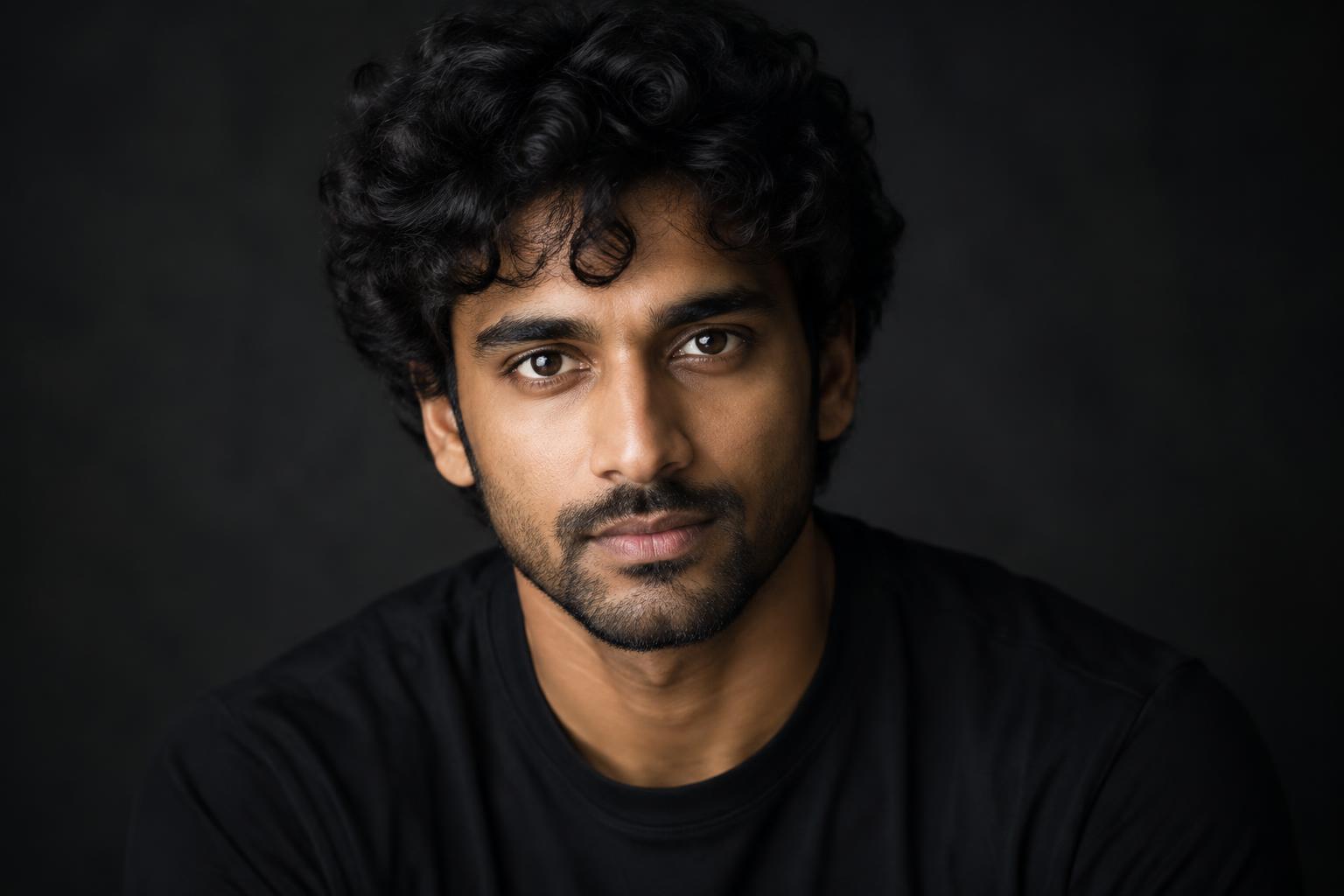 BEFORE
 AFTER
AFTER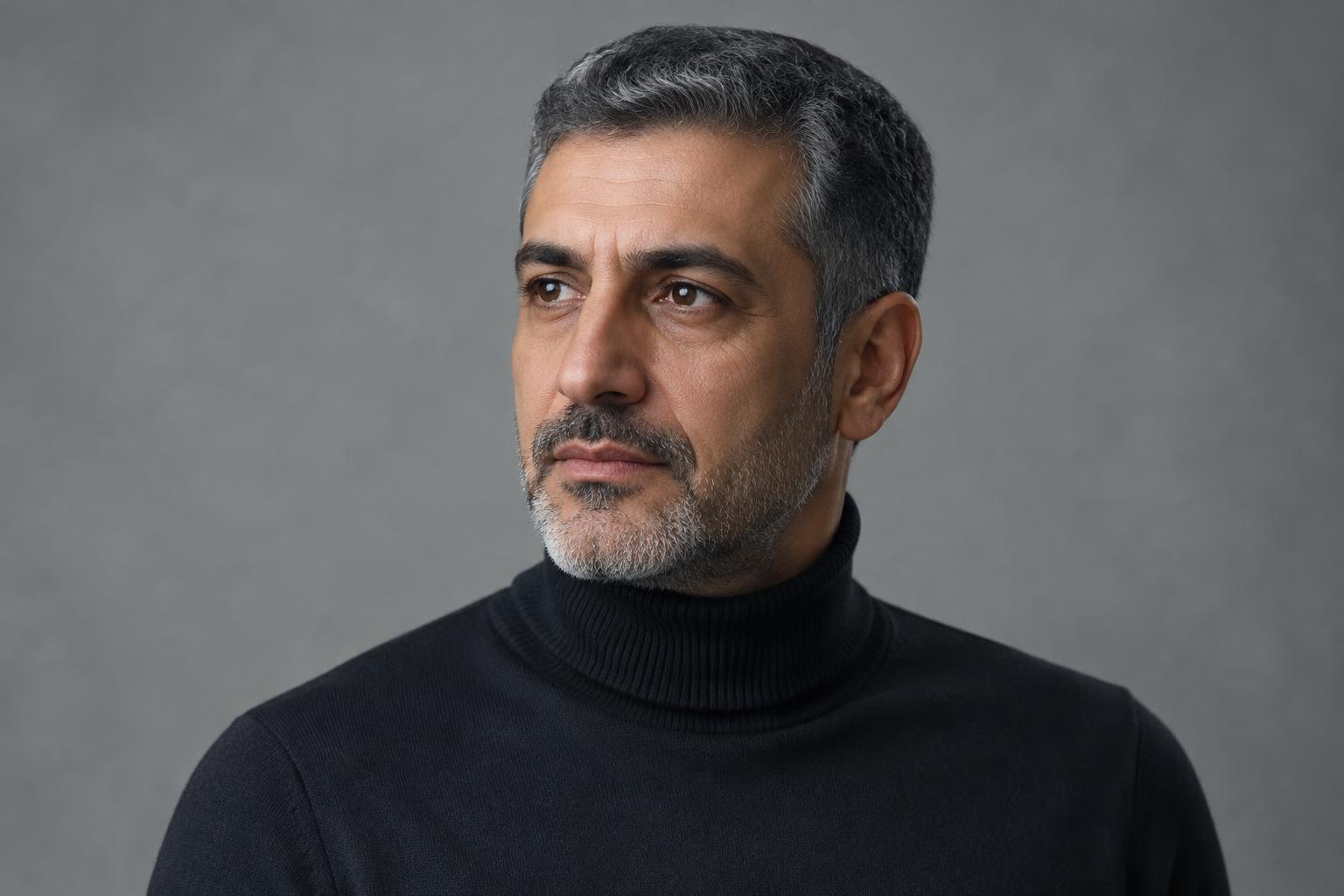 BEFORE
 AFTER
AFTER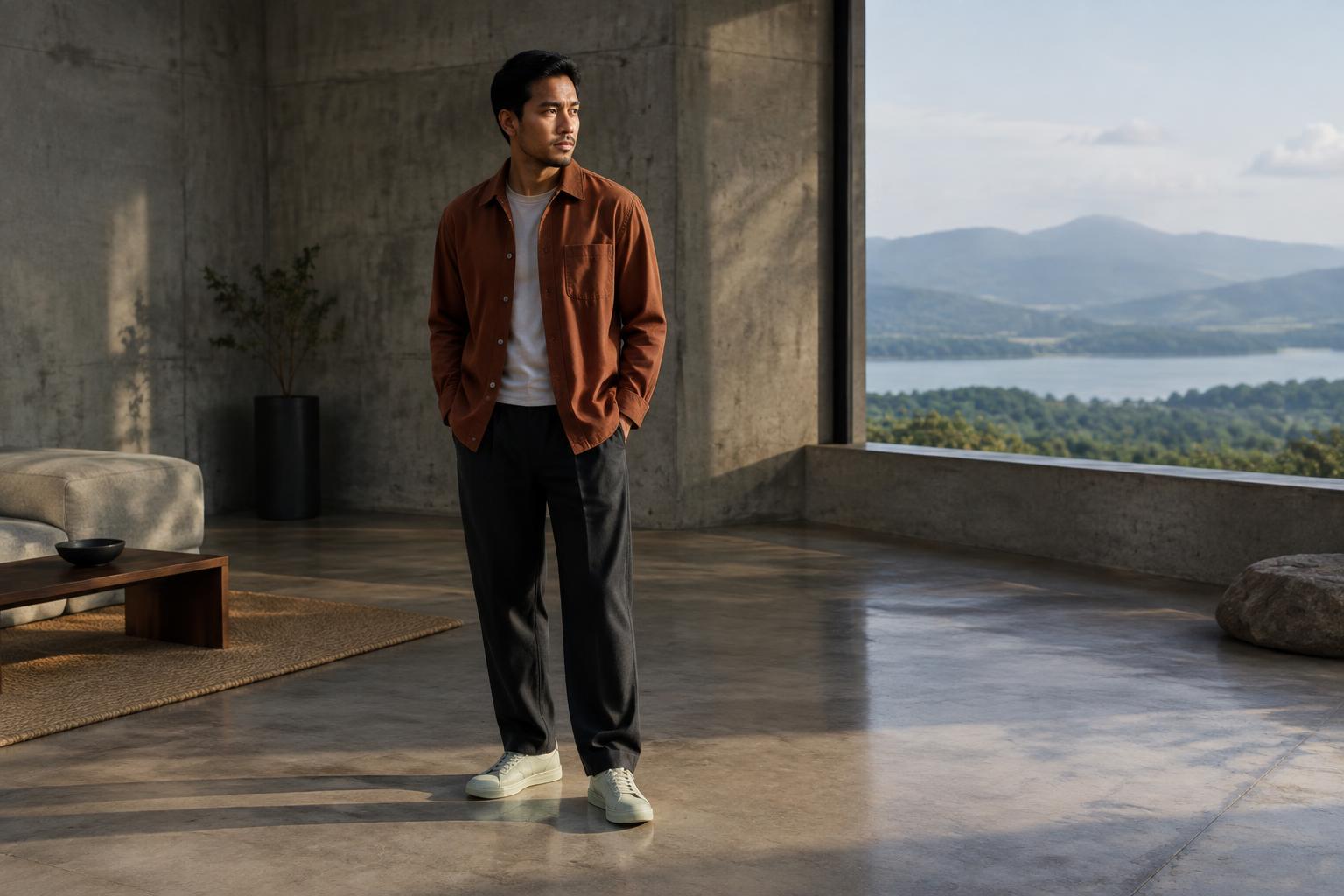 BEFORE
 AFTER
AFTER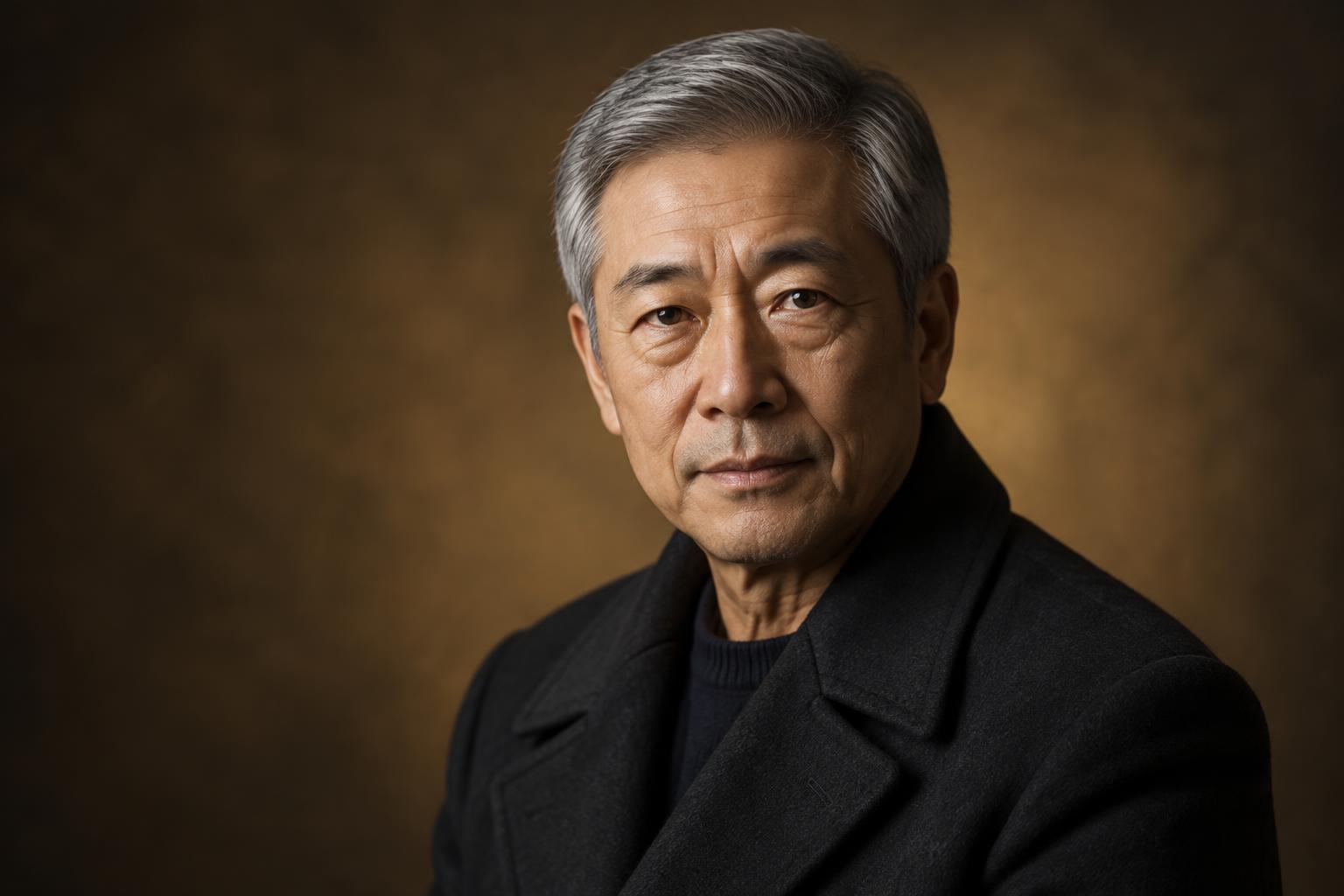 BEFORE
 AFTERBEFOREAFTERBEFOREAFTERBEFOREAFTERBEFOREAFTERBEFOREAFTER
Key Features
Keep Every Face Recognizable
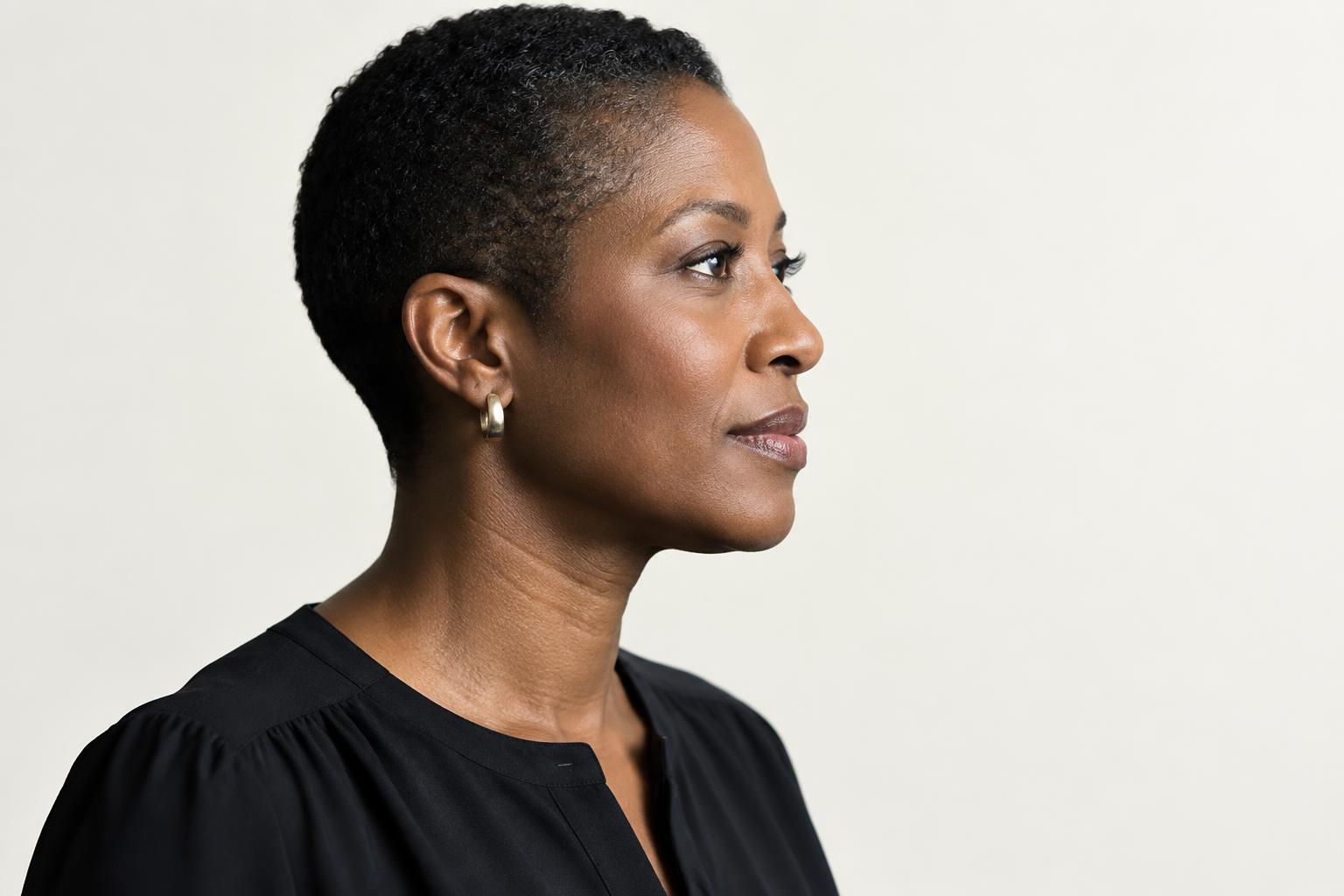
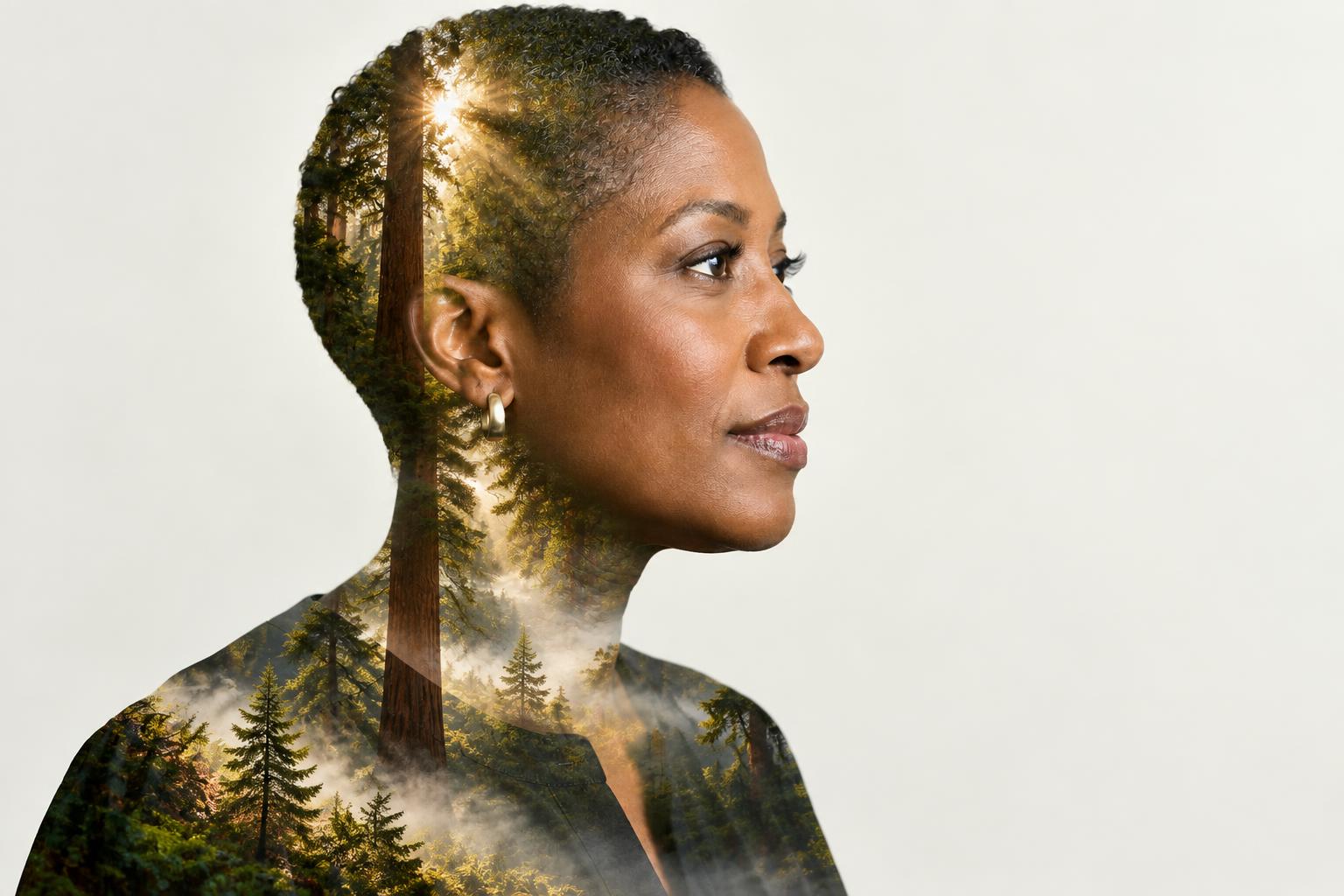
The effect changes the imagery within and around the portrait rather than replacing the person. Facial structure, expression, and silhouette remain clear beneath the second layer. This gives you an artistic result without the masking and alignment work required in a manual editor.
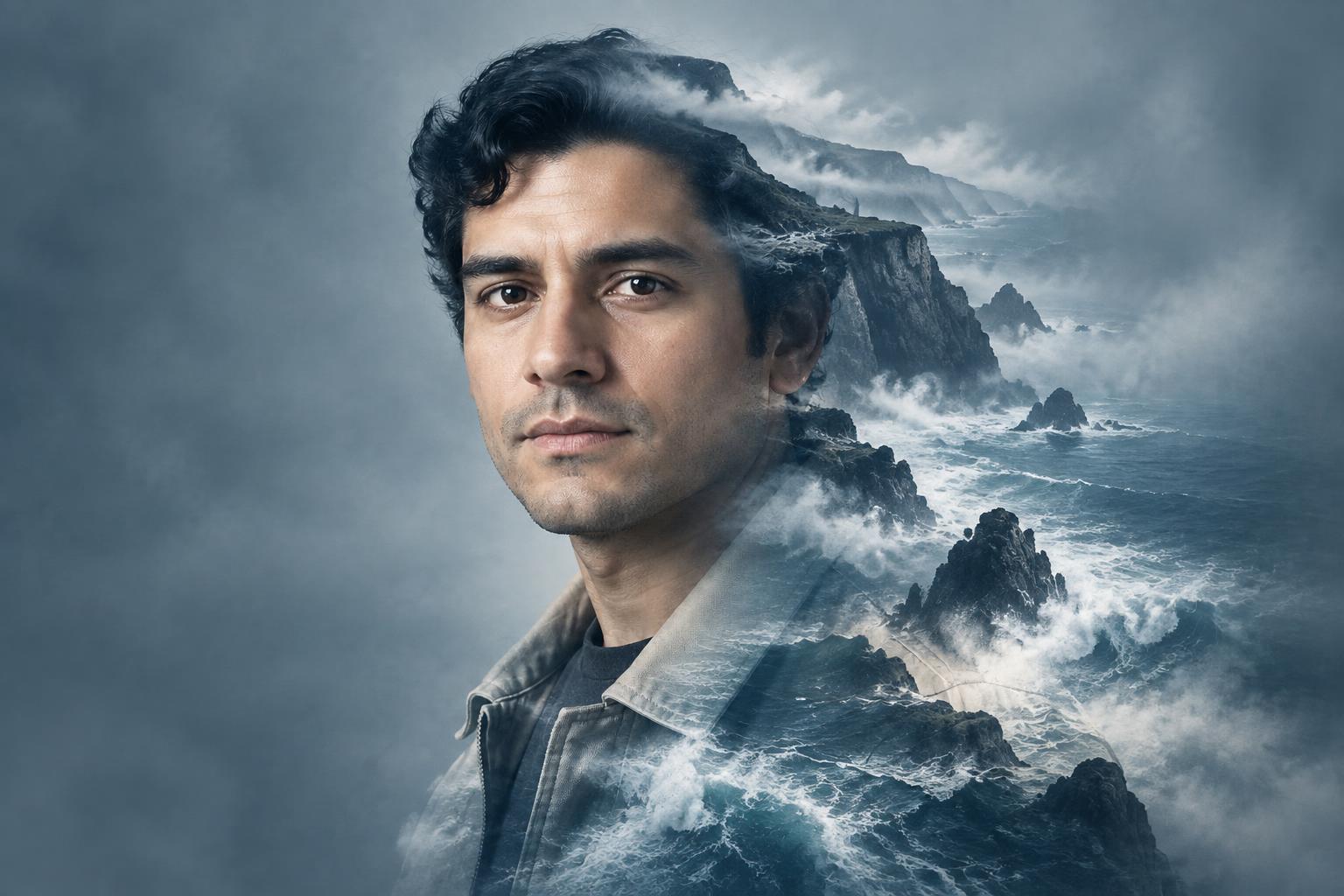
Blend Your Chosen Scene
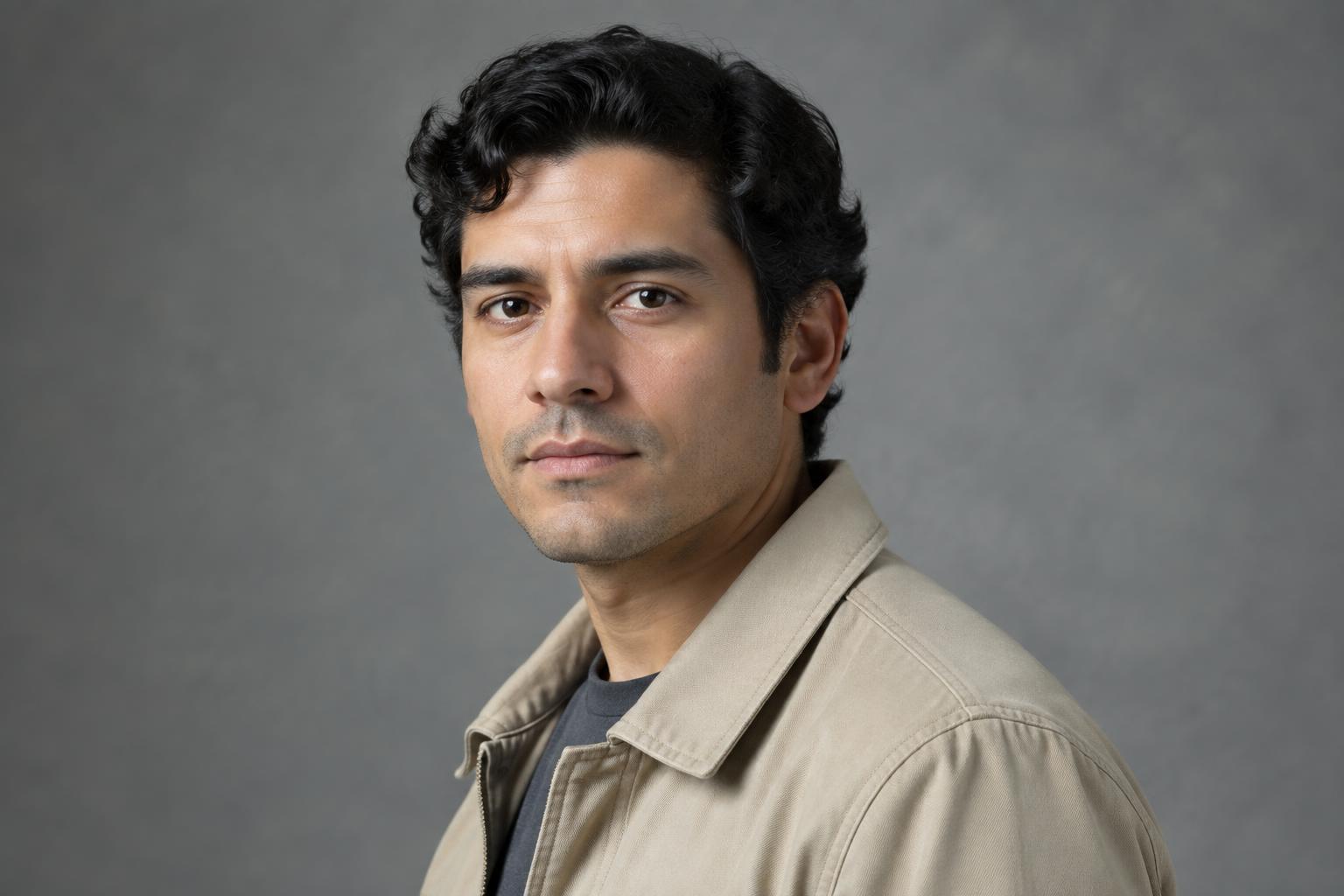
Describe the second layer or provide an image as a visual reference. The scene can follow the portrait contours while retaining important details such as eyes and profile edges. This makes it easier to direct the composition than manually cutting, masking, and blending multiple layers.
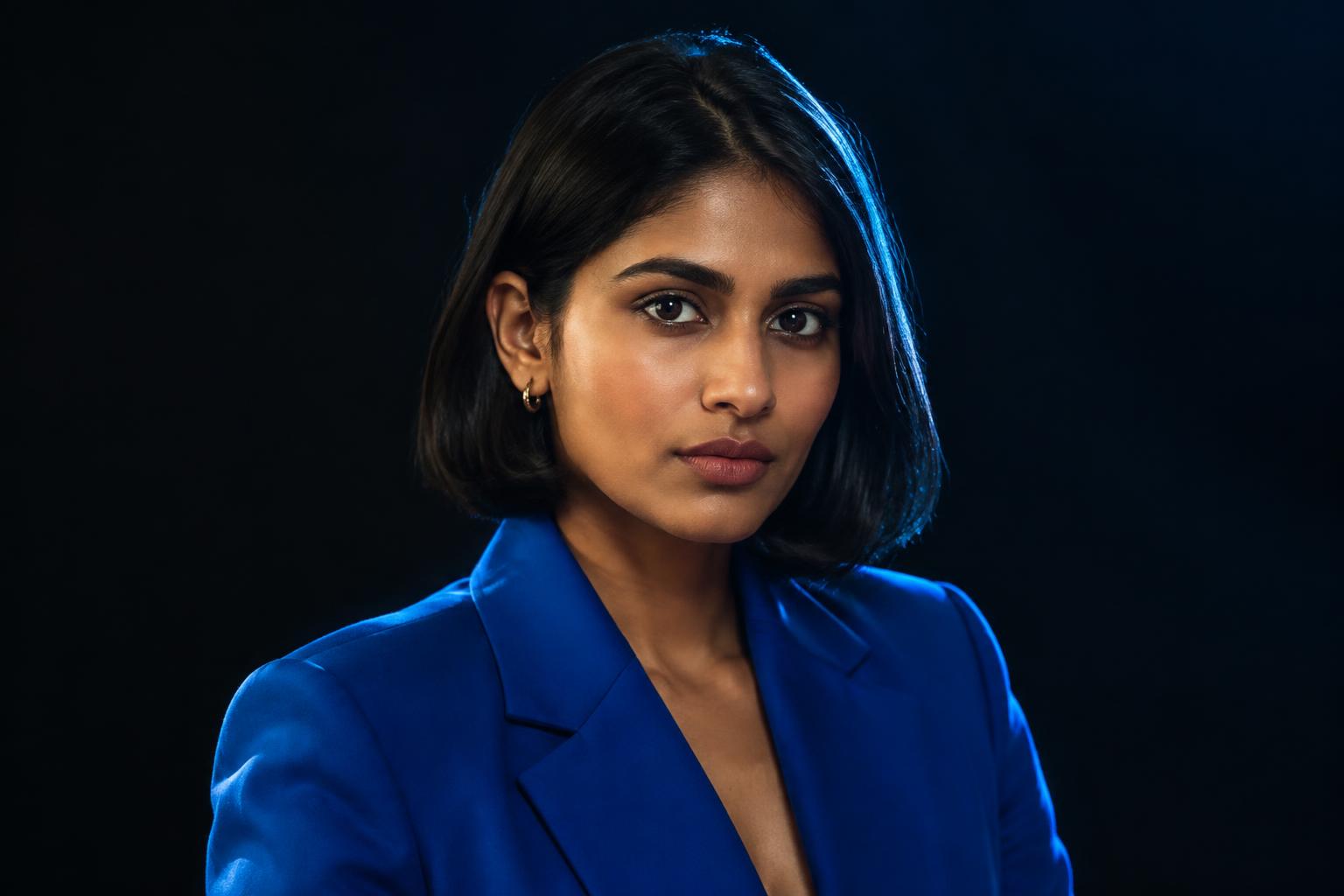
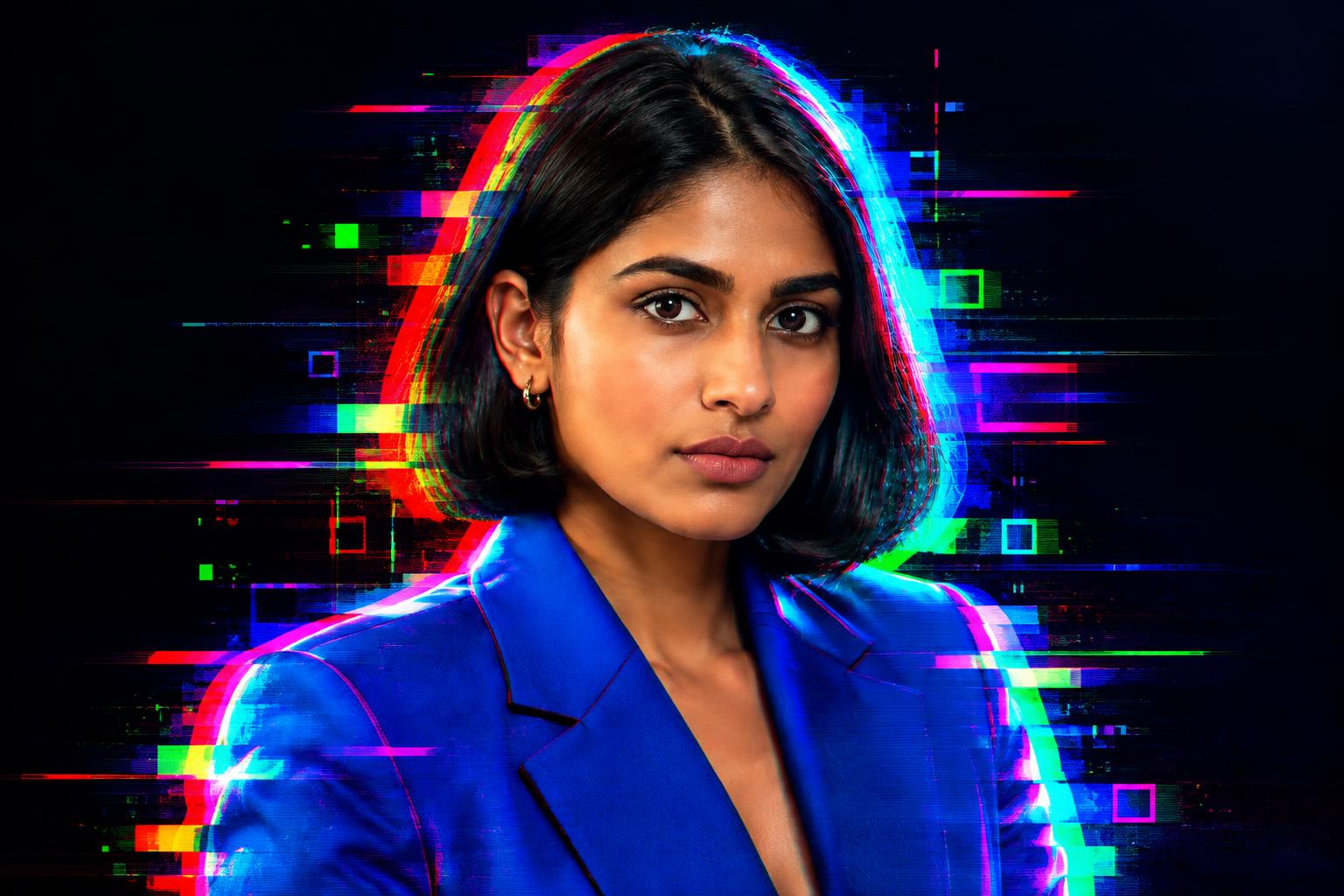
Explore More Than Landscapes
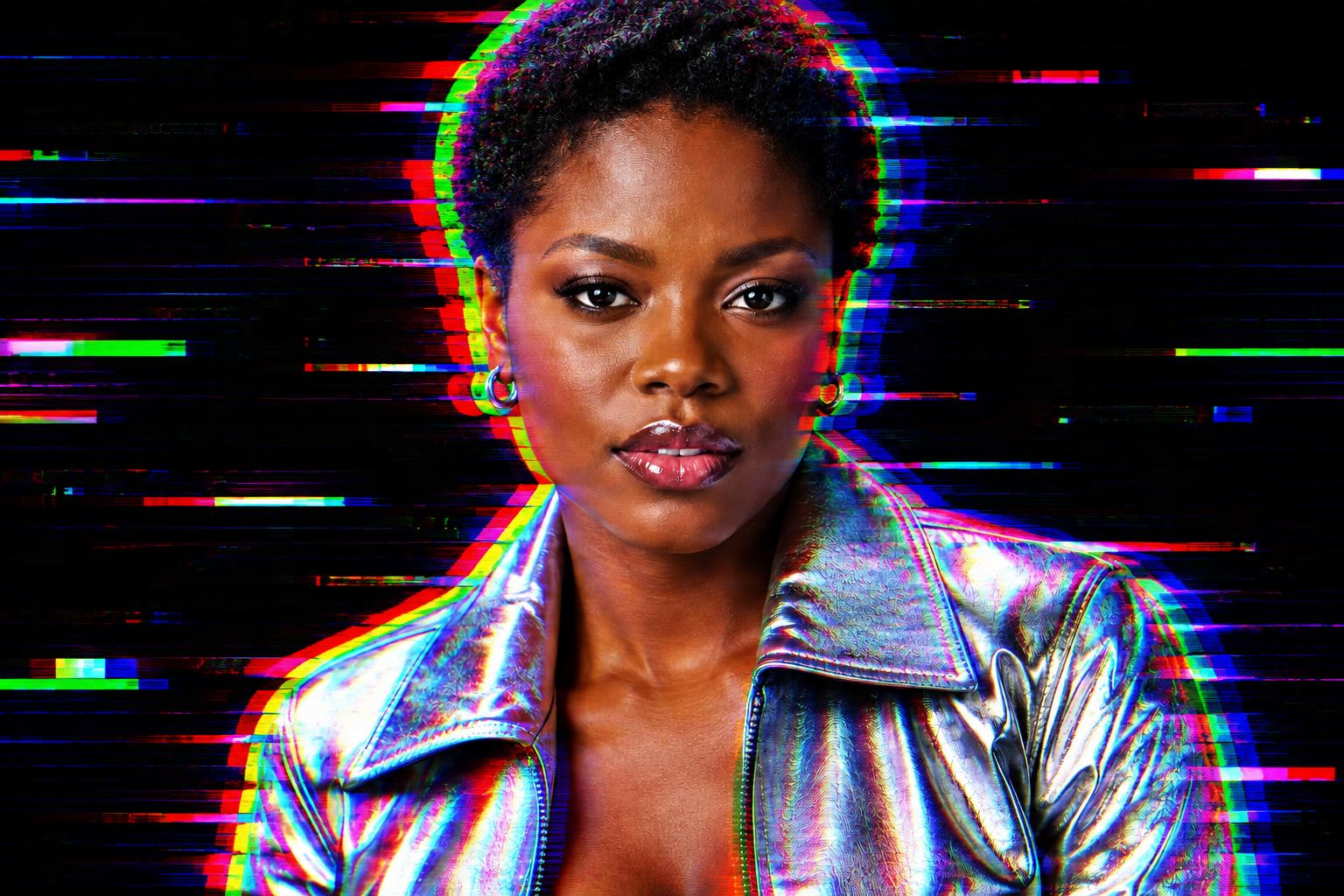
Move beyond classic nature overlays with neon glitches, RGB splits, and controlled multiplicity effects. The subject remains the visual anchor while the added treatment creates an immediate thumbnail-ready change. You can explore distinct looks without rebuilding effects from separate channels and duplicate layers.
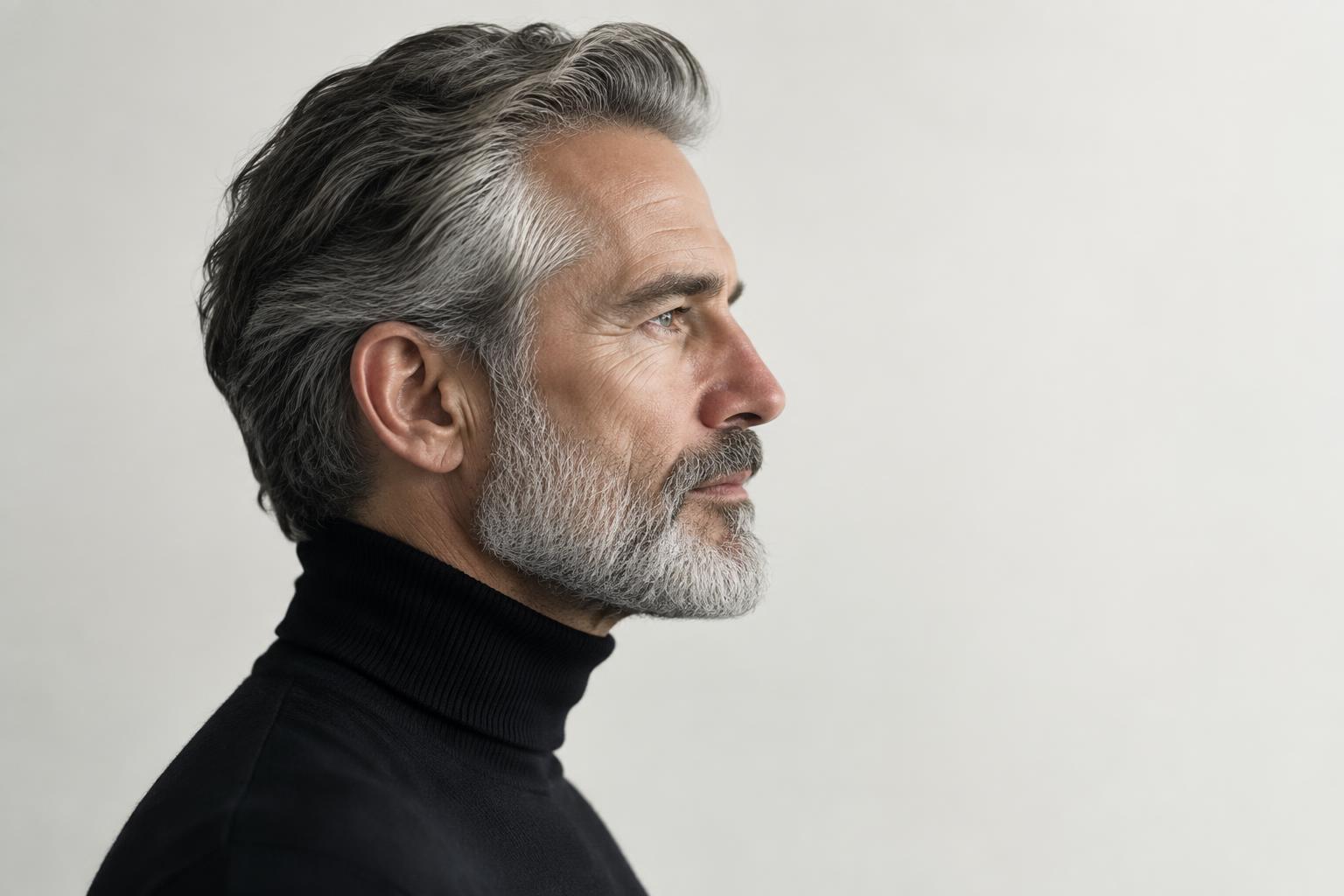
Create Print-Ready Visual Impact
Strong contrast, clean silhouettes, and balanced negative space help the finished image read at both screen and print sizes. The blend is designed to feel like a finished art photograph rather than two images placed on top of each other. Always review the exported resolution against your printer's requirements before ordering a physical print.
How It Works
Upload your portrait
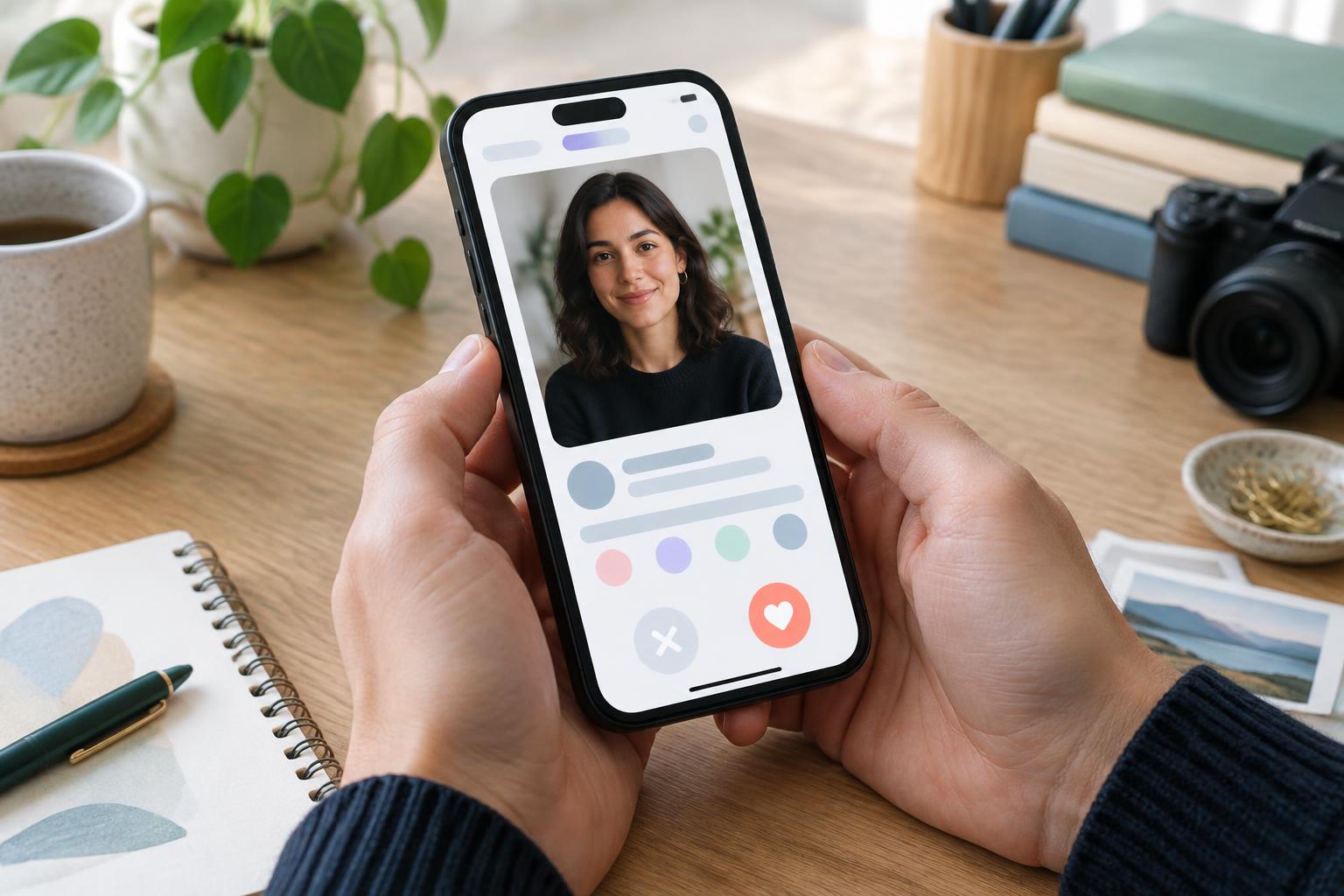
Choose a clear photo with a visible face and a well-defined silhouette. Side profiles and uncluttered backgrounds often produce especially strong double exposures.
Describe the second layer
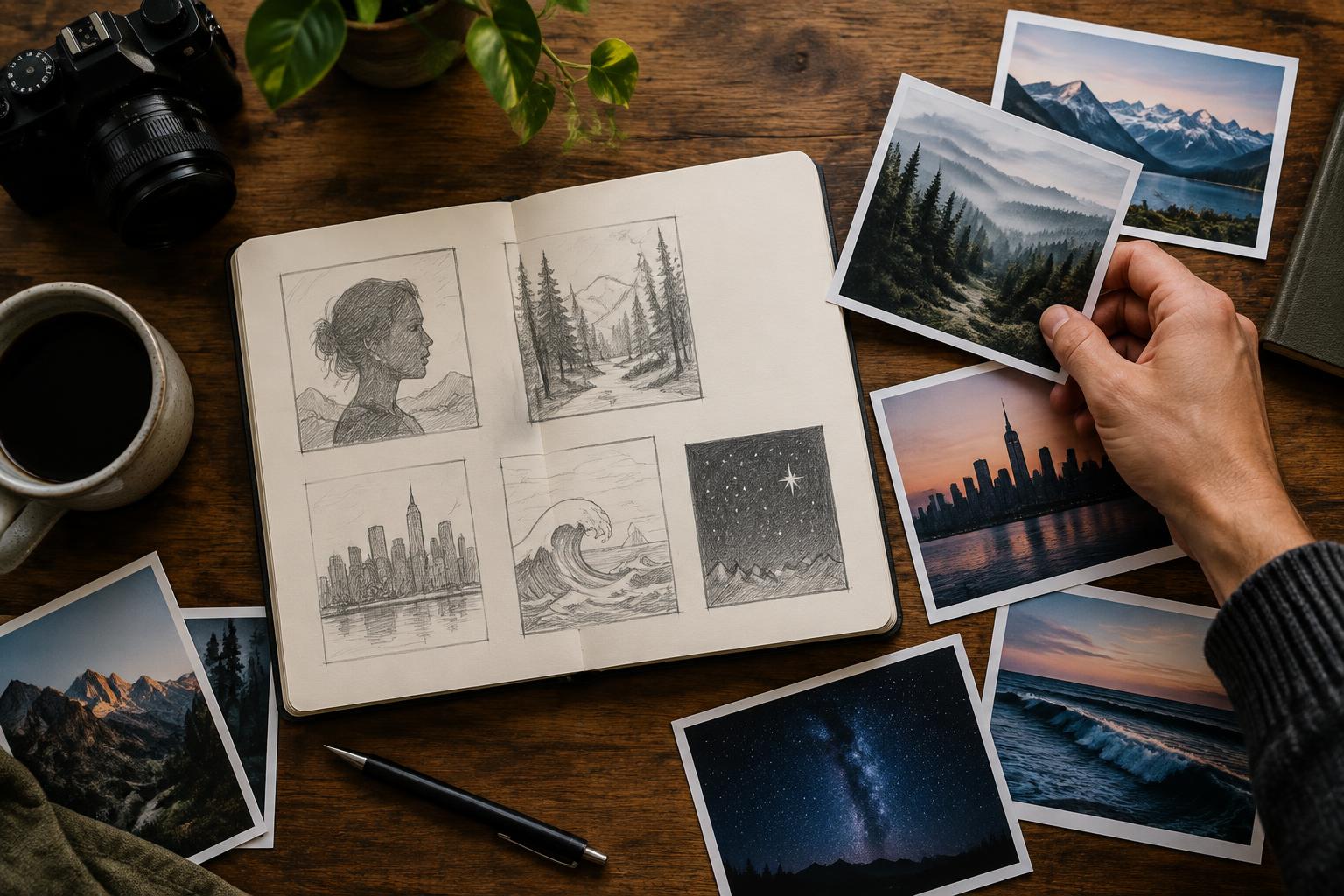
Enter a scene such as a forest, skyline, ocean, or galaxy. You can also add your own second image as a reference for the intended subject, colors, and composition.
Generate and review
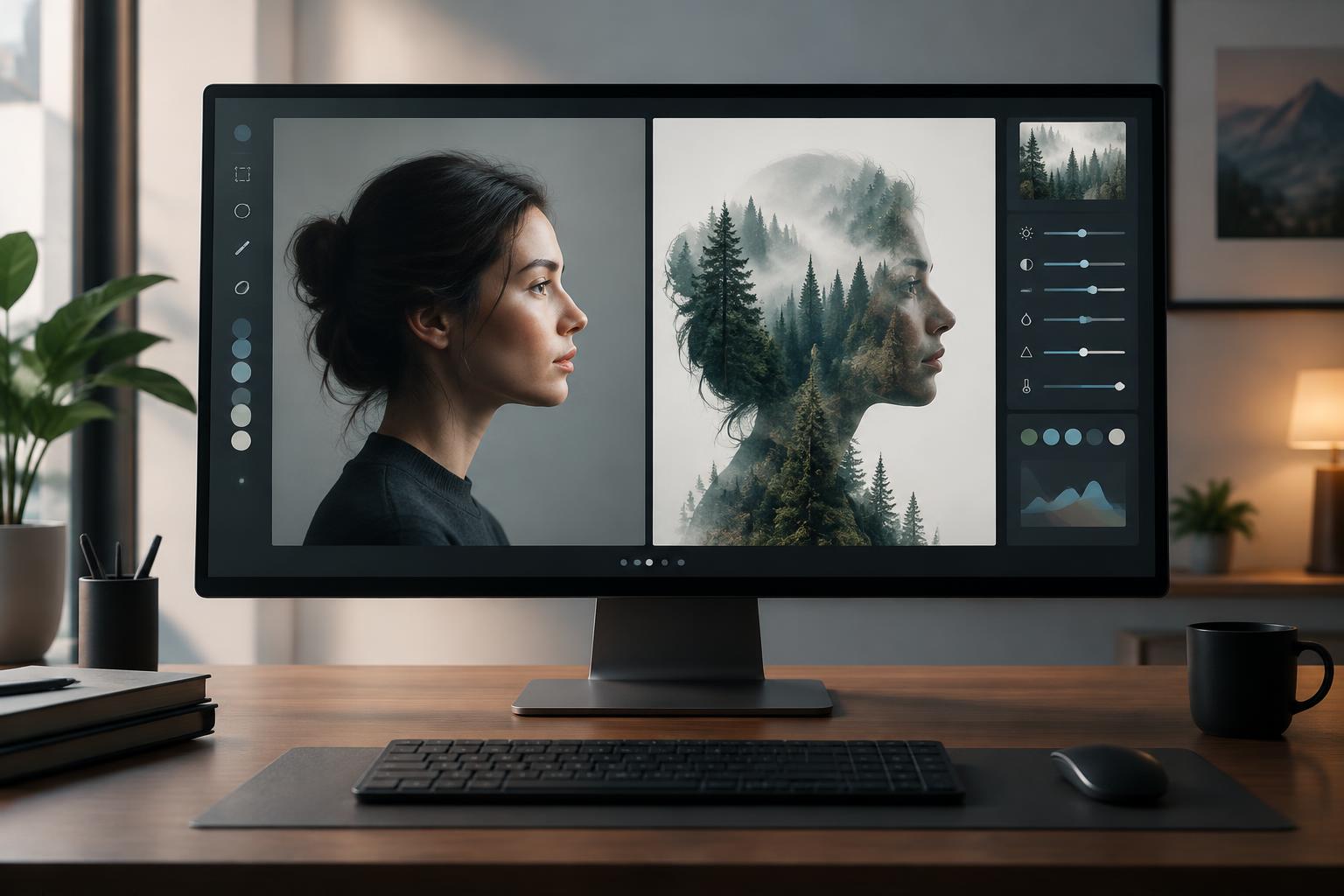
Create the edit, then compare it with the original portrait. Check facial recognition, silhouette edges, blend placement, and detail before downloading the version you prefer.
Perfect For
Discover how creators and professionals use ai double exposure effect
Fine-Art Portraits
Combine expressive adult portraits with landscapes, architecture, or celestial scenes for personal artwork and gallery-style compositions.
Album-Style Visuals
Build atmospheric, cover-like artwork without readable titles, artist names, brand marks, or logos.
Glitch Profile Images
Create sharp RGB splits and digital echoes while keeping the central face clear and identifiable.
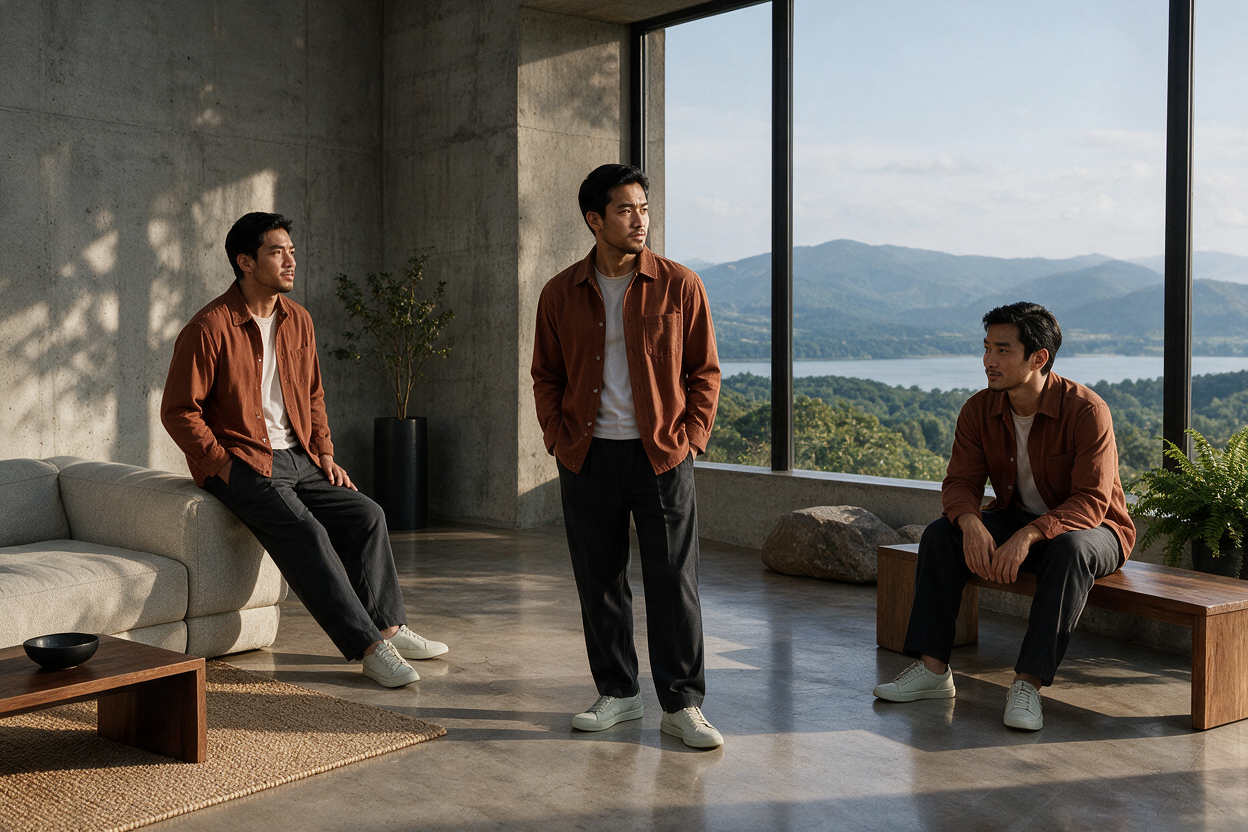
Clone Yourself Photos
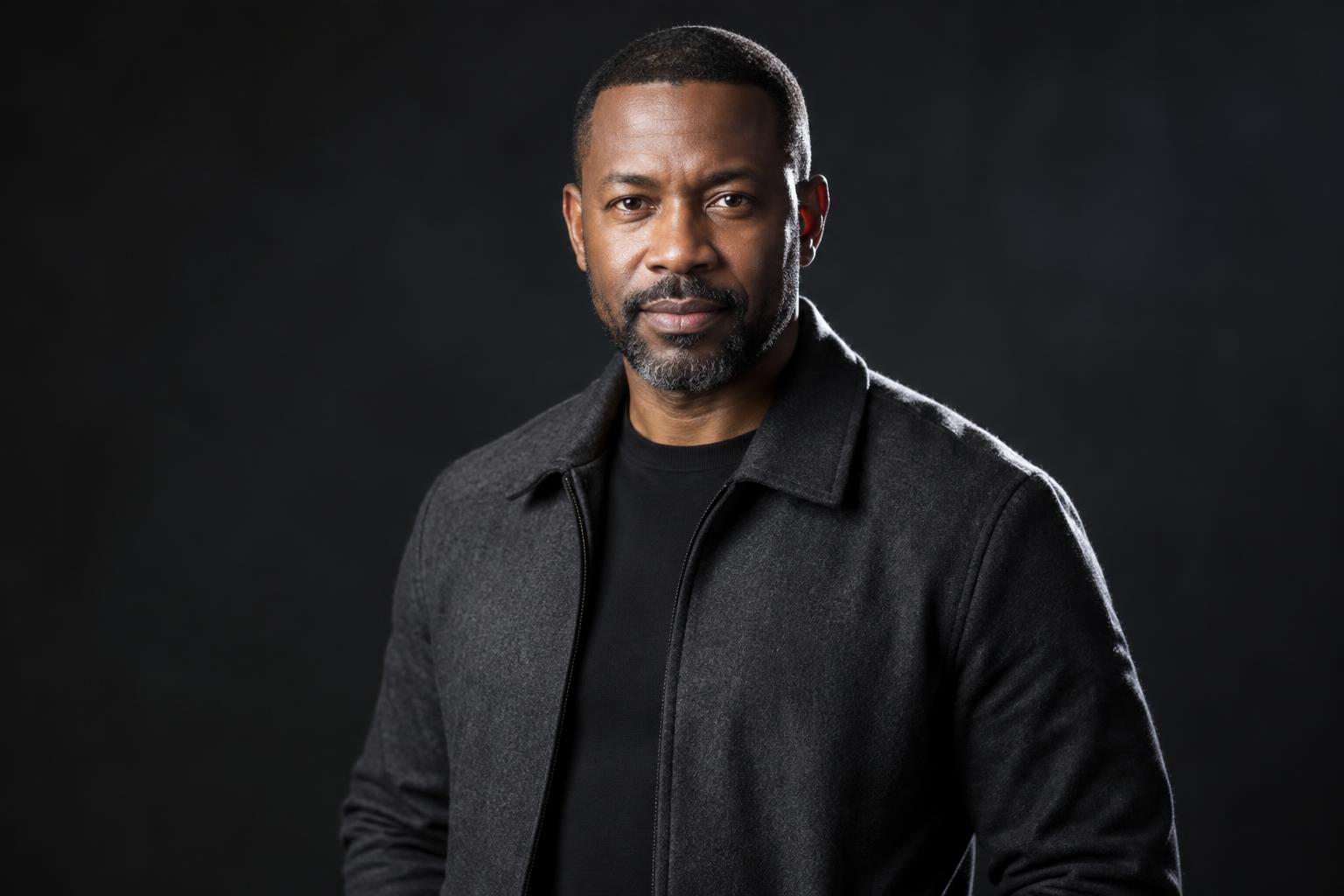
Place the same adult in several distinct poses within one coherent frame for a playful multiplicity effect.
Built For
Photographers
Develop conceptual portrait variations without manually building masks, blend modes, and channel effects.
Designers and creators
Produce high-impact visuals for portfolios, social posts, mood boards, and editorial concepts.
Personal art makers
Turn a favorite adult portrait into a distinctive artwork using a scene that has personal meaning.
Double Exposure Editing Options
A quick look at how we compare on the things that matter for this niche.
| Feature | BudgetPixel | Manual editing apps |
|---|---|---|
| Prompt-based scene blending | ✓ | Usually manual |
| Reference image support | ✓ | ✓ |
| Automatic silhouette blending | ✓ | Usually manual |
| Free credits for new accounts | ✓ | Varies |
Frequently Asked Questions
What is a double exposure?
Will the effect keep my face recognizable?
Can I choose the second image myself?
Can I print my double exposure artwork?
How much does the double exposure generator cost?
Create together.
Share your creations, discover trending AI art, and grow with fellow creators.