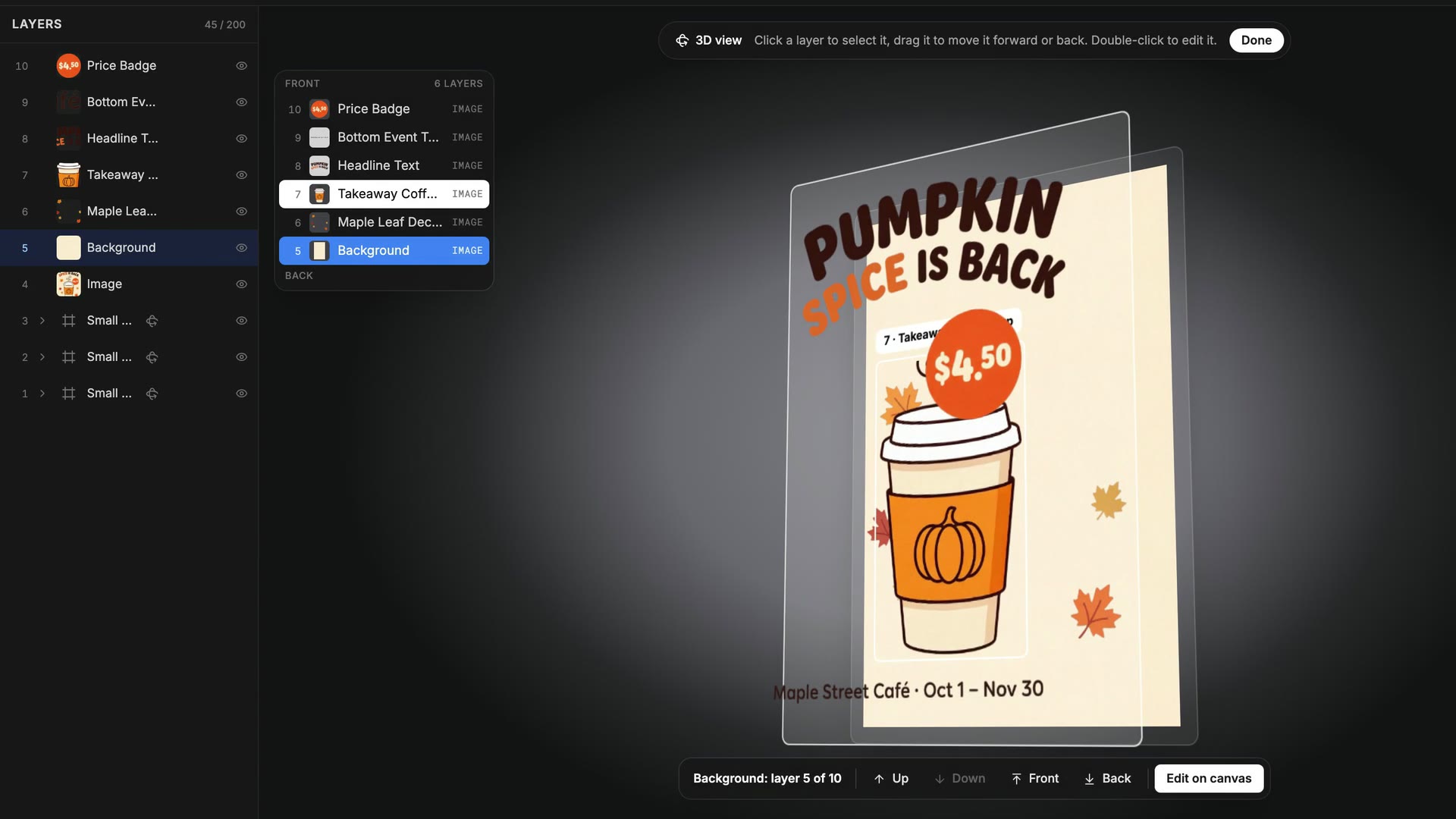
How to Separate an Image Into Layers With AI (11 Real Examples)
AI can now split one flat picture into its parts: each person, each object, each block of text, and a background with the gaps filled in. We ran BudgetPixel's Decompose 11 times on 10 real pictures, from street photos to posters, and compared it with Canva, Figma, Photoshop and other tools.
 By BudgetPixel Team13 min readFacts verified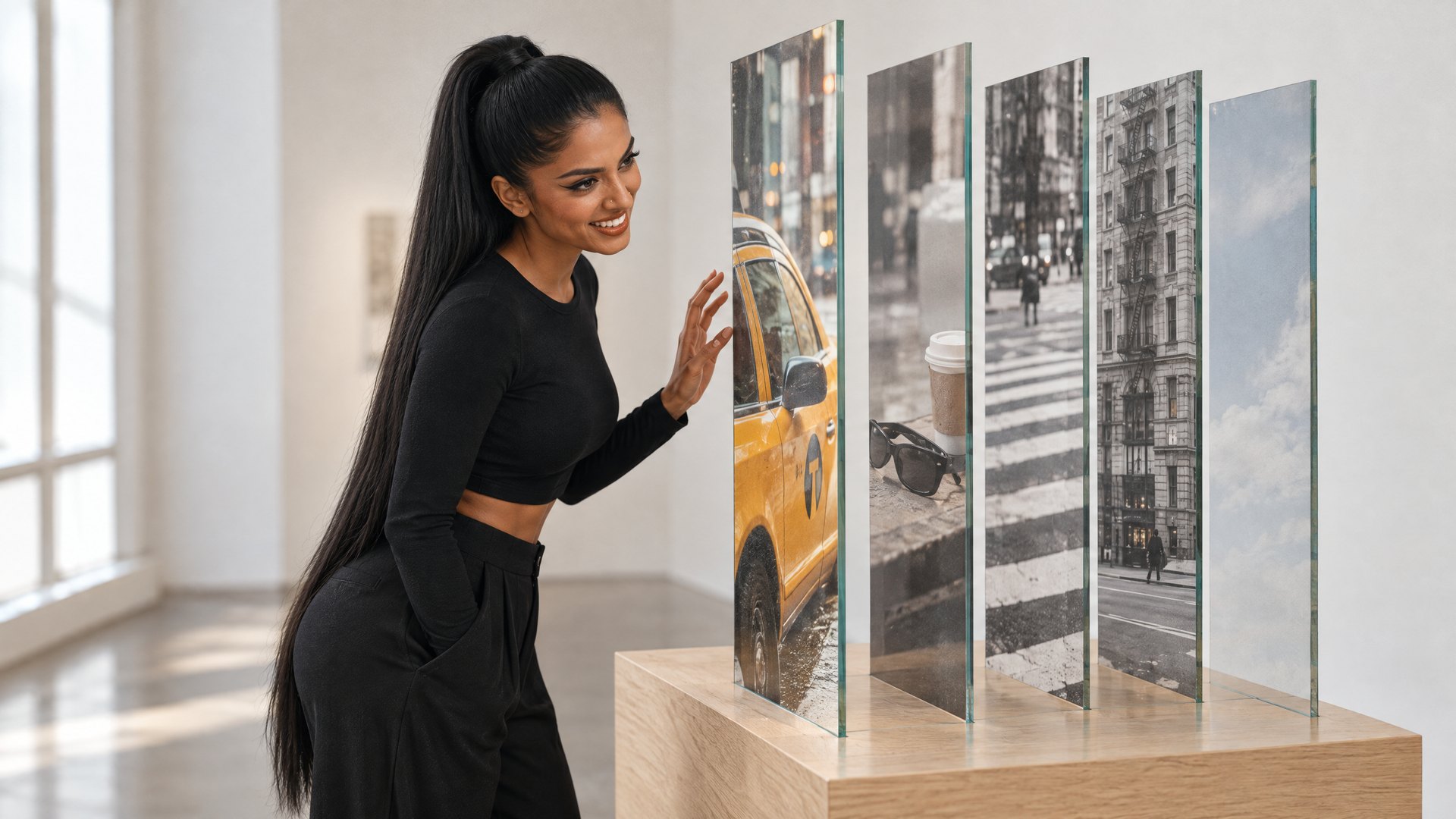
On this page
To separate an image into layers with AI, you give a model one flat picture and it hands back the picture's parts as separate transparent layers: each person, each object, each block of text, plus a background with the gaps painted in. In BudgetPixel's Design Studio the tool is called Decompose. We ran it 11 times on 10 real pictures, and every split below is what it returned, with nothing touched up.
What does it mean to separate an image into layers?
A JPG or PNG is flat: the person, the products and the headline are all one sheet of pixels. Layers are what a designer works with in a design file: each element on its own sheet, stacked, so you can move the headline without dragging the background along.
For years, separating a flat picture meant doing it by hand: select an object, cut it out, then paint over the hole it left. AI layer decomposition does all three steps for the whole picture at once. A model looks at the image, decides which things are separate, returns each one with a transparent background, and paints in what was behind them.
That's useful any time you have a finished picture but need a design: an AI image you want to turn into an ad, a poster whose headline needs to move, a product shot you want on a new background, or a photo you want to animate.
One photo, nine layers
We started with a street photo: Priya, one of BudgetPixel's AI influencers, leaping over a zebra crossing, with a yellow taxi behind her and a few things floating in the air. Decompose returned 9 layers, each one named by the model.
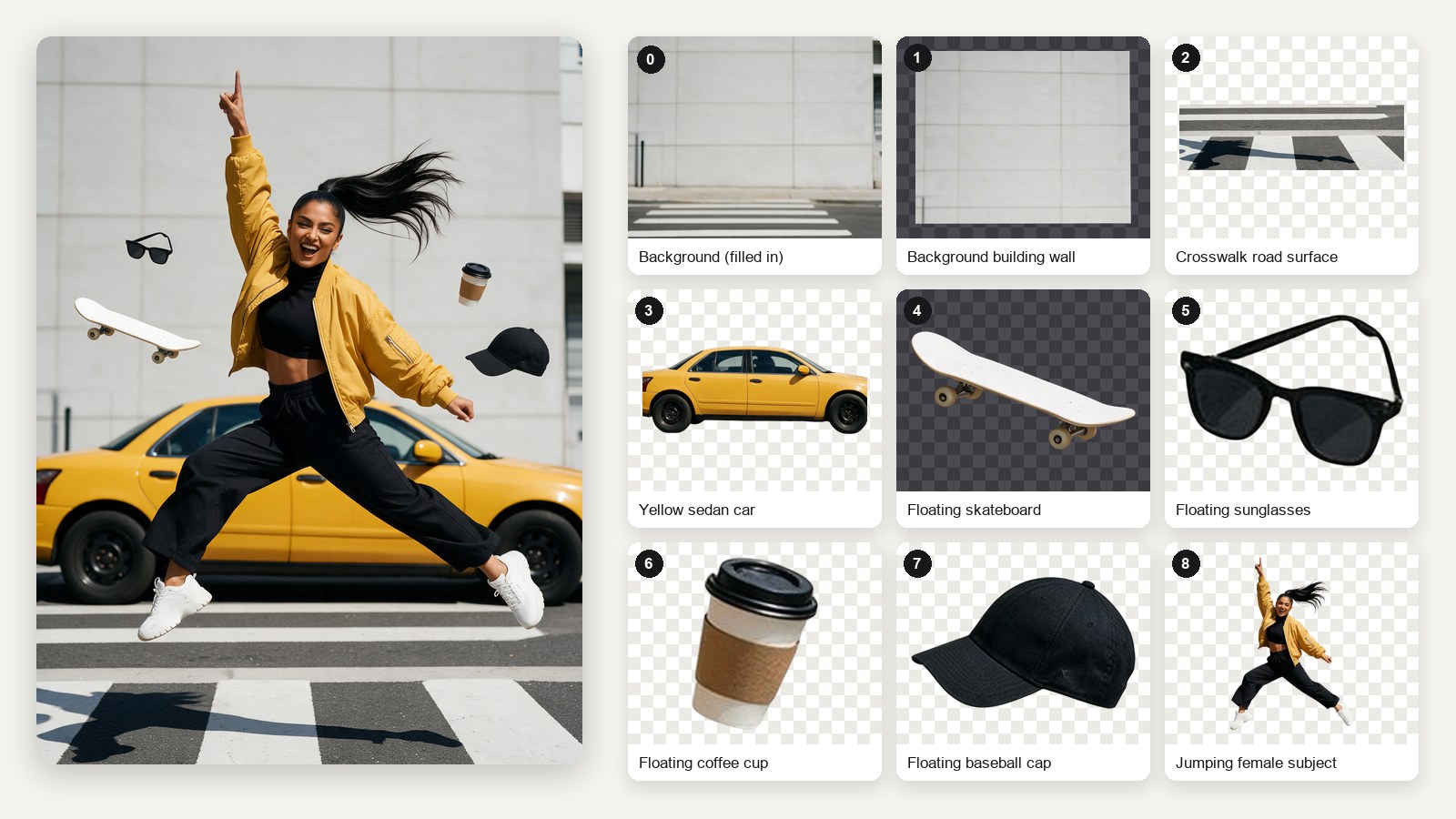
Three things stood out:
- Every floating object came out on its own, even the small sunglasses, with clean edges.
- The taxi came out whole, including the parts her legs had covered.
- The background came back empty, with the street and building painted in where she and the taxi had been. The wall and the road also came back as layers of their own, so you can swap the sky or the street later.
This split cost 495 credits, the maximum: 9 layers at 55 each.
Every piece in this film is a real layer
To show what layers make possible, we made a short film from five flat photos. Each scene starts as one photo, and on the beat its Decompose layers pop out of it: Priya jumps out of the frame, the props fly to the sides, and the photo behind becomes the background Decompose filled in.

Nothing in the film was cut out by hand. That's the practical promise of layers: once a picture comes apart, you can animate it, rearrange it or reuse any piece in another design.
Which kinds of pictures can you split?
We ran the same tool, with the same default settings, on four very different pictures: a cafe poster, a perfume product shot, a desk flat-lay and a flat illustration.
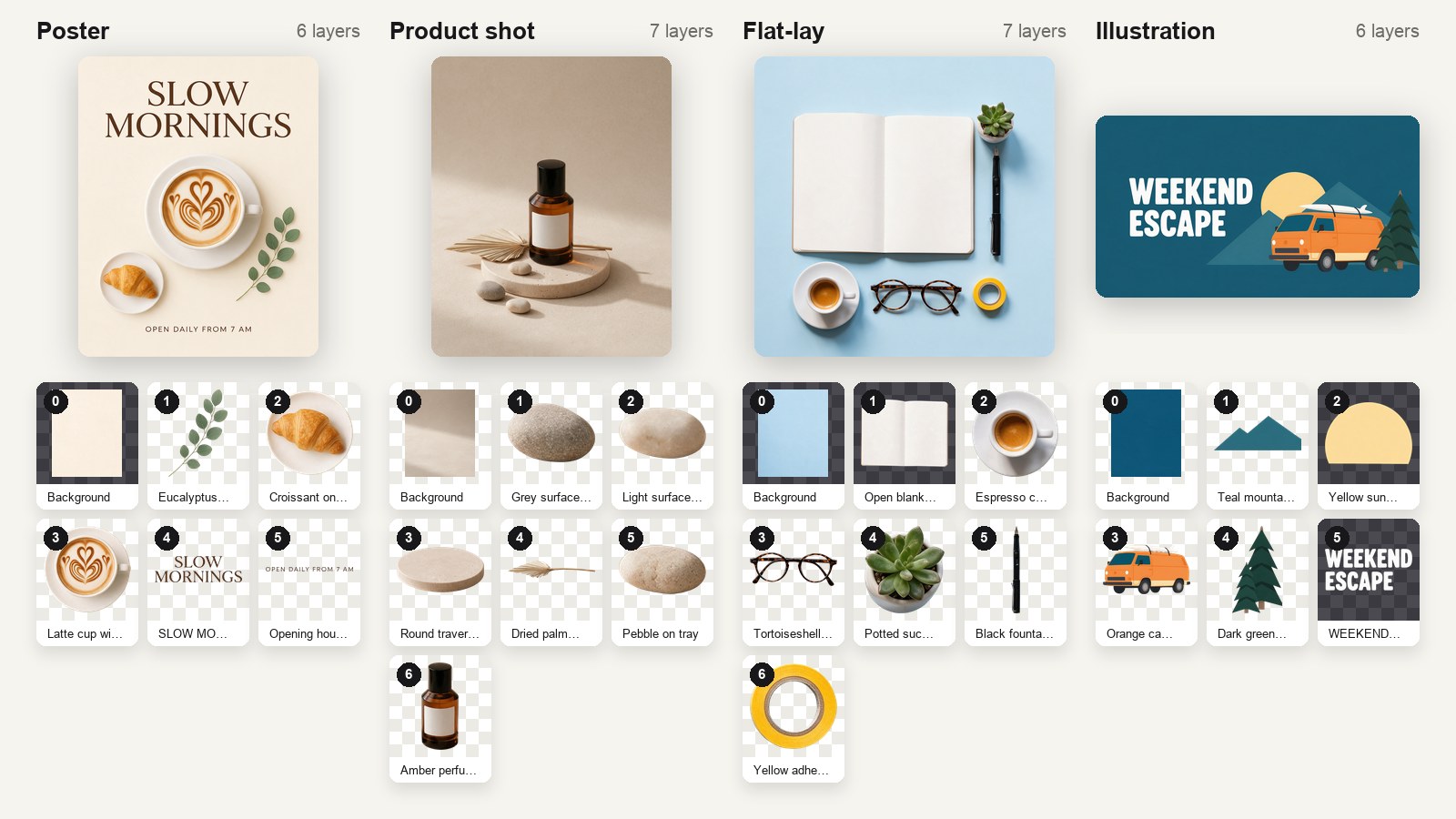
- Posters and graphics split the most cleanly. Each block of text came out as its own layer, and so did each sticker and illustration.
- Product shots came apart into the product and every prop around it, down to single pebbles. That's what you want for putting the product into a new scene.
- Flat-lays are easy for the model, because the objects don't overlap: all six desk objects came out separately.
- Illustrations split by shape: the mountains, the sun, the van and the trees each became a layer.
Photos of people work too. Across our six photos of Priya (a street, a dance studio, a poster, a rooftop, a pool and a basketball court), each came back as 7 to 9 layers, with her always a single clean layer.
What's behind the parts that come out?
This is the step that used to take the longest by hand. When Decompose lifts something out, it paints in the background behind it, so the bottom layer is a complete picture of the scene without the things on top.
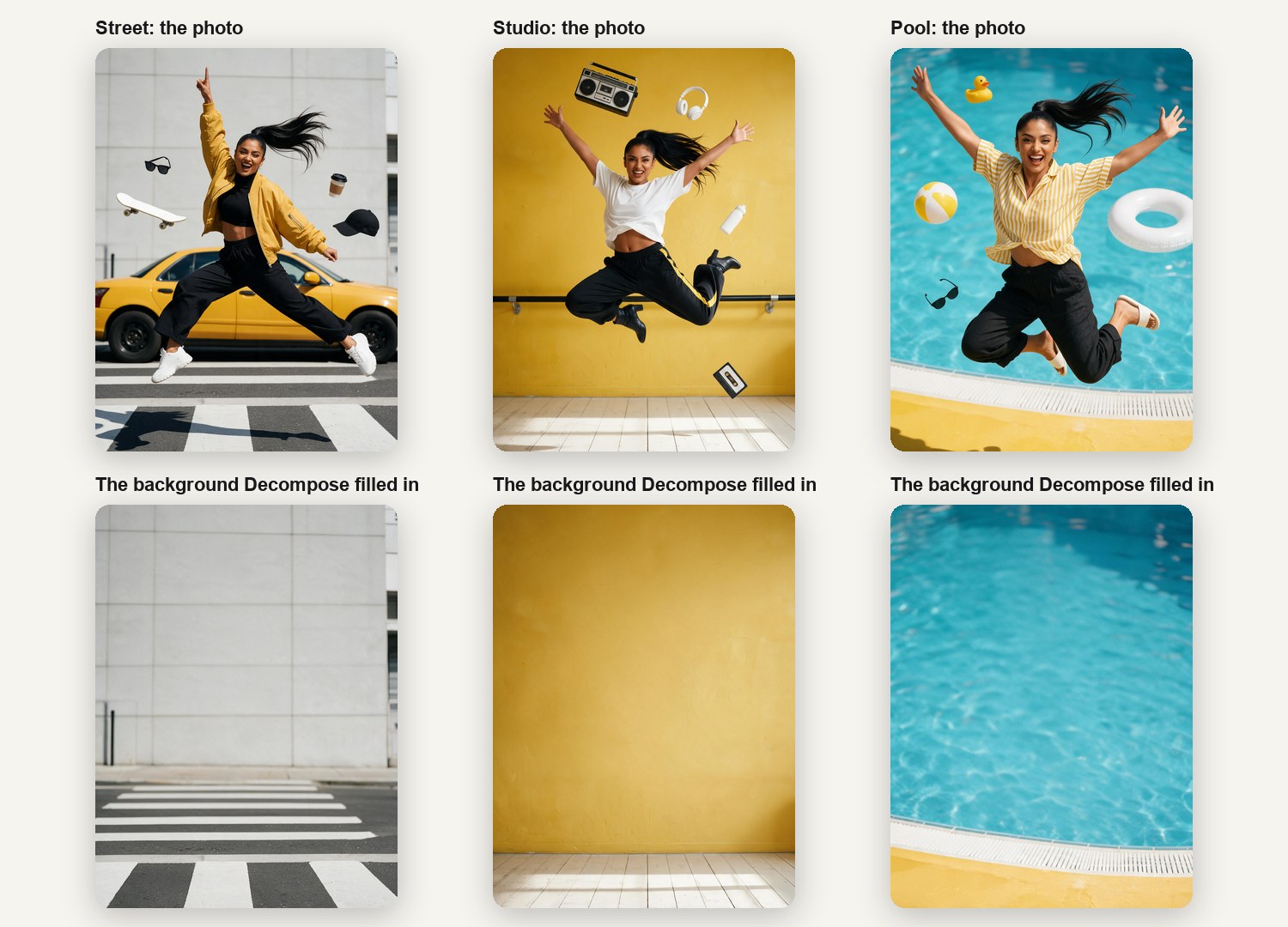
The filled-in areas aren't perfect copies of reality, because the model has to imagine what was hidden. But at normal viewing size they held up: the crossing stripes continue, the studio floor boards line up, and the pool water has no ghost of her shape.
What happens to the text?
Every block of text in our pictures came back as its own layer: the HEELS UP headline, the date under it, the cafe's SLOW MORNINGS headline, its opening hours, and the WEEKEND ESCAPE title on the illustration.
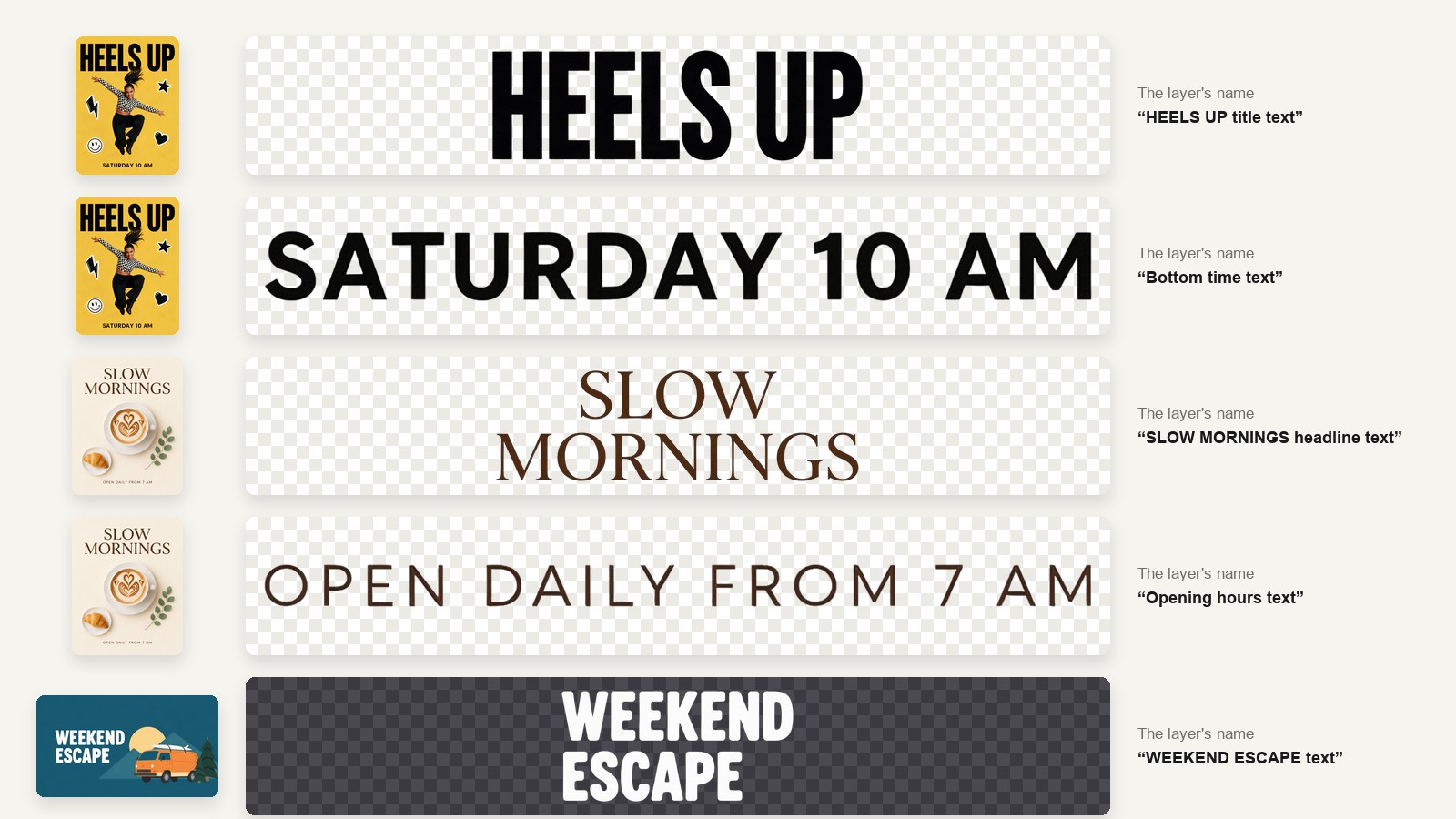
There's one catch: each text layer is a picture of the text, not live text you can type into. You can move it, resize it, recolor it with an edit or delete it. If you need to change the words, ask Design Studio's AI designer to replace that layer with live text in a matching font. In an earlier test it got the words right on the first request and needed one follow-up to match the colors.
How to separate just one thing
You don't always want every layer. When the Decompose menu opens, there's an optional field called Separate only. Type what you want, and you get that one thing plus the background with it removed.
We typed "the latte cup" on the cafe poster:
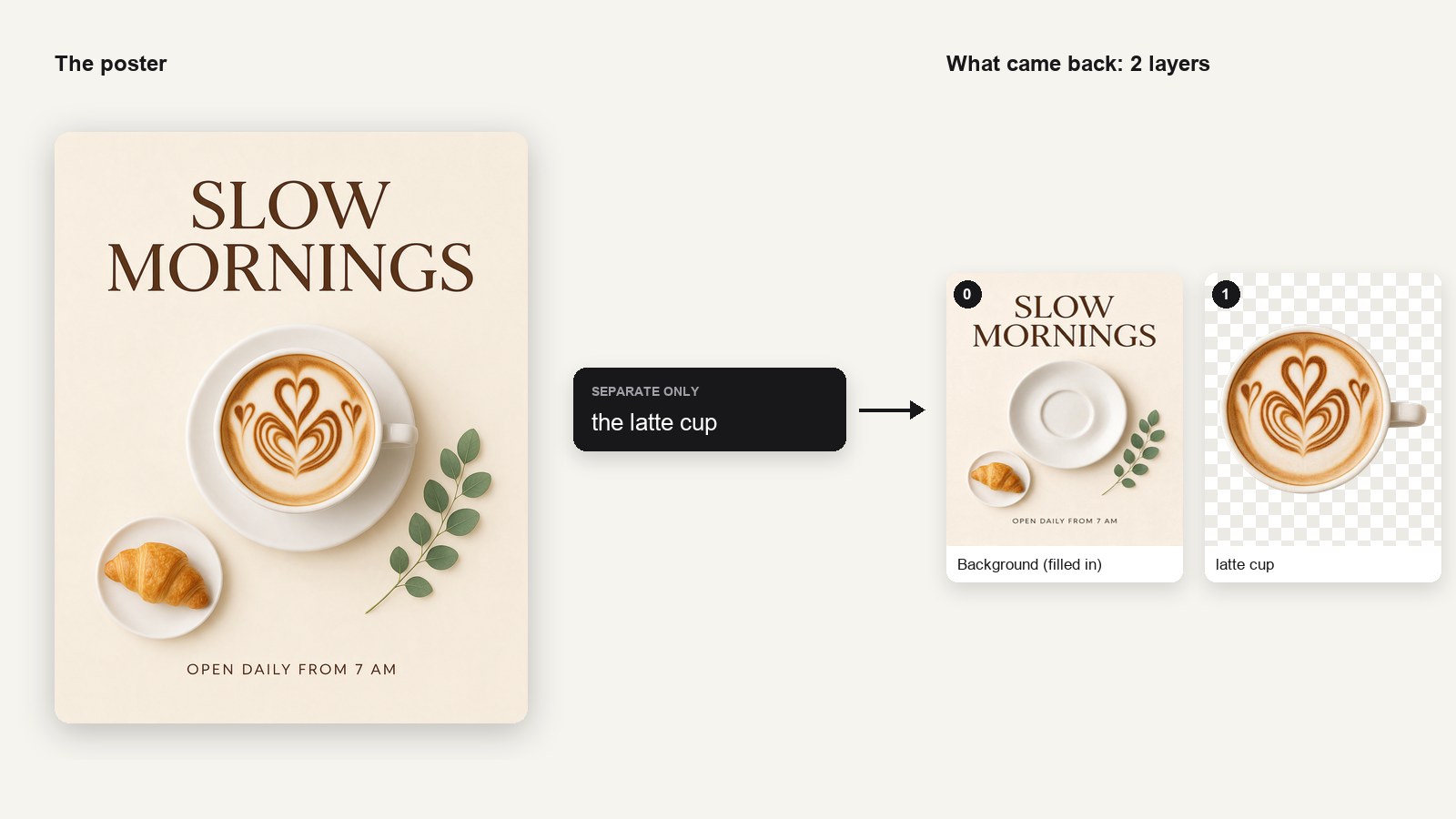
It lifted the cup and left the saucer in place, which is exactly what we asked for, and it cost 110 credits for the 2 layers instead of 330 for a full split.
How to separate an image into layers in Design Studio
Design Studio works on a computer with a mouse or trackpad.
- Open Design Studio and start a project.
- Put your picture on the canvas: upload it, drag it in, or make one with the image tools.
- Click the picture to select it, then click Decompose in the toolbar above it.
- Optional: type what to pull out in Separate only, for example "the coffee cup". Leave it empty to split everything.
- Click Decompose. It takes about a minute.
- The layers appear next to the original, each one named. Move, resize, hide or delete them like any other layer, or download a layer as a transparent PNG.
You can also ask the AI designer in the chat, for example "split this picture into layers", and it will run Decompose for you. The designer chat itself is free up to a daily limit; the split costs its usual credits.
What does it cost?
Decompose charges 55 credits for each layer that comes back, the background included, and never more than 495 credits for one split. Here's what our tests cost:
| What we split | Layers | Credits |
|---|---|---|
| Just the latte cup | 2 | 110 |
| Cafe poster, illustration | 6 | 330 |
| Product shot, flat-lay, 3 of the photos | 7 | 385 |
| HEELS UP poster, pool photo | 8 | 440 |
| Street photo | 9 | 495 |
At the credit-pack rate of 1,000 credits per US$1, a full split costs between about US$0.33 and US$0.50. Decompose works on every plan, but it holds up to 495 credits while it runs, so you need that much on hand to start.
Where does it slip?
Decompose did well on all 10 pictures, but we saw its limits too:
- Some background parts come back as extra layers. The street's wall and road, and the pool's water, each came back as a separate layer on top of the full background. That's handy for editing, but it means there's more than one background to manage.
- The model decides what counts as background. In the dance studio, the ballet barre came back as its own layer, so the filled-in background has no barre. If you want it there, keep the barre layer in place.
- Soft shadows don't come along. A lifted object loses the shadow it cast, so it can look a little flat on a new background.
- Hidden parts are guesses. Anything that was behind something else has to be invented, and on one earlier test a sun came out cut flat where a mountain had covered it.
- Results vary from run to run. On an earlier poster, the first run left a faint plate in the background and the second came out clean. If a split looks off, run it again.
- Size is capped. Pictures are worked at up to about 2.3 megapixels, so a portrait photo's layers come back around 1,300 × 1,750 pixels.
How do other tools compare?
Most image editors can cut out one subject or remove a background. Far fewer split a whole picture into all its parts at once. Here's where the tools people ask about stood when we checked their own pages on October 31, 2026:
| Tool | What it does with one flat picture | Price (regular, US) |
|---|---|---|
| BudgetPixel Decompose | Splits it into a filled-in background and up to 8 transparent layers on a design canvas; text comes back as picture layers | 55 credits a layer (about US$0.06), up to 495 |
| Canva Magic Layers | Turns it into an editable Canva design: text, objects and background become separate elements, and text stays live; still a beta, first in four countries | One Premium AI use; Canva Pro US$18/mo or US$144/yr |
| Picsart Image to layers | Separates it into parts you can move in its web editor; its own page says separated text is not editable type | A Picsart plan; Pro is US$126/yr |
| Lovart Edit Elements | Breaks it into subjects, background and text, with editable text and PSD export | Credits per use |
| Figma | No full split: Isolate object lifts one object into a new image layer, and Erase and Remove background clean up the rest | Full seat US$20/mo, or US$16/mo billed yearly |
| Adobe Photoshop | No automatic split: Remove Background masks the main subject, and you fill the hole yourself with Generative Fill | US$22.99/mo on an annual plan |
| Adobe Express | Removes the background behind one subject | Free with daily limits; Premium US$9.99/mo |
| Photopea | Subject selection and background removal; you build the layers by hand | Free with ads |
| Microsoft Designer | Background removal and object cutouts | Free for personal use |
| Qwen-Image-Layered | An open model that outputs transparent layers; for developers, best at small sizes | Free open weights; you run it |
A few things the table can't show:
- Canva is the closest match, and it's ahead on text. Magic Layers gives you live text you can retype; Decompose gives you a picture of the text and leaves the retyping to the AI designer. But Canva's own description says photographs convert poorly, it doesn't say whether it fills the background behind what it lifts, and it's still rolling out. We compared the two in detail in Canva Magic Layers vs Decompose.
- Photoshop and Figma do it one piece at a time. Each can lift a subject cleanly, and Photoshop can fill the hole, but you repeat that for every object. In April 2026 an Adobe community manager confirmed Photoshop has no automatic layer breakdown; Adobe announced "layered editing" for Firefly in October 2025, but we couldn't find a release.
- Other AI apps split pictures too. OpenArt's Extract Layers uses the same Seedream 5.0 Pro model and hands you 2 to 16 transparent PNGs to download. Ideogram's Layerize Text, a beta, makes the lettering in a picture editable and rebuilds the background under it, but leaves the rest of the picture alone.
- Decompose's difference is where the layers land. They appear on a design canvas, named, next to the original, so you can move them, resize them, ask the AI designer to change one, and download the finished design. It doesn't export a PSD file; each layer downloads as a transparent PNG.
So which should you use? If you need the words in a flat graphic to be retypeable, and Magic Layers is available to you, Canva or Lovart will get you there faster. If you want every object as a clean layer with the background filled in, including in photos, Decompose does that in one click. If you already work in Photoshop or Figma, you can get the same result there by hand, one object at a time.
When is it worth using?
- Turning an AI image into a real design. Generate the picture you want, then split it so the headline, product and background can be edited separately.
- Reusing a product photo. Lift the product off its old scene and put it on a new one, without cutting it out by hand.
- Animating a still. Layers are what motion graphics are made of: our film above is five photos and their layers.
- Fixing one element. Pull out the one thing that's wrong, change it, and keep the rest.
When the picture is a busy photo where everything overlaps, like a crowd, a cluttered room or a close-up where hands cover the object, expect a few layers you'll need to tidy or run again.
How we tested
Every split in this post ran through Design Studio's Decompose, as any user gets it: Seedream 5.0 Pro, default settings, one run per picture, no instructions except the "Separate only" test. The six photos of Priya were made on BudgetPixel with Seedream 5.0 Pro in October 2026; the cafe poster, product shot, flat-lay and illustration were made with the same model in October 2026. We used every layer exactly as it came back: the figures only crop each layer to its own pixels and scale it to fit. Credits are the amounts actually charged.
Sources
Other tools' features and prices come from their own pages, seen October 31, 2026, unless noted:
- Canva: the Magic Layers launch release (March 11, 2026), the Magic Layers and Grab Text help pages, Canva's own description of the Magic Layers tool in its Claude connector, and a pricing tracker's capture of October 30, 2026 (canva.com blocked our checks, so the prices are medium confidence).
- Picsart: the Image to layers page and the pricing page.
- Lovart: the Advanced AI editing docs and the changelog (PSD export, March 29, 2026).
- Figma: the AI image tools help article, the December 10, 2025 image-editing announcement, and the pricing page.
- Adobe: the Photoshop Remove Background, Generative Fill and plans pages; the Adobe Community answer of April 23, 2026; TechCrunch on Firefly Image 5 (October 28, 2025); the Adobe Express pricing and Remove Background pages.
- Photopea, Microsoft Designer (Microsoft Support FAQ), Qwen-Image-Layered (its GitHub page), OpenArt (its guide to splitting an image into layers) and Ideogram (the Layerize Text page).
- BudgetPixel: Design Studio and pricing.
Questions people ask
How do I separate an image into layers with AI?
Put the picture on a Design Studio canvas, select it and click Decompose in the toolbar. About a minute later the background and up to 8 transparent layers, such as each person, each object and each block of text, appear beside the original, already named.
Can AI split a JPG or PNG into layers?
Yes. A model trained for layer decomposition finds the separate things in a flat picture, returns each as its own transparent layer, and paints in the background behind them. BudgetPixel's Decompose returns a background plus up to 8 layers from any picture you put on the canvas.
What happens to the background behind the parts that come out?
The model fills it in. In our tests the background came back with the person, the taxi and the props gone and the street, wall and pool painted in where they had been.
Does the text come back as editable text?
Each block of text comes back as its own layer, but as a picture of the text, not live text. To retype it, ask Design Studio's AI designer to replace that layer with live text.
How much does it cost to split an image into layers?
55 credits for each layer that comes back, the background included: a 2-layer split is 110 credits and a full 9-layer split is 495, or about US$0.11 to US$0.50 at the credit-pack rate. You need up to 495 credits on hand while it runs.
Can I separate just one object from a picture?
Yes. Type it into the Separate only field before you click Decompose, for example the coffee cup. You get that one object as a layer plus the background with it removed, and pay for 2 layers.
Which pictures separate best?
Pictures where things stand apart: posters, product shots, flat-lays, illustrations and photos where objects don't overlap much. Parts hidden behind something, soft shadows and things the model reads as part of the scene come out less cleanly.
Try it yourself
55 credits for each layer that comes back, background included. Works on a computer.