Canva Magic Layers vs BudgetPixel Decompose: Turn a Flat Image Into Layers
Canva Magic Layers turns a flat PNG or JPG into an editable Canva design, with text restored as live text. It launched in March 2026 as a beta in the US, UK, Canada and Australia, and each use counts toward Canva's monthly AI allowance. BudgetPixel's Decompose does the same job for 55 credits a layer: we split an AI-made café poster into six layers in 78 seconds, then had the AI designer retype the headline as live text.
 By BudgetPixel Team8 min readFacts verified
On this page
Canva's Magic Layers and BudgetPixel's Decompose solve the same problem: you have a flat picture, maybe a poster an AI image generator made or an old flyer exported as a PNG, and you want to change one thing without starting over. Here's what Magic Layers does according to Canva, and what happened when we decomposed a real AI-made poster on BudgetPixel.
What is Canva Magic Layers?
Magic Layers is a Canva AI feature that turns a flat image into a design you can edit. Canva says it separates the text, the objects and the background while keeping the layout, and that it restores text as live, editable text boxes. In practice it's built for AI images: Canva has connected it to its own image tools and, since mid-2026, to its apps inside ChatGPT and Gemini, so a picture made there can be opened as layers.
Canva announced Magic Layers on March 11, 2026, as a public beta in the US, UK, Canada and Australia, with global availability to follow. In June 2026 Canva said it was available to all users of its ChatGPT and Gemini apps, but its Magic Layers page still calls it a beta, so if you can't find it in Canva, your account may not have it yet.
According to Canva's help center, it takes single-page PNG or JPG files, up to 5,000 pixels on the longest side. It doesn't take PDFs, vector files or multi-page files, and it works best on graphics: Canva warns that photo-realistic images may not separate as cleanly.
How do you use Magic Layers in Canva?
Canva's help center describes two ways in:
- From Canva's home page, choose Magic Layers and upload a PNG or JPG; or, in the editor, select an image and choose Edit, then Magic Layers.
- Wait while Canva separates the image into layers.
- Edit the pieces like any Canva design: retype the text, move or delete objects, change the background.
There's also a "Split into layers" option in Canva's Chrome extension. Magic Layers is different from Magic Grab, which lifts a single object out of a photo: Magic Layers breaks down the whole image at once.
Is Canva Magic Layers free?
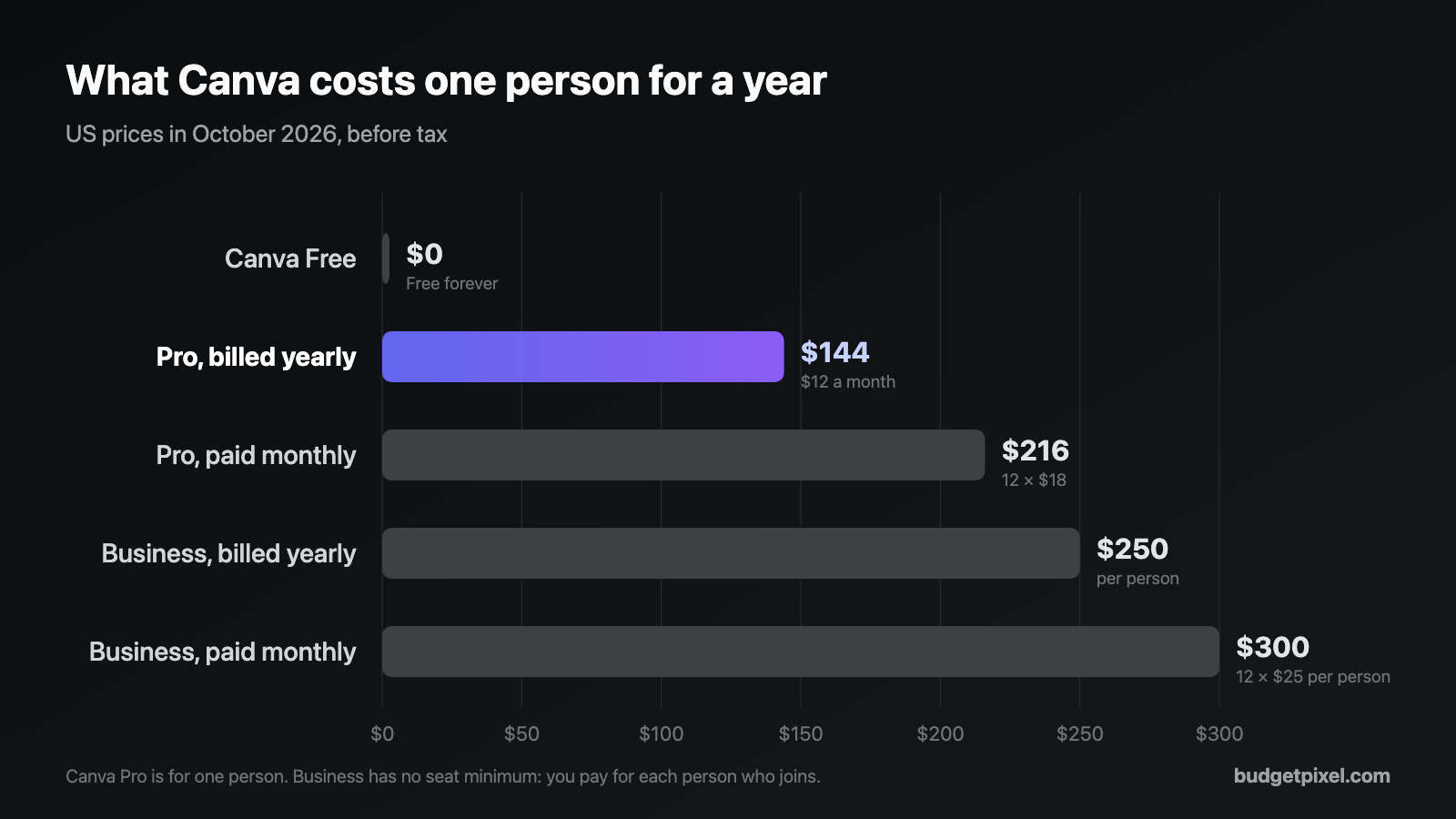
Free accounts can use Magic Layers, but it's a Premium AI tool, so each use counts toward your monthly AI allowance. That's up to 20 AI uses a month on Canva Free and up to 200 Premium uses on Canva Pro, which costs US$144 a year (see our Canva Pro price guide). Early reviews disagreed about which plans could use it, so check inside your own account.
What is BudgetPixel's Decompose?
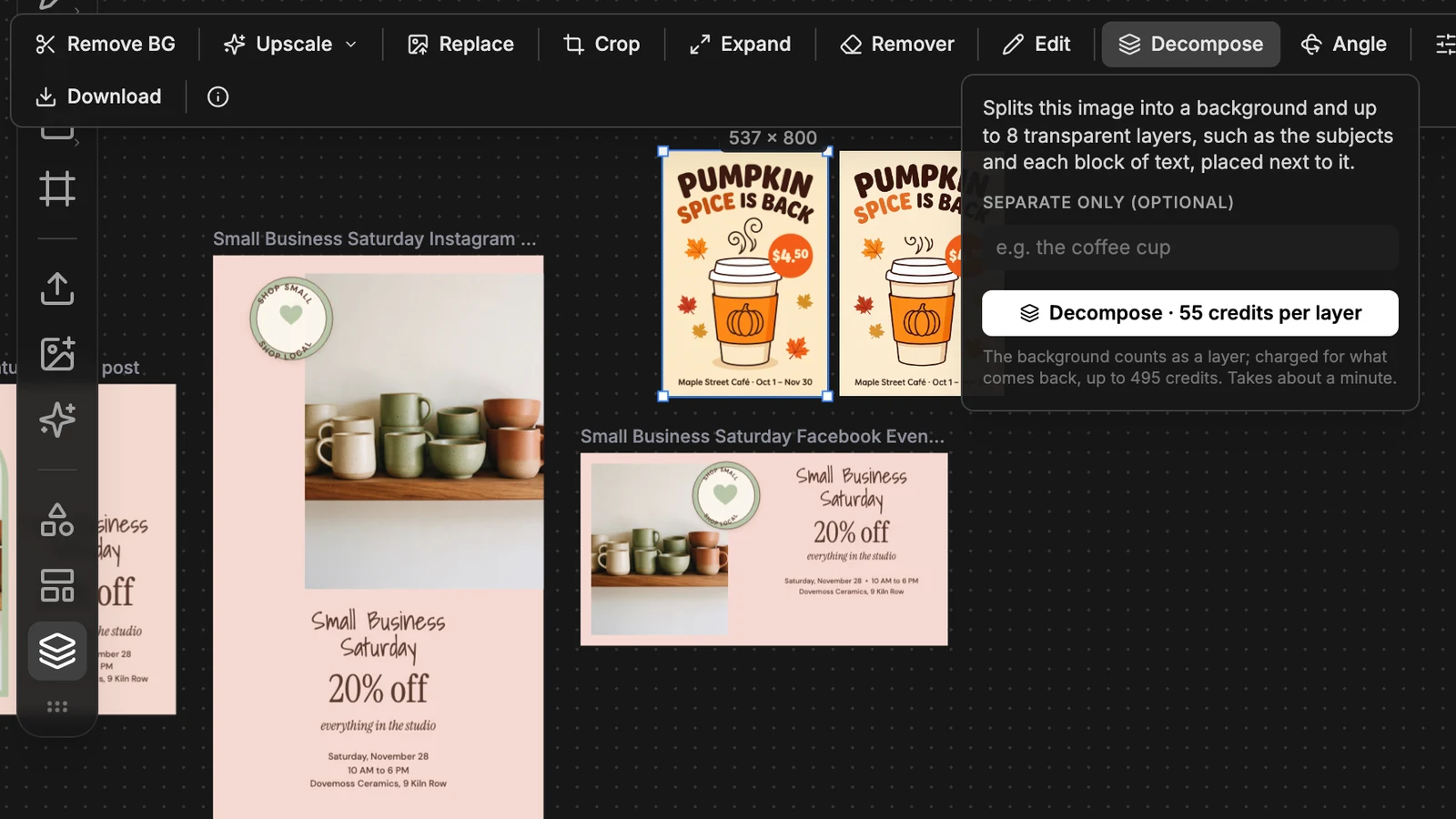
Decompose is BudgetPixel's version, built into Design Studio. Select any picture on the canvas and press Decompose: it splits the picture into a background and up to 8 transparent layers, such as the subjects and each block of text, and places them next to the original, each with a name. You can also tell it to separate only one thing, like "the coffee cup".
It costs 55 credits for each layer that comes back, the background included: our test poster cost 330 credits, or US$0.33 at the credit-pack rate. Decompose works on every plan, but it holds up to 495 credits while it runs, so you need that many on hand: more than the free plan's 300 a month.
We tested Decompose on an AI-made poster
To make the test realistic, we started with the kind of file people actually have: a flat poster from an AI image generator, with its text drawn into the picture. We asked Nano Banana 2.1 for a coffee-shop poster ("PUMPKIN SPICE IS BACK", a takeaway cup, maple leaves, a US$4.50 price badge), uploaded it to Design Studio and pressed Decompose with no instructions.
A little over a minute later, six named layers sat next to the original: the background, the maple leaves, the coffee cup, the headline, the bottom line of text and the price badge.
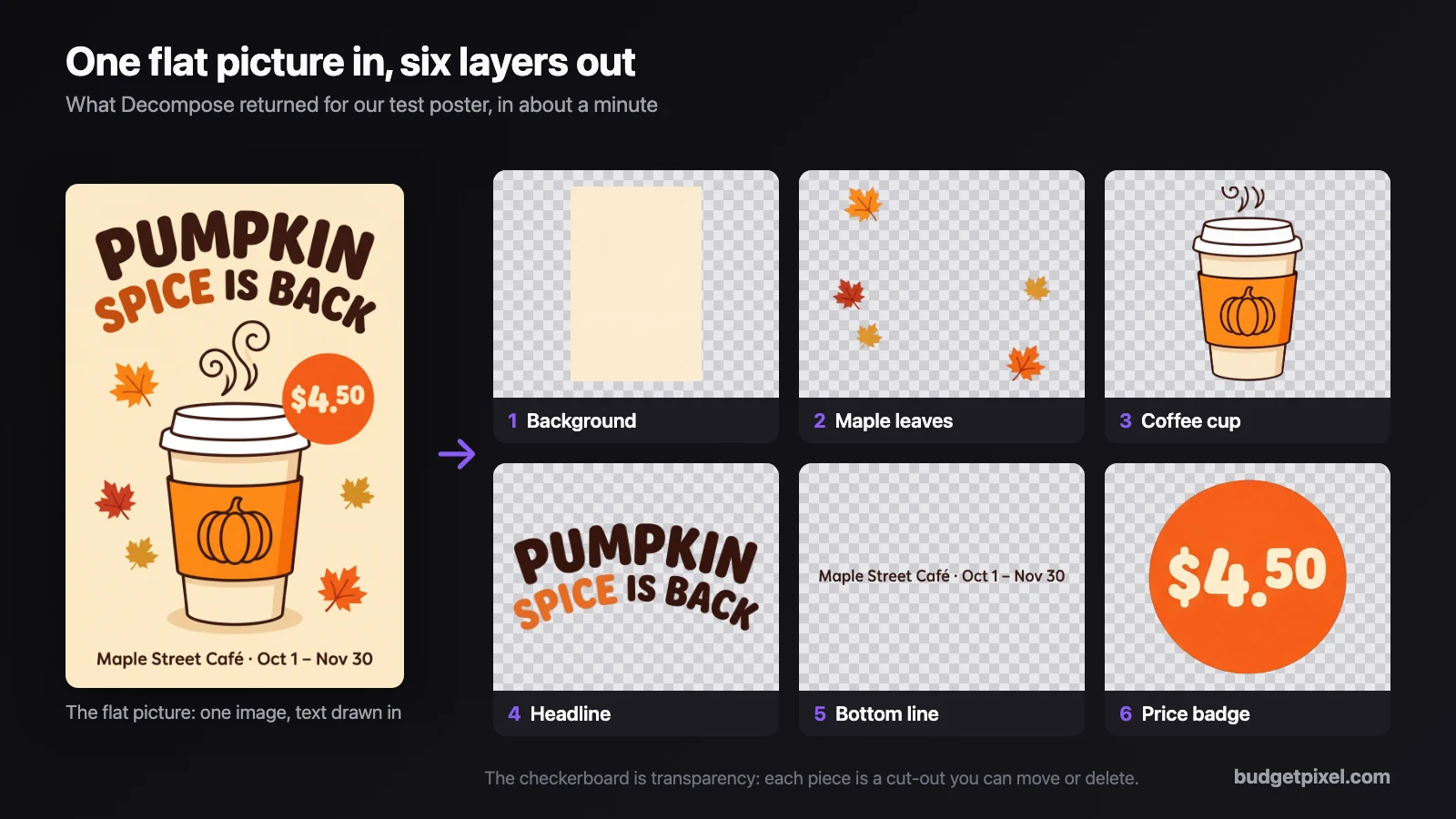
The video at the top of this page shows those six layers in Design Studio's 3D view (right-click a piece and choose See layers in 3D). Pointing at a layer lights it and names it, so you can check what came apart before you edit anything.
Two things weren't perfect, and they're worth knowing:
- Soft shadows can disappear. The cup's pale shadow wasn't in any layer.
- Pieces are redrawn, not cut out pixel for pixel. The cup's steam came back slightly different, and where one piece covers another, the model fills in what was behind it.
Decompose can return different pieces each time you run it. If a background keeps a ghost of a piece, run it again or ask for only the part you need.
How do you decompose an image on BudgetPixel?
- Open budgetpixel.com/design on a computer and start a project.
- Upload your picture, or generate one in the editor.
- Select it and press Decompose in the toolbar above it.
- Optionally, type what to separate, such as "the price badge". Leave it empty to split the whole picture.
- Press Decompose · 55 credits per layer and wait a minute or two.
- The layers appear beside the original, named and ready to move, resize, recolour or delete.
You can also ask the AI designer in the chat to decompose a picture, and it can edit the pieces for you afterwards.
What about the text?
This is the biggest difference. Canva says Magic Layers restores text as live text boxes. Decompose returns each block of text as its own picture layer: you can move it, resize it or delete it, but not retype it.
The AI designer closes most of that gap. We asked it to "replace the 'Headline Text' picture layer with real, editable text that looks the same". It added the headline as live text in our closest font, checked the canvas, and enlarged it. The first version was a single colour on three lines, so we followed up: "two lines, with SPICE in the same orange as the original". That fixed it:

The result is editable, but it isn't identical: the original's arched, hand-drawn lettering became straight text in a regular font. For a price or a date that's fine; for a stylised title, you may prefer to keep the picture layer and only move it.
Magic Layers vs Decompose, side by side
| Canva Magic Layers | BudgetPixel Decompose | |
|---|---|---|
| What it returns | An editable Canva design | Background plus up to 8 transparent layers |
| Text | Live, editable text boxes | Picture layers; the AI designer can retype them |
| Input | Single-page PNG or JPG, up to 5,000 px | Any picture on the canvas, worked at up to about 2.3 megapixels |
| Split only one thing | Not mentioned in Canva's help | Yes, type what to separate |
| Price | One AI use from your monthly allowance | 55 credits a layer, up to 495 |
| Free plan | Within Free's 20 AI uses a month | Every plan, but needs 495 credits on hand |
| Where | Canva home page, editor, Chrome, ChatGPT and Gemini apps | Design Studio, on a computer |
| Availability | Beta since March 2026, first in the US, UK, Canada and Australia | Everywhere BudgetPixel works |
Which one should you use?
Use Canva Magic Layers if you work in Canva, have it in your account, and mostly need to retype text: live text out of the box is its biggest strength.
Use BudgetPixel Decompose if you want to pull a picture apart and rebuild it with AI: split it, look at the pieces in 3D, separate one object on its own, then ask the AI designer to swap, retype or rearrange. It's also the option if Magic Layers isn't in your Canva account.
Either way, start with a flat graphic. Both tools are better at posters, flyers and social graphics than at photographs.
How we tested
- When: October 26, 2026, on BudgetPixel's Design Studio, with one poster made by Nano Banana 2.1 at 2K and one Decompose run with no instructions (6 layers, 330 credits). Decompose runs on ByteDance's Seedream 5.0 Pro.
- Live text: two requests to the AI designer, about 2.5 minutes in total.
- Canva: Magic Layers facts come from Canva's newsroom and help center. We didn't test Magic Layers inside a Canva account.
Sources
Questions people ask
What is Canva Magic Layers?
An AI feature that turns a flat image, such as a PNG from an AI image generator, into an editable Canva design. Canva separates the text, objects and background and keeps the layout, and text comes back as live text you can retype.
Is Canva Magic Layers free?
Free accounts can use it, but each use counts toward Canva's monthly AI allowance: up to 20 AI uses a month on Free, and up to 200 Premium uses on Pro. So a free account can try it a few times a month.
Why can't I find Magic Layers in Canva?
It launched on March 11, 2026 as a public beta in the US, UK, Canada and Australia, and Canva's Magic Layers page still calls it a beta, so it may not be on every account yet. Where it is available, it's on Canva's home page and under Edit in the editor.
What images work best with Magic Layers?
Flat graphics such as posters, flyers and social posts. Canva's help center says it takes single-page PNG or JPG files up to 5,000 pixels on the longest side, and that photo-realistic images may not separate as cleanly.
Is there an alternative to Canva Magic Layers?
Yes. BudgetPixel's Decompose, in Design Studio, splits a picture into a background and up to 8 transparent layers for 55 credits each. It runs on every plan, but needs up to 495 credits on hand while it works.
Does Decompose make text editable?
Not by itself: each block of text comes back as its own picture layer, which you can move, resize or delete. To retype it, ask the AI designer to replace that layer with live text; in our test it took one request and one follow-up to match the colours.
How long does Decompose take?
About a minute or two; our test poster took 78 seconds. The layers appear on the canvas next to the original picture, already named, so you can see what came apart.
Can I decompose a Canva design on BudgetPixel?
Yes, as a picture. Download the design from Canva as a PNG or JPG, upload it to Design Studio and press Decompose. You get layers, not an editable Canva file.
See for yourself
55 credits per layer returned, background included, up to 495.