How to Add B-Roll to a Talking Video With AI
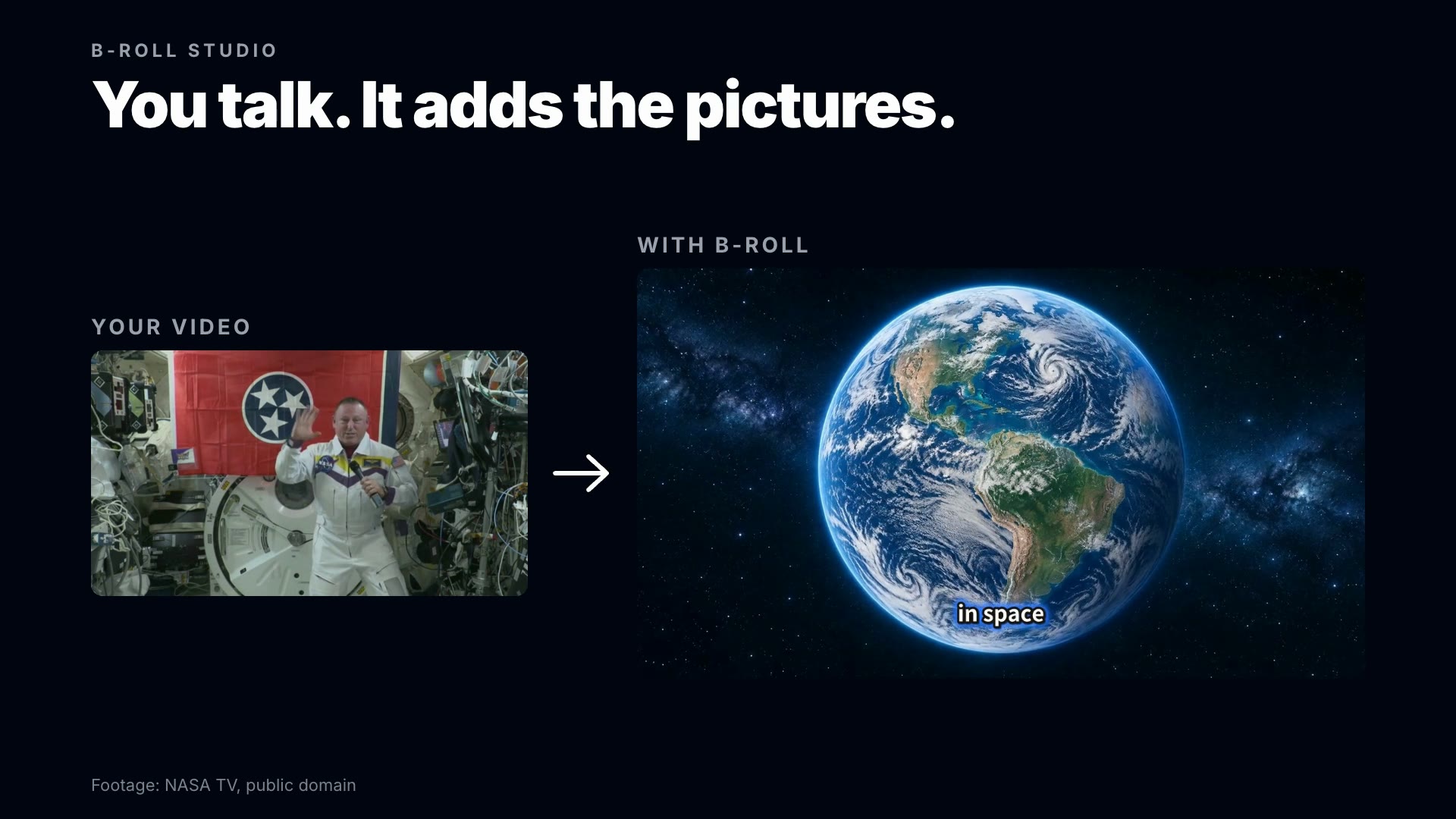
B-roll is the footage that cuts away from a person talking to show what they are talking about. To add it with AI, give BudgetPixel's B-Roll studio your talking video: it reads every line, decides which ones to show and which to keep on you, makes the pictures in one look, uses your own clips first, and finishes the cut with captions, zoom cuts and sound.
 By BudgetPixel Team8 min readFacts verified
On this page
B-roll is what the viewer sees while someone keeps talking: the beach they are describing, the chart behind the number, the hands doing the thing. Added well, it keeps a talking video moving and makes it easier to follow. This guide explains what B-roll is, which lines deserve it, where the pictures can come from, and how to add it with AI in BudgetPixel's B-Roll studio, with the result and the cost of our own test.
What is B-roll?
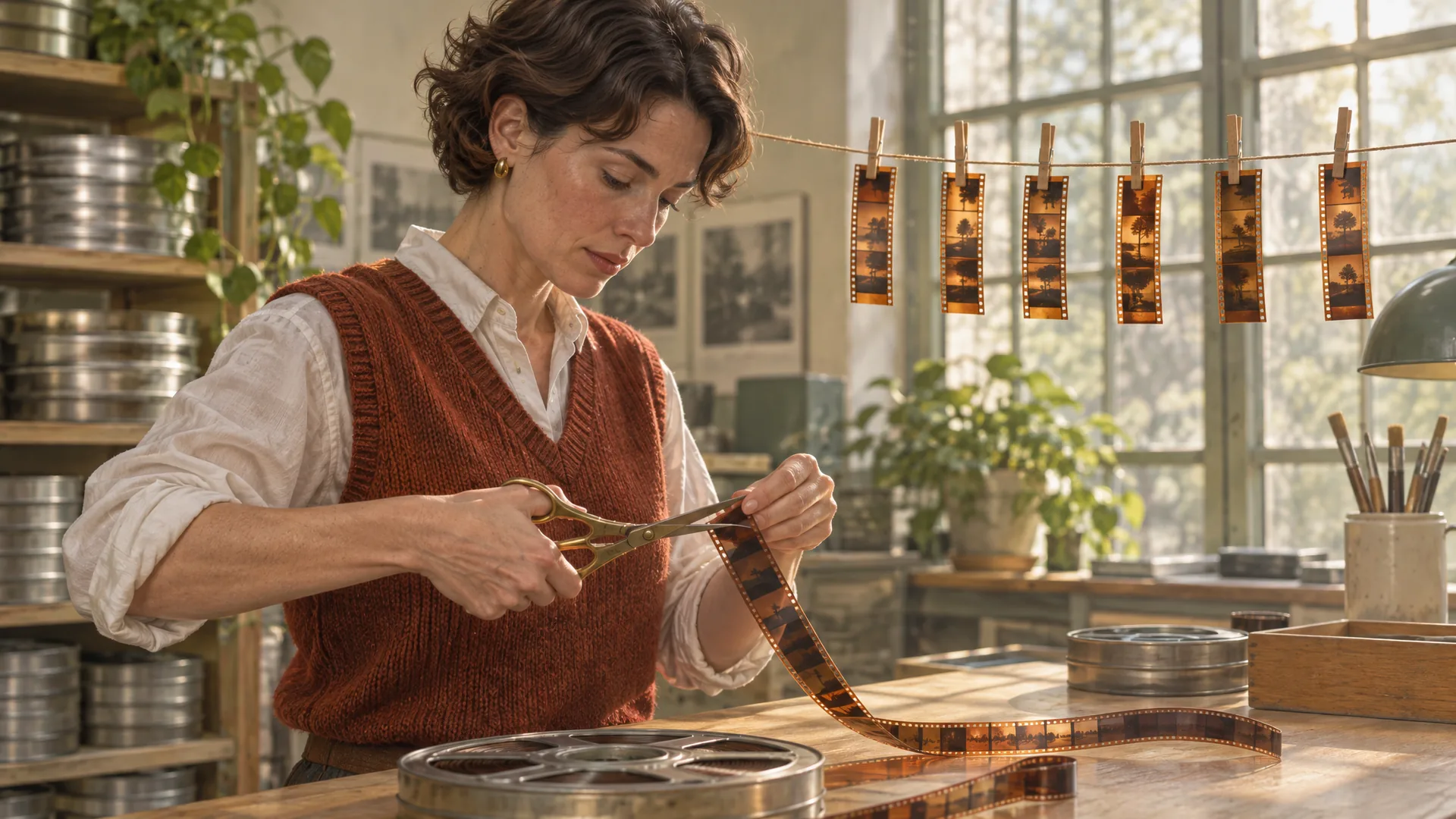
In a talking video, the main shot (the person speaking, the interview, the narration) is the A-roll. B-roll is everything you cut away to while that voice keeps going: a shot of the place, the product, a map, a diagram, a close-up of hands at work. The names go back to film editing, when the main footage and the cutaway footage were cut on two separate reels, an A-roll and a B-roll.
B-roll does three jobs:
- It shows what words can only describe. "The beaches are gorgeous" lands harder over the beach.
- It explains. A number becomes a chart, a route becomes a map, a process becomes a diagram.
- It hides cuts. Laid over a jump cut, a picture turns a visible edit into a smooth one.
The common kinds are cutaways (the thing being talked about), inserts (a close detail), establishing shots (where we are) and graphics such as maps, charts and labelled diagrams.
Which lines should get B-roll?
Not every line needs a picture. A useful test is to ask what each line is doing:
| The line is... | Show something? | What to show |
|---|---|---|
| Naming a thing, a place or a person | Yes | The thing itself, the place, a photo of the person |
| Giving a number or a comparison | Yes | The number large on screen, or a chart |
| Describing a process or a relationship | Yes | A labelled diagram |
| Giving an everyday example | Yes | A real-looking scene of it |
| An opinion, a joke or a question to the viewer | Often not | The speaker: the face carries it |
Three more rules make the difference between B-roll that helps and B-roll that distracts:
- Hold the picture for the whole idea. A picture that flashes past on one word reads as noise.
- Keep one look. Pictures in one style feel designed; a mix of stock clips, screenshots and AI art feels collected.
- Leave the face where it matters. A joke, a confession or a strong opinion lands on the speaker, not on a picture.
Where B-roll comes from
| Source | Good for | Watch out for |
|---|---|---|
| Your own footage | Your product, your place, your hands at work | It takes planning to shoot |
| Stock footage | Generic places and actions | It looks generic; check the license |
| Real photos (public domain or Creative Commons) | Real people, places and events | Give the credit the license asks for |
| Maps, charts and diagrams | Routes, numbers and processes | They have to be accurate |
| AI-generated pictures and moving shots | Anything nobody filmed, in one consistent look | Check each one against its line |
How to add B-roll to a talking video with AI, step by step
Here is the process in BudgetPixel's B-Roll studio, part of Clip Studio.
- Bring the talking video, from 5 seconds to 30 minutes long, and your own pictures or clips if you have them. The editor uses yours first wherever they show what is being said.
- Pick a look and an amount. The looks are Auto, Cinematic, Documentary, Illustrated and Clean diagrams. The amounts are Light (pictures only where they clearly help), Balanced (about a third of the video) and Rich (a picture-led edit). The price of each amount shows before you start.
- Let it plan. It reads every line with its timing and decides whether to show something or stay on you: a definition gets the thing itself, a relationship gets a labelled diagram, an everyday example gets a lifelike scene. You can ask to see the plan before any pictures are made.
- It makes the pictures. They come in one consistent look for the whole video, the longer ones become moving shots, and each picture is checked against its line before it goes in.
- It finishes the cut with word captions (skipped when your video already has its own), zoom cuts on the talking parts and a soft whoosh into each picture. Each of the three can be switched off.
- Change anything. The script works as a storyboard: try another picture with a note, make one move or stay still, edit a label, or keep a line on you, then update the video.
Our test: a 70-second travel tip
We gave the studio a real talking video: 70 seconds from Travel Light Mel's video of tips for the Camino de Santiago, shared under a Creative Commons Attribution license, in which she says to keep a few extra days for Finisterre at the end of the walk. We chose the Rich amount.
Of her 11 spoken lines, the studio showed something on 7 and stayed on her for 4:
- Her opening line about the beaches at the end of the walk got a map of the route from Santiago de Compostela to Finisterre.
- "Gorgeous", and the line about what you will see when you look Finisterre up, got a photo of its coast.
- "Walking all across the mainland of Spain" got a second map.
- "Walking all the way from France and then jumping into the ocean" got a generated moving shot of a man jumping off the rocks into the sea.
- The two lines where she looks back ("what I wish I would have known") stayed on her, with a zoom cut.
- Her advice to keep a couple of extra days got a sunset over the coast.
Here is the part with the second map and the moving shot, with her own sound:
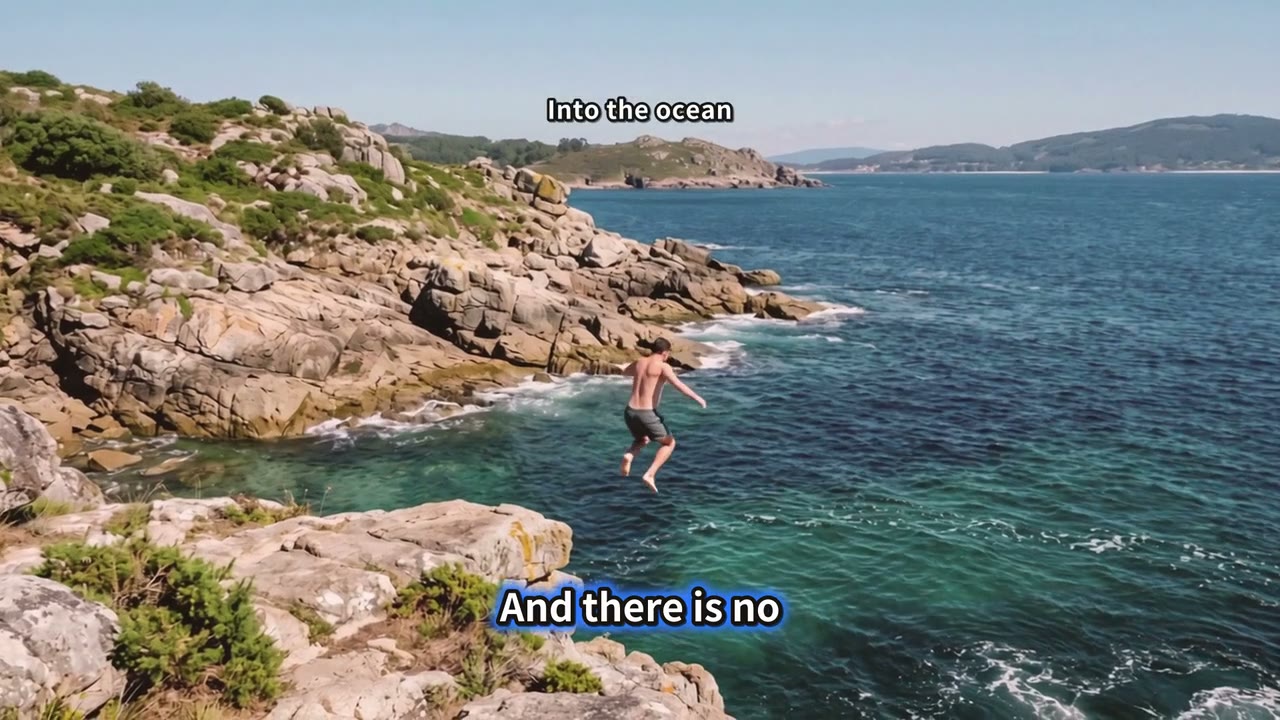
Talking video: Travel Light Mel, under the Creative Commons Attribution license. What we changed: B-roll, captions and zoom cuts added by BudgetPixel's B-Roll studio.
The run cost the 60-credit fee (70 seconds is one started 5-minute block) and 2,120 credits of pictures. Balanced and Light make fewer pictures and cost less; the studio shows all three prices before you start.
How much does it cost?
The B-Roll studio charges 60 credits for every started 5 minutes of your video, plus the pictures and moving shots it makes. Before you start, it prices each amount (Light, Balanced and Rich) for your video, so you choose how much to spend.
| Video length | Fee |
|---|---|
| Up to 5 minutes | 60 credits |
| 10 minutes | 120 credits |
| 30 minutes (the longest it takes) | 360 credits |
New accounts get 10 free studio runs, no card needed, on videos up to 30 minutes long. On a free run we pay for the pictures, moving ones included, and the finished video downloads as a 720p copy with a small "Made with BudgetPixel" mark. Full quality comes with a plan, and Clip Studio is included in Premium and above, on the same subscription as the rest of BudgetPixel.
Tips for better B-roll
- Bring your own material. Real footage of your product or place beats any picture made for you, and the studio uses it first.
- Choose the amount by the video. A tutorial with many concrete steps suits Rich; an opinion piece or a story told to camera suits Light.
- Pick the look on purpose. Documentary for real places and people, Clean diagrams for how-to and explainer videos, Cinematic for travel and stories.
- Credit what you borrow. A Creative Commons Attribution license asks for the creator's name, a link and a note of what you changed, as in our test above.
- Check every picture against its line. In the storyboard, remake a picture with a note, or drop it and keep the line on you.
Doing it by hand
In a regular editor: put the talking video on the first track, read through the transcript and mark the lines worth showing, find or shoot a clip for each one, lay it on a second track above the speaker so the voice keeps playing, then add captions and sound. It works, and it is how editors have always done it, but most of the hours go into finding a picture that matches each line. An AI B-roll generator does that first pass in minutes and leaves you the choices.
Going further
- Want Shorts from the finished video? Shorts cuts it into captioned vertical clips; see how to turn a long video into Shorts.
- Not on camera at all? Explainer makes a faceless video from a script or a voice-over, and our faceless YouTube channel guide shows how we run a channel on it.
Questions people ask
What is B-roll?
B-roll is footage that cuts away from the main shot, usually a person talking, to show what they are talking about: the place, the product, the process or the number. The main shot is called A-roll, and its sound keeps playing under the B-roll.
What is the difference between A-roll and B-roll?
A-roll carries the story: the presenter, the interview or the narration. B-roll supports it: pictures and clips laid over the A-roll's sound to show, explain or cover a cut.
Can AI add B-roll to a video automatically?
Yes. BudgetPixel's B-Roll studio reads every line of a talking video, decides which lines to show and which to keep on the speaker, makes or places the pictures, and finishes the cut with captions, zoom cuts and sound. Every picture can be changed afterwards.
How much B-roll should a video have?
Enough to show what is being said, not so much that the speaker disappears. The B-Roll studio's middle setting, Balanced, covers about a third of the video; Light adds pictures only where they clearly help, and Rich makes a picture-led edit.
Can I use my own footage as B-roll?
Yes. Add your own images and clips with the talking video, and the editor uses them first wherever they show what is being said. It makes pictures only for the rest.
Where can I get B-roll for free?
Film it yourself, use public-domain footage, or use Creative Commons footage with the credit its license asks for. In BudgetPixel's B-Roll studio, new accounts get 10 free runs, and we pay for the pictures a free run makes.
How much does it cost to add B-roll with AI?
60 credits for every started 5 minutes of video, plus the pictures and moving shots it makes, priced for each amount before you start. Our 70-second test at the Rich setting used the 60-credit fee and 2,120 credits of pictures.
Is the B-Roll studio free to try?
Yes. New accounts get 10 free studio runs, no card needed, on videos up to 30 minutes long, and we pay for the pictures a free run makes, moving ones included. The finished video downloads as a 720p copy with a small "Made with BudgetPixel" mark; full quality comes with a plan.
Does it add captions?
Yes. Word captions are on by default and skipped automatically when your video already has its own. Captions, zoom cuts and sound can each be switched off.
How long can the talking video be?
From 5 seconds to 30 minutes.
Try it yourself
New accounts get 10 free runs, no card needed.